How to Collect Logs for Absolute
Oversigt: Learn step-by-step instructions to collect logs for Absolute running on a Windows operating system by following these instructions.
Denne artikel gælder for
Denne artikel gælder ikke for
Denne artikel er ikke knyttet til et bestemt produkt.
Det er ikke alle produktversioner, der er identificeret i denne artikel.
Instruktioner
This article describes how to collect logs for Absolute. It is highly recommended to collect logs for Absolute before troubleshooting or contacting Dell Data Security ProSupport. For more information, reference Dell Data Security International Support Phone Numbers.
Affected Products:
- Absolute
Affected Operating Systems:
- Windows
Install Logs and Agent Logs may be manually captured when troubleshooting Absolute. Select the appropriate section below for the steps to gather logs.
Install Logs
- Right-click the Windows start menu and then click Run.

- In the Run UI, type
%temp%and then click OK. Note:
Note:%temp%is the Windows variable forC:\Users\<USERNAME>\AppData\Local\Temp. - Capture the MSI logs named
MSIXXXXX.LOG. Note: The
XXXXXis randomly generated letters and numbers.
Agent Logs
- Right-click the Windows start menu and then click Run.
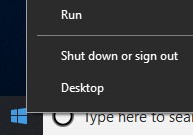
- In the Run UI, type
%programdata%\ctesand then click OK. Note:
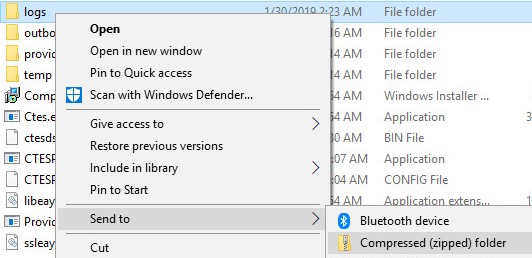
Note:%programdata%is the Windows variable for theprogramdatadirectory. - Right-click the logs folder, select Send to, and then click Compressed (zipped) folder.
To contact support, reference Dell Data Security International Support Phone Numbers.
Go to TechDirect to generate a technical support request online.
For additional insights and resources, join the Dell Security Community Forum.
Berørte produkter
AbsoluteArtikelegenskaber
Artikelnummer: 000129351
Artikeltype: How To
Senest ændret: 16 sep. 2025
Version: 9
Find svar på dine spørgsmål fra andre Dell-brugere
Supportservices
Kontrollér, om din enhed er dækket af supportservices.