How to Uninstall Absolute
Oversigt: Follow these step-by-step instructions to learn how to uninstall Absolute.
Denne artikel gælder for
Denne artikel gælder ikke for
Denne artikel er ikke knyttet til et bestemt produkt.
Det er ikke alle produktversioner, der er identificeret i denne artikel.
Instruktioner
Absolute may require uninstallation from an endpoint to:
- Fix licensing discrepancies.
- Troubleshoot the product.
- Address operating system incompatibility.
Affected Products:
- Absolute
Affected Operating Systems:
- Windows
A removal request must be submitted to uninstall the Absolute agent from an endpoint.
- Open a web browser and go to https://cc.absolute.com
.
- Populate the email address used to access the web portal and then click Next.
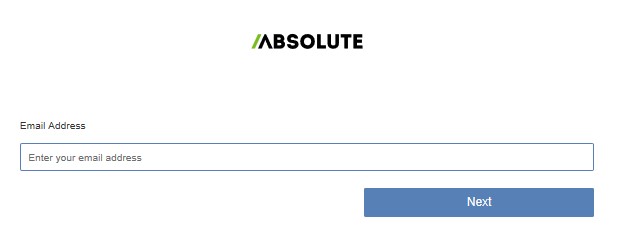
- Log In to the web portal.

- In the left menu, select the Find Devices icon.

- Click Active Devices.
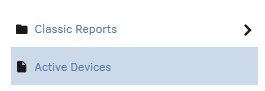
- Search for the endpoint.

- Check the endpoint to unenroll.
 Note: The example endpoint will differ in your environment.
 - Click Device Action and then select Unenroll Device.
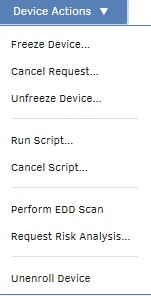
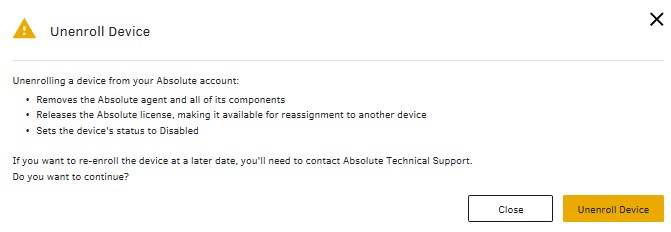
- Click Unenroll Device.
To contact support, reference Dell Data Security International Support Phone Numbers.
Go to TechDirect to generate a technical support request online.
For additional insights and resources, join the Dell Security Community Forum.
Berørte produkter
AbsoluteArtikelegenskaber
Artikelnummer: 000131245
Artikeltype: How To
Senest ændret: 11 sep. 2025
Version: 9
Find svar på dine spørgsmål fra andre Dell-brugere
Supportservices
Kontrollér, om din enhed er dækket af supportservices.