Anleitung zum Entschlüsseln externer Datenträger, die von Dell Data Security/Dell Data Protection verwaltet werden
Zusammenfassung: In dieser Anleitung erfahren Sie, wie Sie die Dell Data Security- und Dell Data Protection-Software entschlüsseln, die zur Verwaltung externer Mediengeräte verwendet wird, indem Sie diese Anweisungen befolgen. ...
Dieser Artikel gilt für
Dieser Artikel gilt nicht für
Dieser Artikel ist nicht an ein bestimmtes Produkt gebunden.
In diesem Artikel werden nicht alle Produktversionen aufgeführt.
Weisungen
Es ist wichtig, geschützte externe Mediengeräte zu entschlüsseln, die von Dell Data Security (ehemals Dell Data Protection) verwaltet werden, bevor Sie die Software deinstallieren.
Betroffene Produkte:
- Dell Encryption Enterprise
- Dell Encryption Enterprise für Mac
- Dell Encryption Personal
- Dell Encryption External Media
- Dell Data Protection | Enterprise Edition
- Dell Data Protection | Enterprise Edition für Mac
- Dell Data Protection | Personal Edition
- Dell Data Protection | External Media Edition
Betroffene Versionen:
- v8.0 oder höher
Betroffene Betriebssysteme:
- Windows
- Mac
Der Prozess zum Entschlüsseln externer Datenträger hängt davon ab, wie die Verschlüsselung verwaltet wird. Klicken Sie auf die Registerkarte Zentral verwaltet oder Lokal verwaltet für entsprechende Schritte.
Zentral verwaltet
Der Prozess zum Entschlüsseln zentral verwalteter externer Medien variiert je nachdem, welche Version des Dell Data Security-Servers (ehemals Dell Data Protection) die Verschlüsselung verwaltet. Wählen Sie entweder v9.2.0 und höher oder v8.0.0 bis 9.1.0 aus, um die Schritte zum Entschlüsseln geschützter externer Mediengeräte auszuführen. Weitere Informationen finden Sie unter Ermitteln der Dell Encryption Enterprise- oder Dell Encryption Personal-Version.
v9.2.0 oder höher
- Navigieren Sie in einem Webbrowser zur Dell Data Security-Verwaltungskonsole unter https://< SERVERNAME.><UNTERNEHMEN>.com:8443/webui.
Hinweis:
- <SERVERNAME> = Der DNS-Name des Dell Data Security Servers in Ihrer Umgebung
- <UNTERNEHMEN> = Der Domänenname des Unternehmens in Ihrer Umgebung
- Der Port, 8443, kann sich vom Verwaltungskonsolenport in Ihrer Umgebung unterscheiden.
- Melden Sie sich an bei der Dell Data Security Verwaltungskonsole.
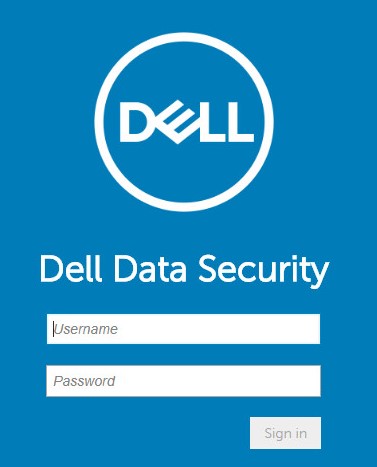
- Wenn Sie ein geschütztes externes Mediengerät entschlüsseln von einem:
- Windows-Endpunkt, fahren Sie mit Schritt 4 fort.
- Mac-Endpunkt, fahren Sie mit Schritt 8 fort.
- Erweitern Sie im linken Menübereich die Registerkarte Belegungen und klicken Sie dann auf Nutzer.
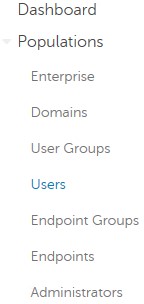
- Klicken Sie auf den Nutzernamen der NutzerInnen, für die ein Gerät entschlüsselt werden soll.
- Klicken Sie auf Windows-Medienverschlüsselung.
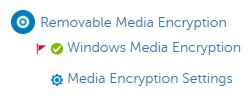
- Setzen Sie die Windows-Medienverschlüsselung auf Aus und klicken Sie dann auf Speichern. Fahren Sie mit Schritt 13 fort.
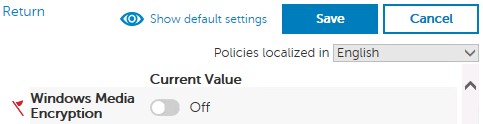 Wenn das geschützte externe Datenträgergerät auf der Allowlist ist, muss es auch aus der Allowlist-Richtlinie für EMS-Geräte entfernt werden.
 - Erweitern Sie im linken Menübereich die Registerkarte Belegungen und klicken Sie dann auf Endpunkte.
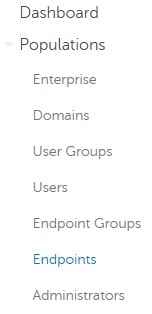
- Klicken Sie auf den Endpunkt zum Entschlüsseln.
- Klicken Sie auf Sicherheitsrichtlinien.

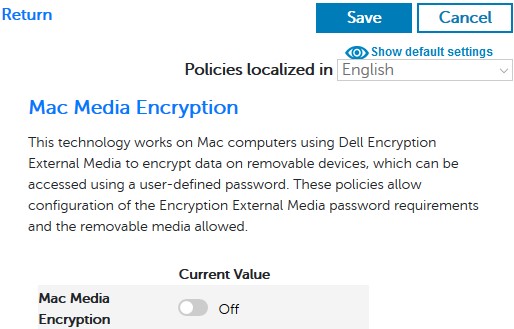
- Klicken Sie auf Mac-Medienverschlüsselung.

- Setzen Sie die Mac-Medienverschlüsselung auf Aus und klicken Sie dann auf Speichern.
 Wenn das geschützte externe Datenträgergerät auf der Allowlist ist, muss es auch aus der Allowlist-Richtlinie für EMS-Geräte entfernt werden.
 - Bestätigen Sie die Richtlinienänderung.
Weitere Informationen über das Festlegen von Richtlinien finden Sie unter Festlegen von Richtlinien für Dell Data Security/Dell Data Protection Server.
- Überprüfen Sie am Endpunkt auf Richtlinienaktualisierungen.
Weitere Informationen zur Überprüfung auf Richtlinienaktualisierungen finden Sie unter Überprüfen von Richtlinienaktualisierungen für Dell Data Security/Dell Datensicherheit.
- Nachdem die Richtlinienaktualisierung empfangen wurde, legen Sie das geschützte externe Mediengerät ein und warten Sie, bis der Entschlüsselungsvorgang abgeschlossen ist.
WSScan kann verwendet werden, um zu bestätigen, dass die Entschlüsselung abgeschlossen ist. Weitere Informationen finden Sie unter How to Use WSScan for Dell Data Security (Anleitung zur Verwendung von WSScan für Dell Data Security).
Version 1.6.0 bis 9.1.0
- Navigieren Sie im Windows Explorer zu
C:\Program Files\Dell\Enterprise Edition\Console\und doppelklicken Sie dannCredant.Console.exe.

- Übermitteln Sie die Anmeldeinformationen, um sich bei der Managementkonsole anzumelden.

- Wenn Sie ein geschütztes externes Mediengerät entschlüsseln von einem:
- Windows-Endpunkt, fahren Sie mit Schritt 4 fort.
- Mac-Endpunkt, fahren Sie mit Schritt 8 fort.
- Klicken Sie im linken Menübereich auf Nutzer.
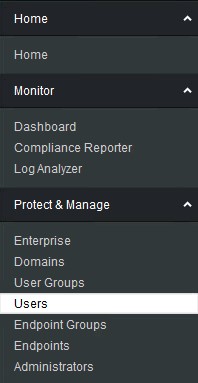
- Suchen Sie die NutzerInnen, für die ein Gerät entschlüsselt werden muss, und klicken Sie dann auf das Symbol für Policys.

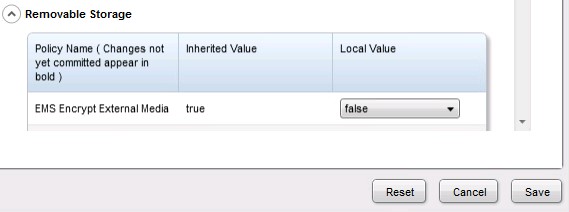
- Klicken Sie auf Wechseldatenträger.
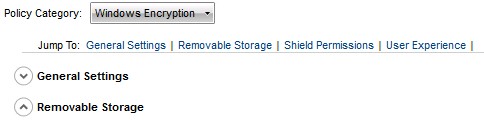
- Stellen Sie EMS Encrypt External Media auf false um und klicken Sie dann auf Speichern. Fahren Sie mit Schritt 12 fort.
 Wenn das geschützte externe Datenträgergerät auf der Allowlist ist, muss es auch aus der Allowlist-Richtlinie für EMS-Geräte entfernt werden.
 - Klicken Sie im linken Menübereich auf Endpunkte.
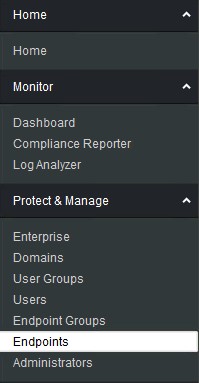
- Suchen Sie den zu entschlüsselnden Endpunkt und klicken Sie dann auf das Symbol für Details.

- Klicken Sie auf Sicherheitsrichtlinien.

- Aus den Sicherheitsrichtlinien:
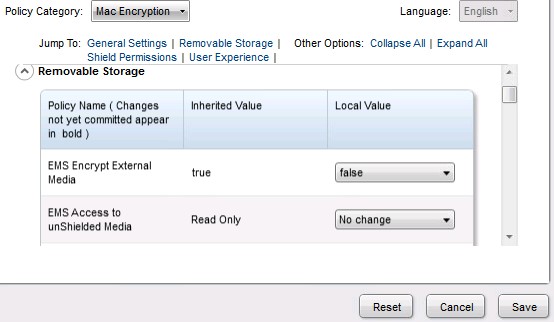
- Legen Sie die Richtlinienkategorie auf Mac-Verschlüsselung fest.
- Klicken Sie zum Erweitern auf Wechseldatenträger.
- Verwenden Sie die Spalte „Lokaler Wert“, um die Richtlinie „EMS Encrypt External Media“ auf false festzulegen.
- Klicken Sie auf Speichern.
 Wenn das geschützte externe Datenträgergerät auf der Allowlist ist, muss es auch aus der Allowlist-Richtlinie für EMS-Geräte entfernt werden.
 - Bestätigen Sie die Richtlinienänderung.
Weitere Informationen über das Festlegen von Richtlinien finden Sie unter Festlegen von Richtlinien für Dell Data Security/Dell Data Protection Server.
- Überprüfen Sie am Endpunkt auf Richtlinienaktualisierungen.
Weitere Informationen zur Überprüfung auf Richtlinienaktualisierungen finden Sie unter Überprüfen von Richtlinienaktualisierungen für Dell Data Security/Dell Datensicherheit.
- Nachdem die Richtlinienaktualisierung empfangen wurde, legen Sie das geschützte externe Mediengerät ein und warten Sie, bis der Entschlüsselungsvorgang abgeschlossen ist.
WSScan kann verwendet werden, um zu bestätigen, dass die Entschlüsselung abgeschlossen ist. Weitere Informationen finden Sie unter How to Use WSScan for Dell Data Security (Anleitung zur Verwendung von WSScan für Dell Data Security).
Lokal verwaltet
Der Prozess zum Entschlüsseln lokal verwalteter externer Medien variiert je nachdem, welche Version von Dell Encryption Enterprise oder Dell Encryption Personal die Verschlüsselung verwaltet. Wählen Sie entweder v8.15.0 und höher oder v8.0.0 bis 8.13.0 aus, um die Schritte zum Entschlüsseln geschützter externer Mediengeräte auszuführen. Weitere Informationen finden Sie unter Ermitteln der Dell Encryption Enterprise- oder Dell Encryption Personal-Version.
v8.15.0 oder höher
- Melden Sie sich beim Windows-System an.
- Klicken Sie im Windows-Infobereich mit der rechten Maustaste auf das Dell Encryption-Symbol und wählen Sie dann Dell Encryption öffnen.
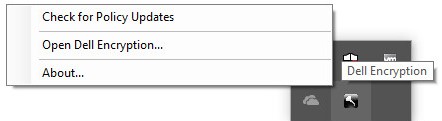
- Klicken Sie unten rechts auf Erweitert.
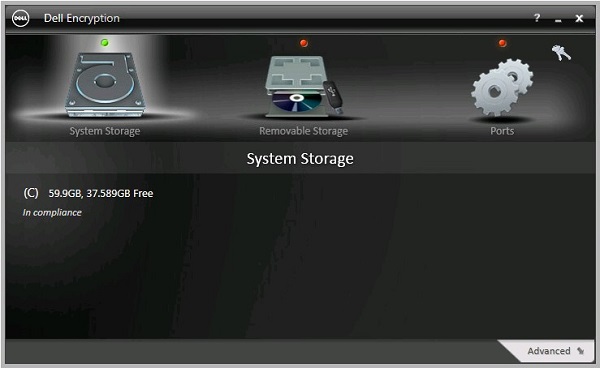
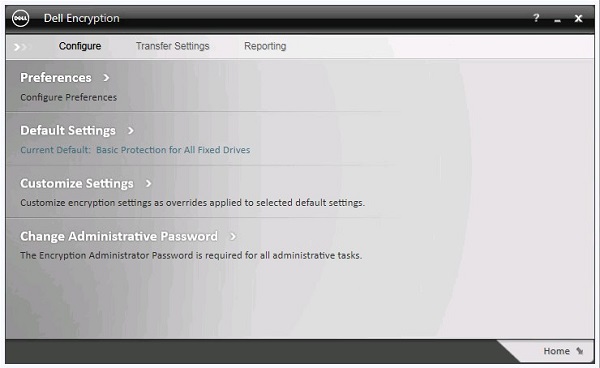
- Klicken Sie auf Benutzerdefinierte Einstellungen.
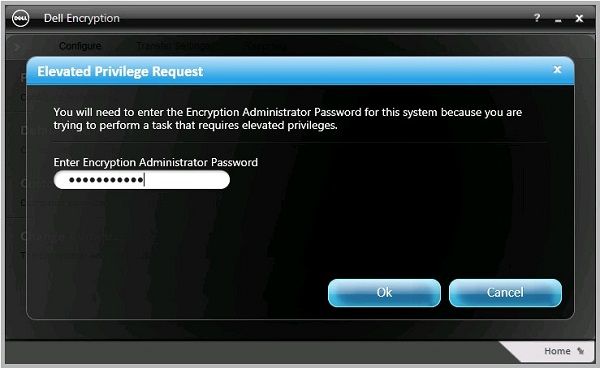
- Geben Sie das Encryption Administrator-Kennwort ein und klicken Sie auf OK.
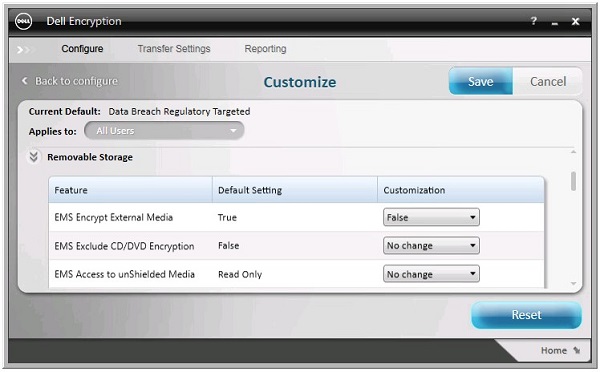
- Aus dem Bereich „Benutzeroberfläche anpassen“:
- Klicken Sie zum Erweitern auf Wechseldatenträger.
- Verwenden Sie die Spalte „Anpassung“, um die Richtlinie „EMS Encrypt External Media“ auf False festzulegen.
- Klicken Sie auf Speichern.
- Klicken Sie auf Zurück zur Konfiguration.
 Wenn das geschützte externe Datenträgergerät auf der Allowlist ist, muss es auch aus der Allowlist-Richtlinie für EMS-Geräte entfernt werden.
 - Klicken Sie in der unteren rechten Ecke auf Start.
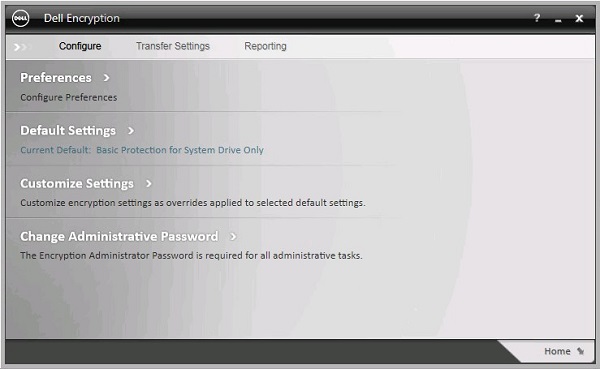
- Führen Sie ein Backup der Chiffrierschlüssel durch.
 Hinweis: Weitere Informationen finden Sie unter Manuelles Sichern von Verschlüsselungsschlüsseln in Dell Encryption Personal.
 - Legen Sie das geschützte externe Mediengerät ein und warten Sie, bis der Entschlüsselungsvorgang abgeschlossen ist.
WSScan kann verwendet werden, um zu bestätigen, dass die Entschlüsselung abgeschlossen ist. Weitere Informationen finden Sie unter How to Use WSScan for Dell Data Security (Anleitung zur Verwendung von WSScan für Dell Data Security).
Version 1.6.0 bis 8.13.0
- Melden Sie sich beim Windows-System an.
- Klicken Sie im Windows-Infobereich mit der rechten Maustaste auf das Dell Data Protection | Encryption-Symbol und wählen Sie dann Dell Data Protection | Encryption öffnen.
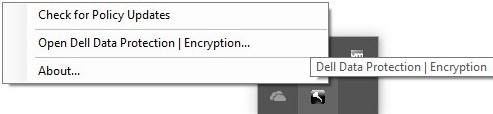
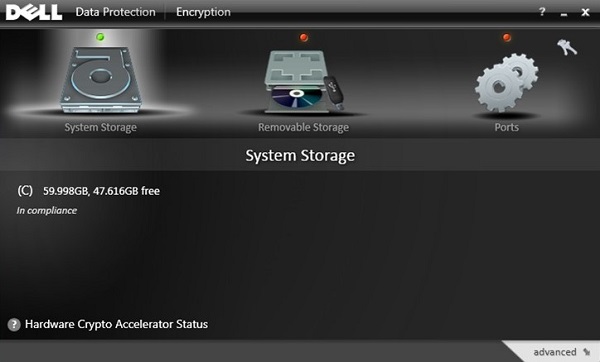
- Klicken Sie unten rechts auf Erweitert.
- Klicken Sie auf Benutzerdefinierte Einstellungen.
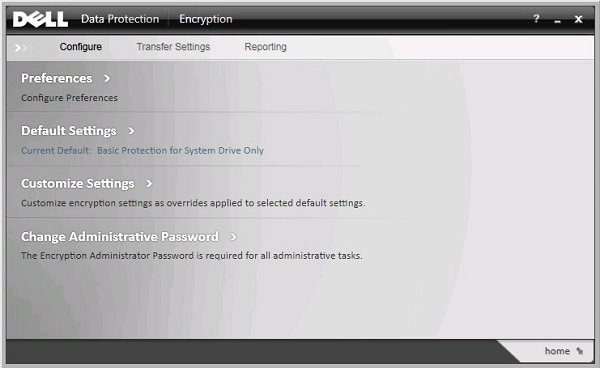
- Geben Sie das Encryption Administrator-Kennwort ein und klicken Sie auf OK.
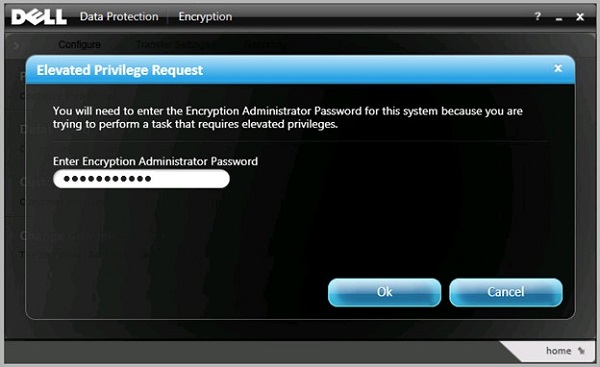
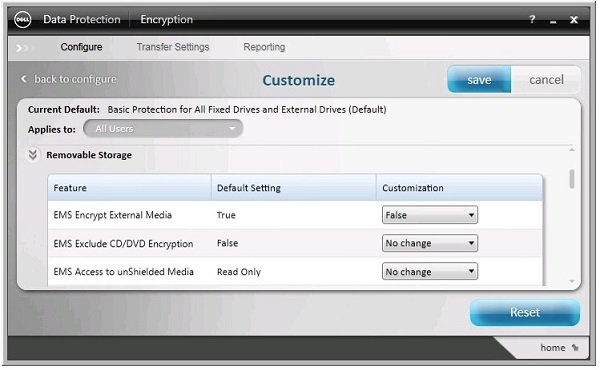
- Aus dem Bereich „Benutzeroberfläche anpassen“:
- Klicken Sie zum Erweitern auf Wechseldatenträger.
- Verwenden Sie die Spalte „Anpassung“, um die Richtlinie „EMS Encrypt External Media“ auf False festzulegen.
- Klicken Sie auf Speichern.
- Klicken Sie auf Zurück zur Konfiguration.
 Wenn das geschützte externe Datenträgergerät auf der Allowlist ist, muss es auch aus der Allowlist-Richtlinie für EMS-Geräte entfernt werden.
 - Klicken Sie in der unteren rechten Ecke auf Start.
- Führen Sie ein Backup der Chiffrierschlüssel durch.
 Hinweis: Weitere Informationen finden Sie unter Manuelles Sichern von Verschlüsselungsschlüsseln in Dell Encryption Personal.
 - Legen Sie das geschützte externe Mediengerät ein und warten Sie, bis der Entschlüsselungsvorgang abgeschlossen ist.
WSScan kann verwendet werden, um zu bestätigen, dass die Entschlüsselung abgeschlossen ist. Weitere Informationen finden Sie unter How to Use WSScan for Dell Data Security (Anleitung zur Verwendung von WSScan für Dell Data Security).
Weitere Informationen
Videos
Betroffene Produkte
Dell EncryptionArtikeleigenschaften
Artikelnummer: 000126841
Artikeltyp: How To
Zuletzt geändert: 06 Aug. 2026
Version: 21
Antworten auf Ihre Fragen erhalten Sie von anderen Dell NutzerInnen
Support Services
Prüfen Sie, ob Ihr Gerät durch Support Services abgedeckt ist.