Connectrix: How to collect a switch log file with a PuTTY session, step by step
Summary: This article assists with step by step instructions on how to collect the supportshow log using PuTTY.
Αυτό το άρθρο ισχύει για
Αυτό το άρθρο δεν ισχύει για
Αυτό το άρθρο δεν συνδέεται με κάποιο συγκεκριμένο προϊόν.
Δεν προσδιορίζονται όλες οι εκδόσεις προϊόντων σε αυτό το άρθρο.
Instructions
This article assists with step by step instructions on how to collect the supportshow log using PuTTY.
- Double-click the PuTTY icon to launch the application.
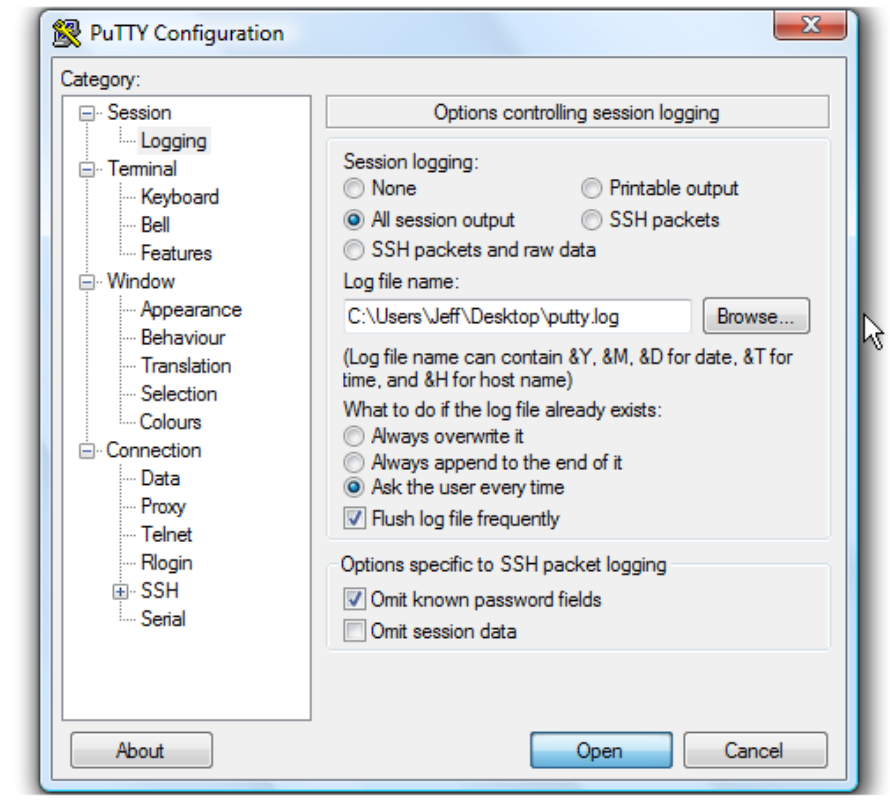
- Click Logging. The logging settings are listed on the right.

Instructions on how to save the log file to a desktop.
- Click All session output.
- Leave Putty.log as the log file name.

- Click Browse to choose the save location.
- Ensure that Desktop is selected here.

- Click Save.
- Ensure Ask the user every time is selected, then click Open to begin the session.
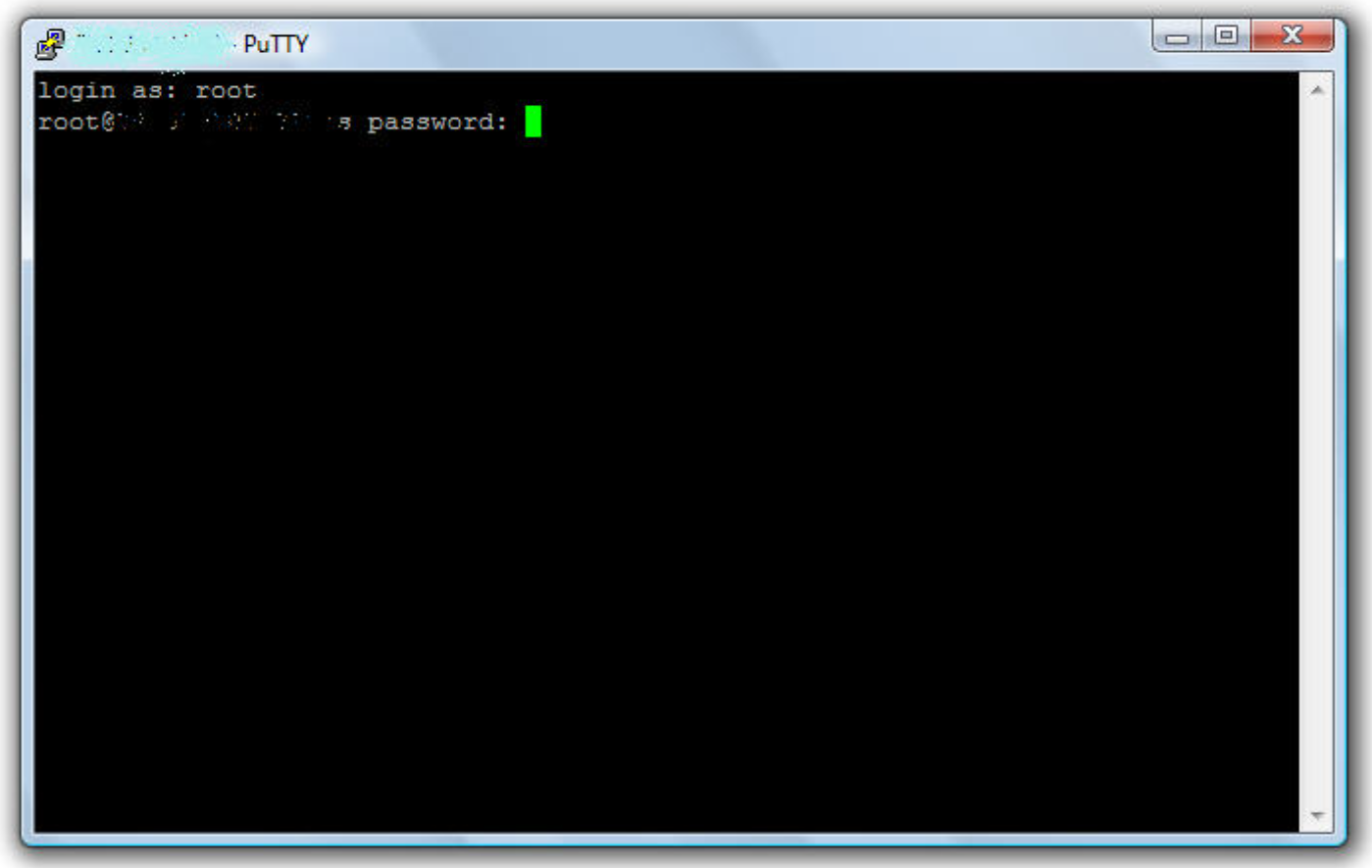
- Type the username, then push the <Enter> key.

- Type the password, then push the <Enter> key.

- Regarding the Brocade switch, run supportshow command to collect switch log.
- Regarding the Cisco switch, run show tech-support details | no-more command to collect switch log.
- Type Exit, then push <Enter> key to close PuTTY.
A log file is now saved to the desktop.
This is the end of the tutorial. You now know how to create a log file of your PuTTY sessions.
Additional Information
Videos
Επηρεαζόμενα προϊόντα
Connectrix MDS-SeriesΙδιότητες άρθρου
Article Number: 000018926
Article Type: How To
Τελευταία τροποποίηση: 12 Σεπ 2025
Version: 5
Βρείτε απαντήσεις στις ερωτήσεις σας από άλλους χρήστες της Dell
Υπηρεσίες υποστήριξης
Ελέγξτε αν η συσκευή σας καλύπτεται από τις Υπηρεσίες υποστήριξης.