PowerVault: How to update the Library firmware via the ML3 Webinterface
Summary: PowerVault: How to update the Library firmware via the ML3 Webinterface
Symptoms
Here you can find a description for a ML3 Library firmware update via the Webinterface.
Cause
.
Resolution
Download the latest firmware Dell Support Page or the FTP.
Rename the *.exe to a *.zip and unpack it to a local destination of your choice.
Stop all running jobs of your backup software and wait until the display shows „Idle Ready".
Connect to the library via the web interface and sign in.
Standard user: Admin
Standard password: adm001
please make sure you start from the Library -> Dashboard...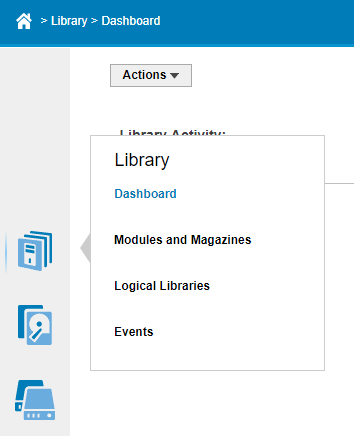
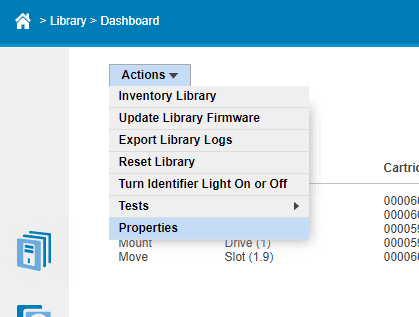
then select Action and Update Library Firmware.
Click on "Choose File" and select the correct one from your exported folder.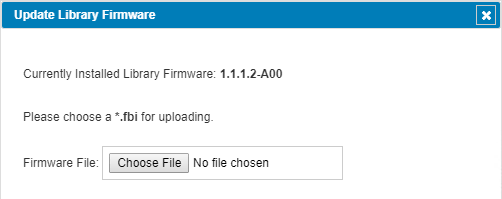
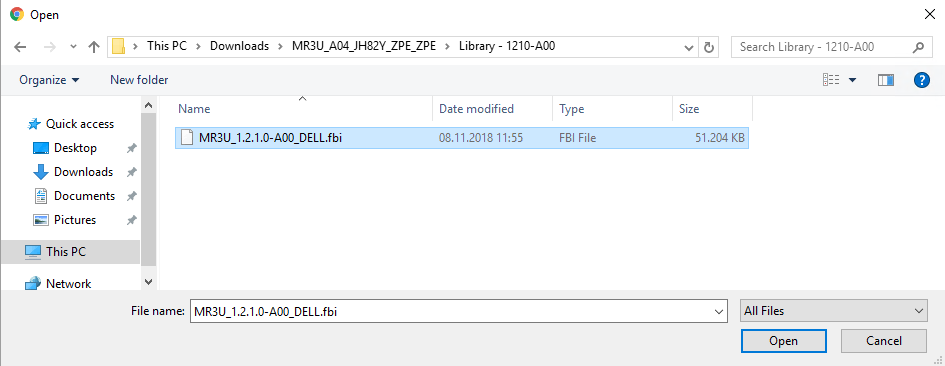
After that it should be displayed as below.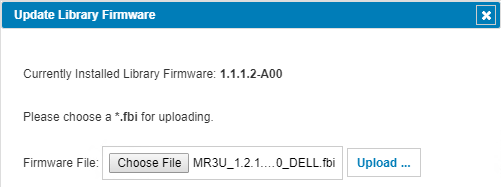
After clicking the Update button the firmware update starts.
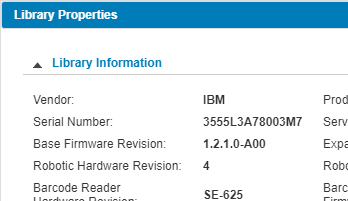
Now the new installed Firmware will be visible under Actions -> Properties.