How to Determine the Amount of Random Access Memory (RAM) Installed in your Chromebook
Summary: This article provides the steps for looking up the amount of RAM in a Chromebook.
Αυτό το άρθρο ισχύει για
Αυτό το άρθρο δεν ισχύει για
Αυτό το άρθρο δεν συνδέεται με κάποιο συγκεκριμένο προϊόν.
Δεν προσδιορίζονται όλες οι εκδόσεις προϊόντων σε αυτό το άρθρο.
Instructions
Memory Installed
Chromebook Users may not be aware of the process to show the amount of RAM installed in a Chromebook.
Show RAM Installed
To find out the amount of memory that is installed in a Chromebook complete the steps below:
- Open a browser and type the following on the address line: chrome://system/
- Scroll down the list until you find: Memory_spd_info
- Click expand and you can see the multiple lines. Look for Size_MB.
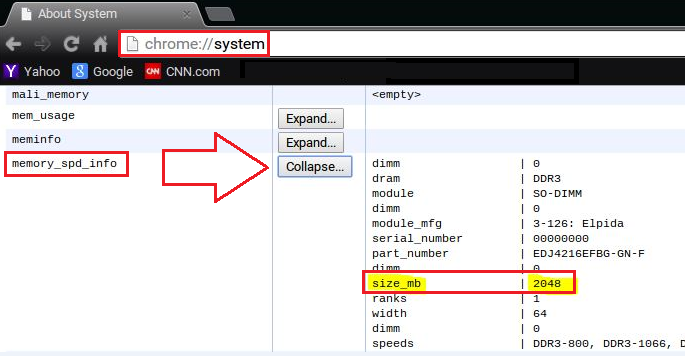
- This is the amount of memory that is installed in the Chromebook.
Επηρεαζόμενα προϊόντα
Chromebook, Chromebook 11, Chromebook 3120 (End of Life), Chromebook 11 3180, Chromebook 11 3189, Chromebook 7310Ιδιότητες άρθρου
Article Number: 000146742
Article Type: How To
Τελευταία τροποποίηση: 22 Αυγ 2025
Version: 5
Βρείτε απαντήσεις στις ερωτήσεις σας από άλλους χρήστες της Dell
Υπηρεσίες υποστήριξης
Ελέγξτε αν η συσκευή σας καλύπτεται από τις Υπηρεσίες υποστήριξης.