Dell Pro Desktop Speakerphone SP3022 and SB522A Soundbar Sound Quality Using Equalizer in DPeM Application
Summary: This article provides information about the Dell Pro Desktop Speakerphone SP3022 and SB522A sound quality issue using the DPeM Application.
Αυτό το άρθρο ισχύει για
Αυτό το άρθρο δεν ισχύει για
Αυτό το άρθρο δεν συνδέεται με κάποιο συγκεκριμένο προϊόν.
Δεν προσδιορίζονται όλες οι εκδόσεις προϊόντων σε αυτό το άρθρο.
Symptoms
You can enhance your Dell Pro Desktop Speakerphone SP3022 (Figure.1) or Dell Slim Conferencing Soundbar - SB522A (Figure.2) listening experience by downloading the Dell Peripheral Manager (DPeM) application. This allows you to select between a few listening presets such as Speech, Bass boost, and treble boost. Alternatively, adjusting the simple Equalizer (EQ) is possible, if the Default preset is selected.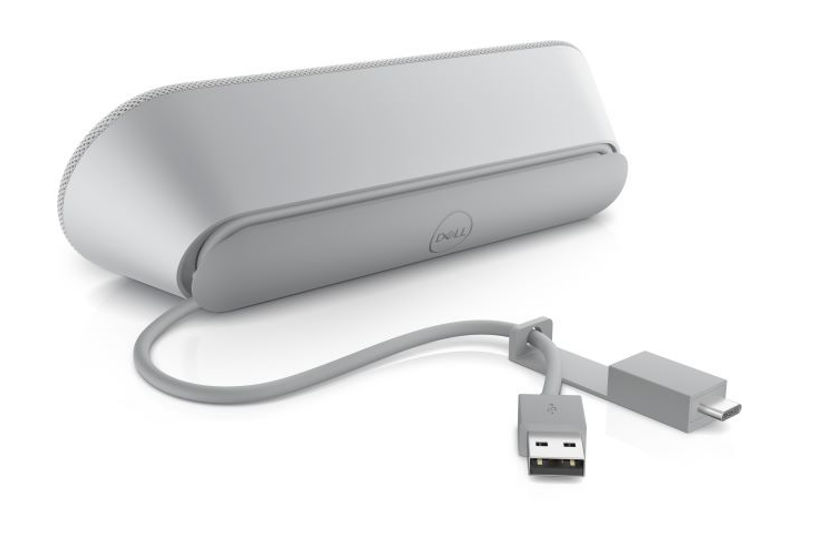
Figure.1 Dell Pro Desktop Speakerphone SP3022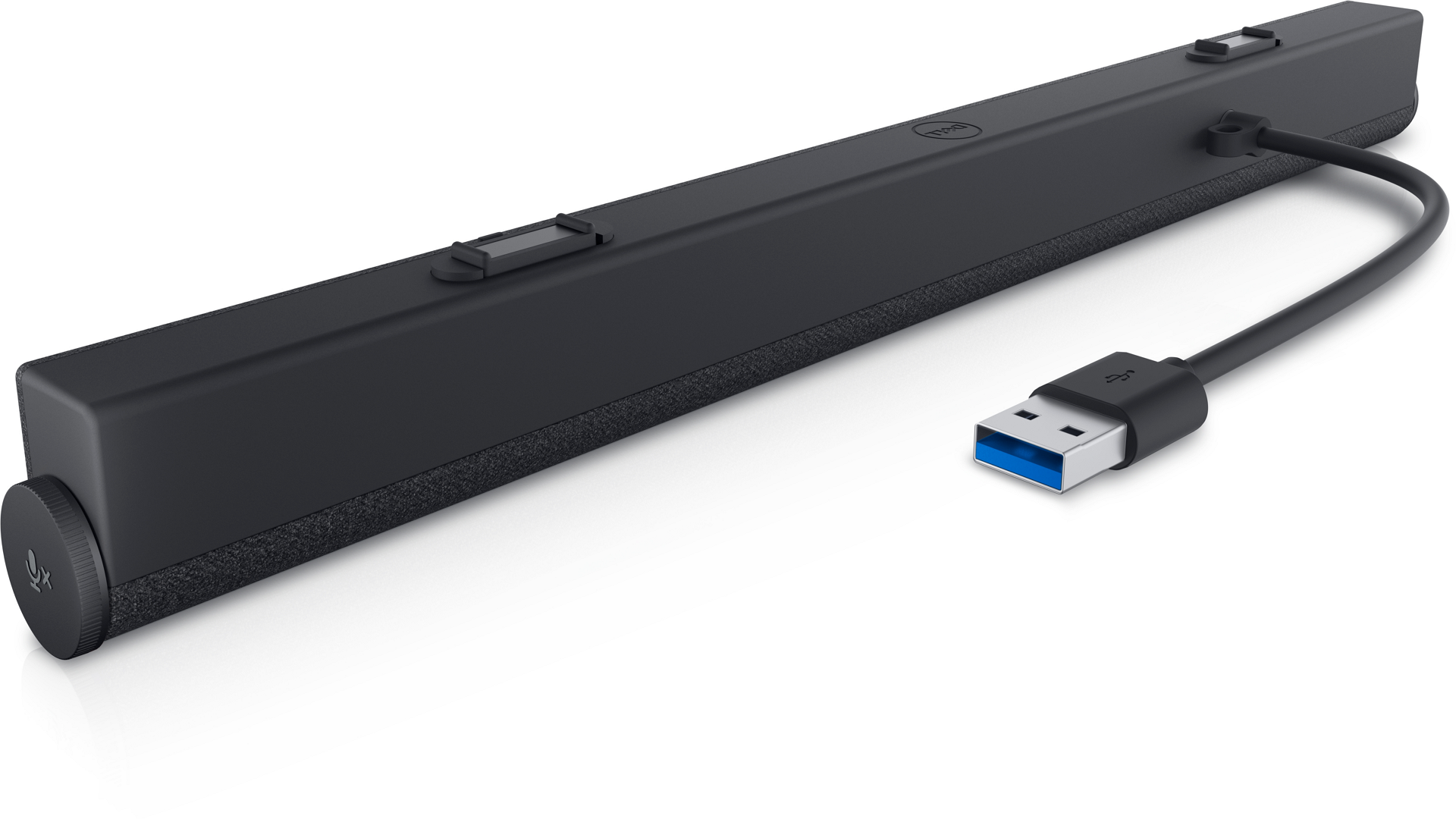
Figure.2 Dell Slim Conferencing Soundbar - SB522A
Cause
There is a restriction to the EQ settings for conference calls. This is working as designed to ensure the optimal echo cancellation for the best speech quality.
Resolution
Note: This is not a hardware issue. Do not worry.
The below steps can help you solve your concern.
- Download DPeM Apps from this link: Dell Peripheral Manager
- Install the DPeM app. Click the Audio Settings.
- Select the Equalizer settings, Use your mouse to adjust the blue buttons for Bass, Treble, and Midrange frequencies to meet your sound preference. (See Figure.3)
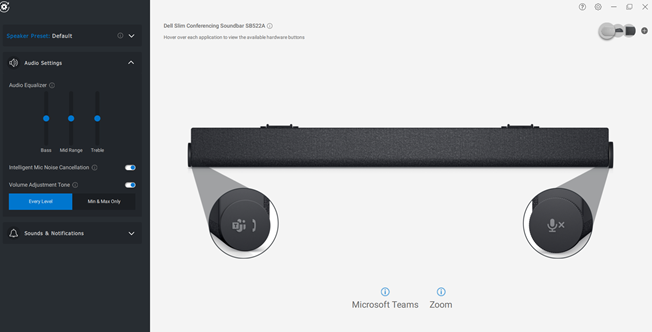
Figure.3 Audio Equalizer settings
Επηρεαζόμενα προϊόντα
Dell Slim Conferencing Soundbar - SB522A, Dell Pro Desktop Speakerphone SP3022Ιδιότητες άρθρου
Article Number: 000198756
Article Type: Solution
Τελευταία τροποποίηση: 16 Σεπ 2025
Version: 8
Βρείτε απαντήσεις στις ερωτήσεις σας από άλλους χρήστες της Dell
Υπηρεσίες υποστήριξης
Ελέγξτε αν η συσκευή σας καλύπτεται από τις Υπηρεσίες υποστήριξης.