How to Install Phi-3.5-mini-instruct for Use With Dell Pro AI Studio on AMD Platforms
Summary: This article covers the process to install Phi-3.5-mini-instruct.NPU.OGA-Vitis.x64 on AMD for usage with Dell Pro AI Studio on a single device.
Αυτό το άρθρο ισχύει για
Αυτό το άρθρο δεν ισχύει για
Αυτό το άρθρο δεν συνδέεται με κάποιο συγκεκριμένο προϊόν.
Δεν προσδιορίζονται όλες οι εκδόσεις προϊόντων σε αυτό το άρθρο.
Instructions
Affected Products:
- Dell Pro AI Studio
The steps below assume that you have already downloaded and extracted the needed prerequisites and installers. Before continuing, ensure that you have gathered the following:
- .NET Desktop Runtime x64 8.0.15 or higher
- ASP.NET Core Runtime x64 8.0.15 or higher
- C++ Redistributable x64 14.42.34438.0 or higher
- Dell Core Services
- Dell Pro AI Studio
- Dell.Model.Phi-3.5-mini-instruct.NPU.OGA-Vitis.x64
Note: Confirm that your Dell computer is in the Supported platforms section of the Dell Pro AI Studio Deployment Guide For MECM or Dell Pro AI Studio Intune Guide at Support for Dell Pro AI Studio Manuals & Documents.
- Right-click the Windows start menu and select Terminal (Admin).
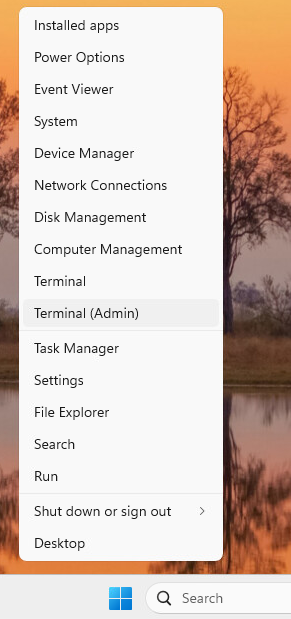 Note: Click Yes if prompted by User Account Control.
 - Change directory in Terminal to where you extracted your files into. For example, type
cd C:\DPAIS\x64and then press Enter.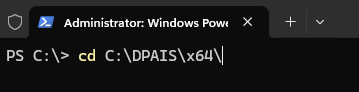
- In Terminal, type
.\windowsdesktop-runtime-8.0.15-win-x64.exe /install /quiet /norestartand press Enter.
- In Terminal, type
.\aspnetcore-runtime-8.0.15-win-x64.exe /install /quiet /norestartand press Enter.
- In Terminal, type
.\vc_redist.x64.exe /install /quiet /norestartand press Enter.
- In Terminal, type
.\Dell.Core.Services.Installer_64bit.msi /qn /norestartand press Enter.
- In Terminal, type
.\Dell.AI.Framework.x64.msi /qn /norestartand press Enter.
- In Terminal, type
.\Dell.Model.Phi3.5-mini-instruct.NPU.OGA-Vitis.x64.msi /qn /norestartand press Enter. Note: The
Dell.Model.Phi3.5-mini-instruct.NPU.OGA-Vitis.x64.msifile expects theDell.Model.Phi-3.5-mini-instruct.NPU.OGA-Vitis.x64.zipfile to be in the same directory. If it is not in this directory, the installation fails. - Reboot your computer to finish the installation process.
Επηρεαζόμενα προϊόντα
Dell Pro AI StudioΙδιότητες άρθρου
Article Number: 000379398
Article Type: How To
Τελευταία τροποποίηση: 24 Οκτ 2025
Version: 3
Βρείτε απαντήσεις στις ερωτήσεις σας από άλλους χρήστες της Dell
Υπηρεσίες υποστήριξης
Ελέγξτε αν η συσκευή σας καλύπτεται από τις Υπηρεσίες υποστήριξης.