Alienware Command Center Application Performance Section Shows Empty Processor and Memory Gauge Information
Summary: This article provides more Information about missing processor and memory information in the performance section of the Alienware Command Center (AWCC) application version 6.x.
Symptoms
The Alienware Command Center application performance section shows empty processor and memory gauges, and processor overclocking features are unavailable.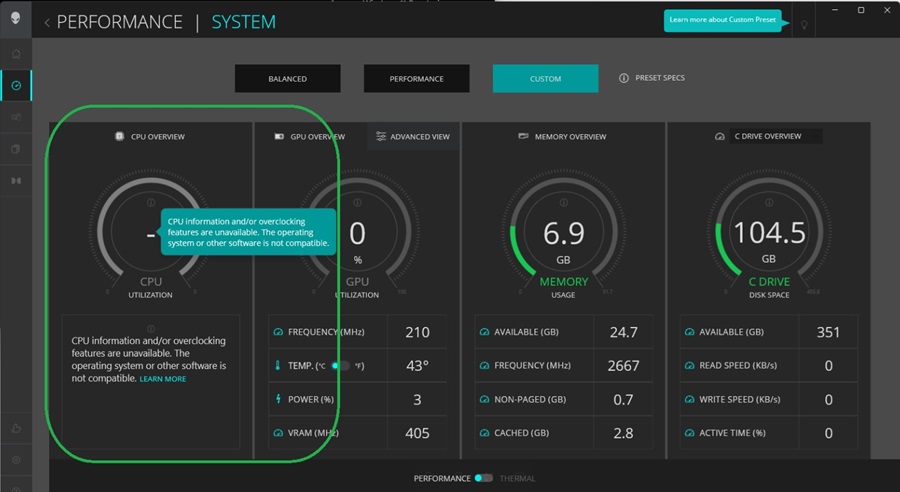
Affected Platforms:
- Alienware Area 51m R1
- Alienware Area 51m R2
- Alienware Aurora R8
- Alienware Aurora R12
- Alienware m15 R2
- Alienware m15 R3
- Alienware m15 R4
- Alienware m15 R6
- Alienware m16 R2
- Alienware m17 R2
- Alienware m17 R3
- Alienware m17 R4
- Alienware x15 R1
- Alienware x17 R1
- Dell G3 15 3500
- Dell G3 15 3590
- Dell G5 5000
- Dell G5 5090
- Dell G5 5500
- Dell G5 5590
- Dell G7 7500
- Dell G7 7590
- Dell G7 7700
- Dell G7 7790
- Dell G15 5510
- Dell G15 5511
Cause
There is a compatibility issue between the Intel XTU service and Windows 11 (version 22H2 and later) for the computers above with Intel 11th generation or earlier processors.
Resolution
Alienware Command Center Performance
If you have Windows 11 version 22H2 through 24H2 (not included) installed, you can turn the following settings off in Windows or the system BIOS as a workaround for this issue.
- Hyper-V
- Virtual Machine State
- Memory Integrity
If you have an earlier version of Windows 11 22H2 or a later version of Windows 11 24H2 that is installed, there is no workaround or solution to this issue.
Use the following steps to Disable Hyper-V and Virtual Machine State:
- Open the Windows Search Bar and type: Turn Windows features on or off
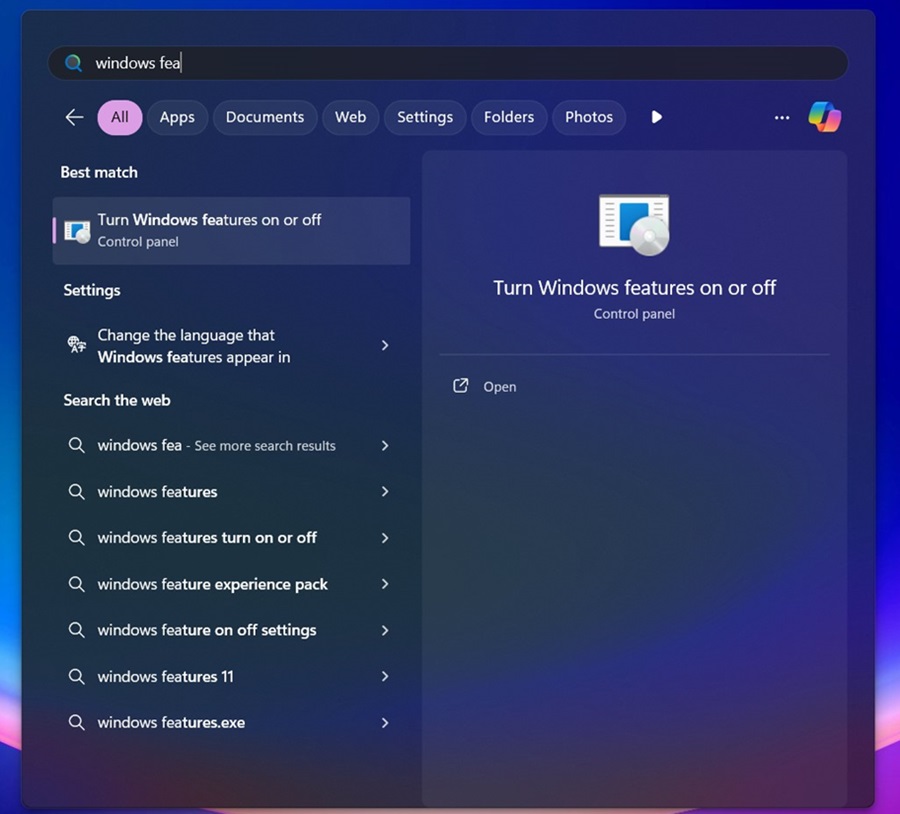
- In the window that appears, clear the following options:
Hyper-V
Virtual Machine platform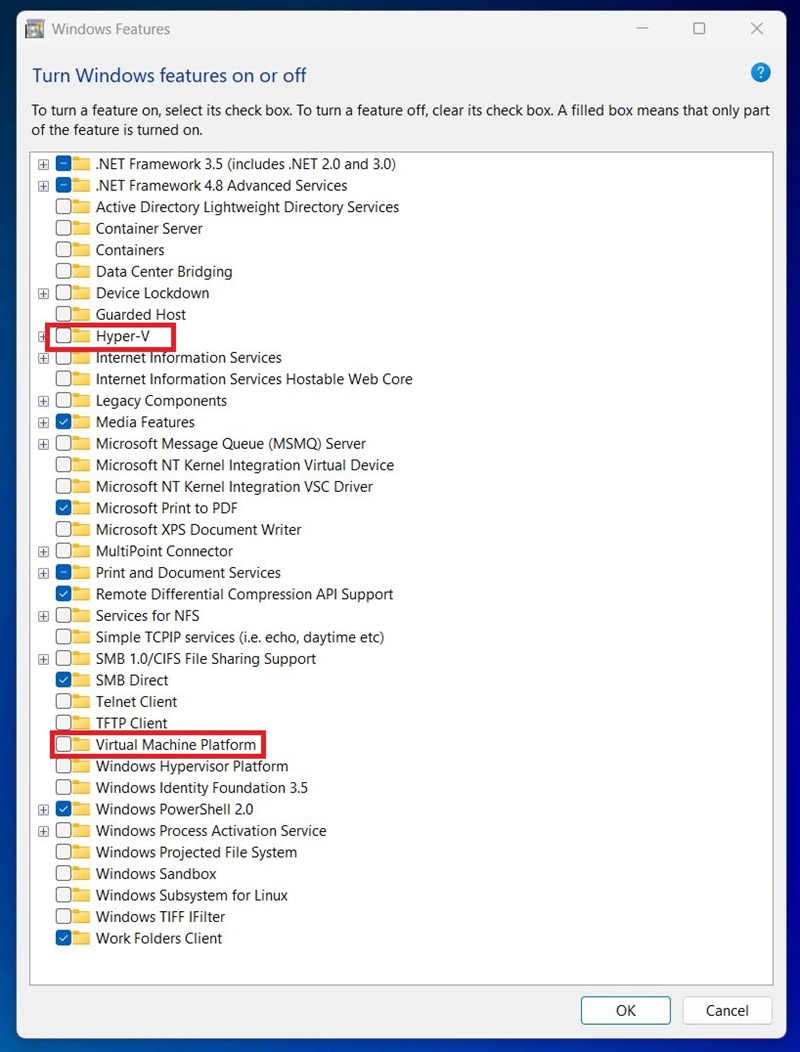
- Click Ok.
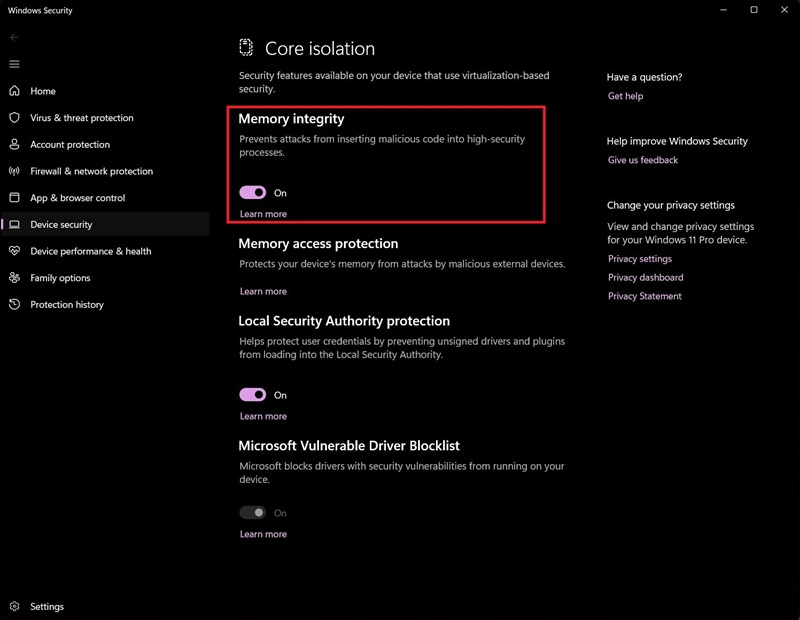
Use the following steps to Disable Memory Integrity:
- Open the Windows Search Bar and type: Core isolation
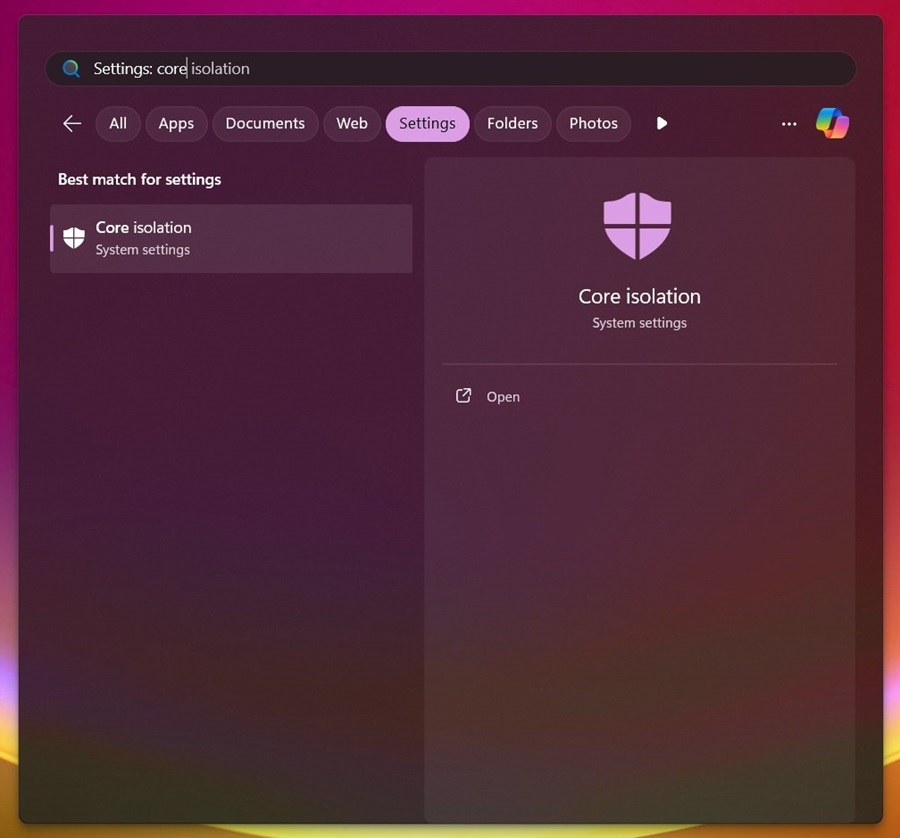
- In the window that opens, switch off the following option:
Memory Integrity