PPBS: How to Set Auto-Configuration Rules for Virtual Machine Backups
Summary: This article provides a walkthrough for setting up the rules for auto-configuration for VMs within vSphere.
Instructions
Overview
PowerProtect Backup Service (PPBS) can automatically configure virtual machines for backup by creating rules in the PPBS Management Console. An auto-configuration rule maps to a view or entities in the vCenter to a specified storage (PPBS storage in the AWS region), an administrative group, a backup policy, and a backup proxy pool. Based on the auto-configuration rule, any entity that is not configured in the view gets automatically configured as per the rule definition.
PPBS applies the auto-configuration rule to the entities within the resource view specified. Once the rule is created and applied to an entity or multiple entities, the new virtual machines added under the view are automatically configured.
If a virtual machine is configured using rules:
-
It is automatically attached to an administrative group and backup proxy pool.
-
The storage is allotted to the virtual machine.
-
A backup policy is applied to the virtual machine.
-
If any newly discovered virtual machine matches a rule, it will be auto-configured.
Supported entities in the resource view
An auto-configuration rule applies to the following views and entities within these resource views. Select a view to its associated entities.
| VM Folders |
NOTE: Any rule defined at the parent entity will be applicable to all children entities by default unless the child entity has a rule created for it. In that case, the child entity rule will override parent entity rule. The only exception to this behavior is when the vSphere tags are used for auto-configuration. |
|---|---|
| Datastore |
|
| Hosts and Clusters |
|
| Tags |
NOTE: Tags are supported for VMware vCenter 6.5.0 or later. The auto configuration feature does not support the tags on the following objects: Content library, Library item, and Distributed switch. |
Before beginning
-
Decide to use the default or create a new administrative group. Administrative groups are formed to simplify server management. It is a logical categorization of servers and virtual machines that share similar attributes. Servers can be grouped based on similar attributes like server type, server location, and operating system. See, Manage administrative groups.
-
Decide to use the default or create a new backup policy. A backup policy is a set of rules that defines the schedule for automatic backups that occur on virtual machines configured for backup. See, Manage backup policy.
-
Review the prerequisites for configuring virtual machines for backup.
NOTE: The discovered virtual machine list is refreshed every 24 hours. Manual refresh of the list can be performed by clicking the Refresh button. -
Ensure that valid VM credentials are provided to PPBS when configuring application-aware backups on virtual machines. Go to All Virtual Machines > Manage Credentials. See Manage credentials for VMware servers
for details.
-
When selecting a VMware setup, ensure that a vCenter is chosen.
-
Automatic configuration is applicable for vCenter only. Standalone ESXi is not supported at this time.
-
- If storing backups in local storage, configure the CloudCache. For more information, see Configure CloudCache.
- If configuring a virtual machine for Instant Restore, make sure that the virtual machine is mapped to Linux CloudCache.
Procedure
- Log in to the Management Console.
- Under Services > Hybrid Workloads Phoenix, click VMware.
- Select the organization (if organizations are enabled).
- The All vCenters/ESXi Hosts page appears that lists all the registered vCenter/hypervisors.
- Select the registered vCenter/ESXi host from the card view or list view or select it from the vCenter/ESXi host list in the left navigation pane.
- In the left pane, click Auto Configuration.
- Click New Rule.
- In the Create Auto Configuration Rule wizard, specify the required values:
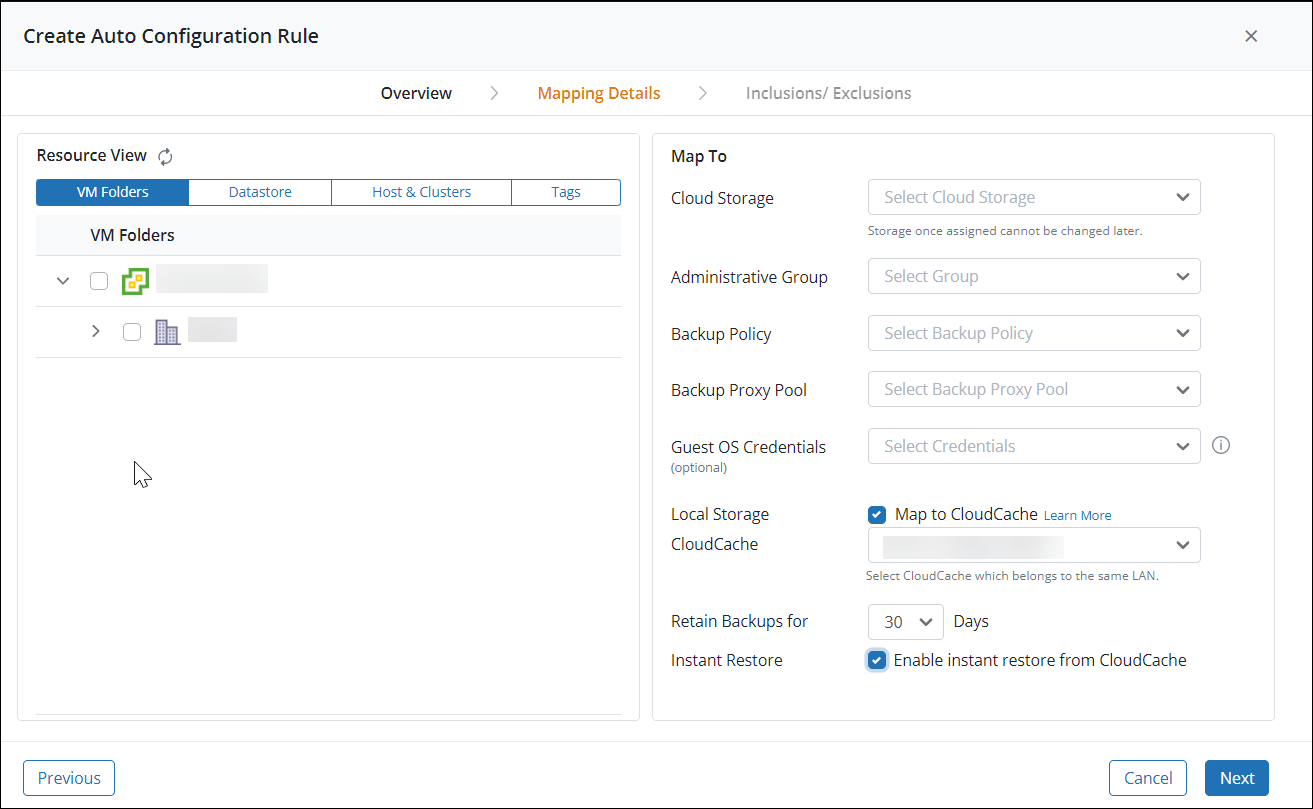
Tab Description Overview Provide a name and description for the rule. Ensure a unique name is used for each rule created. Mapping Details In the Resource View pane, select entities to apply the rule. For more information, see Supported entities in the resource view.
In the Map to pane:
- Select a cloud storage
- Select an administrative group
- Select a backup policy
- Select a backup proxy pool
- Select guest OS credentials
- Select a local storage.
- Map to CloudCache: Select the option to store the backups in local storage configured as part of the CloudCache. To use this option, first configure the CloudCache. For more information, see Configure CloudCache.
- CloudCache: Select the CloudCache to use. Select a CloudCache that belongs to the same data center.
- To restore the virtual machine instantly, select a Linux CloudCache.
If a virtual machine is dissociated from CloudCache, the subsequent backups are directly stored to the PPBS Cloud and instant restore of the virtual machine is not possible. - Retain backups for: Select the number of days to retain the backups in the local storage.
-
Instant restore: Select this option to instantly restore virtual machines from CloudCache. If this option is disabled, map the selected virtual machine to Linux CloudCache.
NOTE: If switching to a Windows CloudCache after enabling Instant Restore, the Instant Restore is disabled for the selected VMs.
- Map to CloudCache: Select the option to store the backups in local storage configured as part of the CloudCache. To use this option, first configure the CloudCache. For more information, see Configure CloudCache.
When an administrative group and backup proxy pool is attached to a virtual machine, it is configured for backup. The configuration rule automatically attaches the administrative group and backup proxy pool to the new virtual machine created in the vCenter that is selected. So, the new virtual machine created under the selected view is automatically configured for backup.
Inclusions/ Exclusions Specify the virtual machines to include or exclude from getting backed up.
- Include the virtual machines whose name matches the specified virtual machine name patterns.
- Exclude the virtual machines that are already configured for backup.
- Provide patterns
- Exclude virtual machines that are powered off.
- Exclude virtual machines that are suspended.
- Click Finish. The rule is added.
- After creating a rule, either:
- Click Apply Rules to manually apply the rules and let the system configure eligible virtual machines.
- Wait for the periodic automatic configuration. PPBS triggers auto-configuration every 24 hours after PPBS updates the virtual machines list. PPBS does not allow configuring the interval or specify a particular time for the auto-configuration job to run.
- Click on the rule to view its details and to update it.
Invalid rules
The auto-configuration rule becomes invalid in the following scenarios:
- If a backup proxy pool is deleted, and an auto-configuration rule is using it, the rule becomes invalid.
- If an administrative group is deleted, and an auto-configuration rule is using it, the rule becomes invalid.
- If a vCenter entity that had a rule applied is renamed or deleted, the rule becomes invalid.
Also see the red icon in the rule page.
Conflicting virtual machine scenarios
The following are the scenarios when the virtual machines are not configured. In these scenarios, an alert notification is generated and an email is sent to the administrator with a list of virtual machines that are not auto-configured.
Scenario 1: Virtual machines that are eligible for auto-configuration are under more than one auto-configuration rule across different views. 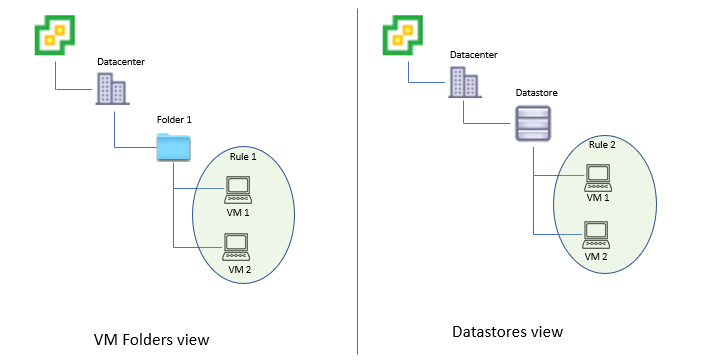
For example, Folder1 in the VM Folders vCenter hierarchy (VM Folders view) containing two virtual machines - VM 1 and VM 2. An auto-configuration rule, Rule 1, is applied on the entities in the VM Folder view. The same virtual machines (VM 1 and VM 2) in another vCenter hierarchy, say, in a datastore (Datastores view). And, an auto-configuration rule, Rule 2, is applied to the entities in the datastore view. In this case, the virtual machines are not considered for auto-configuration since VM 1 and VM 2 are under more than one rule.
Scenario 2: In a tag view, conflicting virtual machine scenarios can happen:
- If a tag is assigned to a parent container and has a rule associated with it and another tag is assigned to the child container and has a rule assigned to it, this results in a conflict for the virtual machines in the child container.
- If a virtual machine has multiple tags assigned to it and each tag has a different auto configuration rule associated with it, then it results in a conflict and the virtual machine is not configured.