How to block management access through HTTPS, SSH and allow access for Telnet & Http in Dell Networking X-Series Switch
Summary: Blocking management access through HTTPS, SSH and allowing access for Telnet & Http in Dell Networking X series switches.
This article applies to
This article does not apply to
This article is not tied to any specific product.
Not all product versions are identified in this article.
Instructions
This article explains the step-by-step procedure for blocking management access through HTTPS, SSH, and allows access for Telnet & Http in Dell Networking X series switches.
Procedure:
-
Log in to Dell X series switch using web browser
-
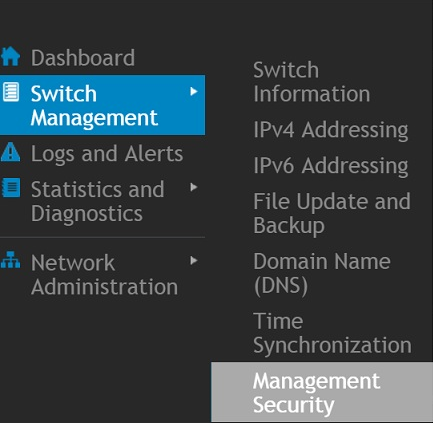
Go to Switch Management and select Management Security.
-
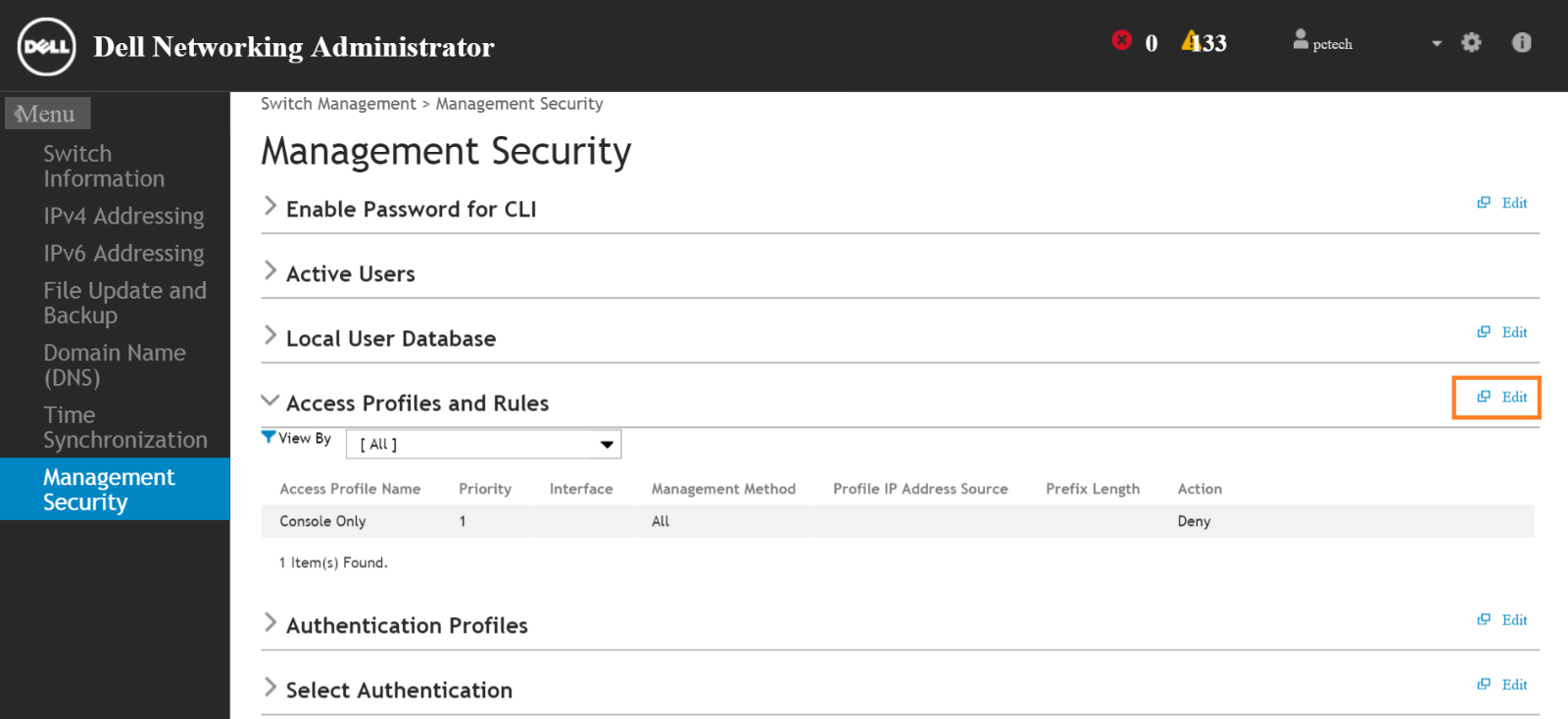
Click the Edit button located at the far right of Access profiles and Rules as shown
-
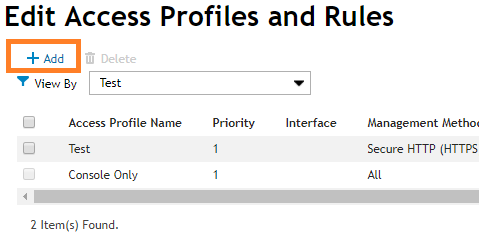
Click Add under Edit Access Profiles and Rules
-
Under the Add access Profiles and Rules window, choose a profile name (Test)
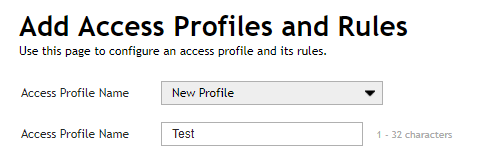
In this example, we create HTTPS as the first rule
-
Type "1" in "Rule Priority Name" box
-
In the Management Method box, select "Secure HTTP (HTTPS)"
All other options can be left to default, except the "Action" -
For "Action" option, choose "Deny"
-
Select "Running Configuration in Apply to:" box and click the OK button

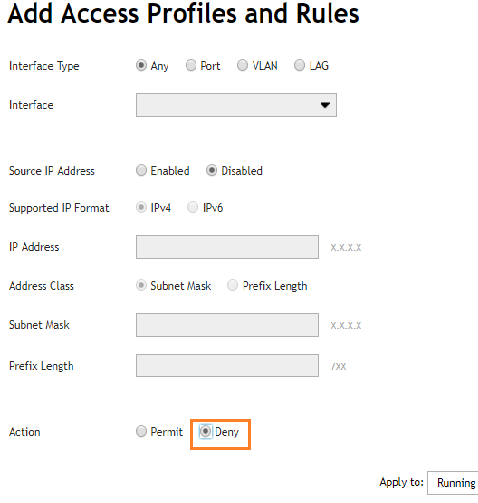
HTTPS rule is created with deny action. This rule is listed under the Edit Access Profiles and Rules window
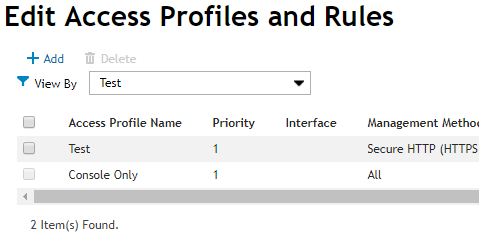
-
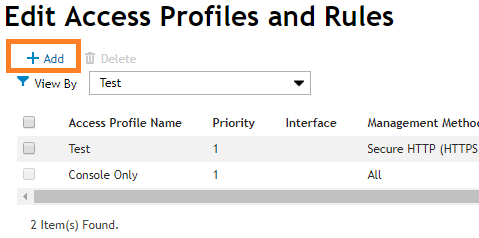
Click the Add button again under Edit access profiles and Rules for creating the second rule (SSH)
-
Under "Add access Profiles and Rules" window, choose the same profile name (Test)
-
Type "2" in "Rule Priority Name" box
-
In the Management Method box, select "Secure telnet (SSH)"
All other options can be left to default except the "Action" -
For "Action" option, choose "Deny"
-
Select "Running Configuration in Apply to:" box and click the OK button
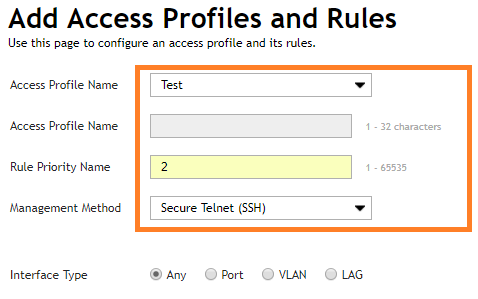
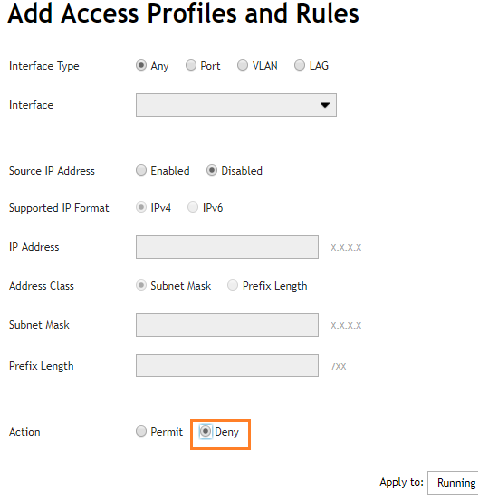
SSH rule is created with deny action. This rule is listed under the Edit Access Profiles and Rules window
-
Click the Add button again under Edit access profiles and Rules for creating the third rule (Allow all)
-
Under "Add access Profiles and Rules" window, choose the same profile name (Test)
-
Type "3" in "Rule Priority Name" box
-
In the Management Method box, select "Secure telnet (All)"
-
For "Action" option, choose "Permit"
-
Select "Running Configuration in Apply to:" box and click the OK button
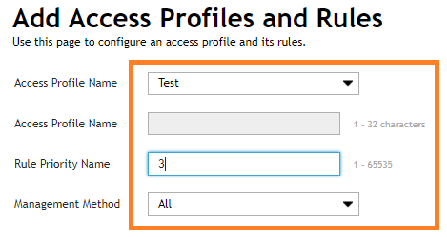
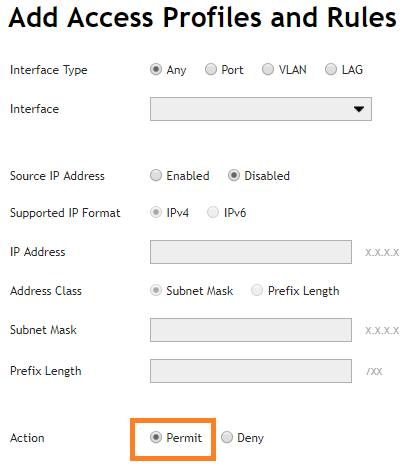
All three rules are listed under the Edit Access Profiles and Rules window

Now the profile and rules are created
Profile name is Test
Rules are configured to deny access through HTTPS, SSH, and permit access by other means
In order to activate the Access profile and rule, select Management Security and click the Edit button under Access Profiles and Rules -
Click the gear icon on the far right under Edit Access Profiles and Rules

-
Choose the created Access profile (Test) under the Access Profiles Settings window
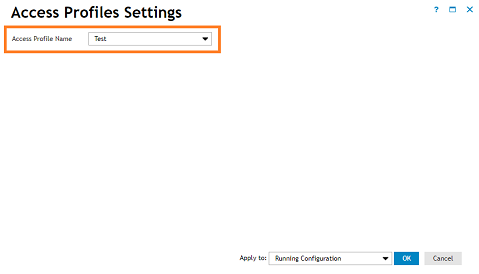
-
Select "Running Configuration in Apply to:" box and click the OK button
A pop up with a warning message shows up. Click OK, and the Access profile is activated
Affected Products
Dell Networking X1000 SeriesArticle Properties
Article Number: 000120070
Article Type: How To
Last Modified: 21 Jan 2025
Version: 4
Find answers to your questions from other Dell users
Support Services
Check if your device is covered by Support Services.