PowerStore: How to configure ESXi hosts for optimal XCOPY performance
Summary: XCOPY is one of the VAAI primitives that is used for offloading tasks to the storage array. This article explains how to configure ESXi hosts for optimal XCOPY performance.
This article applies to
This article does not apply to
This article is not tied to any specific product.
Not all product versions are identified in this article.
Instructions
Background:
XCOPY Limitations:
PowerStore OS 3.0 currently has a known issue where XCOPY between VMFS and vVOL (and vice versa) is not supported. This limitation is fixed in PowerStore OS 3.2 and above.
Resolution:
1. This Resolution only affects customers who are using PowerStore OS 3.0 and later.
2. NVMe-oF does not currently support hardware acceleration with VAAI plug-ins.
for more information refer to https://docs.vmware.com/en/VMware-vSphere/7.0/com.vmware.vsphere.storage.doc/GUID-9AEE5F4D-0CB8-4355-BF89-BB61C5F30C70.html
3. To configure the hardware acceleration for a new array, add two claim rules, one for the VAAI filter and another for the VAAI plug-in. For the new claim rules to be active, you first define the rules and then load them into your system.
4. Verify that there are no pre-existing “VAAI filter” nor "VAAI plug-in" claim rules for PowerStore devices with the commands:
5. Add a VAAI filter claim rule to each ESXi host with the following command:
Verify rule was added properly
 Note: Only the filter-class rules must be run. When the VAAI filter claims a device, it automatically finds the proper VAAI plug-in to attach.
If the below command does not show the relevant plugins, reboot the ESXi host.
9. Run the following commands to verify the proper filters have been loaded:
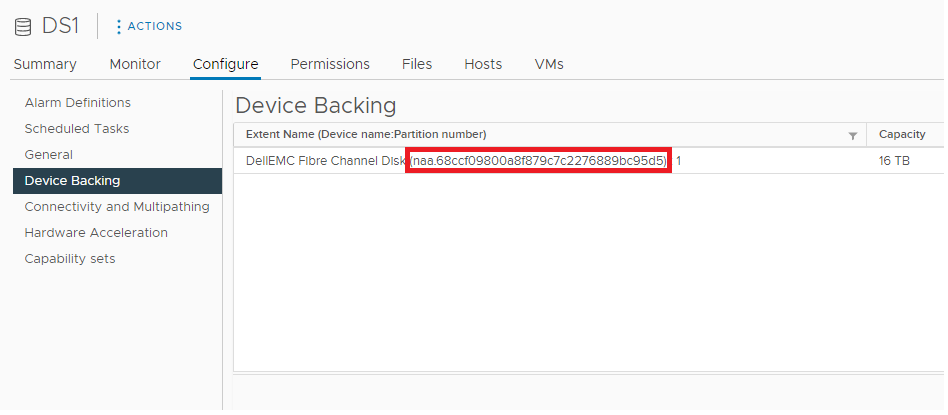
11. As a final verification step select one of the VMFS datastores that resides on a PowerStore volume in the vCenter GUI, then select “Device Backing”.
Copy the identifier within the Extent Name (a string like: “naa.68ccf098000cb2df0ffc1d983eea45ec”). If PowerStore devices were present before adding the claim rules it is important to perform this check on one of the pre-existing devices to verify that claim rules were applied. If claim rules were not updated for devices prior to claim rules being added the ESXi host(s) must be rebooted.
12.
References:
A complete description of the use of hardware claim rules may be found at: https://docs.vmware.com/en/VMware-vSphere/7.0/com.vmware.vsphere.storage.doc/GUID-456EE197-FC35-4DC0-B412-879725514297.html
- XCOPY is one of the VAAI primitives that is used for offloading tasks to the storage array. For example, you can use XCOPY to offload such operations as migration or cloning virtual machines to the array instead of consuming vSphere resources to perform these tasks.
- The default ESXi behavior is to issue XCOPY commands that have a single segment that is equal to or less than 4MB.
- Prior to PowerStore OS 3.0, XCOPY was not working efficiently leading to poor performance, PowerStore OS 3.0 introduces many internal enhancements to XCOPY performance.
- Starting in PowerStore OS 3.0, PowerStore will support XCOPY commands with a maximum of 8 segments, each segment less than or equal to 30MB.
- For use cases where the performance of XCOPY operations is the primary concern for the customer, ESXi hosts should be configured to use multi-segment XCOPY commands with larger segment sizes.
XCOPY Limitations:
PowerStore OS 3.0 currently has a known issue where XCOPY between VMFS and vVOL (and vice versa) is not supported. This limitation is fixed in PowerStore OS 3.2 and above.
Resolution:
1. This Resolution only affects customers who are using PowerStore OS 3.0 and later.
2. NVMe-oF does not currently support hardware acceleration with VAAI plug-ins.
for more information refer to https://docs.vmware.com/en/VMware-vSphere/7.0/com.vmware.vsphere.storage.doc/GUID-9AEE5F4D-0CB8-4355-BF89-BB61C5F30C70.html
3. To configure the hardware acceleration for a new array, add two claim rules, one for the VAAI filter and another for the VAAI plug-in. For the new claim rules to be active, you first define the rules and then load them into your system.
4. Verify that there are no pre-existing “VAAI filter” nor "VAAI plug-in" claim rules for PowerStore devices with the commands:
esxcli storage core claimrule list -c Filter | grep "PowerStore\|Rule"
esxcli storage core claimrule list -c VAAI | grep "PowerStore\|Rule
Note: Verify there are no rules with entries in the “Matches” column like “vendor=DellEMC model=PowerStore”
Note: If there are any rules configured for PowerStore, verify they do not conflict with the below rules, if so, correct them.
5. Add a VAAI filter claim rule to each ESXi host with the following command:
esxcli storage core claimrule add -u -c Filter -P VAAI_FILTER -t vendor -V DellEMC -M PowerStore
Verify the rule was added properly
esxcli storage core claimrule list -c Filter | grep "PowerStore\|Rule"
Rule Class   Rule  Class    Type    Plugin       Matches                          XCOPY Use Array Reported Values  XCOPY Use Multiple Segments  XCOPY Max Transfer Size KiB  Config String
Filter       5001  file     vendor  VAAI_FILTER  vendor=DellEMC model=PowerStore                            false                        false                            0
6. Add a VAAI plug-in claim rule to each ESXi host with the following command:
esxcli storage core claimrule add -u -c VAAI -P VMW_VAAIP_T10 -t vendor -V DellEMC -M PowerStore -a -s -m 240
For more information on each of the arguments in the above command, refer to https://docs.vmware.com/en/VMware-vSphere/7.0/com.vmware.vsphere.storage.doc/GUID-C7ED5B86-2AF9-4217-90B5-A27D3217CE6D.html
| -u | The system will auto assign a rule id |
| -a | Use array reported values for XCOPY commands |
| -s | Use multiple segments for XCOPY commands. Valid only when -a is specified |
| -m | Maximum transfer size in MB for the XCOPY commands when you use a transfer size different than array reported. Valid only when -a is specified |
Verify rule was added properly
esxcli storage core claimrule list -c VAAI | grep "PowerStore\|Rule"
Rule Class   Rule  Class    Type    Plugin            Matches                          XCOPY Use Array Reported Values  XCOPY Use Multiple Segments  XCOPY Max Transfer Size KiB  Config String
VAAI         5001  file     vendor  VMW_VAAIP_T10     vendor=DellEMC model=PowerStore                             true                         true                       245760
7. Load the rules with the following commands:
esxcli storage core claimrule load -c VAAI
esxcli storage core claimrule load -c Filter
8. Run the VAAI filter claim rule by using the following command:
esxcli storage core claimrule run -c Filter
esxcfg-rescan -A
Note: Only the filter-class rules must be run. When the VAAI filter claims a device, it automatically finds the proper VAAI plug-in to attach.
If the below command does not show the relevant plugins, reboot the ESXi host.
9. Run the following commands to verify the proper filters have been loaded:
esxcli storage core plugin list --plugin-class=VAAI
Plugin name    Plugin class
-------------  ------------
VMW_VAAIP_T10  VAAI

esxcli storage core plugin list --plugin-class=Filter
Plugin name  Plugin class
-----------  ------------
VAAI_FILTER  Filter
10. Run the following commands to verify rules are updated with Class “runtime” and “file” for each Rule Class as below:
esxcli storage core claimrule list -c Filter | grep "PowerStore\|Rule"
Rule Class   Rule  Class    Type    Plugin       Matches                          XCOPY Use Array Reported Values  XCOPY Use Multiple Segments  XCOPY Max Transfer Size KiB  Config String
Filter       5001  runtime  vendor  VAAI_FILTER  vendor=DellEMC model=PowerStore                            false                        false                            0
Filter       5001  file     vendor  VAAI_FILTER  vendor=DellEMC model=PowerStore                            false                        false                            0

esxcli storage core claimrule list -c VAAI | grep "PowerStore\|Rule"
Rule Class   Rule  Class    Type    Plugin            Matches                          XCOPY Use Array Reported Values  XCOPY Use Multiple Segments  XCOPY Max Transfer Size KiB  Config String
VAAI         5001  runtime  vendor  VMW_VAAIP_T10     vendor=DellEMC model=PowerStore                             true                         true                       245760
VAAI         5001  file     vendor  VMW_VAAIP_T10     vendor=DellEMC model=PowerStore                             true                         true                       245760
For the Rule Class VAAI lines:
Plugin name should be “VMW_VAAIP_T10”
XCOPY Use Array Reported Values should be “true”
XCOPY Use Multiple Segments should be “true”
XCOPY Max Transfer Size KiB should be 245760.
11. As a final verification step select one of the VMFS datastores that resides on a PowerStore volume in the vCenter GUI, then select “Device Backing”.
Copy the identifier within the Extent Name (a string like: “naa.68ccf098000cb2df0ffc1d983eea45ec”). If PowerStore devices were present before adding the claim rules it is important to perform this check on one of the pre-existing devices to verify that claim rules were applied. If claim rules were not updated for devices prior to claim rules being added the ESXi host(s) must be rebooted.
12.
Using this device identifier, run the following two ESXCLI commands:
esxcli storage core device vaai status get -d <device identifier>
For example:
Verify the "VAAI Plugin Name: VMW_VAAIP_T10" is shown following loading and running the VAAI plug-in
esxcli storage core device vaai status get -d naa.68ccf09800a8f879c7c2276889bc95d5
naa.68ccf09800a8f879c7c2276889bc95d5
   VAAI Plugin Name: VMW_VAAIP_T10
   ATS Status: supported
   Clone Status: supported
   Zero Status: supported
   Delete Status: supported
References:
A complete description of the use of hardware claim rules may be found at: https://docs.vmware.com/en/VMware-vSphere/7.0/com.vmware.vsphere.storage.doc/GUID-456EE197-FC35-4DC0-B412-879725514297.html
Affected Products
PowerStoreArticle Properties
Article Number: 000202386
Article Type: How To
Last Modified: 22 Nov 2023
Version: 6
Find answers to your questions from other Dell users
Support Services
Check if your device is covered by Support Services.