VxRail: Uploading a File to a Node's Datastore Fails With: Failed to log into NFC server
Summary: This article explains how to update the host files on a Windows or Mac workstation so that the vSphere client can be used to upload files to a VxRail cluster's datastores.
Symptoms
When using the vSphere Client to upload files to a VxRail node's datastore, the upload may immediately fail with the error: "Failed to log into NFC server." 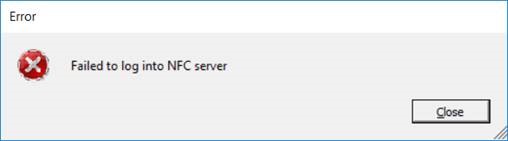
Cause
Resolution
To resolve the issue:
The customer can point the workstation to the DNS server in use by the VxRail.
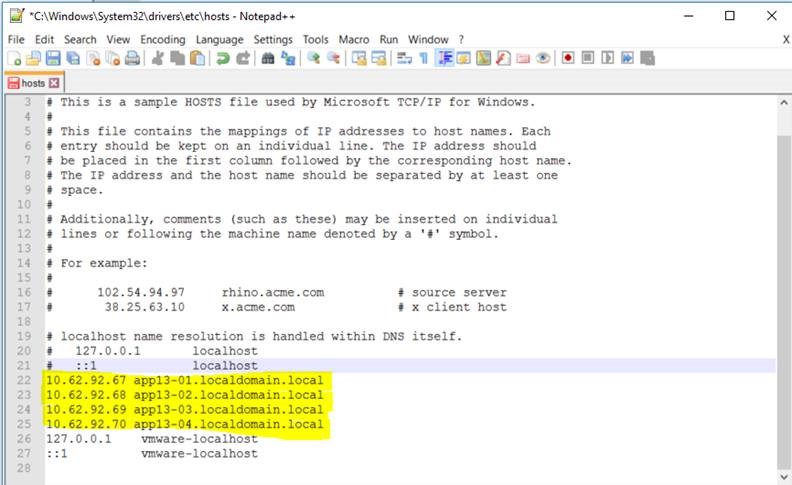
Alternatively, the customer can append the IP address to hostname mappings of all the ESXi hosts to the local hosts file.
a. On Windows: C:\Windows\System32\drivers\etc\hosts
b. On Linux/Mac: /etc/hosts
See the example in the below screenshot:
*Another option for uploading files to a node's datastore is to use a SFTP/FTP client, such as WinSCP.
For this method:
1) Enable SSH on the node.
2) In WinSCP, enter the node's IP address.
3) Username: root
4) Customer should have the root password.
5) Port: 22
6) When WinSCP is connected to the node, navigate to /vmfs/volumes in the WinSCP UI. From here you can see both the node's datastore and the Marvin vSAN datastore. Navigate to the appropriate datastore folder and upload the file to the wanted location.