How to Manage the VMware Carbon Black Cloud Endpoint Uninstall Code
Summary: The uninstall code for VMware Carbon Black Cloud Endpoint may be enabled, located, or disabled by following these instructions.
This article applies to
This article does not apply to
This article is not tied to any specific product.
Not all product versions are identified in this article.
Instructions
This article provides steps to enable, locate, and disable the VMware Carbon Black Cloud Endpoint uninstall code.
Affected Products
- VMware Carbon Black Cloud Endpoint
Affected Operating Systems
- Windows
- Mac
- Linux
VMware Carbon Black Onboarding Part 4: Uninstall and Troubleshooting
Duration: 03:03
Closed captions: Available in multiple languages
An uninstall code can be used to prevent an end user from removing the Carbon Black Cloud Endpoint sensor from an endpoint. A Carbon Black Cloud administrator can Enable, Locate, or Disable the uninstall code.
Click Enable, Locate, or Disable for more information.
Note: By default, the uninstall code is disabled.
Enable
An uninstall code can be enabled for:
- A specific Sensor Group
- The entire Company
Click the preferred method for more information.
Sensor Group
- In a web browser, go to [REGION].conferdeploy.net.
Note: [REGION] = Region of tenant
- Americas = https://defense-prod05.conferdeploy.net/
- Europe = https://defense-eu.conferdeploy.net/
- Asia Pacific = https://defense-prodnrt.conferdeploy.net/
- Australia and New Zealand = https://defense-prodsyd.conferdeploy.net
- Americas = https://defense-prod05.conferdeploy.net/
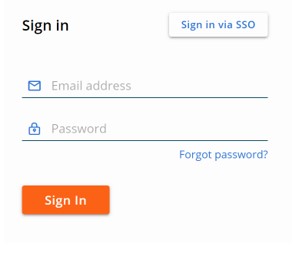
- Sign In to the VMware Carbon Black Cloud.
- In the left menu pane, expand ENFORCE and then click Policies.
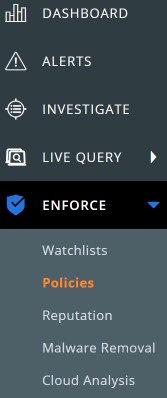 Note: The layout in the example may differ slightly from your environment.
 - Click the appropriate policy NAME.
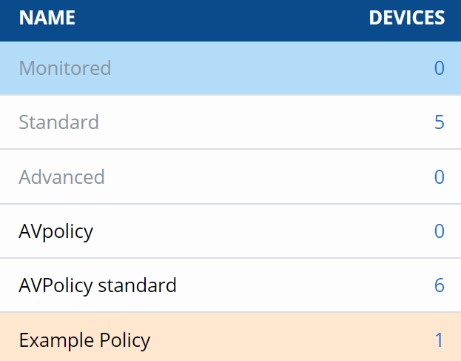 Note: The examples that are used in the screenshot will differ in your environment.
 - Click the Sensor tab.

- In the right column, check Require code to uninstall sensor.
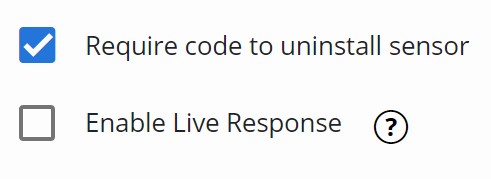
- Click Save.
 Note: Devices associated to the policy (Step 4) receive changes on the next check-in.

Company
- In a web browser, go to [REGION].conferdeploy.net.
Note: [REGION] = Region of tenant
- Americas = https://defense-prod05.conferdeploy.net/
- Europe = https://defense-eu.conferdeploy.net/
- Asia Pacific = https://defense-prodnrt.conferdeploy.net/
- Australia and New Zealand = https://defense-prodsyd.conferdeploy.net
- Americas = https://defense-prod05.conferdeploy.net/
- Sign In to the VMware Carbon Black Cloud.
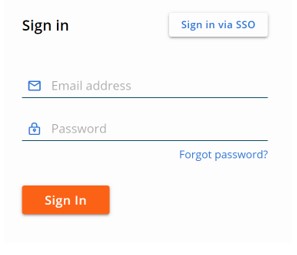
- In the left menu pane, click Inventory and then click Endpoints.
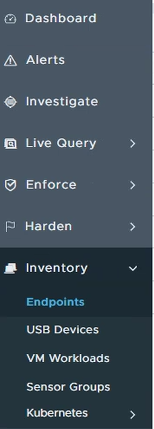 Note: The layout in the example may differ slightly from your environment.
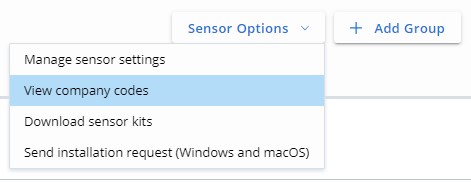
 - In the upper right, select Sensor Options and then click View company codes.
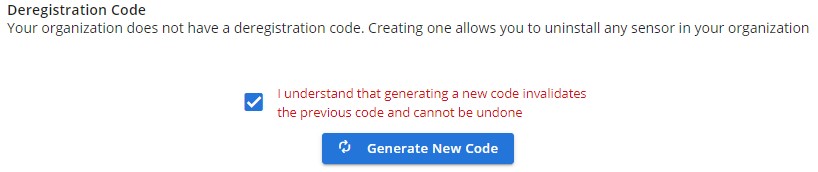
- Select I understand that generating a new code invalidates the previous code and cannot be undone and then click Generate New Code.
 Warning:
- The company uninstall code can be used to remove any VMware Carbon Black Cloud Endpoint sensor in your environment.
- Deregistration code and uninstall code are used interchangeably with VMware Carbon Black Cloud.
Locate
An uninstall code is available for:
- A specific Sensor Group
- The entire Company
Click the preferred method for more information.
Sensor Group
- In a web browser, go to [REGION].conferdeploy.net.
Note: [REGION] = Region of tenant
- Americas = https://defense-prod05.conferdeploy.net/
- Europe = https://defense-eu.conferdeploy.net/
- Asia Pacific = https://defense-prodnrt.conferdeploy.net/
- Australia and New Zealand = https://defense-prodsyd.conferdeploy.net
- Americas = https://defense-prod05.conferdeploy.net/
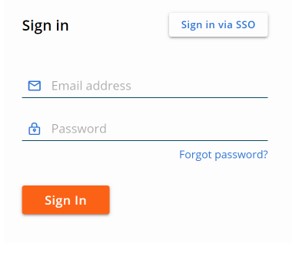
- Sign In to the VMware Carbon Black Cloud.
- In the left menu pane, click Inventory and then click Endpoints.
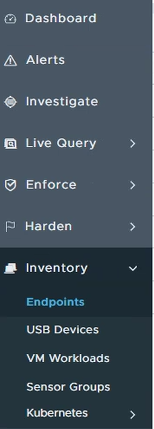 Note: The layout in the example may differ slightly from your environment.
 - Populate the Device Name and then click Search.

- Click > to expand the Device Name details.
- Document the Uninstall Code. In the example image,
ZZ6K6FZPis the Uninstall Code.
 Note: The examples that are used in the screenshot will differ in your environment.
Company
- In a web browser, go to [REGION].conferdeploy.net.
Note: [REGION] = Region of tenant
- Americas = https://defense-prod05.conferdeploy.net/
- Europe = https://defense-eu.conferdeploy.net/
- Asia Pacific = https://defense-prodnrt.conferdeploy.net/
- Australia and New Zealand = https://defense-prodsyd.conferdeploy.net
- Americas = https://defense-prod05.conferdeploy.net/
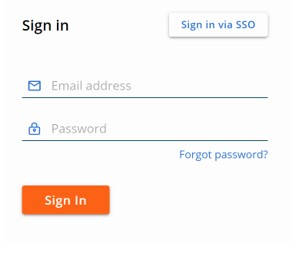
- Sign In to the VMware Carbon Black Cloud.
- In the left menu pane, click Inventory and then click Endpoints.
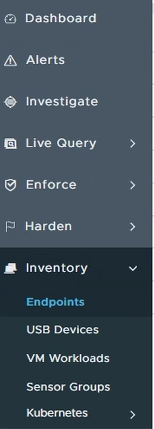 Note: The layout in the example may differ slightly from your environment.
 - In the upper right, select Sensor Options and then click View company codes.
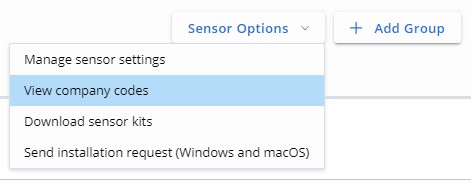
- Document the Uninstall Code. In the example image,
6HNMTAZFis the Uninstall Code.
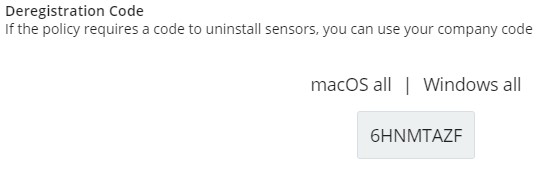 Warning:
- The company uninstall code can be used to remove any VMware Carbon Black Cloud Endpoint sensor in your environment.
- Deregistration code and uninstall code are used interchangeably with VMware Carbon Black Cloud console.
- The Uninstall Code that is used in the example will differ in your environment.
Disable
An uninstall code can only be disabled for a specific Sensor Group. A Company uninstall code can only be regenerated.
Click the preferred method for more information.
Sensor Group
- In a web browser, go to [REGION].conferdeploy.net.
Note: [REGION] = Region of tenant
- Americas = https://defense-prod05.conferdeploy.net/
- Europe = https://defense-eu.conferdeploy.net/
- Asia Pacific = https://defense-prodnrt.conferdeploy.net/
- Australia and New Zealand = https://defense-prodsyd.conferdeploy.net
- Americas = https://defense-prod05.conferdeploy.net/
- Sign In to the VMware Carbon Black Cloud.
- In the left menu pane, expand ENFORCE and then click Policies.
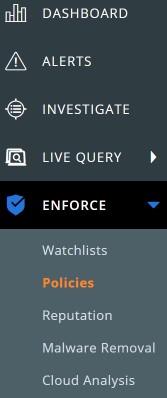 Note: The layout in the example may differ slightly from your environment.
 - Click the appropriate policy NAME.
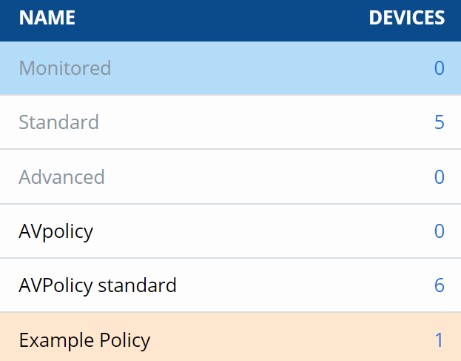 Note: The examples that are used in the screenshot will differ in your environment.
 - Click the Sensor tab.

- In the right column, check Require code to uninstall sensor.
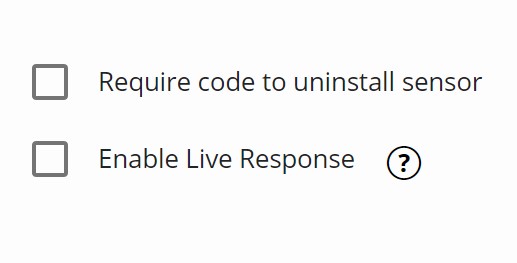
- Click Save.
 Note: Devices associated to the policy (Step 4) receive changes on the next check-in.
Company
- In a web browser, go to [REGION].conferdeploy.net.
Note: [REGION] = Region of tenant
- Americas = https://defense-prod05.conferdeploy.net/
- Europe = https://defense-eu.conferdeploy.net/
- Asia Pacific = https://defense-prodnrt.conferdeploy.net/
- Australia and New Zealand = https://defense-prodsyd.conferdeploy.net
- Americas = https://defense-prod05.conferdeploy.net/
- Sign In to the VMware Carbon Black Cloud.
- In the left menu pane, click Inventory and then click Endpoints.
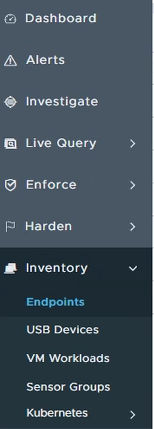 Note: The layout in the example may differ slightly from your environment.
 - In the upper right, select Sensor Options and then click View Company codes.
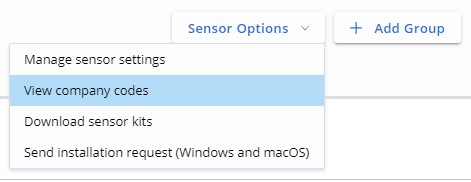
- Select I understand that generating a new code invalidates the previous code and cannot be undone and then click Generate New Code.
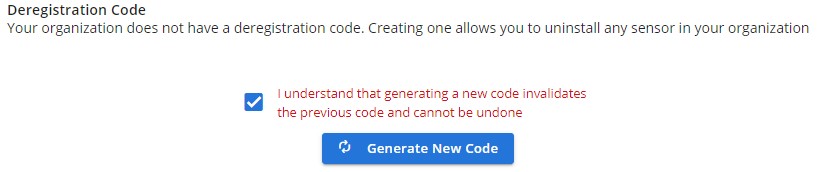 Warning: Deregistration code and uninstall code are used interchangeably with VMware Carbon Black Cloud console.
To contact support, reference Dell Data Security International Support Phone Numbers.
Go to TechDirect to generate a technical support request online.
For additional insights and resources, join the Dell Security Community Forum.
Affected Products
VMware Carbon BlackArticle Properties
Article Number: 000125905
Article Type: How To
Last Modified: 19 Apr 2026
Version: 19
Find answers to your questions from other Dell users
Support Services
Check if your device is covered by Support Services.