如何卸载 VMware Carbon Black Cloud Endpoint
Summary: 可以按照这些适用于 Windows、Mac 和 Linux 的说明卸载 VMware Carbon Black Cloud Endpoint。
This article applies to
This article does not apply to
This article is not tied to any specific product.
Not all product versions are identified in this article.
Instructions
可能需要卸载 VMware Carbon Black Cloud Endpoint 才能执行以下操作:
- 对产品进行故障处理。
- 解决操作系统不兼容性。
- 修复许可差异。
本文介绍了产品的卸载步骤。
受影响的产品
- VMware Carbon Black Cloud Endpoint
受影响的操作系统
- Windows
- Mac
- Linux
VMware Carbon Black 入职培训第 4 部分:卸载和故障处理
持续时间:03:03
隐藏式字幕:提供多种语言版本
单击 Windows、 Mac或 Linux ,查看卸载 VMware Carbon Black Cloud Endpoint 的步骤。
Windows
Windows 上的 VMware Carbon Black Cloud Endpoint 可以通过以下方式卸载:
单击首选的方法以了解更多信息。
UI
提醒:
- UI 卸载方法仅适用于未在策略中启用卸载代码的设备。有关更多信息,请参阅 如何管理 VMware Carbon Black Cloud Endpoint 卸载代码。
- 对于使用卸载代码策略的设备,请使用 CLI 或 云 方法执行卸载。
- 以管理员身份登录,右键单击 Windows 开始菜单,然后单击运行。
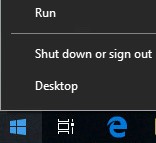
- 在“运行”UI中,键入
appwiz.cpl然后按 OK。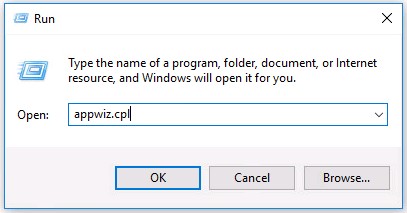
- 在 “程序和功能”中双击
Cb Defense Sensor [BIT]。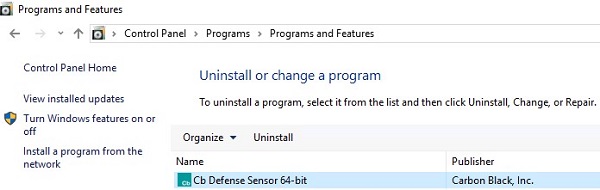 提醒:
提醒:[BIT]= 32 位或 64 位 - 单击 Yes。
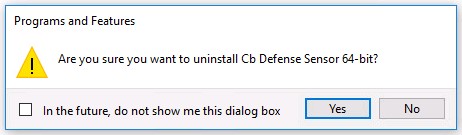
- 如果启用了用户帐户控制 (UAC),则单击 Yes。
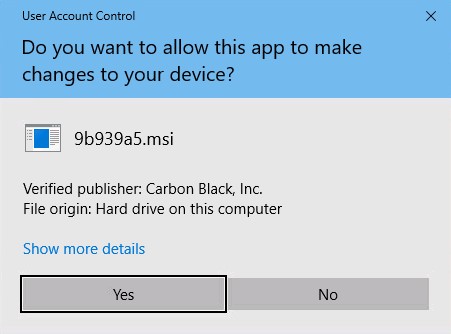 提醒:卸载时,设备在 VMware Carbon Black Cloud 中取消注册。要从控制台中删除设备,请参阅如何从 VMware Carbon Black Cloud 中删除设备(英文版)。
CLI
- 以管理员身份登录,右键单击 Windows 开始菜单,然后单击运行。
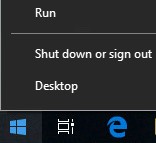
- 在“运行”UI中,键入
cmd,然后按 CTRL+SHIFT+ENTER。这将以管理员身份运行命令提示符。
- 在命令提示符处,键入
cd [DIRECTORY]\Confer分析文件,然后按 Enter 键。 提醒:
提醒:[DIRECTORY]= Confer 目录所在的路径- 示例图像中的路径在您的环境中可能会有所不同。
- 类型
uninstall.exe /uninstall [UNINSTALL CODE]分析文件,然后按 Enter 键。 提醒:
提醒:[UNINSTALL CODE]= 设备卸载代码- 如果已禁用设备卸载代码,则应从命令中省略它。有关更多信息,请参阅如何管理 VMware Carbon Black Cloud Endpoint 卸载代码。
- 设备卸载代码在您的环境中会有所不同。
- 类型
exit分析文件,然后按 Enter 键。 提醒:卸载时,设备在 VMware Carbon Black Cloud 中取消注册。要从控制台中删除设备,请参阅如何从 VMware Carbon Black Cloud 中删除设备(英文版)。
云
- 在网页浏览器中,转至 [REGION].conferdeploy.net。
提醒:[REGION] = 租户的区域
- 登录到 VMware Carbon Black Cloud。
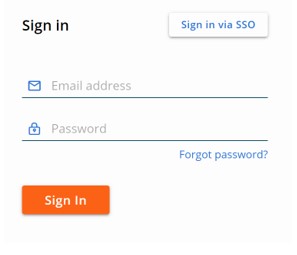
- 在左侧菜单窗格中,单击 Endpoints。
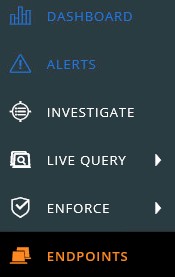
- 找到并选中目标设备名称。
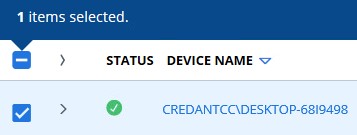 提醒:示例设备名称在您的环境中将会有所不同。
 - 单击 Take Action,然后选择 Uninstall。
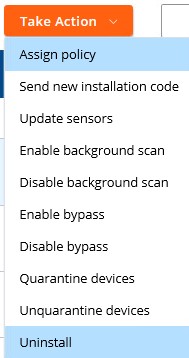
- 单击“Uninstall(卸载)”。
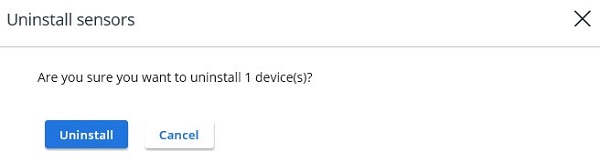 提醒:在具有活动连接的情况下,会在 15 分钟内卸载设备。

Mac
在 Mac 上,可通过以下方式卸载 VMware Carbon Black Cloud Endpoint:
单击首选的方法以了解更多信息。
UI
- 双击
confer_installer_mac-[VERSION].dmg。 提醒:
提醒:[VERSION]= 传感器版本(可能与示例图像不同)- 要获取安装程序,请参阅如何下载 VMware Carbon Black Cloud Endpoint 传感器。
- 双击 CbDefense Uninstall。
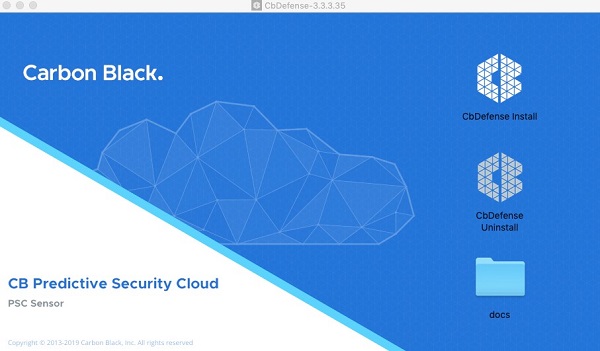
- 如果出现提示,请单击 Open。否则,请转至步骤 4。
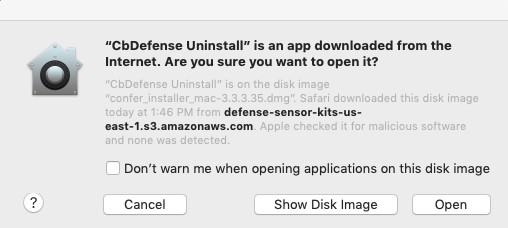
- 单击 Yes - Uninstall。
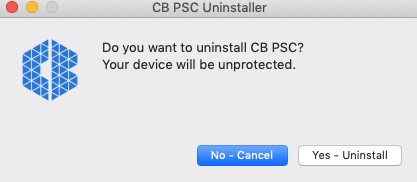
- 如果出现提示,请填写卸载代码,然后单击 Confirm。否则,请转至步骤 6。
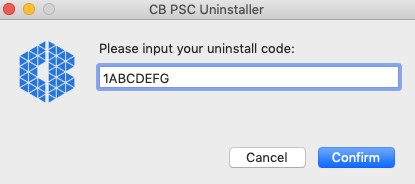 提醒:
提醒:- 如果您的环境中未启用端点卸载代码,则此提示不会出现。有关更多信息,请参阅如何管理 VMware Carbon Black Cloud Endpoint 卸载代码。
- 示例图像中的端点 卸载代码 在您的环境中会有所不同。
- 填写用户名和密码。填写后,单击 OK。
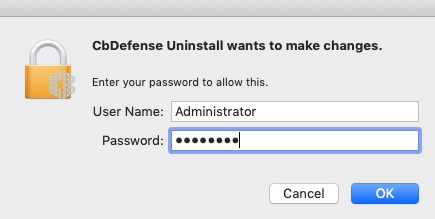
- 单击 Close。
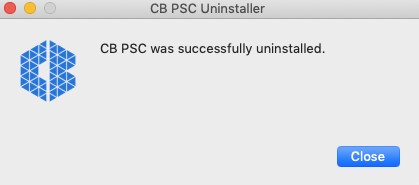 提醒:卸载时,设备在 VMware Carbon Black Cloud 中取消注册。要从控制台中删除设备,请参阅如何从 VMware Carbon Black Cloud 中删除设备(英文版)。
终端
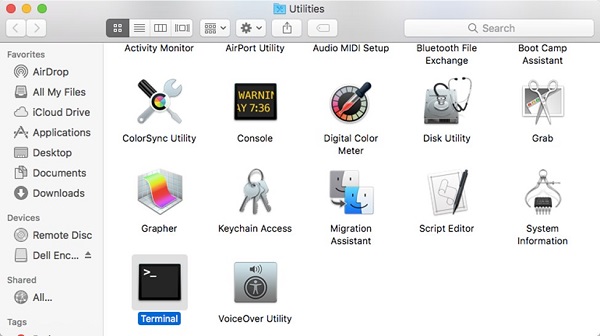
- 从 Apple 菜单中,单击 Go,然后选择 Utilities。

- 在“Utilities”(实用程序)菜单中,双击 Terminal(终端)。
- 在终端中,键入
sudo /Applications/Confer.app/uninstall -y -c [UNINSTALL CODE]分析文件,然后按 Enter 键。 提醒:
提醒:[UNINSTALL CODE]= 设备卸载代码- 如果已禁用设备卸载代码,则可以从命令中省略它。有关更多信息,请参阅如何管理 VMware Carbon Black Cloud Endpoint 卸载代码。
- 示例图像中的端点卸载代码在您的环境中将会有所不同。
- 填写所使用的帐户的密码,然后按 Enter 键。

- 卸载完成后,键入
exit分析文件,然后按 Enter 键。 提醒:卸载时,设备在 VMware Carbon Black Cloud 中取消注册。要从控制台中删除设备,请参阅如何从 VMware Carbon Black Cloud 中删除设备(英文版)。
云
- 在网页浏览器中,转至 [REGION].conferdeploy.net。
提醒:[REGION] = 租户的区域
- 登录到 VMware Carbon Black Cloud。
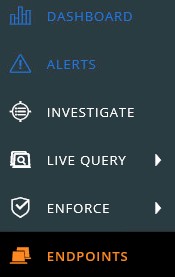
- 在左侧菜单窗格中,单击 Endpoints。
- 找到并选中目标设备名称。
 提醒:示例图像中的 设备名称 在您的环境中会有所不同。
 - 单击 Take Action,然后选择 Uninstall。
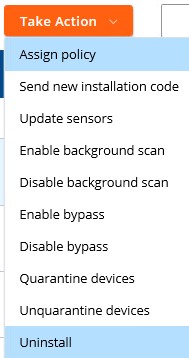
- 单击“Uninstall(卸载)”。
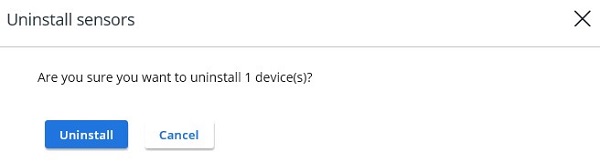 提醒:在具有活动连接的情况下,会在 15 分钟内卸载设备。
Linux
CentOS、Red Hat Linux、SUSE 或 Amazon Linux 和 Ubuntu 之间的分辨率有所不同。单击相应的操作系统,以了解 VMware Carbon Black Cloud Endpoint 的卸载步骤。
CentOS、Red Hat Linux、SUSE 或 Amazon Linux
- 打开终端。

- 类型
sudo rpm -e cb-psc-sensor分析文件,然后按 Enter 键。
- 填写所使用的帐户的密码,然后按 Enter 键。

- 卸载完成后,键入
exit分析文件,然后按 Enter 键。 提醒:卸载时,设备在 VMware Carbon Black Cloud 中取消注册。要从控制台中删除设备,请参阅如何从 VMware Carbon Black Cloud 中删除设备(英文版)。
Ubuntu
- 打开终端。

- 类型
sudo dpkg –purge cb-psc-sensor分析文件,然后按 Enter 键。
- 填写所使用的帐户的密码,然后按 Enter 键。

- 卸载完成后,键入
exit分析文件,然后按 Enter 键。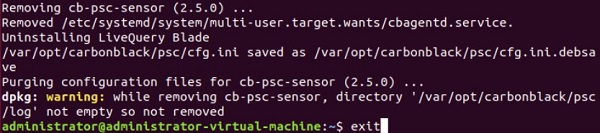 提醒:卸载时,设备在 VMware Carbon Black Cloud 中取消注册。要从控制台中删除设备,请参阅如何从 VMware Carbon Black Cloud 中删除设备(英文版)。
要联系支持部门,请参阅 Dell Data Security 国际支持电话号码。
转至 TechDirect,在线生成技术支持请求。
要获得更多见解和资源,请加入戴尔安全社区论坛。
Additional Information
Videos
Affected Products
VMware Carbon BlackArticle Properties
Article Number: 000126216
Article Type: How To
Last Modified: 11 Jun 2025
Version: 23
Find answers to your questions from other Dell users
Support Services
Check if your device is covered by Support Services.