How to Remove Devices from the VMware Carbon Black Cloud
Summary: Learn how to manually or automatically remove Windows, Mac, or Linux devices from the VMware Carbon Black Cloud by following these step-by-step instructions.
This article applies to
This article does not apply to
This article is not tied to any specific product.
Not all product versions are identified in this article.
Symptoms
This article provides the steps to manually and automatically remove devices from the VMware Carbon Black Cloud.
Affected Products:
- VMware Carbon Black Cloud Endpoint
Affected Operating Systems:
- Windows
- Mac
- Linux
Cause
Not applicable
Resolution
By default, VMware Carbon Black Cloud retains any device that is currently or previously activated with the VMware Carbon Black Cloud Endpoint sensor. An administrator may Manually or Automatically remove devices if they are no longer needed.
Click the preferred method for more information.
Warning:
- The VMware Carbon Black Cloud Endpoint sensor must be uninstalled from the device before removing it in the VMware Carbon Black Cloud console.
- Device removal is a permanent operation and purges all historic information.
- In a web browser, go to [REGION].conferdeploy.net.
Note: [REGION] = Region of tenant
- Americas = https://defense-prod05.conferdeploy.net/
- Europe = https://defense-eu.conferdeploy.net/
- Asia Pacific = https://defense-prodnrt.conferdeploy.net/
- Australia and New Zealand = https://defense-prodsyd.conferdeploy.net

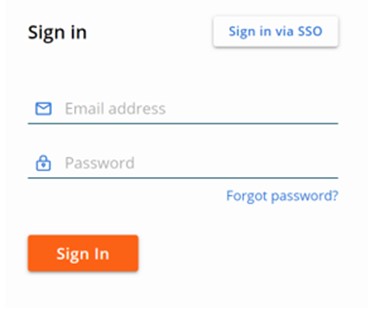
- Sign In to the VMware Carbon Black Cloud.
- In the left menu pane, click ENDPOINTS.
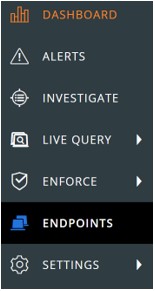
Note: The layout in the example may differ slightly from your environment.
- In the All Sensor user interface (UI):
- Check the appropriate Device Name.
- Click Take Action.
- Click Delete deregistered devices.
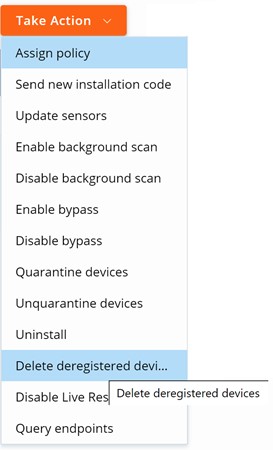
- Click Delete.

Note: On refresh, the UI reflects the change.
- In a web browser, go to [REGION].conferdeploy.net.
Note: [REGION] = Region of tenant
- Americas = https://defense-prod05.conferdeploy.net/
- Europe = https://defense-eu.conferdeploy.net/
- Asia Pacific = https://defense-prodnrt.conferdeploy.net/
- Australia and New Zealand = https://defense-prodsyd.conferdeploy.net
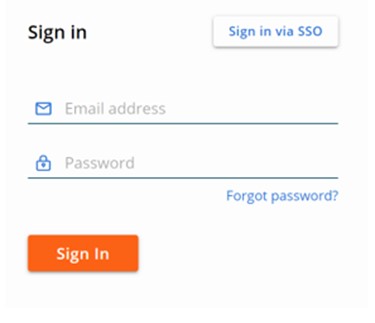
- Sign In to the VMware Carbon Black Cloud.
- In the left menu pane, click ENDPOINTS.
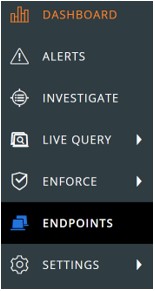
Note: The layout in the example may differ slightly from your environment.
- In the upper right corner, click Sensor Options and then select Sensor settings.
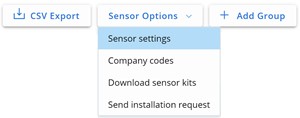
- In the Sensor Settings user interface (UI):
- Check Delete sensors that have been deregistered for.
- From the drop-down, select a time.
- Click Save.
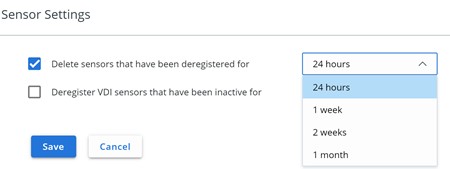
Note: On refresh, the UI reflects the change.
To contact support, reference Dell Data Security International Support Phone Numbers.
Go to TechDirect to generate a technical support request online.
For additional insights and resources, join the Dell Security Community Forum.
Affected Products
VMware Carbon BlackArticle Properties
Article Number: 000126231
Article Type: Solution
Last Modified: 19 Apr 2026
Version: 11
Find answers to your questions from other Dell users
Support Services
Check if your device is covered by Support Services.