VPLEX: How to import a VPLEX license file
Summary: This article describes the process to import a VPLEX license file.
This article applies to
This article does not apply to
This article is not tied to any specific product.
Not all product versions are identified in this article.
Instructions
A Dell VPLEX license file can be installed on a VPLEX running GeoSynchrony 6.1 and higher through the Unisphere for VPLEX UI or through the VPLEX CLI interface.
Previous GeoSynchrony versions prior to 6.1.x used a different licensing scheme so this knowledge base article would not be applicable for code levels prior to 6.1.x.
Note: If you must obtain a license file, either open a licensing service request or contact your local field engineering to assist you with this.
To install a license file through the Unisphere for VPLEX UI:
-
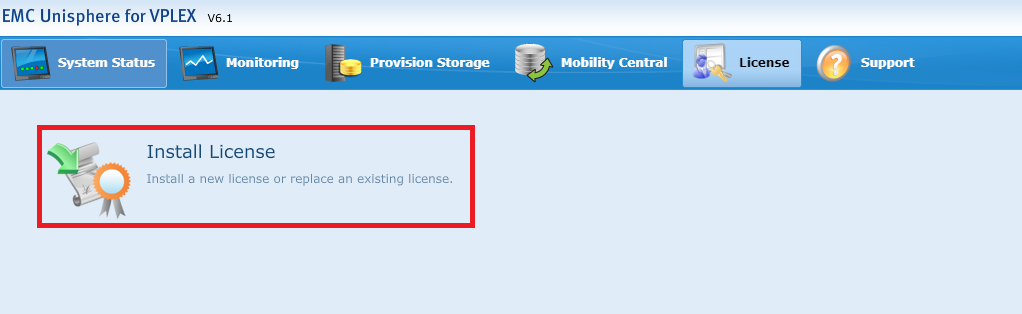
Using a browser, login to the Unisphere for VPLEX UI using the VPLEX public IP Address and browse to the "License" tab in the top navigation bar.

-
From the License menu, select "Install License."
-
From the Install License page, select "Browse" button to browse to the location of the .lic file.
Once the license file has been uploaded, select the "Confirm" checkbox and click the "Install License" button at the bottom of the screen.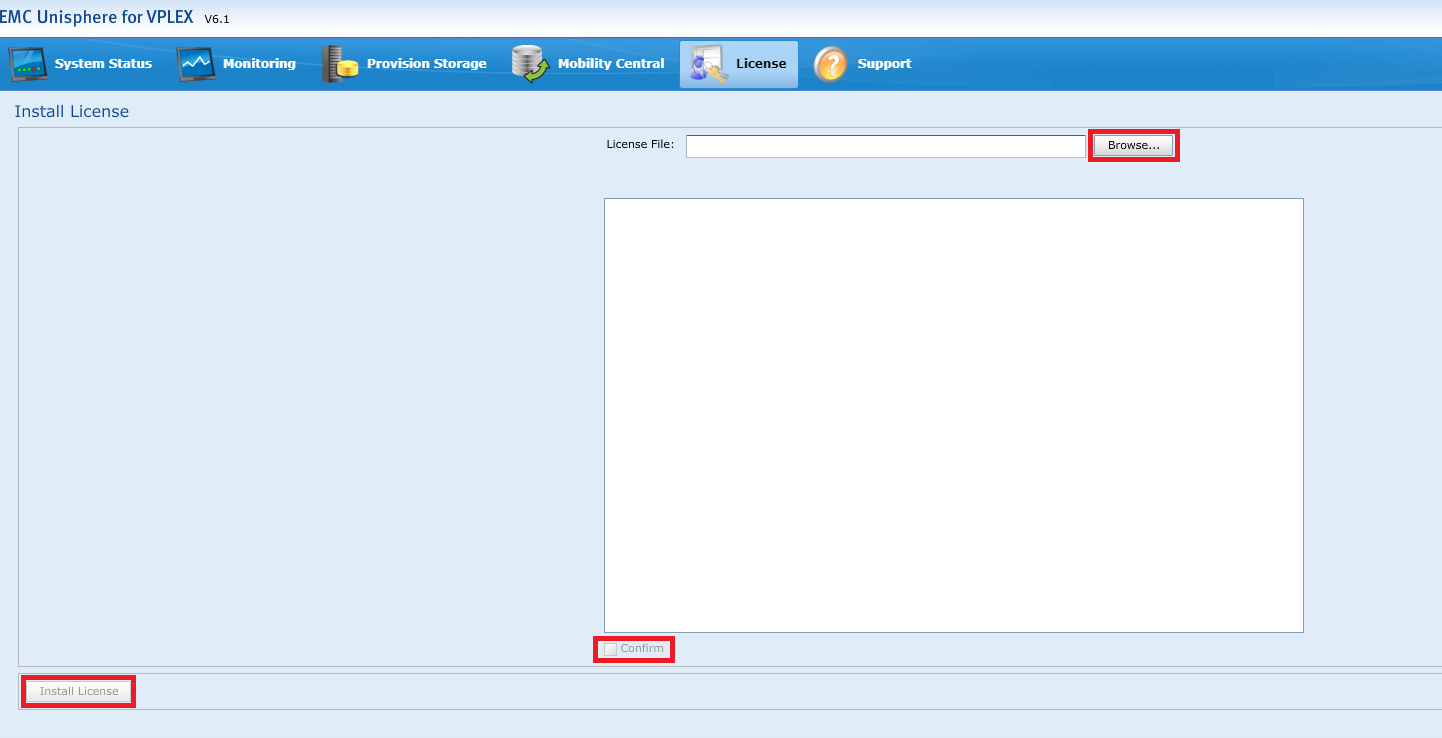
To install a license file from the CLI:
-
Use a program such as WinSCP to copy the .lic file to the /home/service directory on the management server.
-
Log in to the management server using the service account and enter the VPLEX CLI:
service@ManagementServer:~> vplexcli
-
From the VPLEX CLI use the "license install -l <path/to/filename.lic>" command to install the license file.
Example:
VPlexcli:/> license install -l /home/service/CKM00xxxxxxxxx_VPLEX_16-Apr-2019.lic
License installed.
-
The license file can then be displayed using the "license show" command.
Example:
VPlexcli:/> license show
Property      Value
------------- -------------------------------------------
Feature Name  VPLEX_LOCAL_CAPACITY
Issuer        EMC
Issued Date   Tue Apr 16 00:00:00 UTC 2019
Expiry Date   None
Notice        ACTIVATED TO License Site Number: xxxxxxxx
Valid         true
Platform      VS2
UOM Code      CA
UOM Name      Registered Capacity in TB
PLC           VPLEX
Product Line  VPLEX
Capacity      10 <<< note this is the capacity of the licenses installed
Capacity Unit TB
Usage         8.9 <<< this is how much of the capacity that has been used
Usage Unit    TB
Additional Information
For more information, refer to the "Using the Unisphere UI to perform digital licensing" section of the VPLEX GeoSynchrony 6.1 or later Administration Guide.
Affected Products
VPLEX Series, VPLEX VS6Products
VPLEX for All Flash, VPLEX VS2Article Properties
Article Number: 000158006
Article Type: How To
Last Modified: 07 Nov 2025
Version: 5
Find answers to your questions from other Dell users
Support Services
Check if your device is covered by Support Services.