NetWorker: Troubleshooting Media Waiting Events - waiting for 1 writable volume or no matching devices
Summary: NetWorker: Troubleshooting Media Waiting Events - waiting for 1 writable volume or no matching devices
This article applies to
This article does not apply to
This article is not tied to any specific product.
Not all product versions are identified in this article.
Symptoms
- A backup or clone operation is performed through NetWorker.
- The following error messages are observed.
Waiting for <number> writable volumes to backup pool '<pool>' <family> on <host>No matching devices; check storage nodes, devices, or pools.
- These messages can be found through:
- NetWorker Management Console (NMC): Monitoring > Policies > Policy_Name >Workflow_Name > Action_Name > Show Details > Failed Session > Show Messages > Get Full Log.
- For "Waiting for writable volume" issues, this message also appears in the Alerts window of the NMC.
- The NetWorker server's
daemon.rawalso reports these messages.- Linux:
/nsr/logs/daemon.raw - Windows (Default):
C:\Program Files\EMC NetWorker\nsr\logs\daemon.raw - How to use
nsr_render_log: NetWorker: How to use nsr_render_log - How to enable real time .raw rendering: NetWorker: How to automatically render daemon.raw to daemon.log in real time
- Linux:
- NetWorker Management Console (NMC): Monitoring > Policies > Policy_Name >Workflow_Name > Action_Name > Show Details > Failed Session > Show Messages > Get Full Log.
Cause
The above alerts are caused when NetWorker cannot find any suitable volume on which to write a backup. They can be generated for one or more of the following reasons mentioned under Resolution section.
Resolution
Action Definitions
The Policy > Workflow > Action configuration and media pools must be properly configured:
Destination Pool
The Destination Pool property of the action defines which pool the data is sent. A pool is a collection of volumes to which NetWorker writes data.
The pool attribute is set in the NMC. Select a workflow within a policy and review the relevant action. The backup is sent to the pool which is defined in the 'Destination Pool' action parameter.
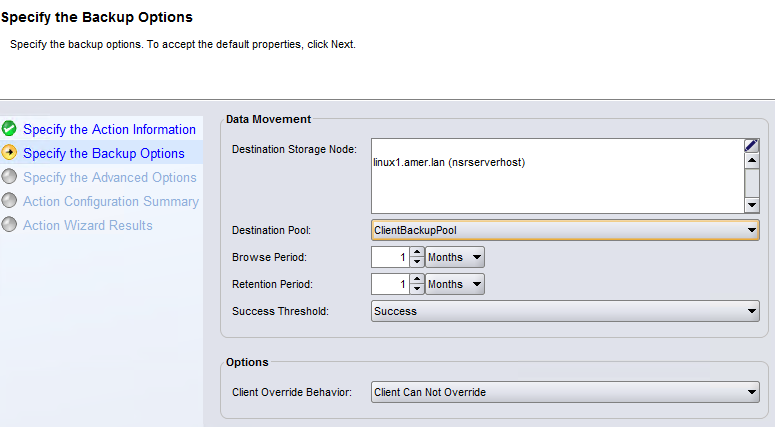
NOTE: If 'Client Override Behavior' on the Action is set to 'Client Can Override', then the 'Pool' value from the client is considered as the first priority.
The pool to which the data is being sent must contain an available volume. You can see the list of volumes and their pools in, for example, Media > Disk Volumes.
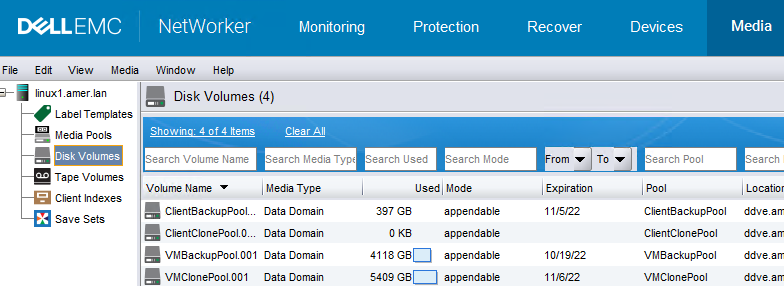
For specific example, consult this article:
NOTE: The volume associated with the pool must be Appendable. For detailed instructions, see: NetWorker: Device in Write Protected.
Destination Storage Node
The Destination Storage Node attribute of the workflow action must be set correctly. This field specifies the hostname of the storage node that has the devices which receive the backup data. By default, the NetWorker server appears. To select a remote storage node, click the edit button to the right of the field and select each required storage node.
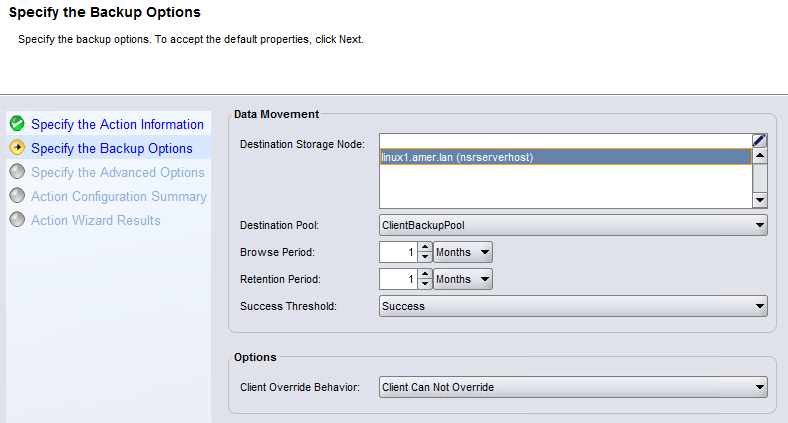
NOTE: If 'Client Override Behavior' on the Action is set to 'Client Can Override', then the storage node defined in the client parameter called 'Storage Nodes' in the client 'Globals (2 of 2)' is used as a priority. View > Diagnostic Mode must be enabled in the NMC to see the Storage Nodes field. By default the NetWorker server's storage node (
nsrserverhost) is defined.
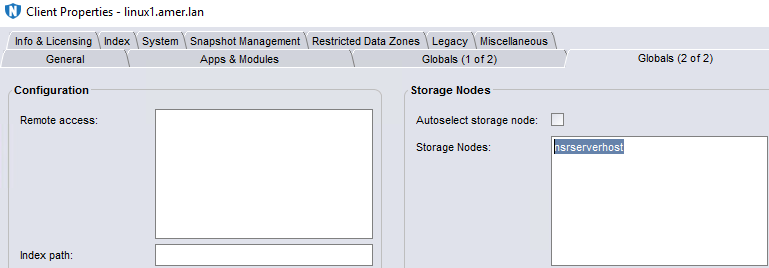
Ensure that there are available (mounted) volumes in the devices on the storage node which you have selected. You can check this in the NMC, in Devices > Devices.
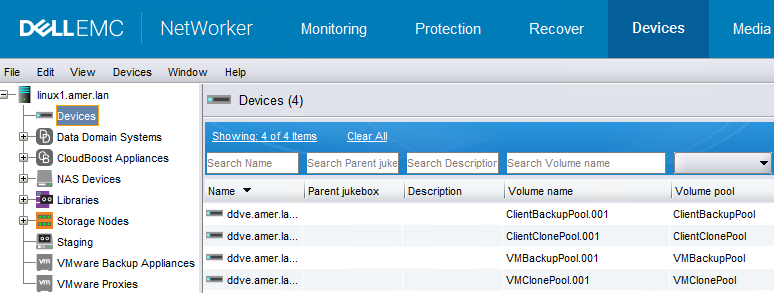
NOTE: If the 'Volume Name' column is empty, the device is not mounted. The 'Volume Pool' column is not shown by default, but can be added.
For specific examples, refer this article:
- NetWorker: Backup Fails with Error: 'Save: Error no matching devices: Check storage nodes, devices, or pools' (000108493)
Client Properties
If the NetWorker client resource has 'Data Domain backup' selected, there must be an available Data Domain volume in the selected pool. If the client is part of a group that is configured to backup to another media type (for example: Tape, Advanced File Type (AFTD, CloudBoost), clear this option if selected.
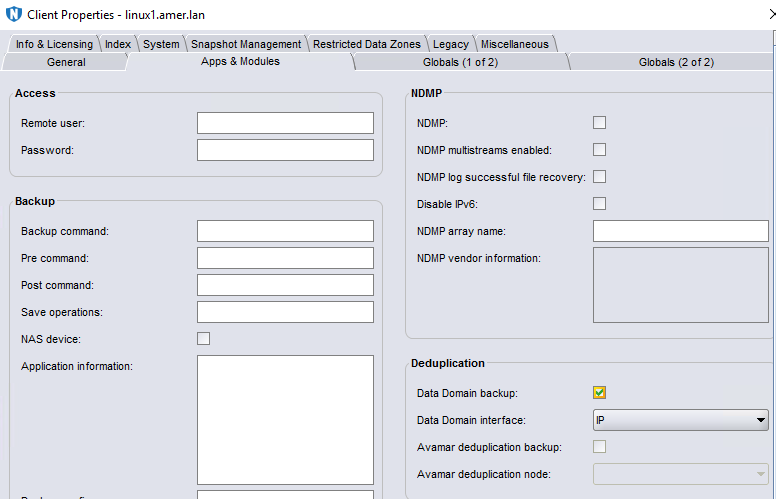
NOTE: View > Diagnostic Mode must be enabled in the NMC to see the Deduplication Data Domain options.
Bootstrap Backups
The NetWorker server's bootstrap save set can only be saved to a volume mounted using the NetWorker server's embedded storage node (by design). That is, the NetWorker server's bootstrap save sets cannot be saved to remote devices (
rd=storagenode_name:device_name).
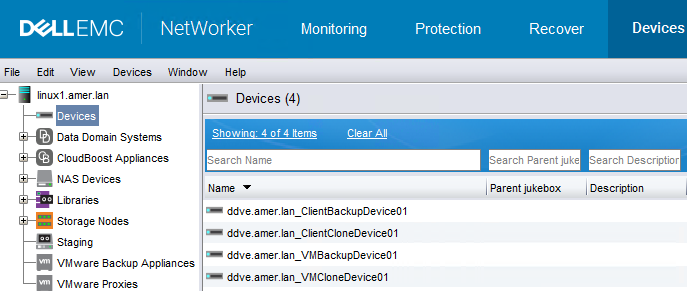
For specific example, consult this article:
Pool Properties
The Device specified in the Devices attribute of the Destination Pool must have the correct path.
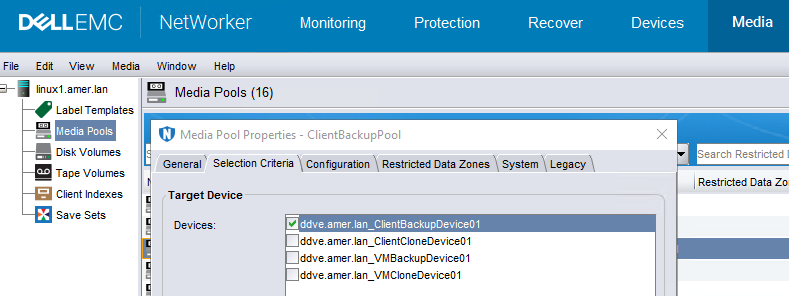
The selected devices should be mounted under Devices > Devices:
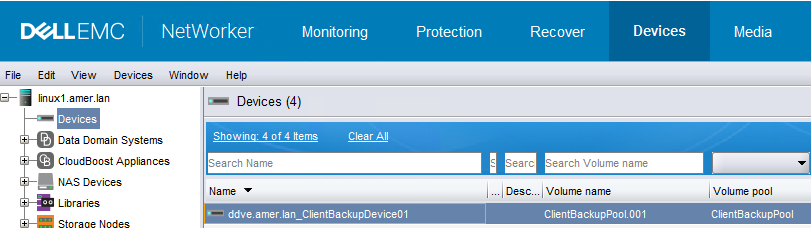
NOTE: If the 'Volume Name' column is empty, the device is not mounted. The 'Volume Pool' column is not shown by default, but can be added.
Name Resolution
Name resolutions observed with the NetWorker server, Storage Nodes, Clients, or Devices should also be verified.
For specific examples, consult these articles:
- NetWorker: Name Resolution Troubleshooting Best Practices
- NetWorker: How to Use NetWorker nsradmin -C Resource Validation
Cloning Considerations
Cloning must be configured correctly. NetWorker requires two or more storage devices to perform a clone operation. One device contains the volume with the original data and one device contains the volume to which NetWorker writes the clone data. Source and destination must be two different volumes. Each clone volume can only contain one instance of a cloned save set.
Cloning can be set up in several different ways in NetWorker. One common way is to setup a NetWorker group of type 'Save Set Query'. Use the policy action wizard for the group's workflow to define the 'Destination Storage Node' and 'Destination Pool.' This decides where exactly this clone data is written to. Ensure NetWorker volumes in this pool using this storage node don't already have a copy of this save set instance.
Alternatively, Add a clone action after a backup action to clone save sets backed up by the previous action. The policy action wizard is used to define where to write the clone data.
If no destination storage node is defined, clone data is written to the storage nodes in the 'Clone storage nodes' field or the NetWorker server storage node. This value is defined in the properties of the storage node resource 'Configuration' tab. Cloned data originating from this storage node is directed to the first storage node which has an enabled device and a functional media daemon (nsrmmd).
Tape Devices
Tape Device issues are causing NetWorker not to be able to write to the target device.
AFTD Devices
The NetWorker Advanced File Type Device (AFTD) is not working as expected:
Additional Information
Debugging:
Sessions and Parallelism:
Client Properties:
- NetWorker: All backups sent to Data Domain are failing with "no matching devices for save of client"
- NetWorker: Device mounted on device_path is off limits
Bootstrap Backups:
- NetWorker: How To Perform NSRDR (Support Engagement Recommended)
- NetWorker: How to Schedule the NetWorker Online File and Media Index Maintenance Operations
Name Resolution:
- NetWorker: Name Resolution Troubleshooting Best Practices
- NetWorker: How To Troubleshoot Network Related Issues
- How to test NetWorker client/server communication through a firewall
Cloning:
Tape Devices:
- NetWorker: How to configure a Jukebox autochanger for Network Data Management Protocol (NDMP)?
- NetWorker: Troubleshooting Tape Library Problems in NetWorker
NDMP:
Affected Products
NetWorkerProducts
NetWorker, NetWorker SeriesArticle Properties
Article Number: 000173177
Article Type: Solution
Last Modified: 05 May 2026
Version: 14
Find answers to your questions from other Dell users
Support Services
Check if your device is covered by Support Services.