Unable to Assign Serial Port or Baud Rate on Latitude 5430 Rugged and Latitude 7330 Rugged Extreme u-blox GPS
Summary: This article provides information about serial port assign issues or baud rates on Dell Latitude 5430 Rugged or Latitude 7330 Rugged Extreme.
This article applies to
This article does not apply to
This article is not tied to any specific product.
Not all product versions are identified in this article.
Symptoms
If your GPS application does not require a specific Port # and works on the Windows default Baud Rate of 38400. The only configuration change that is likely needed is to ensure that Power Management is not checked in Device Manager under Sensors (See Figure 1)
However, this does not work out of the box if your application requires a specific port and/or baud rate.
Ensure that Power Management is not checked in Device Manager under Sensors.
Figure 1. Power Management
Cause
This is working as designed. If your application does not work with the default settings, follow the steps below.
Resolution
- Ensure that Power Management is not checked in Device Manager under Sensors.
- Use the COMPort_Assignment Utility to set the COM port # to what you require:
- Go to https://ftdichip.com/utilities/

- Scroll down to the COMPort_Assignment Utility section, then download and open the .zip file
- Run the ReAssignCOMPortNumb.exe file to install the utility
- Go to https://ftdichip.com/utilities/
- Launch the application to Assign a ComPort (See Figure 2).
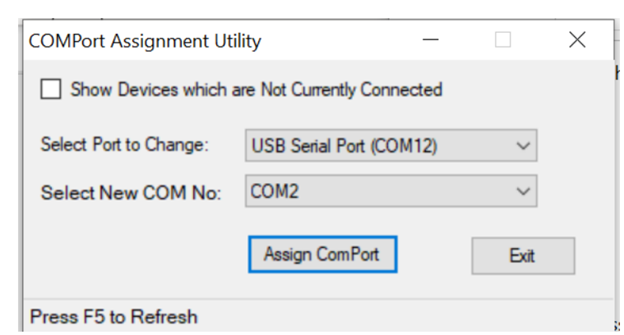
Figure 2. COMPort Assignment Utility
The Utility automatically finds your GPS port. Select the COM Port needed for your App, press Assign Com Port, and then Exit.
Notice the Com Port change in Device Manager. A restart is required for all applications to see the new COM port. - Use U-Center to change the Baud Rate by doing the following
- Open U-Center, In the Toolbar, clicks Receiver/Connection, and selects the port as listed in Device Manager.
- Click Receiver/Baud Rate and set it to 38400.
- On the Tool Bar, click View/Configuration View, and in the left pane, locate, and click "PRT (Ports)."
- Notice the Baud Rate in the right Pane and change it to 9600, click "Send." (See Figure 3)

Figure 3. Baud Rate in right Pane - Now click View>> Message View and in the left pane Expand on "UBX" >> CFG Config >> CFG Configuration
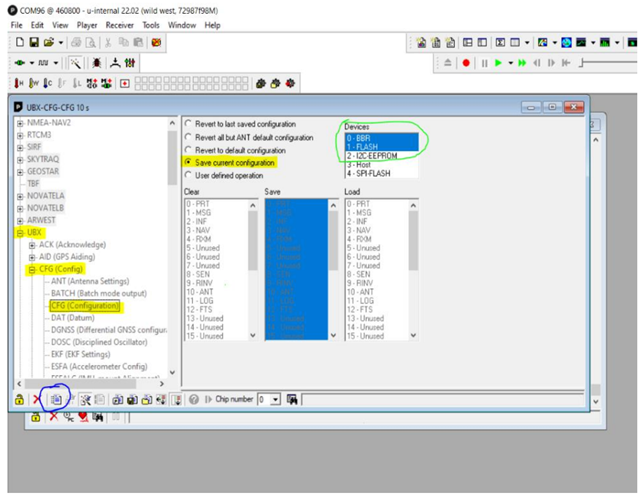
Figure 4. Verify the configuration
- Notice the Baud Rate in the right Pane and change it to 9600, click "Send." (See Figure 3)
- Verify configuration matches (See Figure 4) and click the Send button.
- Go back into U-Center and test the GPS on Baud Rate 9600 and the Com Port you selected.
Affected Products
Latitude 7330 Rugged Extreme, Latitude 5430 RuggedArticle Properties
Article Number: 000201221
Article Type: Solution
Last Modified: 28 May 2025
Version: 5
Find answers to your questions from other Dell users
Support Services
Check if your device is covered by Support Services.