PowerScale: Isilon: How to power cycle and drain an Isilon node
Summary: How to power cycle and drain a PowerScale: Isilon node
This article applies to
This article does not apply to
This article is not tied to any specific product.
Not all product versions are identified in this article.
Instructions
NOTE: You need physical access to the node in order to complete the power drain.
Procedure Gen 5
STEP 1. Establish a serial connection as 'root' user with the node that you want to power-cycle and drain.
STEP 2. Power-off the node.
# isi_flushand wait for the flush to complete.
Then run
# shutdown -p nowto shut down node
Visually verify that all lights on the node have turned off.
NOTE: Sometimes this commands fails to power down the node. On occasions, it will reboot the node instead or simply fail to work. In those situations, follow the next options in order until the node is fully powered-down and remains off.
*** If node successfully powers off, go to STEP 3.
If shutdown command does NOT power down the node, but reboots it instead, wait for the node to finish booting, then run the command again - it should shut down properly. If it does not, or if the command did not reboot the node either, please contact EMC-Isilon Technical Support.
STEP 3. Once the node is powered off, to fully power drain the node and reset the BMC, for gen 4 and 5 remove both power cords, then wait 3 minutes and hold the power button for 30 seconds.
STEP 4. Reinsert the power cords
STEP 5. Restart the node by pressing the power button on the back of the node.
If the node does not power back on, or if it fails to boot successfully, please collect boot logs and contact EMC-Isilon Support.
Procedure Gen 6 and MLK:
STEP 1. Establish a serial connection as 'root' user with the node you want to power-cycle and drain.
STEP 2. Power-off the node.
# isi_flushand wait for flush to complete
Then run
# shutdown -p nowto shut down node
Visually verify that all lights on the node have turned off.
NOTE: Sometimes this commands fails to power down the node. On occasions, it will reboot the node instead or simply fail to work. In those situations, follow the next options in order until the node is fully powered-down and remains off.
NOTE:Having issued a shutdown -p on the node, If you see the shutdown start but it doesn't appear to proceed. The only output you receive after the standard messages are correctable memory errors. If you run isi status on the cluster, the node will show as down, but you are still able to ping it across the back end network. Please follow this k/b
https://dellservices.lightning.force.com/lightning/r/Lightning_Knowledge__kav/ka06P000000Tc6WQAS/view
*** If node successfully powers off, go to STEP 3.
If shut down command does NOT power down the node, please contact EMC-Isilon Technical Support.
STEP 3. Once the node is powered off, to fully power drain the node, remove the power cord, and pull the node out of the chassis 1 inch. Leave the node in this state for 3 minutes. After waiting 3 minutes, press and hold the power button for 30 seconds to complete the power drain.
STEP 4. Push node back into enclosure and reinsert the power cord. The node should power up on its own
If the node does not power back on, or if it fails to boot successfully, please collect boot logs and contact EMC-Isilon Support.
Then run
to shut down node
Visually verify that all lights on the node have turned off.
NOTE: Sometimes this command fails to power down the node. On occasions, it will reboot the node instead or simply fail to work. In those situations, follow the next options in order until the node is fully powered-down and remains off.
*** If node successfully powers off, go to STEP 3.
If the shut down command does NOT power down the node, but reboots it instead, wait for the node to finish booting, then run the command again - it should shut down properly. If it does not, or if the command did not reboot the node either, please contact EMC-Isilon Technical Support.
STEP 3. Once the node is powered off, to fully power drain the node remove power cord, then wait 3 minutes and hold the power button for 30 seconds.
STEP 4. Reinsert the power cord
STEP 5. Restart the node by pressing the power button on the front of the node.
If the node does not power back on, or if it fails to boot successfully, please collect boot logs and contact EMC-Isilon Support.
Note: A gen 6.5 node can also be power drained remotely if the iDRAC is configured for remote access. Preference is for a physical power drain, but this can be done if there are no other options. If the remote power drain does not resolve the issue, a physical power drain is generally recommended.
STEP 4. Push node back into enclosure and reinsert the power cord. The node should power up on its own
If the node does not power back on, or if it fails to boot successfully, please collect boot logs and contact EMC-Isilon Support.
Procedure Gen 6.5:
STEP 1. Establish an SSH session as 'root' user with the node that you want to power-cycle and drain.
STEP 2. Power-off the node.
# isi_flushand wait for the flush to complete
Then run
# shutdown -p now
to shut down node
Visually verify that all lights on the node have turned off.
NOTE: Sometimes this command fails to power down the node. On occasions, it will reboot the node instead or simply fail to work. In those situations, follow the next options in order until the node is fully powered-down and remains off.
*** If node successfully powers off, go to STEP 3.
If the shut down command does NOT power down the node, but reboots it instead, wait for the node to finish booting, then run the command again - it should shut down properly. If it does not, or if the command did not reboot the node either, please contact EMC-Isilon Technical Support.
STEP 3. Once the node is powered off, to fully power drain the node remove power cord, then wait 3 minutes and hold the power button for 30 seconds.
STEP 4. Reinsert the power cord
STEP 5. Restart the node by pressing the power button on the front of the node.
If the node does not power back on, or if it fails to boot successfully, please collect boot logs and contact EMC-Isilon Support.
Gen 6.5 remote power drain / virtual flea drain:
STEP 1 Log into node and issue shut down commands:
# isi_flushand wait for flush to complete
Then run
# shutdown -p nowto shut down the node.
STEP 2 Log into IDRAC and confirm that node is powered down though vConsole.
STEP 3 In IDRAC go to Configuration -> BIOS Settings.
- Under Miscellaneous Settings: Change Power Cycle Request to "Full Power Cycle" and Apply.
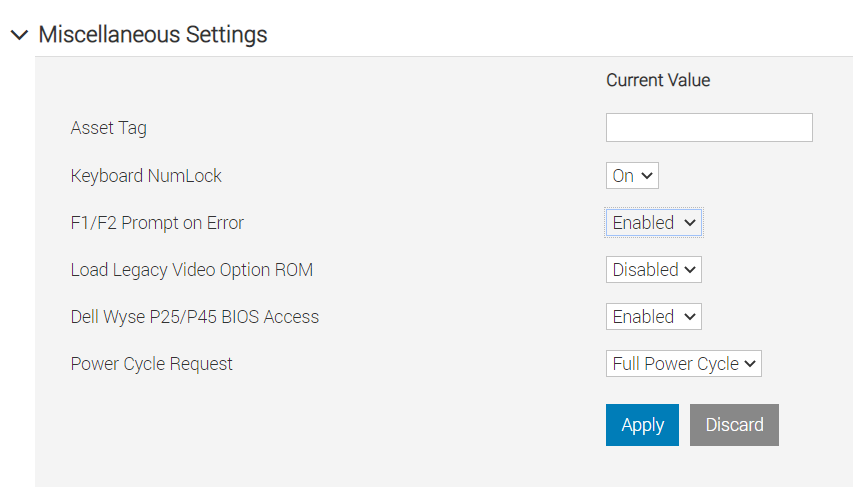
If the host is ready to reboot, go ahead and initiate by "Apply and Reboot." Else the user can save this for a manual reboot using "At Next Reboot"
Option 2: Boot into BIOS Settings
You can access this remotely by the iDRAC Virtual Console or any physical KVM hookup.
- Boot into the BIOS Settings (F2)
- System BIOS -> Miscellaneous Settings -> Power Cycle Request, select Full Power Cycle.
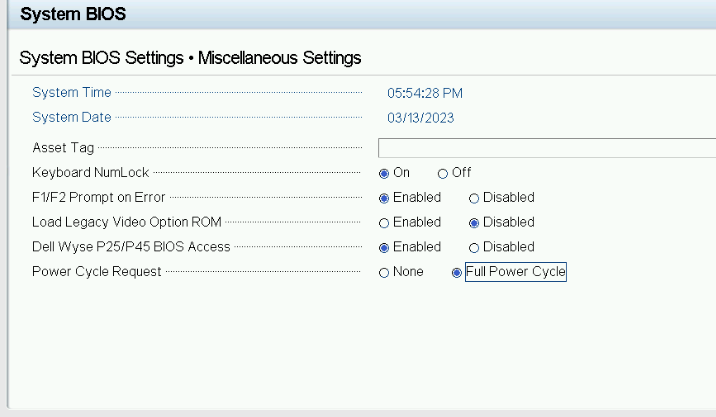
- Click the Back Button, then Finish, Accept setting changes, OK to confirm, and then Finish Button to select to reboot.
Affected Products
IsilonProducts
Isilon, Isilon NL-Series, Isilon NL410, PowerScale OneFS, Isilon X-Series, Isilon X200, Isilon X210, Isilon X400, Isilon X410Article Properties
Article Number: 000020498
Article Type: How To
Last Modified: 14 Aug 2026
Version: 8
Find answers to your questions from other Dell users
Support Services
Check if your device is covered by Support Services.