OptiPlex 5070 Micro Form Factor (MFF) Teardown removal guide for customer replaceable unit (CRUs)
Summary: This article is a guide to removing those parts of the Dell Micro Form Factor OptiPlex 5070 desktop system that Dell considers it easy enough for anyone to do.
Symptoms
These guides will take you step by step through the safe removal of what are considered to be the Customer Replaceable Unit (CRU) parts of an OptiPlex 5070 Micro Form Factor (MFF) system. (CRUs are the parts of the system that shouldn't need an engineer to remove or replace.) The guides will also include pictures to reference what's involved.
Table of Contents:
Removal Guide
If these guides do not cover what you are looking to do, then you will want to reference your System Manual.
The article below provides information on safe practises to take into consideration before working with electrical equipment.
Removal Instructions
 Note: Please click on the title of the section you want to open below, in order to see the contents.
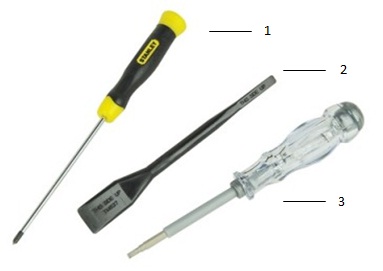
| 1 | Small Phillip's head screwdriver | 2 | Plastic Scribe |
| 3 | Small Flathead screwdriver |
 Note: Be aware that using a large Phillips or Flat Head screwdriver may result in damage to the head of the screws. This would make their removal impossible without speciality tools, that aren't available to our onsite engineers.
-
Pre-Removal Instructions Before removing the System Cover :
-
During installation or removal of any hardware always ensure all data is backed up properly
-
Disconnect any telephone, network, or USB cables from the computer
-
Disconnect the computer and all attached devices from their electrical outlets
-
-
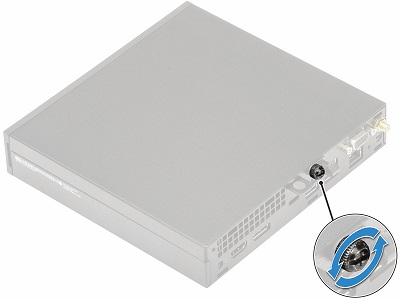
Loosen the thumbscrew securing the cover on the back of the system.
-
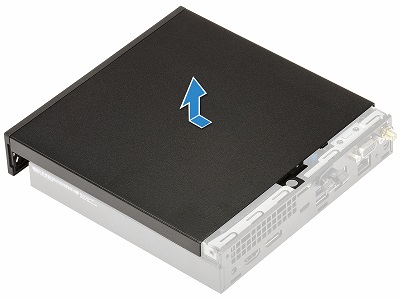
Pull the cover towards the front of the system and lift it off the PC.
-
Pre-Removal Instructions Before removing the 2.5" Hard Disk Drive (HDD) :
-
During installation or removal of any hardware always ensure all data is backed up properly
-
Disconnect any telephone, network, or USB cables from the computer
-
Disconnect the computer and all attached devices from their electrical outlets
-
Please remove the System Cover
-
-
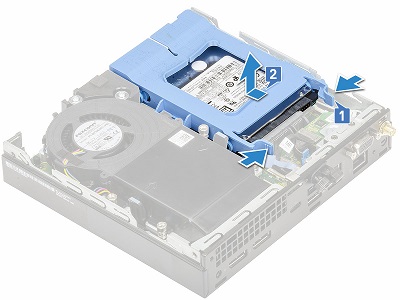
The 2.5" HDD assembly is on the left front corner of the system. Press the blue tabs at the back of the assembly together [1]
-
Pull the assembly towards the front of the PC and lift it up and out of the PC [2]
-
Disengage the pins securing the HDD to the assembly bracket and remove it from the bracket.
-
Pre-Removal Instructions Before removing the Heatsink Blower :
-
During installation or removal of any hardware always ensure all data is backed up properly
-
Disconnect any telephone, network, or USB cables from the computer
-
Disconnect the computer and all attached devices from their electrical outlets
-
Please remove the System Cover
-
-
The heatsink blower is on the right-hand side of the system, Press the blue tabs on either side of the assembly together and slide and rotate the assembly over the right side of the chassis [2]
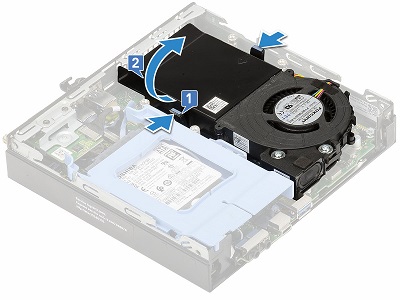
-
Disconnect the fan and speaker cables from the motherboard to remove the blower from the system.
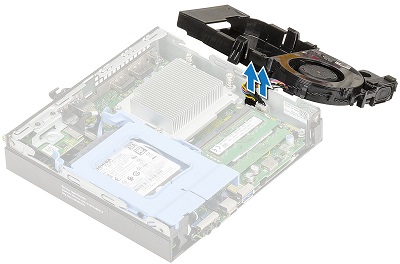
-
Pre-Removal Instructions Before removing the M.2 SSD Card :
-
During installation or removal of any hardware always ensure all data is backed up properly
-
Disconnect any telephone, network, or USB cables from the computer
-
Disconnect the computer and all attached devices from their electrical outlets
-
Please remove the System Cover and HDD Assembly
-
-
The M.2 SSD Card is located under the HDD assembly, remove the screw holding the M.2 card down to the motherboard [1] and pull out the card from the connector [2]
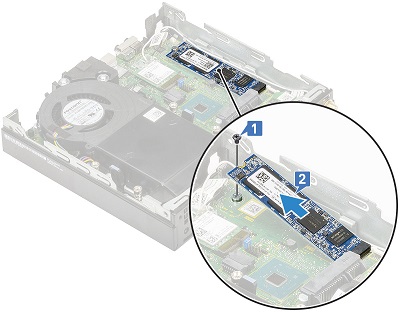
-
Lift the M.2 SSD card out of the PC.
-
Pre-Removal Instructions Before removing the Memory :
-
During installation or removal of any hardware always ensure all data is backed up properly
-
Disconnect any telephone, network, or USB cables from the computer
-
Disconnect the computer and all attached devices from their electrical outlets
-
Please remove the System Cover and Heatsink Blower
-
-
The memory is located under the heatsink blower, pull the metal clips away from each side of the dimm [1]
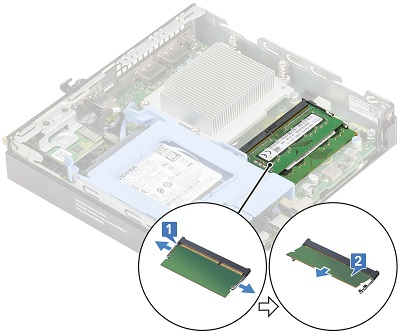
-
Pull the dimm out of the slot [2]
 Note: Repeat steps 2 and 3 for any additional memory dimms.
-
Pre-Removal Instructions Before removing the Coin Cell Battery :
-
During installation or removal of any hardware always ensure all data is backed up properly
-
Disconnect any telephone, network, or USB cables from the computer
-
Disconnect the computer and all attached devices from their electrical outlets
-
Please remove the System Cover
-
-
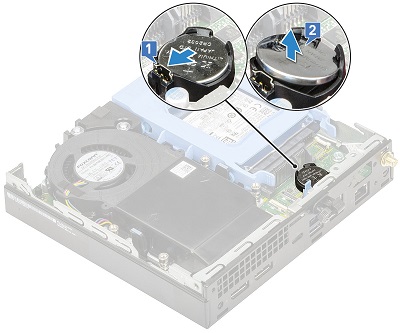
The coin cell battery is behind the HDD assembly and using a plastic scribe press down on the release latch until the battery pops up [1]
-
Lift the battery out of the connector and the system [2]
-
Pre-Removal Instructions Before removing the Internal Speaker :
-
During installation or removal of any hardware always ensure all data is backed up properly
-
Disconnect any telephone, network, or USB cables from the computer
-
Disconnect the computer and all attached devices from their electrical outlets
-
Please remove the System Cover and Heatsink Blower
-
-
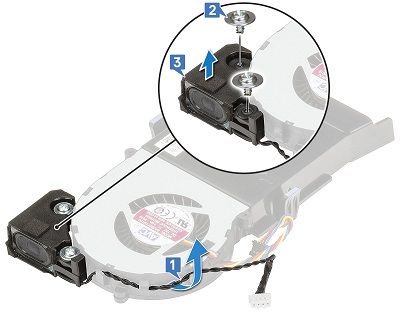
The speaker is attached to the corner of the heatsink blower, disconnect the speaker cable from the retention clips on the blower [1]
-
Remove the two (2) screws securing the speaker assembly to the blower [2] and remove the speaker from the blower [3]
-
Pre-Removal Instructions Before removing the wireless card (WLAN) :
-
During installation or removal of any hardware always ensure all data is backed up properly
-
Disconnect any telephone, network, or USB cables from the computer
-
Disconnect the computer and all attached devices from their electrical outlets
-
Please remove the System Cover and HDD Assembly
-
-
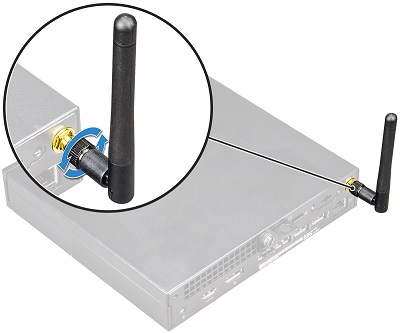
Loosen the antenna screw to remove the antenna from the rear of the chassis.
-
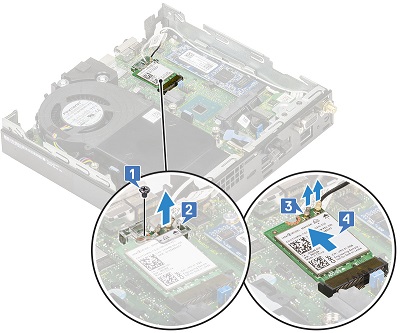
The WLAN card is between the M.2 SSD card and the heatsink Blower, remove the screw that secures the plastic tab to the card [1] and remove the tab [2].
-
Disconnect the antenna cables from the card [3] (These are pop stud connectors and come off with a little pressure.) and pull the card out of the connector [4] a lift it out of the PC.
| If you require further assistance, please contact Technical Support. | |
| Contact Us | Go back to the OptiPlex 5070 teardown contents page |