About CSV Format
摘要: The following article provides information about the CSV format.
本文章適用於
本文章不適用於
本文無關於任何特定產品。
本文未識別所有產品版本。
說明
 About CSV Format
A CSV file is a file with comma separated values. You can create or edit a file like this with any text editor or spreadsheet program, such as Excel.
You can download this sample spreadsheet  as a starting point. Remember that Office 365 requires column headings in the first row so do not replace them with something else.
 Creating a CSV Document
To create a CSV document, follow these steps:
-
Save the file with a new name and specify the CSV format.

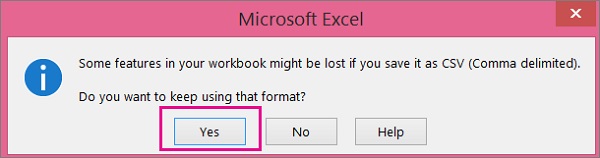
When you save the file, you will probably get a prompt that some features in your workbook will be lost if you save the file in CSV format. This is okay.
-
Click Yes to continue.
 Tips for formatting your spreadsheet
Do I need the same column headings as in the sample spreadsheet?
The sample spreadsheet contains column headings in the first row. These headings are required. For each user you want to add to Office 365, create a row under the heading. If you add, change, or delete any of the column headings, Office 365 might not be able to create users from the information in the file.
What if I don’t have all the information required for each user?
The username and display name are required, and you cannot add a new user without this information. If you do not have some of the other information, such as the fax, you can use a space plus a comma to indicate that the field should remain blank.
How small or large can the spreadsheet be?
The spreadsheet must have at least two rows. One is for the column headings (the user data column label) and one for the user. You cannot have more than 251 rows. If you need to import more than 250 users, you can create more than one spreadsheet.
What languages can I use?
When you create your spreadsheet, you can enter user data column labels in any language or characters, but you must not change the order of the labels, as shown in the sample. You can then make entries into the fields, using any language or characters, and save your file in a Unicode or UTF-8 format.
What if I'm adding users from different countries or regions?
Create a separate spreadsheet for each area. You will need to step through the Bulk add users wizard with each spreadsheet, giving a single location of all users included in the file that you're working with.
Is there a limit to the number of characters I can use?
The following table shows the user data column labels and the maximum character length for each in the sample spreadsheet.
|
User data column label |
Maximum character length |
|---|---|
|
User Name (Required) |
79 including the at sign (@), in the format name@domain.<extension>.
|
|
First Name |
64 |
|
Last Name |
64 |
|
Display Name (required) |
256 |
|
Job Title |
64 |
|
Department |
64 |
|
Office Number |
128 |
|
Office Phone |
64 |
|
Mobile Phone |
64 |
|
Fax |
64 |
|
Address |
1023 |
|
City |
128 |
|
State or Province |
128 |
|
ZIP or Postal Code |
40 |
|
Country or Region |
128 |
受影響的產品
Microsoft 365 from Dell文章屬性
文章編號: 000186211
文章類型: How To
上次修改時間: 09 May 2026
版本: 5
向其他 Dell 使用者尋求您問題的答案
支援服務
檢查您的裝置是否在支援服務的涵蓋範圍內。