How to Install Open WebUI to Use with Dell Pro AI Studio
Summary: Open WebUI can be installed alongside Dell Pro AI Studio to enable a familiar interface when working with AI models.
This article applies to
This article does not apply to
This article is not tied to any specific product.
Not all product versions are identified in this article.
Instructions
Open WebUI has several options for deployment. For this knowledge base article, we are performing the Python uv configuration for Windows. More configurations and instructions are available at Quick Start Open WebUI

Affected Products:
- Dell Pro AI Studio
- Right-click the Windows Start Menu and select Terminal (Admin).
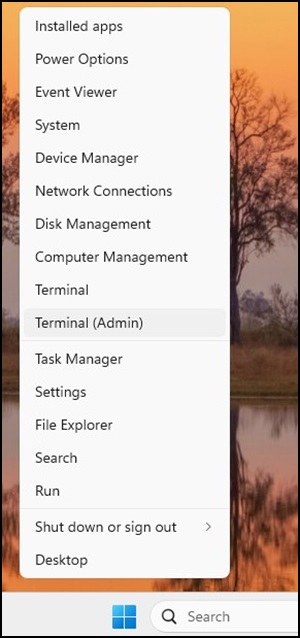 Note: Click Yes if prompted by User Account Control.
 - In Terminal enter the following command to install the latest version of Python, then press Enter.
winget install --id Python.Python.3.13 Note: You may be prompted to accept a license agreement if you have not used winget before. Press Y to accept.
 - In Terminal enter the below command, then press Enter.
powershell -ExecutionPolicy ByPass -c "irm https://astral.sh/uv/install.ps1 | iex"
- Once the uv command runs, it provides two example outputs to run based on your environment and windows user information. Copy and paste the appropriate command for your environment and press Enter.
Example:
Command Prompt:set Path=C:\Users\DPAIS\.local\bin;%Path%
PowerShell:$env:Path = "C:\Users\DPAIS\.local\bin;$env:Path"
- In the Terminal, enter the following command to create a new directory to store the Open WebUI Files.
New-Item -Path "C:\DPAIS\OpenWebUI" -ItemType Directory -Force Note: You can store the OpenWebUI files into any folder on your machine but ensure that you have a location chosen before continuing to the next step.
 - In the Terminal, enter the following command:
$env:DATA_DIR="C:\DPAIS\OpenWebUI\data"; uvx --python 3.11 open-webui@latest serve Note: You may receive an error "uvx : The Term "uvx" is not recognized as the name of a cmdlet, function, script file, or operable program. Check the spelling of the name, or if a path was included, verify that the path is correct and try again." This error can be caused by not setting the $env:DATA_DIR variable from step 4. Close out of the current terminal window or confirm and rerun your command from step 4.
You may receive a windows security pop up for Python. This is because the Open WebUI runs on port 8080. Click Allow to grant access.
- In a web browser (Microsoft Edge, Chrome, or so forth) enters the address http://localhost:8080 and press Enter.
- Click Get started on the home page.

- Enter the information below and click Create Admin Account.
- Name
- Password
 Note: This information is only needed to access your local instance of Open WebUI and is not based on any current user or email information you may have.
 - Open WebUI does not automatically start if the machine is rebooted. The command in step 6 can be rerun as needed to start Open WebUI. Once the home page loads you have successfully configured Open WebUI, for steps to connect it with your Dell Pro AI Studio installation see: How to Configure Open WebUI for Dell Pro AI Studio

Affected Products
Dell Pro AI StudioArticle Properties
Article Number: 000328622
Article Type: How To
Last Modified: 24 Oct 2025
Version: 2
Find answers to your questions from other Dell users
Support Services
Check if your device is covered by Support Services.