NetWorker Virtual Edition: How to Increase "data01" Partition Size
Summary: This article describes how to increase the /data01 partition size on a NetWorker Virtual Edition (NVE) server, if more space is required for index management. (XFS)
This article applies to
This article does not apply to
This article is not tied to any specific product.
Not all product versions are identified in this article.
Instructions
Caution: This process is not intended or appropriate for standard technical support. If you require assistance, contact your Dell Site Account Manager (SAM) or Dell Site Sales Rep to engage with our Global Professional Services (PS) team.
Sizing and scaling information can be found in the NetWorker Virtual Edition Deployment and NetWorker Performance Optimization Planning Guides available through Dell Support NetWorker Product Page.
To identify the file system type of the NVE, run the following command from an SSH session:
mount
/dev/sdb1 on /data01 type xfs (rw,noatime,attr2,inode64,noquota)
Note: All NVEs 19.4.x and later use High-Performance Scalable File System (XFS) for the
NetWorker 19.3 reached End of Support Life (EOSL) June 2023. If the NVE is using an EOSL, upgrade to a supported release after resolving the
/data01 partition. If /data01 is using EXT3 file system, see article NetWorker Virtual Edition: How To Expand /data01 Partition (EXT3).
NetWorker 19.3 reached End of Support Life (EOSL) June 2023. If the NVE is using an EOSL, upgrade to a supported release after resolving the
/data01 space issue, see article NetWorker Virtual Edition: How To Upgrade NetWorker Software and NVE System. /data01 on NVEs that are upgraded from 19.3 to a newer release are converted from EXT3 to XFS.
Prerequisites:
Note: Depending on the NVE's state, it may not be possible to perform some of these steps. For example, if NetWorker services will not start because
/data01 is at 100% capacity. The steps provided are precautionary to ensure NetWorker data is protected.
- Create a server bootstrap backup:
- From the NetWorker Management Console (NMC) or NetWorker Web User Interface (NWUI), perform a Server Protection backup job.
- Open an admin SSH session on the NVE and collect the bootstrap save set details:
mminfo -B - If bootstrap email notifications are not configured, copy the
mminfooutput off of the NVE and save in a file. Email notifications can be configured by following: NetWorker: How To Configure Policy Email Notifications
- Stop all running NetWorker server services:
nsr_shutdown - Disable NetWorker from starting up on the next OS boot:
systemctl disable networker - From VMware, shut down the NVE Virtual Machine (VM) and Increase the Hard Disk 2 from the VM's settings.
NOTE: The option to increase disk size may be unavailable if snapshots exist.
- Create a VMware snapshot of the NVE, then power it up.
NOTE: This snapshot can be deleted once the disk expansion is complete and the NVE and NetWorker are in an operational state.
Process:
- Once the VM has started, open an SSH session to the NVE VM as admin.
- Switch to the root user by running:
sudo su - - Rescan the devices:
echo 1 > /sys/block/sdb/device/rescan - Run
fdiskagainst/dev/sdbthis should show the current size and the size added in step 1:
nve:~ # fdisk -l /dev/sdb
GPT PMBR size mismatch (524287999 != 629145599) will be corrected by write.
The backup GPT table is not on the end of the device. This problem will be corrected by write.
Disk /dev/sdb: 300 GiB, 322122547200 bytes, 629145600 sectors
Disk model: Virtual disk
Units: sectors of 1 * 512 = 512 bytes
Sector size (logical/physical): 512 bytes / 512 bytes
I/O size (minimum/optimal): 512 bytes / 512 bytes
Disklabel type: gpt
Disk identifier: 3C1FF651-B360-4218-9106-DE80B690EA2C

Device     Start       End   Sectors  Size Type
/dev/sdb1   2048 524285951 524283904  250G Microsoft basic data
NOTE: In the above example, the
/data01 partition is 250 GB; however, the hard disk has been increased to 300 GB.
- Increase the
/data01partition by typing:growpart /dev/sdb 1
nve:~ # growpart /dev/sdb 1
CHANGED: partition=1 start=2048 old: size=524283904 end=524285952 new: size=629143519 end=629145567
- Verify the file system by typing:
xfs_growfs -d /data01 - The partition should now show the expanded size:
df -Th | grep "/data01"
nve:~ # df -Th | grep "/data01"
/dev/sdb1                                   xfs       300G  4.8G  296G   2% /data01
- Start NetWorker server services:
systemctl start networker - Re-enable automatic NetWorker service startup:
systemctl enable networker
WARNING: if the
/data01 partition reached 100% capacity, this can lead to corruption of NetWorker databases. Validate that the NetWorker server is healthy (no missing clients, groups, policies, devices, backups, and so forth). If a data loss issue is observed, contact NetWorker support immediately.
Additional Information
Some additional steps that can be followed to reduce disk usage used by log files.
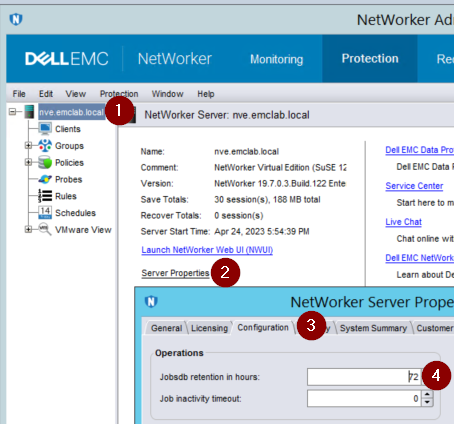
Jobsdb retention
The jobsdb is a NetWorker database which holds a record of policy completion statuses, it also determines how long the /nsr/logs/policy/ and /nsr/logs/recover logs are retained. The default window is 72 hours. After 72 hours have passed for a given job, its jobdsb entries are removed and any associated log files are deleted. The jobsdb retention can be seen in nsradmin:
nve:~ # nsradmin
NetWorker administration program.
Use the "help" command for help, "visual" for full-screen mode.
nsradmin> show Jobsdb retention in hours
nsradmin> print type: nsr
   Jobsdb retention in hours: 72;
.log and .raw files from NetWorker, reduce it to the default (72 hours). This can be done either from the NetWorker Management Console (NMC) or from nsradmin:
nsradmin:
nsradmin> . type: nsr
Current query set
nsradmin> update Jobsdb retention in hours: 72
   Jobsdb retention in hours: 72;
Update? y
updated resource id 3.0.207.103.0.0.0.0.98.242.218.92.192.168.25.12(1489)
NMC:
Server and NMC logs
Realtime rendering, log rollover by size, and number of copies can be modified for NetWorker's/nsr/logs/daemon.raw and the NMC's /opt/lgtonmc/gstd.raw. These settings are not enabled by default. The daemon.raw is on the NVE's disk 2 under /data01/nsr/logs. The NMC gstd.raw is on disk 1 under the NVE's root (/) partition /opt/lgtonmc/logs.
How to enable: NetWorker: How to automatically render daemon.raw to daemon.log in real time
NOTE: Under some troubleshooting actions, the
You can configure log rollover to persist even if
/nsr/res/nsrladb is renamed. If the nsrladb is renamed or deleted, a new nsrladb is created during service startup. These settings are reverted to default.
You can configure log rollover to persist even if
nsrladb is renamed by setting logrotate on the NVE's OS for NetWorker service logs.
vi /etc/logrotate.conf
Add the following lines:
# NetWorker log files
/nsr/logs/daemon.log {
    rotate 5
    weekly
    create
    missingok
    compress
}

/nsr/logs/daemon.raw {
    rotate 5
    weekly
    create
    missingok
    compress
    delaycompress
}

/opt/lgtonmc/logs/gstd.log {
    rotate 5
    weekly
    create
    missingok
    compress
}

/opt/lgtonmc/logs/gstd.raw {
    rotate 5
    weekly
    create
    missingok
    compress
    delaycompress
}
weeklythis is the log rotation period; the logs are rotated every week. Other possible values are daily and monthly.rotate 5indicates that only five rotated logs should be kept. The oldest file is removed on the subsequent run.missingokIf the log file is missing, go on to the next one without issuing an error message.compressall rotated logs should be compressed.delaycompresscan be used when some program cannot be told to close its logfile and thus might continue writing to the previous log file for some time- Other options can be found in the
logrotateman page. https://linux.die.net/man/8/logrotate

NOTE: The above example is not a recommendation on how many rotate cycles should be set, or how often this rotation should be done. This must be determined by the backup/NVE administrator. To retain logs longer, create a NetWorker client for the NVE to back up the
/nsr/logs directory using a NetWorker Protection Policy.
Affected Products
NetWorkerProducts
NetWorkerArticle Properties
Article Number: 000014111
Article Type: How To
Last Modified: 18 Sept 2025
Version: 16
Find answers to your questions from other Dell users
Support Services
Check if your device is covered by Support Services.