NetWorker: REST API Troubleshooting and Triage Guide
Summary: This KB provides an overview of basic troubleshooting for RESTAPI-related issues.
This article applies to
This article does not apply to
This article is not tied to any specific product.
Not all product versions are identified in this article.
Instructions
NetWorker REST API Triage Guide
Watch on YouTube
Additional Information
Getting Started
Representational State Transfer (REST) Application Programming Interface (API) provides programmatic access to the NetWorker data protection service. By using REST API, NetWorker users can build client applications to automate NetWorker operations. NetWorker REST API is installed as part of NetWorker server installation in the same Apache tomcat container as the NetWorker authentication services. Authentication is done using the same credentials as is used for the NetWorker Management Console.
REST API allows interaction with resources identified by Uniform Resource Identifier (URI) addresses. It uses HTTP verbs (HEAD, GET, PUT, POST, DELETE) to interact with the Uniform Resource Identifier (URI) in a stateless way. The server contains no client state, each message being self-descriptive.
This document deals with the interaction with NetWorker resources using user-written REST API calls. Not to be confused with the REST API calls which are used by backend NetWorker operations.
Connecting to NetWorker:
There are several different REST API client technologies which can be used to run the commands to connect to NetWorker; including, curl commands (Linux), PowerShell curl.exe (Windows), and REST API client browser extensions.
NOTE: NetWorker support does not provide support for 3rd party API utilities or API scripting/automation. NetWorker support also does not deliver REST API solutions. For guidance on REST API usage, see the NetWorker REST API Developer Guide. Support is available to answer general questions about REST API, or assist if a specific issue is identified with NetWorker REST API endpoints or functions. All assessment and testing is done from direct connections using OS level commands.
There are three headers needed for connection:
- Content-Type:
application/json - Accept:
application/json - Authorization: Basic with Base 64 encoded username and password
In environments where the are multiple NetWorker datazones authenticated through a single NetWorker AUTHC server, an additional header is required:
X-NW-AUTHC-BASE-URL:AUTHC_HOSTNAME_OR_IP:AUTHC_PORT
The default AUTHC port is port 9090. The usage of this header is detailed in: RESTAPI: How to use a remote AUTHC server when processing RESTAPI requests?
The NetWorker REST API is exposed in the following base URI:
https://[nw-server-hostname]:9090/nwrestapi/v3
There are different versions of APIs. Enhancements have been rolled out since the REST API was initially implemented. Changes to these endpoints are detailed in: https://developer.dell.com/apis/2378/versions/v3/docs/GettingStarted.md
The full json schema is available at:
https://[nw-server-hostname]:9090/nwrestapi/v3/schemas/swagger.json
| Success Code | Applies to HTTP Method | Response Body Content | Description |
| 200 | GET | Resource Representation | OK. The operations that result in this HTTP state carry the resource representation in the payload. |
| 201 | POST | Empty Response | Created. This status indicates that a new resource or an intended job has been created and its associated URL is accessible from the location header in the response. |
| 202 | POST | Details in Response | Accepted. This indicates that the API request has been accepted. The payload indicates that the URL to the tracking resource instance is accessible from the location header in the response. |
| 204 | PUT or DELETE | Empty Response | No Content. The state indicates that the operation performed was successful. However, there are no additional details to be provided. |
| Error Code | Description |
| 400 | Bad Request |
| 401 | Invalid Credentials |
| 403 | Insufficient Privileges |
| 404 | Resource Not Found |
| 405 | Method Not Allowed |
| 406 | Invalid Locale is Specified. |
| 500 | Internal Server Error |
REST API Functions
| HTTP Method | Action | Description |
| GET | Read | Gets the resource representation. |
| POST | Create | Creates a new resource. |
| PUT | Update | Updates an existing resource. |
| DELETE | Remove | Deletes an existing resource. |
Some Examples:
GET:
List all clients.
https://[nw-server-hostname]:9090/nwrestapi/v3/global/clients
One client only, showing only three fields (hostname, saveSets, and protectionGroups)
https://[nw-server-hostname]:9090/nwrestapi/v3/global/clients?fl=hostname,saveSets,protectionGroups&q=hostname:nwserver121
List the Protection Groups which one client is in.
https://[nw-server-hostname]:9090/nwrestapi/v3/global/clients?fl=protectionGroups&q=hostname:nwserver121
Show current alerts.
https://[nw-server-hostname]:9090/nwrestapi/v3/global/alerts
Show recent failed jobs.
https://[nw-server-hostname]:9090/nwrestapi/v3/global/jobs?q=completionStatus:"Failed"&fl=clientHostname,startTime,name,message
List the workflows in one policy (named WinFS in this example).
https://[nw-server-hostname]:9090/nwrestapi/v3/global/protectionpolicies/WinFS/workflows
List the properties of one save set instance only (as defined by client hostname and save set).
https://[nw-server-hostname]:9090/nwrestapi/v3/global/clients?q=hostname:vm-lego-231 and saveSets:"/etc"
POST:
Start a workflow action.
https://[nw-server-hostname]:9090/nwrestapi/v3/global/protectionpolicies/Angela/workflows/WinFS/op/backup
                                                      JSON Body:
                                                      {
                                                       }
Create a new client instance (with default values for all properties except the four listed).
https://[nw-server-hostname]:9090/nwrestapi/v3/global/clients
                                                     JSON Body
                                                     {
            "hostname": "vm-lego-231",
            "backupType": "Filesystem",
            "saveSets": [ "/etc" ],
            "protectionGroups" : [ "LinuxFS" ]
NOTE: All supported REST API endpoints and usage examples are provided in: NetWorker REST API Reference Guide
Command Line Examples:
Linux:
For systems that have python installed:
curl -k -u Administrator:'ADMINISTRATOR_PASSWORD' https://NETWORKER_SERVER_ADDRESS:9090/nwrestapi/v3/global/ENDPOINT | python -m json.tool
For systems that have
jq installed:
curl -k -u Administrator:'ADMINISTRATOR_PASSWORD' https://NETWORKER_SERVER_ADDRESS:9090/nwrestapi/v3/global/ENDPOINT | jq
Example:
[root@nsr ~]# curl -k -u Administrator https://nsr.amer.lan:9090/nwrestapi/v3/global/devices/ddve01.amer.lan_VMBackupDevice01 | jq
Enter host password for user 'Administrator':
  % Total    % Received % Xferd  Average Speed   Time    Time     Time  Current
                                 Dload  Upload   Total   Spent    Left  Speed
100  2820    0  2820    0     0  72307      0 --:--:-- --:--:-- --:--:-- 72307
{
  "accessWeight": 1,
  "accesses": "66",
  "activeSessions": [],
  "autoMediaManagement": false,
  "autoRecoverDtf": "None",
  "cdi": "NotUsed",
  "cleaningRequired": false,
  "consecutiveErrors": "0",
  "currentNSRMMDCount": "1",
  "dataDomainFibreChannel": false,
  "dataDomainRetentionLockMode": "None",
  "deviceAccessInfo": "ddve01.amer.lan:/nsr/VMBackupDevice01",
  "deviceBlockSize": "HandlerDefault",
  "dltWormCapable": false,
  "idleDeviceTimeout": 0,
  "jukeboxDevice": "No",
  "links": [
    {
      "href": "https://nsr.amer.lan:9090/nwrestapi/v3/global/devices/ddve01.amer.lan_VMBackupDevice01/opstatus",
      "title": "Volume operation status"
    },
    {
      "href": "https://nsr.amer.lan:9090/nwrestapi/v3/global/devices/ddve01.amer.lan_VMBackupDevice01/op/label",
      "title": "Label volume"
    },
    {
      "href": "https://nsr.amer.lan:9090/nwrestapi/v3/global/devices/ddve01.amer.lan_VMBackupDevice01/op/mount",
      "title": "Mount volume"
    },
    {
      "href": "https://nsr.amer.lan:9090/nwrestapi/v3/global/devices/ddve01.amer.lan_VMBackupDevice01/op/unmount",
      "title": "Unmount volume"
    },
    {
      "href": "https://nsr.amer.lan:9090/nwrestapi/v3/global/devices/ddve01.amer.lan_VMBackupDevice01/op/verifylabel",
      "title": "Verify volume label"
    },
    {
      "href": "https://nsr.amer.lan:9090/nwrestapi/v3/global/devices/ddve01.amer.lan_VMBackupDevice01/op/erase",
      "title": "Erase the device"
    },
    {
      "href": "https://nsr.amer.lan:9090/nwrestapi/v3/global/volumes/4267924096",
      "title": "Volume"
    }
  ],
  "longVolumeId": "703cdc60-00000005-fe635a80-66635a80-00045000-592bbe56",
  "maxConsecutiveErrors": 20,
  "maxNsrmmdCount": 4,
  "maxSession": 60,
  "mediaFamily": "Disk",
  "mediaType": "Data Domain",
  "message": "mounted Data Domain disk VMBackupPool.001",
  "mountedVolume": "VMBackupPool.001",
  "name": "ddve01.amer.lan_VMBackupDevice01",
  "ndmp": false,
  "operationParameters": [],
  "password": "*******",
  "pathId": "53f9269d-00000010-e2f994bd-66635a7e-00035000-592bbe56",
  "readOnly": false,
  "remoteUser": "ddboost",
  "reserveRelease": "None",
  "resourceId": {
    "id": "178.0.90.20.0.0.0.0.196.80.99.102.192.168.9.150",
    "sequence": 256
  },
  "saveLockout": 0,
  "saveMountTimeout": 30,
  "secureMultiTenancy": false,
  "sharedDevices": "Done",
  "statistics": [
    "elapsed = 17310",
    "errors = 0",
    "last rate = 0",
    "max clients = 0",
    "file marks = 0",
    "rewinds = 0",
    "files skipped = 0",
    "records skipped = 0",
    "current file = 0",
    "current record = 0",
    "seek files = 0",
    "seek records = 0",
    "estimated kb = 0",
    "amount kb = 0",
    "file amount kb = 0",
    "sessions = 0"
  ],
  "status": "Enabled",
  "suspectedDevice": false,
  "tapeAlertsCritical": [],
  "tapeAlertsInformation": [],
  "tapeAlertsWarning": [],
  "targetSession": 20,
  "unlabeledVolumeLoaded": false,
  "verifyLabelOnEject": false,
  "volumeBlockSize": "256 KB",
  "volumeCurrentCapacity": "0 KB",
  "volumeErrorNumber": "0",
  "volumeExpiration": "Sun Jun  7 15:07:44 2026",
  "volumeId": "4267924096",
  "volumeLabel": "VMBackupPool.001",
  "volumePool": "VMBackupPool",
  "warnOnSuspectVolumesInPercent": 80,
  "wormCapable": false,
  "wormCartridgePresent": false,
  "writeEnabled": true
}
[root@nsr ~]#
Windows (PowerShell):
curl.exe -k -u Administrator:'ADMISTRATOR_PASSWORD' "https://NETWORKER_SERVER_ADDRESS:9090/nwrestapi/v3/global/ENDPOINT" | ConvertFrom-Json | ConvertTo-Json -Depth 50
Example:
PS C:\Users\Administrator.NETWORKER> curl.exe -k -u Administrator:'!Password1' "https://win-srvr02.networker.lan:9090/nwrestapi/v3/global/devices/dd3300-ff28_Backup" | ConvertFrom-Json | ConvertTo-Json -Depth 50
  % Total    % Received % Xferd  Average Speed   Time    Time     Time  Current
                                 Dload  Upload   Total   Spent    Left  Speed
100  2824    0  2824    0     0  20311      0 --:--:-- --:--:-- --:--:-- 21074
{
    "accessWeight":  1,
    "accesses":  "45",
    "activeSessions":  [

                       ],
    "autoMediaManagement":  false,
    "autoRecoverDtf":  "None",
    "cdi":  "NotUsed",
    "cleaningRequired":  false,
    "consecutiveErrors":  "0",
    "currentNSRMMDCount":  "1",
    "dataDomainFibreChannel":  false,
    "dataDomainRetentionLockMode":  "None",
    "deviceAccessInfo":  "dd3300-ff28:/win-srvr02/Backup",
    "deviceBlockSize":  "HandlerDefault",
    "dltWormCapable":  false,
    "idleDeviceTimeout":  0,
    "jukeboxDevice":  "No",
    "links":  [
                  {
                      "href":  "https://win-srvr02.networker.lan:9090/nwrestapi/v3/global/devices/dd3300-ff28_Backup/opstatus",
                      "title":  "Volume operation status"
                  },
                  {
                      "href":  "https://win-srvr02.networker.lan:9090/nwrestapi/v3/global/devices/dd3300-ff28_Backup/op/label",
                      "title":  "Label volume"
                  },
                  {
                      "href":  "https://win-srvr02.networker.lan:9090/nwrestapi/v3/global/devices/dd3300-ff28_Backup/op/mount",
                      "title":  "Mount volume"
                  },
                  {
                      "href":  "https://win-srvr02.networker.lan:9090/nwrestapi/v3/global/devices/dd3300-ff28_Backup/op/unmount",
                      "title":  "Unmount volume"
                  },
                  {
                      "href":  "https://win-srvr02.networker.lan:9090/nwrestapi/v3/global/devices/dd3300-ff28_Backup/op/verifylabel",
                      "title":  "Verify volume label"
                  },
                  {
                      "href":  "https://win-srvr02.networker.lan:9090/nwrestapi/v3/global/devices/dd3300-ff28_Backup/op/erase",
                      "title":  "Erase the device"
                  },
                  {
                      "href":  "https://win-srvr02.networker.lan:9090/nwrestapi/v3/global/volumes/3963713",
                      "title":  "Volume"
                  }
              ],
    "longVolumeId":  "0aea479c-00000005-003c7b41-693c7b41-00025000-e6b5bb56",
    "maxConsecutiveErrors":  20,
    "maxNsrmmdCount":  4,
    "maxSession":  60,
    "mediaFamily":  "Disk",
    "mediaType":  "Data Domain",
    "message":  "writing, done",
    "mountedVolume":  "win_srvr02.networker.lan.dddefault.001",
    "name":  "dd3300-ff28_Backup",
    "ndmp":  false,
    "operationParameters":  [

                            ],
    "password":  "*******",
    "pathId":  "a30a7858-00000010-5ded760e-693c7b41-00015000-e6b5bb56",
    "readOnly":  false,
    "remoteUser":  "loudekboost",
    "reserveRelease":  "None",
    "resourceId":  {
                       "id":  "176.0.164.7.0.0.0.0.69.121.60.105.192.168.0.22",
                       "sequence":  100
                   },
    "saveLockout":  0,
    "saveMountTimeout":  30,
    "secureMultiTenancy":  false,
    "sharedDevices":  "Done",
    "statistics":  [
                       "elapsed = 228514",
                       "errors = 0",
                       "last rate = 0",
                       "max clients = 0",
                       "file marks = 0",
                       "rewinds = 0",
                       "files skipped = 0",
                       "records skipped = 0",
                       "current file = 0",
                       "current record = 0",
                       "seek files = 0",
                       "seek records = 0",
                       "estimated kb = 0",
                       "amount kb = 0",
                       "file amount kb = 52206",
                       "sessions = 0"
                   ],
    "status":  "Enabled",
    "suspectedDevice":  false,
    "tapeAlertsCritical":  [

                           ],
    "tapeAlertsInformation":  [

                              ],
    "tapeAlertsWarning":  [

                          ],
    "targetSession":  20,
    "unlabeledVolumeLoaded":  false,
    "verifyLabelOnEject":  false,
    "volumeBlockSize":  "256 KB",
    "volumeCurrentCapacity":  "0 KB",
    "volumeErrorNumber":  "0",
    "volumeExpiration":  "Sun Dec 12 15:29:53 2027",
    "volumeId":  "3963713",
    "volumeLabel":  "win_srvr02.networker.lan.dddefault.001",
    "volumePool":  "Data Domain Default",
    "warnOnSuspectVolumesInPercent":  80,
    "wormCapable":  false,
    "wormCartridgePresent":  false,
    "writeEnabled":  true
}
Required Information for Support
Environment:
- NetWorker server name
- NetWorker version and build number
- NetWorker server host operating system type and version
Linux:

hostname
strings /usr/sbin/nsrd | grep -i "(#)"
cat /etc/*release
uname -a
Windows:
nsrwatch
Issue Details:
- Explain which REST API operation is being performed (GET, POST, PUT, DELETE), the URI used, any JSON body contents (where applicable).
- REST API response code and any error message provided.
- Has the initial connection and authorization succeeded between the REST API client and NetWorker?
Log Collection:
- Rendered daemon.raw log file from the NetWorker server:
- Linux:
/nsr/logs/daemon.raw - Windows:
C:\Program Files\EMC NetWorker\nsr\logs\daemon.raw - NetWorker: How to use nsr_render_log
- Linux:
- REST API logs from the NetWorker server:
/nsr/logs/restapi(linux) orEMC NetWorker\nsr\logs\restapi(Windows) - For authentication issues, see the standard NetWorker authentication logging in
/nsr/authc/logs(linux) or..\EMC NetWorker\nsr\authc-server\tomcat\logs(Windows)
Debug:
In more complex issues, REST API debugging may be required. Debug can be enabled as per: NetWorker: How to Enable REST API Debugging
Performance:
Before assessing REST API performance-related issues, it is important to determine if the issue is observed on all REST API functions or specific functions. For example GET requests on global endpoints such as clients, jobs, volumes, and so forth, can pull a lot of data. These types of requests can result in high system resource utilization and time outs.
See: NetWorker REST API: HTTP GET requests are intermittently timing out
When performance issues are observed on large global endpoints, the recommendation is to use "query list filter" (q) or "field list filter" (fl) to reduce the data returned to specific information needed. The above KB details these settings and additional information is available in the REST API Developer Guide: Dell Technologies Developer
If the issue is REST API performance related you can use the following options to track resource consumption of the nsrtomc+ process used by API calls.
Linux:
top -b | awk '/nsrtomc+/ {print strftime("%Y-%m-%d-%H:%M:%S", systime()), $0}'
This output shows standard top output but with human readable timestamps. This can be used to review CPU and memory consumption by the process and for how long it stayed in a certain state when a REST call was made. This can be compared against the restapi.log and AUTHC logs to see which calls were made and how frequently.
Windows:
For windows servers, you must install something like "Performance Monitor:
- Open Performance Monitor as Administrator.
- From the left pane, expand Monitoring Tools and select Performance Monitor.
- Right-click inside the right pane and select Remove all Counters.
- Right-click inside the right pane and select Add Counters.
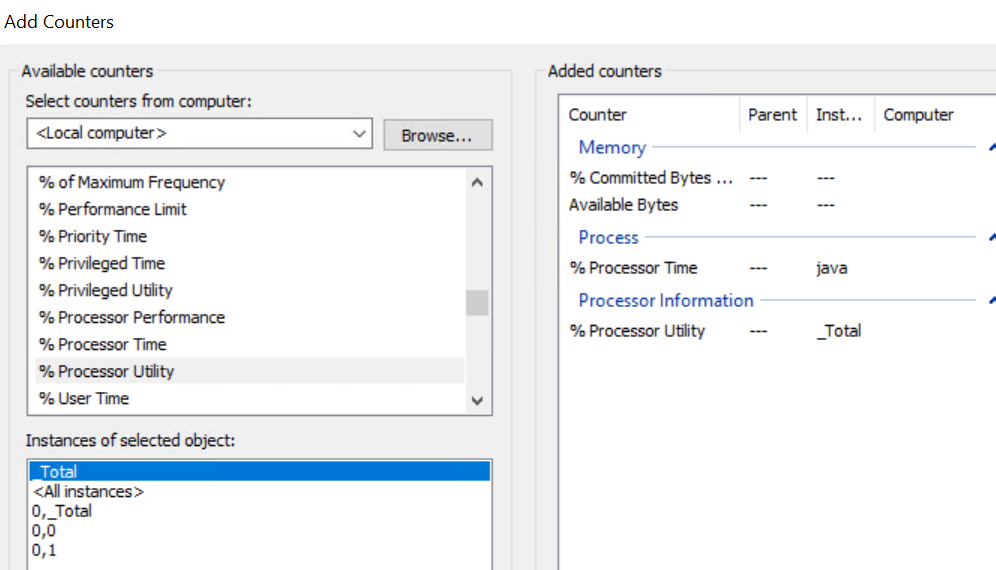
- Under Available Counters, expand Memory select % Commit Bytes and click Add.
- Under Memory, select Available Bytes and click Add.
- Under Available Counters expand Process and select % Processor Time and under Instances of Selected object select the first Java entry, click Add.
- Under Available Counters expand Processor Information and select % Processor Utility, click Add.
- The Added counters on the right pane should show:
- Click OK. Right-click Performance Monitor and click New->Data Collector Set.
- Provide a name, for example:
RESTAPI_MON. - On the location screen click Next, unless you choose to specify an alternate output location.
- Select Save and Close and click Finish.
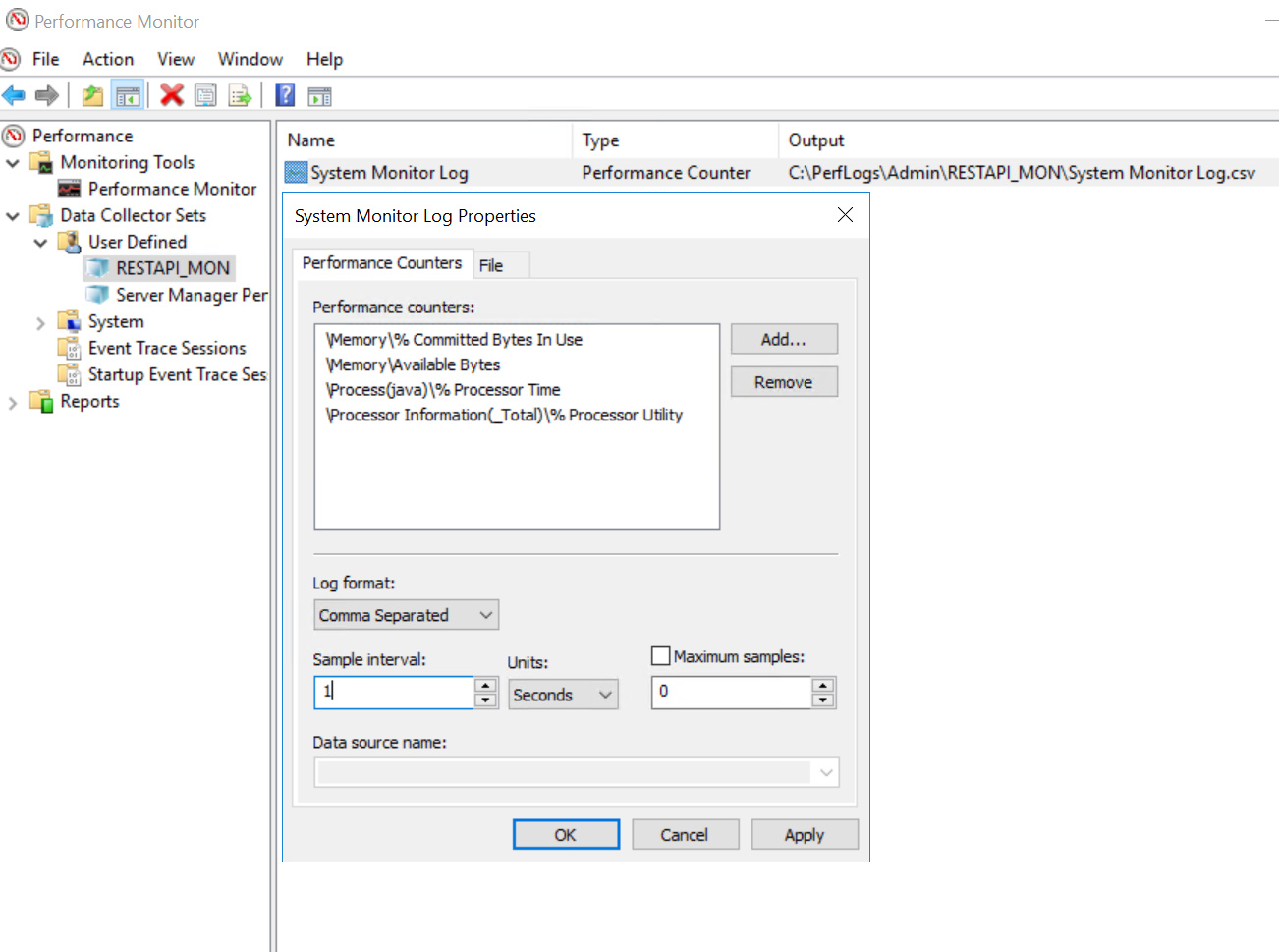
- In the left pane under Data Collector Sets->User Defined open the
RESTAPI_MONproperties and select Comma Separated for the log format, click Ok.
- In the left pane under Data Collector Sets->User Defined select the RESTAPI_MON data collector set and click Start (Play button)
- If the default output location was used, the .csv file appears under
C:\PerfLogs\Admin\RESTAPI_MON. - Once the issue is observed and recorded in the output file, you can stop monitoring click by clicking Stop under Data Collector Sets-User Defined.
Affected Products
NetWorker SeriesProducts
NetWorker SeriesArticle Properties
Article Number: 000014298
Article Type: How To
Last Modified: 22 Jan 2026
Version: 7
Find answers to your questions from other Dell users
Support Services
Check if your device is covered by Support Services.