Dell Unity: Sådan oprettes en tidsplan for snapshots med mere end to regler
Summary: I denne artikel forklares det, hvordan du opretter en tidsplan for snapshots med mere end to regler ved hjælp af CLI, hvilket ikke kan gøres ved hjælp af brugergrænsefladen (kan rettes af brugeren) ...
This article applies to
This article does not apply to
This article is not tied to any specific product.
Not all product versions are identified in this article.
Instructions
Du skal muligvis oprette en tidsplan for snapshots med flere regler, f.eks.:
- Et kontrolpunkt hver time, som vi opbevarer i 24 timer
- Et natligt kontrolpunkt, som vi opbevarer i 7 dage
- Et ugentligt kontrolpunkt, som vi opbevarer i 4 uger
Du kan dog ikke udføre dette ved hjælp af brugergrænsefladen, som maksimalt tillader to regler pr. Tidsplan.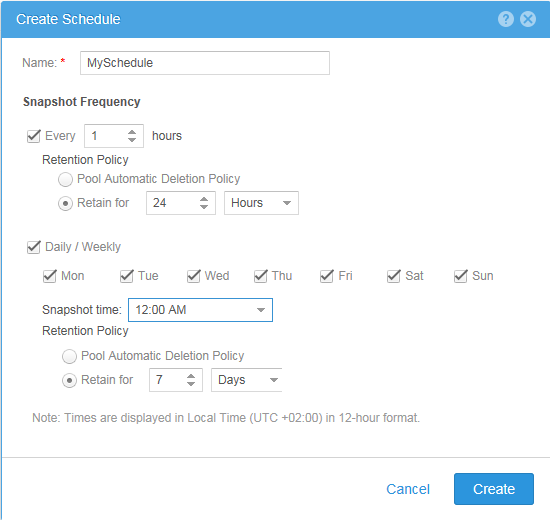
#> uemcli -no /sys/task/sched -id snapSch_19 show
1:    ID    = snapSch_19
      Name  = MySchedule
      Type  = User
      Rules = SchedRule_93, SchedRule_94

#> uemcli -no /sys/task/rule -id SchedRule_93 show
1:    ID                = SchedRule_93
      Type              = HoursInterval
      Frequency         = Every 1h
      Keep for          = 1d
      Allow auto-delete = no
      Access            = Checkpoint

#> uemcli -no /sys/task/rule -id SchedRule_94 show
1:    ID                = SchedRule_94
      Type              = WeekDaysList
      Frequency         = Every Mon, Tue, Wed, Thu, Fri, Sat, Sun at 00:00
      Keep for          = 7d
      Allow auto-delete = no
      Access            = Checkpoint
Og en LUN kan maksimalt have en tidsplan tildelt til den, så du kan ikke opfylde kravene.
Du kan dog opfylde kravene ved hjælp af CLI, så i vores eksempel har vi oprettet tidsplanen for snapshot (snapSch_19) med de to første regler ved hjælp af brugergrænsefladen og derefter føjet den tredje regel til tidsplanen ved hjælp af CLI ved hjælp af følgende kommando:
#> uemcli -no -u <username> -p <password> /sys/task/rule create -schedId snapSch_19 -type weekdayslist -days sat -at 12:00 -keepFor 31d -access ckpt
Og resultatet ville være som følger, hvilket opfylder vores krav:
#> uemcli -no /sys/task/sched -id snapSch_19 show
1:    ID    = snapSch_19
      Name  = MySchedule
      Type  = User
      Rules = SchedRule_93, SchedRule_94, SchedRule_95

#> uemcli -no /sys/task/rule -id SchedRule_93 show
1:    ID                = SchedRule_93
      Type              = HoursInterval
      Frequency         = Every 1h
      Keep for          = 1d
      Allow auto-delete = no
      Access            = Checkpoint

#> uemcli -no /sys/task/rule -id SchedRule_94 show
1:    ID                = SchedRule_94
      Type              = WeekDaysList
      Frequency         = Every Mon, Tue, Wed, Thu, Fri, Sat, Sun at 00:00
      Keep for          = 7d
      Allow auto-delete = no
      Access            = Checkpoint

#> uemcli -no /sys/task/rule -id SchedRule_95 show
1:    ID                = SchedRule_95
      Type              = WeekDaysList
      Frequency         = Every Sat at 12:00
      Keep for          = 31d
      Allow auto-delete = no
      Access            = Checkpoint
Jeg har også været i stand til at tilføje endnu flere regler til den samme tidsplan, stadig kan brugergrænsefladen kun vise de to første regler!
Affected Products
Dell EMC Unity FamilyProducts
Dell Unity 300, Dell EMC Unity 300F, Dell EMC Unity 400, Dell EMC Unity 400F, Dell EMC Unity 500, Dell EMC Unity 500F, Dell EMC Unity 600, Dell EMC Unity 600F, Dell EMC Unity Family |Dell EMC Unity All Flash, Dell EMC Unity Family
, Dell EMC Unity Hybrid, Dell EMC UnityVSA Professional Edition/Unity Cloud Edition
...
Article Properties
Article Number: 000022496
Article Type: How To
Last Modified: 02 Dec 2025
Version: 4
Find answers to your questions from other Dell users
Support Services
Check if your device is covered by Support Services.