Dell Unity: Come creare una pianificazione snapshot con più di due regole
Summary: Questo articolo spiega come creare una pianificazione dell'istantanea con più di due regole utilizzando la CLI, operazione che non può essere eseguita utilizzando l'interfaccia utente (correggibile dall'utente) ...
This article applies to
This article does not apply to
This article is not tied to any specific product.
Not all product versions are identified in this article.
Instructions
Potrebbe essere necessario creare una pianificazione dell'istantanea con più regole, ad esempio:
- Un checkpoint orario che conserviamo per 24 ore
- Un checkpoint notturno che conserviamo per 7 giorni
- Un checkpoint settimanale che conserviamo per 4 settimane
Tuttavia, non è possibile eseguire questa operazione utilizzando l'interfaccia utente, che consente un massimo di due regole per pianificazione.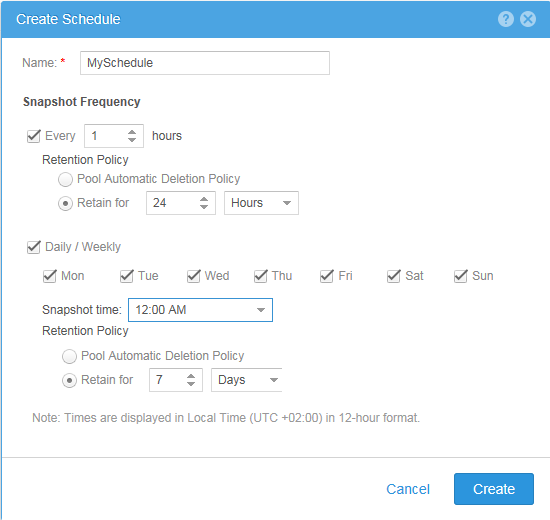
#> uemcli -no /sys/task/sched -id snapSch_19 show
1:    ID    = snapSch_19
      Name  = MySchedule
      Type  = User
      Rules = SchedRule_93, SchedRule_94

#> uemcli -no /sys/task/rule -id SchedRule_93 show
1:    ID                = SchedRule_93
      Type              = HoursInterval
      Frequency         = Every 1h
      Keep for          = 1d
      Allow auto-delete = no
      Access            = Checkpoint

#> uemcli -no /sys/task/rule -id SchedRule_94 show
1:    ID                = SchedRule_94
      Type              = WeekDaysList
      Frequency         = Every Mon, Tue, Wed, Thu, Fri, Sat, Sun at 00:00
      Keep for          = 7d
      Allow auto-delete = no
      Access            = Checkpoint
Inoltre, a una LUN può essere assegnata al massimo una pianificazione, pertanto non è possibile soddisfare i requisiti.
Tuttavia, è possibile soddisfare i requisiti utilizzando la CLI, quindi nel nostro esempio abbiamo creato la pianificazione delle istantanee (snapSch_19) con le prime due regole utilizzando l'interfaccia utente, quindi abbiamo aggiunto la terza regola alla pianificazione utilizzando la CLI con il seguente comando:
#> uemcli -no -u <username> -p <password> /sys/task/rule create -schedId snapSch_19 -type weekdayslist -days sat -at 12:00 -keepFor 31d -access ckpt
E il risultato sarebbe il seguente, che soddisfa le nostre esigenze:
#> uemcli -no /sys/task/sched -id snapSch_19 show
1:    ID    = snapSch_19
      Name  = MySchedule
      Type  = User
      Rules = SchedRule_93, SchedRule_94, SchedRule_95

#> uemcli -no /sys/task/rule -id SchedRule_93 show
1:    ID                = SchedRule_93
      Type              = HoursInterval
      Frequency         = Every 1h
      Keep for          = 1d
      Allow auto-delete = no
      Access            = Checkpoint

#> uemcli -no /sys/task/rule -id SchedRule_94 show
1:    ID                = SchedRule_94
      Type              = WeekDaysList
      Frequency         = Every Mon, Tue, Wed, Thu, Fri, Sat, Sun at 00:00
      Keep for          = 7d
      Allow auto-delete = no
      Access            = Checkpoint

#> uemcli -no /sys/task/rule -id SchedRule_95 show
1:    ID                = SchedRule_95
      Type              = WeekDaysList
      Frequency         = Every Sat at 12:00
      Keep for          = 31d
      Allow auto-delete = no
      Access            = Checkpoint
Sono stato anche in grado di aggiungere ancora più regole alla stessa pianificazione, ma l'interfaccia utente può mostrare solo le due regole iniziali!
Affected Products
Dell EMC Unity FamilyProducts
Dell Unity 300, Dell EMC Unity 300F, Dell EMC Unity 400, Dell EMC Unity 400F, Dell EMC Unity 500, Dell EMC Unity 500F, Dell EMC Unity 600, Dell EMC Unity 600F, Dell EMC Unity Family |Dell EMC Unity All Flash, Dell EMC Unity Family
, Dell EMC Unity Hybrid, Dell EMC UnityVSA Professional Edition/Unity Cloud Edition
...
Article Properties
Article Number: 000022496
Article Type: How To
Last Modified: 02 Dec 2025
Version: 4
Find answers to your questions from other Dell users
Support Services
Check if your device is covered by Support Services.