Adjusting Color Temperature Settings with Multiple Monitors to have Video Match
Summary: Learn how to match monitor colors and achieve video uniformity with step-by-step guides on adjusting color temperature settings. Enhance your viewing experience!
This article applies to
This article does not apply to
This article is not tied to any specific product.
Not all product versions are identified in this article.
Instructions
Color Temperature Settings
When monitors are set side by side, the color temperatures may vary with each monitor. Some monitors do not arrive from the factory with perfectly matched colors. You can see this when using multiple monitors or a daisy chain setup.
Note: In some instances, getting perfect color temperature uniformity is not possible due to various differences in monitor specifications.
Solution
First you must do a factory reset on all affected displays. This brings all settings back to factory defaults. If this does not help, then adjust individual RGB settings.
Note: All Dell and Alienware monitors have some form of RGB setting. They may appear differently than what is shown below.
Adjust the individual RGB color settings to get the monitors to match.
- Go to "Custom Color" on the monitor On-Screen Display (OSD).

- Go to the individual RGB option and adjust the colors. The following settings are a general guideline.
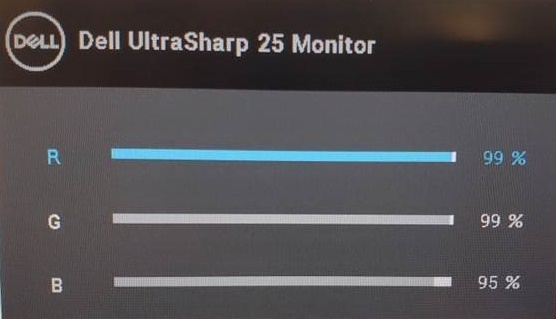
- Lower the Blue option to about 95 on all three displays.
- Lower the Red and Green options slightly on all three displays until the colors match. Do not lower the options past 95 for all three colors as this affects the overall brightness.
- Third-party monitor calibration tools are available to have more accurate color temperature settings.
The following is an example of the before-and-after pictures when adjusting the RGB color temperature settings.
Before adjusting the RGB temperature settings, all three monitors in default mode with color set to standard color mode (after conducting a factory reset)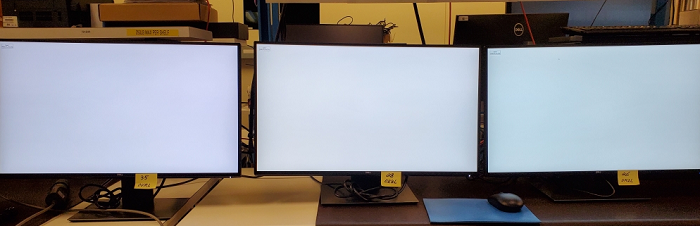
After adjusting the RGB temperature settings, all three monitors have the same color temperature settings.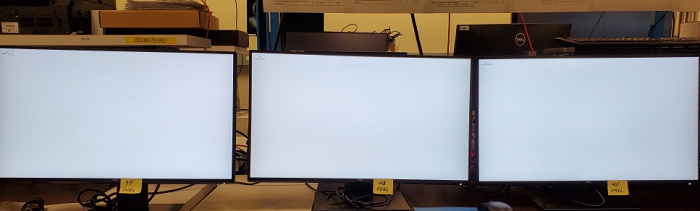
There are times where it is not possible to 100% match each monitor.
Affected Products
Alienware and Dell Gaming Monitors, C Series, D Series, E Series, P Series, S Series, SE Series, UltraSharp Premier (UP) Series, UltraSharp (U) Series, Dell Monitors, Dell Plus Monitors, Dell Pro Monitors, Dell Pro Plus Monitors, Dell IN1720
, Dell IN1910NWFP, Dell IN1920, Dell in1930, Dell IN1940MW, Dell IN2010NWFP, Dell IN2020, Dell IN2020M, Dell MR2217, Dell MR2416
...
Article Properties
Article Number: 000124520
Article Type: How To
Last Modified: 01 Jul 2025
Version: 10
Find answers to your questions from other Dell users
Support Services
Check if your device is covered by Support Services.