How to Configure SQL for Dell Security Management Server
Summary: Learn to configure a SQL server for use with Dell Security Management Server (formerly Dell Data Protection Enterprise Edition) with these instructions.
This article applies to
This article does not apply to
This article is not tied to any specific product.
Not all product versions are identified in this article.
Instructions
This article covers the configuration of the SQL server when used with Dell Security Management Server (formerly Dell Data Protection | Enterprise Edition).
Affected Products:
- Dell Security Management Server
- Dell Data Protection | Enterprise Edition
Click SQL Server 2012 to SQL Server 2019 or SQL Server 2005 to SQL Server 2008 R2 for required Dell Security Management Server configurations.
Note: Dell Security Management Server does not support any version of SQL Server Express in a production environment.
SQL Server 2012 to SQL Server 2019
SQL Server may require configuration to:
- Assign sysadmin role
- Assign database role
- Create the SQL database
- Enable mixed authentication
- Add full-text search capabilities
Click the appropriate process for more information.
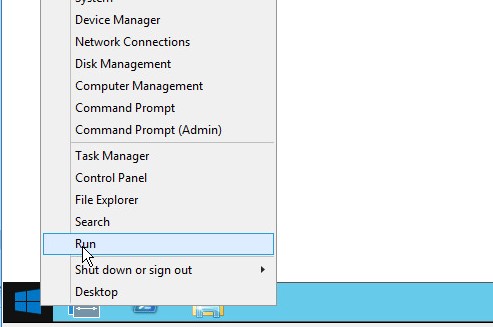
- Right-click the Windows start menu and then click Run.
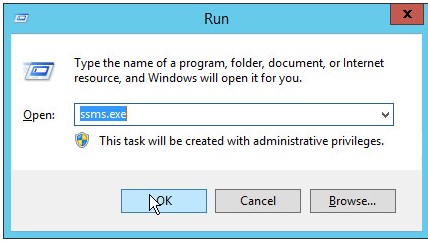
- In the Run UI, type
ssms.exeand then press OK.
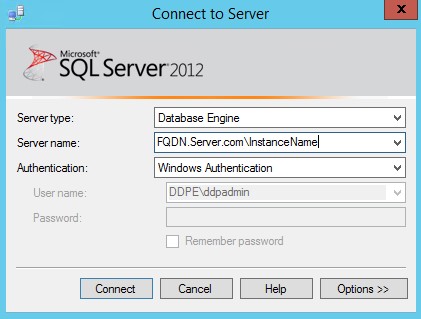
- From the Connect to Server menu:
- Select Database Engine as the server type.
- Populate Server name.
- Select the Authentication method.
- If using SQL Server Authentication, populate sysadmin credentials.
- Click Connect.
 Note:
Note:- Server Name = Fully qualified domain name (FQDN) of the database
- If a SQL Instance is used,
\InstanceNamemust follow Server Name.InstanceName= The name of the database instance in your environment
- If using Windows Authentication, smss.exe must be run as an account with sysadmin credentials.
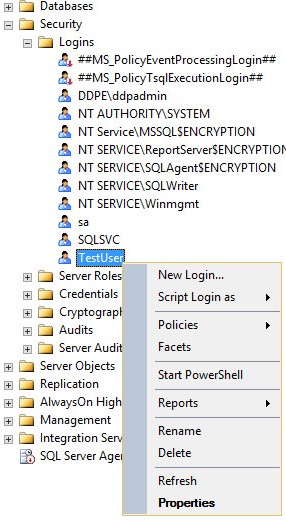
- Expand Security and then expand Logins.

- Right-click the user account and click Properties.
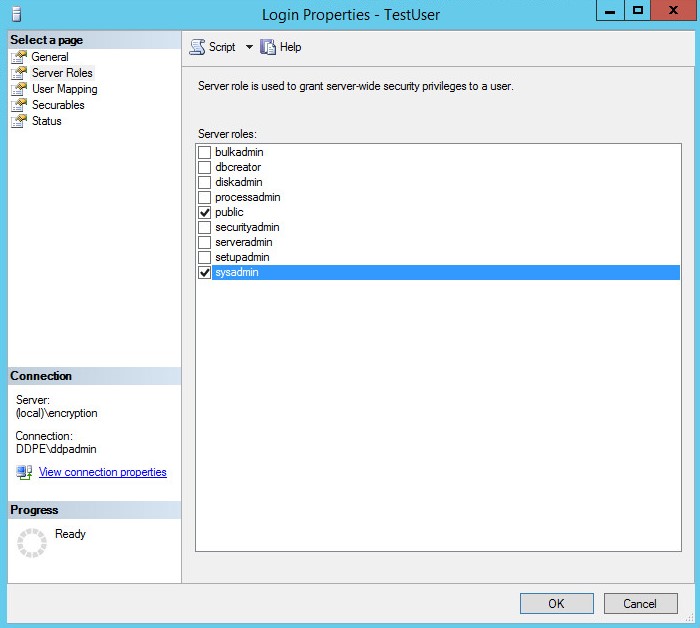
- From the Login Properties window:
- Click Server Roles.
- Select the sysadmin role.
- Click OK.
The account used to manage SQL access for Dell Security Management Server requires the db_owner role be assigned.
- Right-click the Windows Start menu and then click Run.
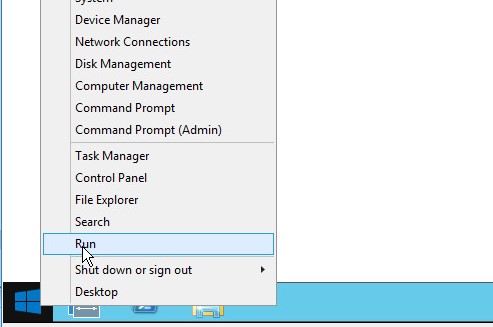
- In the Run UI, type
ssms.exeand then press OK.
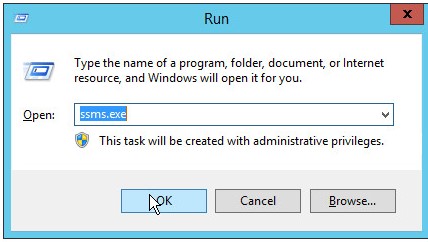
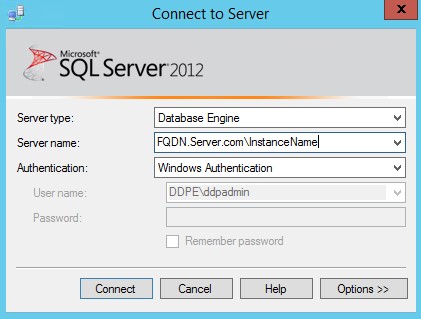
- From the Connect to Server menu:
- Select Database Engine as the server type.
- Populate Server name.
- Select the Authentication method.
- If using SQL Server Authentication, populate sysadmin credentials.
- Click Connect.
 Note:
Note:- Server Name = Fully qualified domain name (FQDN) of the database
- If a SQL Instance is used,
\InstanceNamemust follow Server Name.\InstanceName= The name of the database instance in your environment
- If using Windows Authentication, smss.exe must be run as an account with sysadmin credentials.
- Go to
Databases\TestDB\Security\Users.
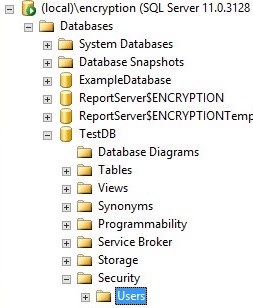 Note: The example,
TestDB, will differ from the database name in your environment. - Right-click the user's name and select Properties.
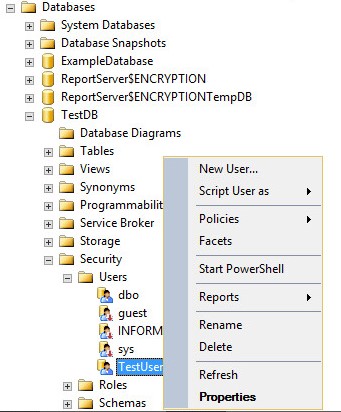
- From the Database User window:
- Click Owned Schemas and then select
db_owner. - Click OK.
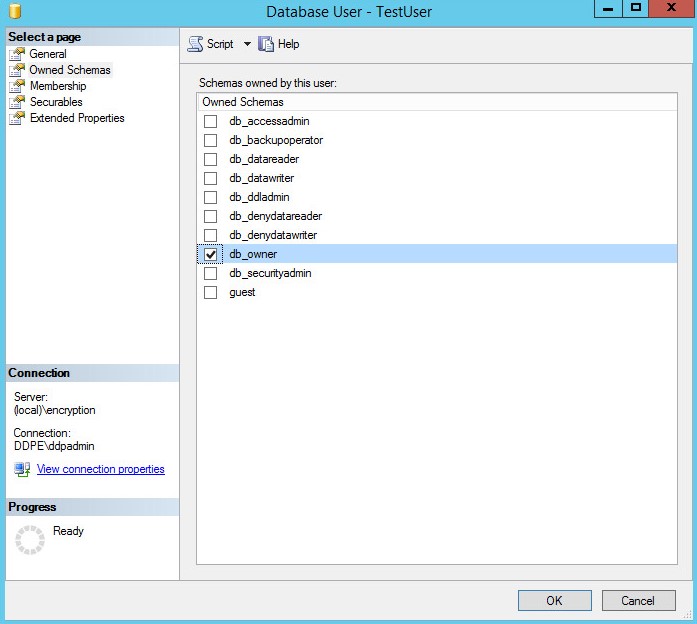
- Click Owned Schemas and then select
- From the Database User window:
- Click Membership and then select
db_owner. - Click OK.

- Click Membership and then select
Dell Security Management Server allows a SQL database to be created before installation of the server software. Alternatively, the Dell Security Management Server installer can create it during installation.
Note: Dell Security Management Server v8.5.1 and earlier requires the database creation before installation.
- Right-click the Windows Start menu and then click Run.
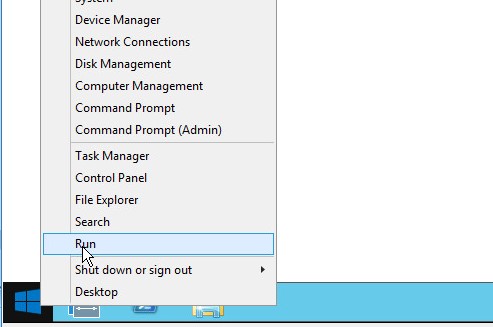
- In the Run UI, type
ssms.exeand then press OK.
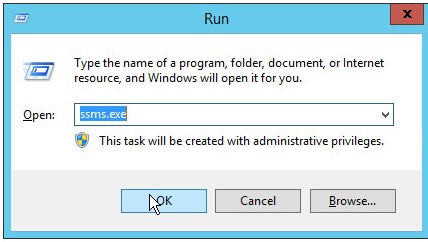
- From the Connect to Server menu:
- Select Database Engine as the server type.
- Populate the Server name.
- Select the Authentication method.
- If using SQL Server Authentication, populate sysadmin credentials.
- Click Connect.
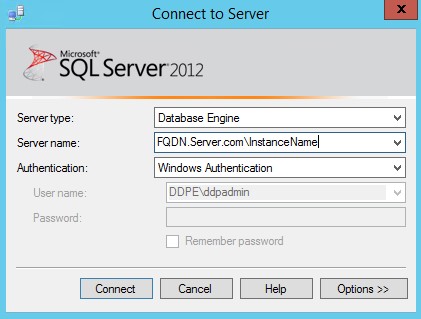 Note:
Note:- Server Name = Fully qualified domain name (FQDN) of the database
- If a SQL Instance is used,
\InstanceNamemust follow Server Name.InstanceName= The name of the database instance in your environment
- If using Windows Authentication, smss.exe must be run as an account with sysadmin credentials.
- Right-click Databases and then click New Database.
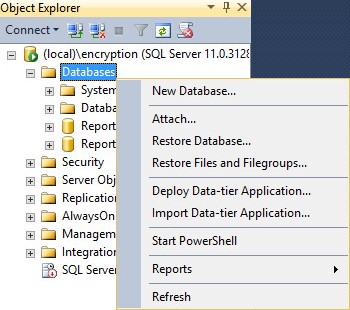
- From the New Database menu:
- Populate a Database name.
- Populate Owner with either a Windows login or SQL Server login account.
- Click OK.
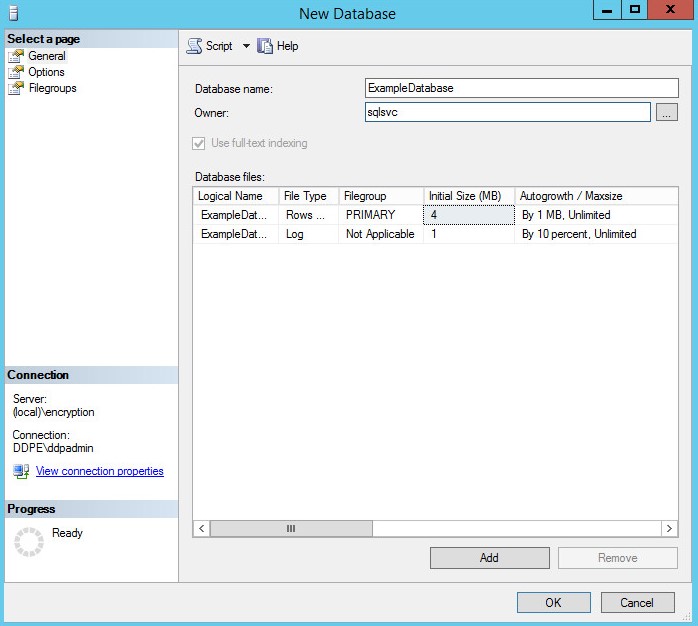 Note: The account assigned as Owner is populated as the service account during the Dell Security Management Server install when using Windows Authentication to the SQL Server.
Mixed authentication options must be enabled in SQL Server to use both methods of authentication from the Dell Security Management Server.
Note: The sysadmin server role is required to change Server authentication settings.
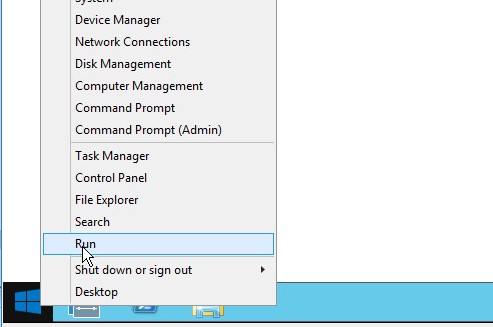
- Right-click the Windows start menu and then click Run.
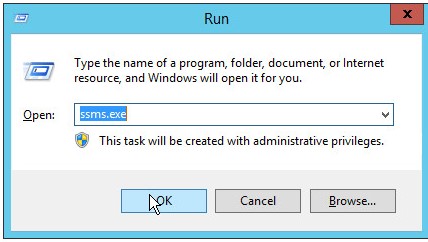
- In the Run UI, type
ssms.exeand then press OK.
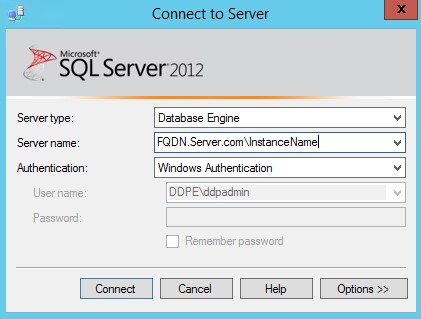
- From the Connect to Server menu:
- Select Database Engine as the server type.
- Populate Server name.
- Select Windows Authentication.
- Click Connect.
 Note:
Note:- Server Name = Fully qualified domain name (FQDN) of the database
- If a SQL Instance is used,
\InstanceNamemust follow Server Name.\InstanceName= The name of the database instance in your environment
- If using Windows Authentication, smss.exe must be run as an account with sysadmin credentials.
- Right-click the SQL Instance and then select Properties.
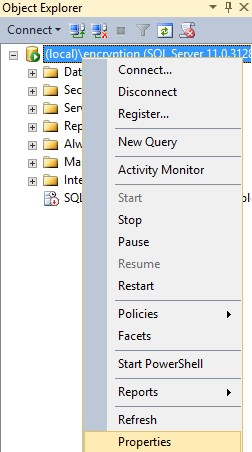
- From the Server Properties window:
- Click Security.
- Select SQL Server and Windows Authentication mode.
- Click OK.
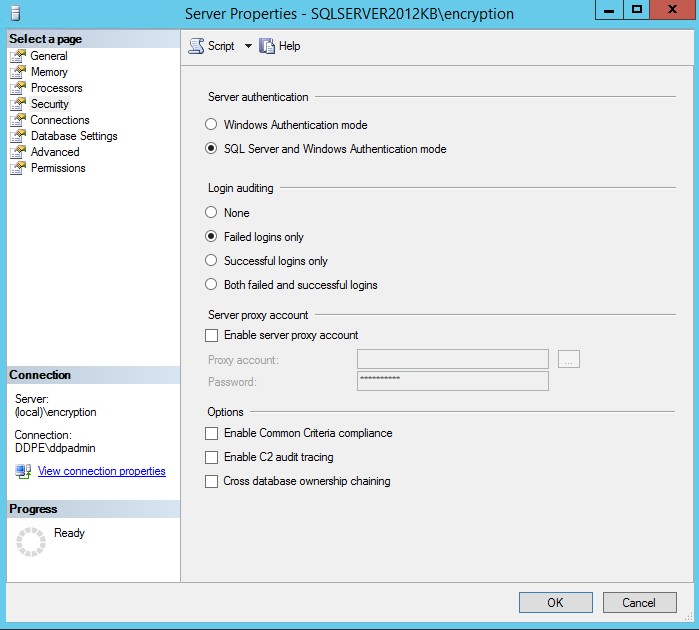
- Click OK.
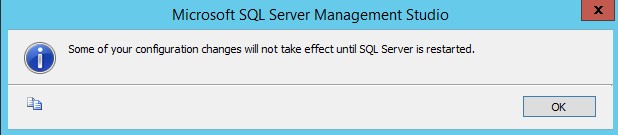
- Restart the server with SQL Server installed.
Note: The server may be restarted once there is downtime; however, the changes do not take effect until the server is restarted.
Full-text search capabilities are required when installing Dell Security Management Server v9.9.2 and later.
- Double-click the SQL install media.

- Double-click setup.exe.
 Note: Administrative rights are required to run setup.exe.
 - Click Installation.

- Click New SQL Server stand-alone installation or add features to an existing installation.

- Click OK.
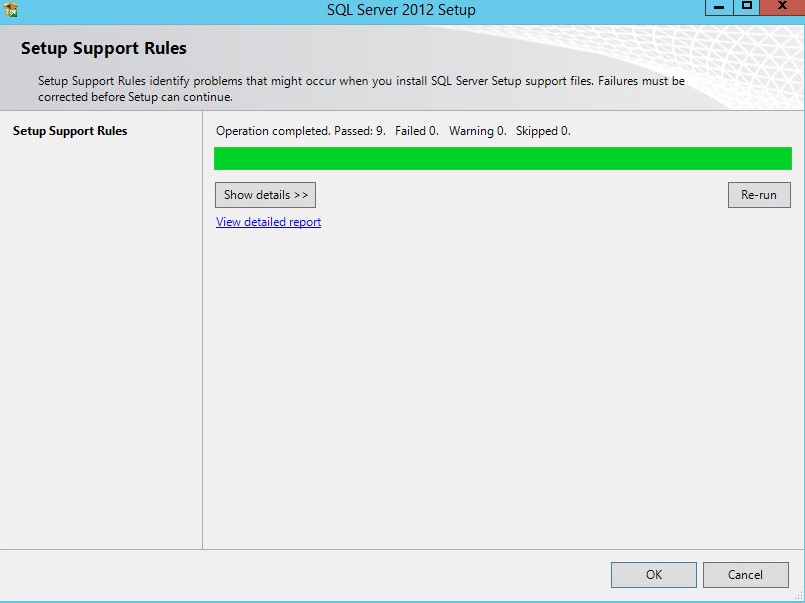
- Optionally, select Include SQL Server Updates and then click Next.
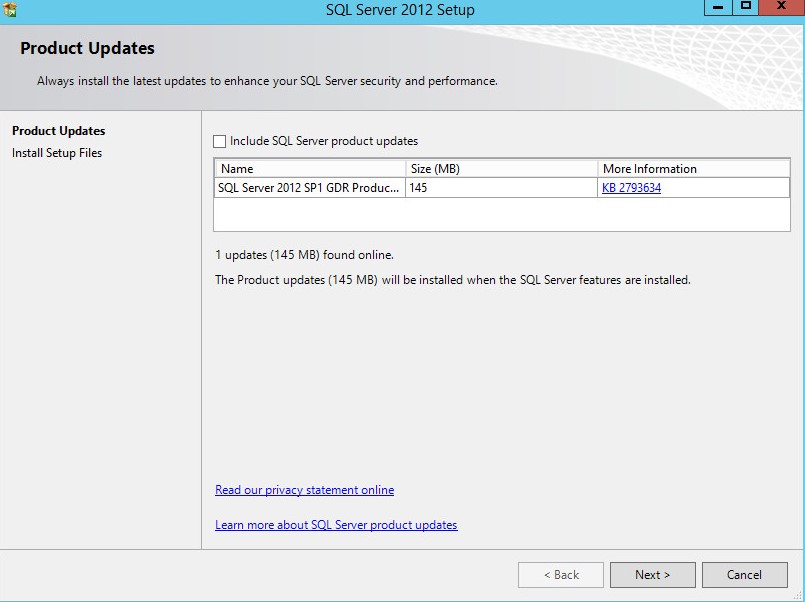
- Click Next.
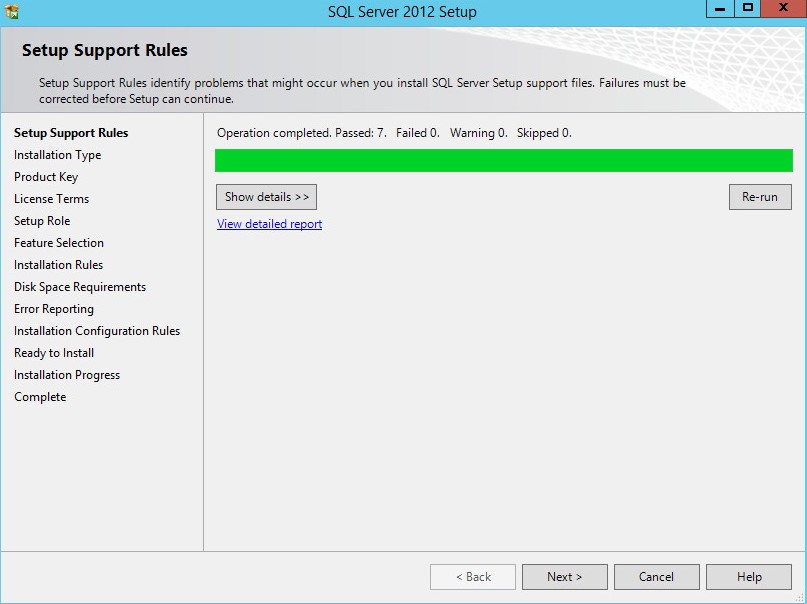
- From the Installation Type menu:
- Select Add Features to an existing instance of SQL Server.
- Select the database Instance Name from the dropdown box.
- Click Next.
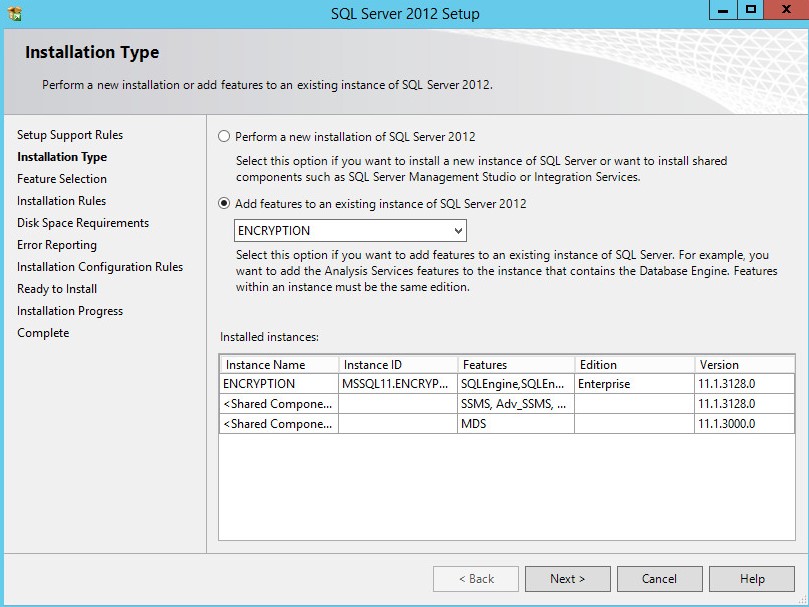 Note: The product edition of SQL Server will differ from the example image if a different edition of SQL Server is in use.
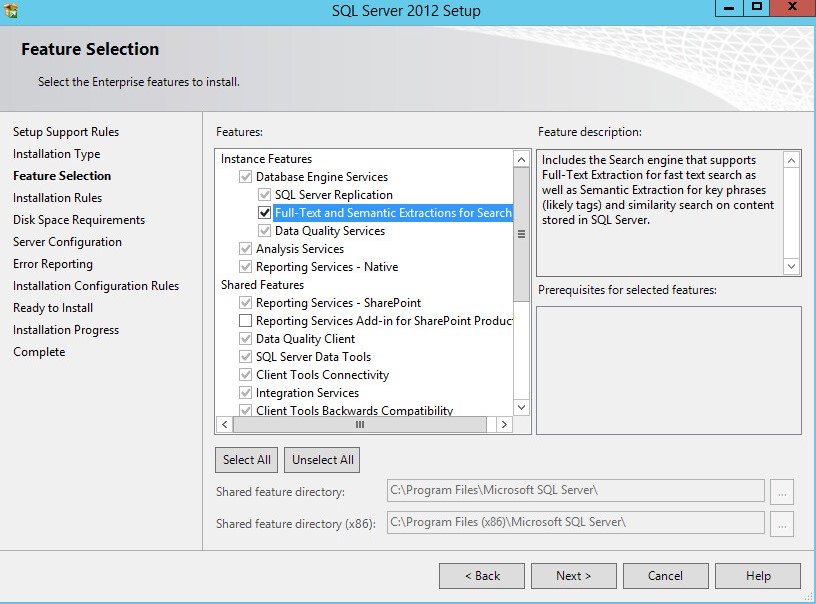
 - Select Full-Text and Semantic Extractions for Search and then click Next.
- Click Next.
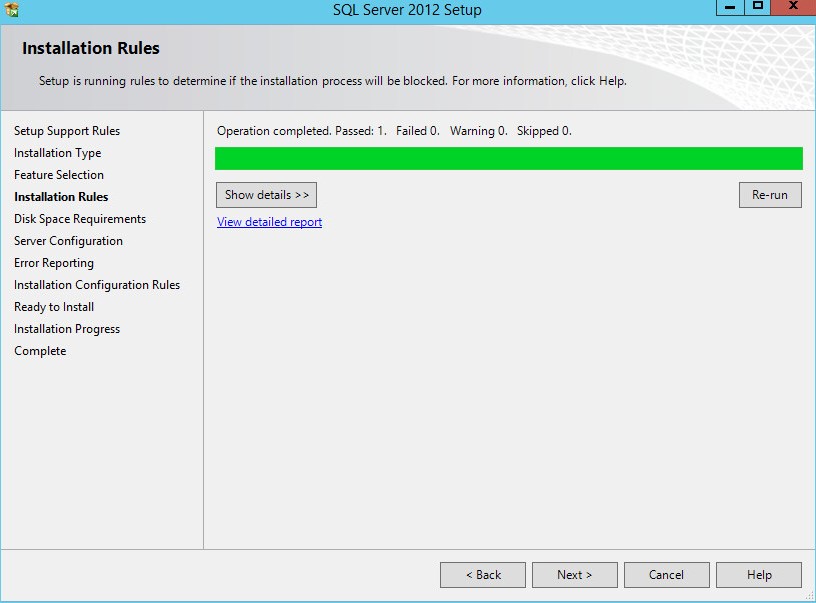
- Click Next.
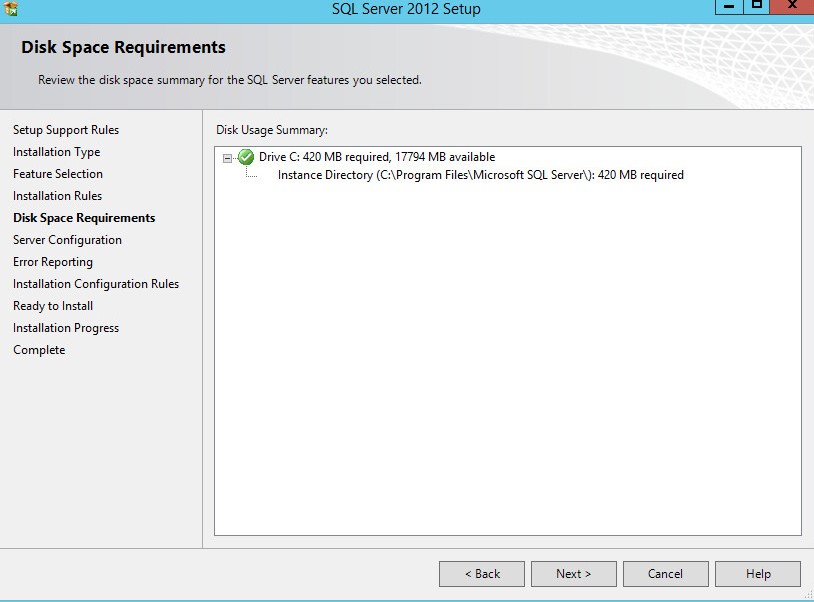
- Click Next.
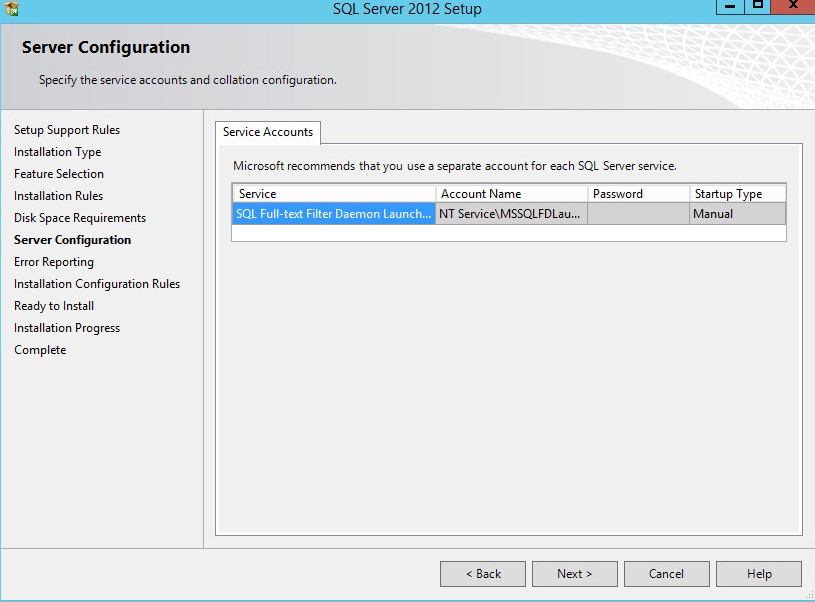
- Optionally, select Send Windows and SQL Server Error Reports to Microsoft or your corporate report server and then click Next.

- Click Install.
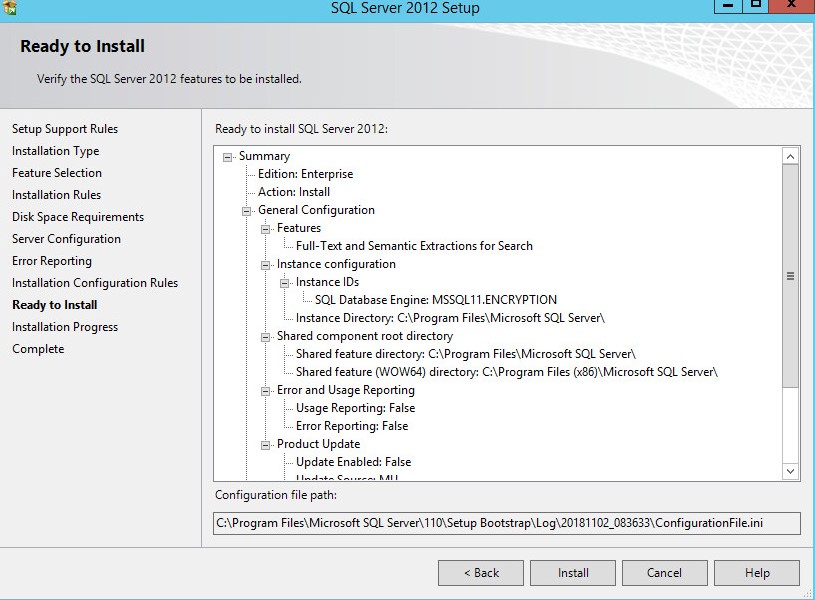
- Upon installation, click Close to exit the UI.
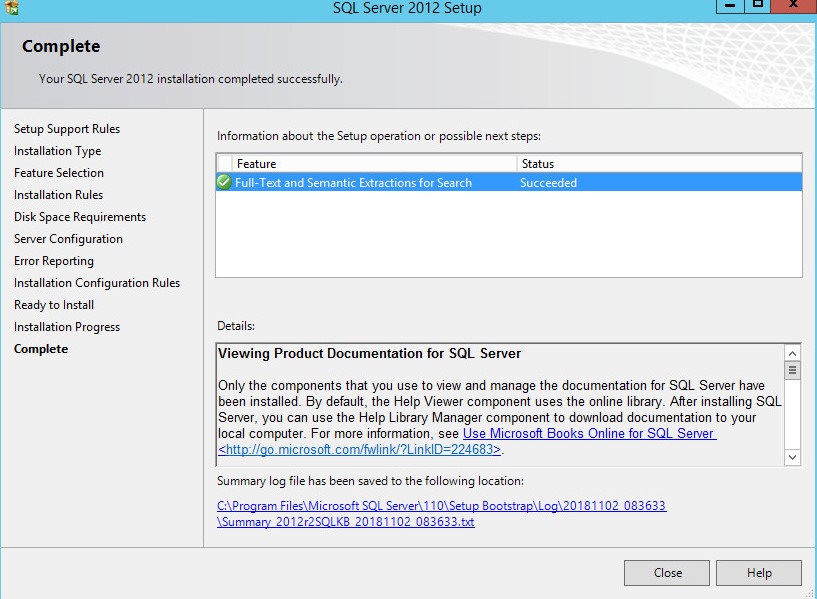
SQL Server 2005 to SQL Server 2008 R2
SQL Server may require configuration to:
- Assign sysadmin role
- Assign database role
- Create the SQL database
- Enable mixed authentication
- Add full-text search capabilities
Click the appropriate process for more information.
Note:
- Microsoft SQL Server 2005 is no longer supported with Dell Security Management Server v9.2.0 or later.
- Microsoft SQL Server 2008 is no longer supported with Dell Security Management Server v9.7.0 or later.
- Microsoft SQL Server 2008 R2 is no longer supported with Dell Security Management Server v10.2.9 or later.
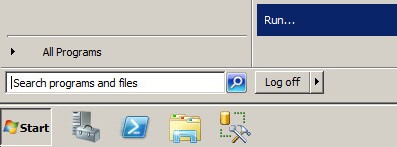
- Click the Windows Start menu and then click Run.
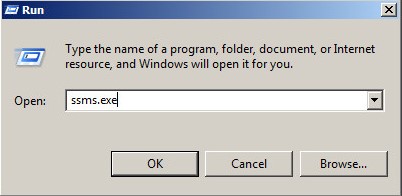
- In the Run UI, type
ssms.exeand then press OK.
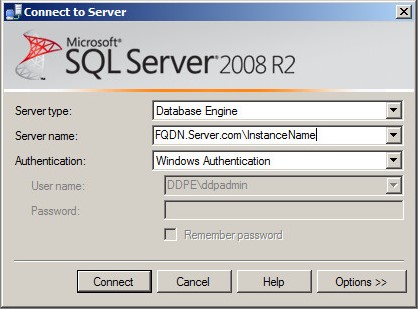
- From the Connect to Server menu:
- Select Database Engine as the server type.
- Populate Server name.
- Select the Authentication method.
- If using SQL Server Authentication, populate sysadmin credentials.
- Click Connect.
 Note:
Note:- Server Name = Fully qualified domain name (FQDN) of the database
- If a SQL Instance is used,
\InstanceNamemust follow Server Name.InstanceName= The name of the database instance in your environment
- If using Windows Authentication, smss.exe must be run as an account with sysadmin credentials.
- Expand Security and then expand Logins.

- Right-click the user account and click Properties.
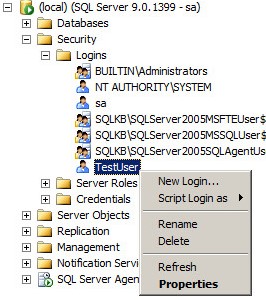
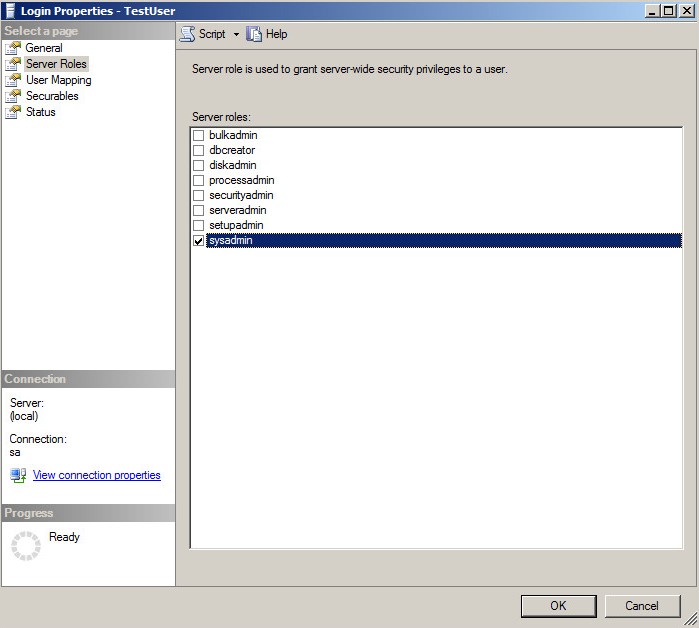
- From the Login Properties window:
- Click Server Roles.
- Select the sysadmin role.
- Click OK.
The account used to manage SQL access for Dell Security Management Server requires the db_owner role be assigned.
- Click the Windows Start menu and then click Run.
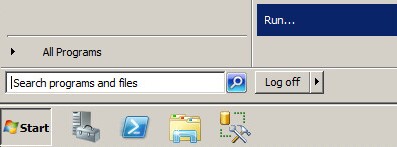
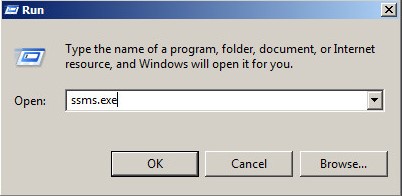
- In the Run UI, type
ssms.exeand then press OK.
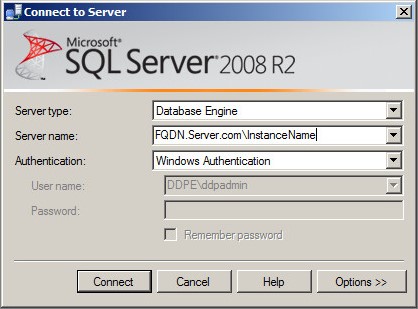
- From the Connect to Server menu:
- Select Database Engine as the server type.
- Populate Server name.
- Select the Authentication method.
- If using SQL Server Authentication, populate sysadmin credentials.
- Click Connect.
 Note:
Note:- Server Name = Fully qualified domain name (FQDN) of the database
- If a SQL Instance is used,
\InstanceNamemust follow Server Name.InstanceName= The name of the database instance in your environment
- If using Windows Authentication, smss.exe must be run as an account with sysadmin credentials.
- Go to
Databases\TestDB\Security\Users.
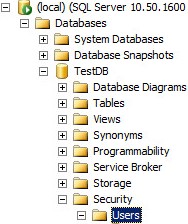 Note: The example,
TestDB, will differ from the database name in your environment. - Right-click the user's name and select Properties.
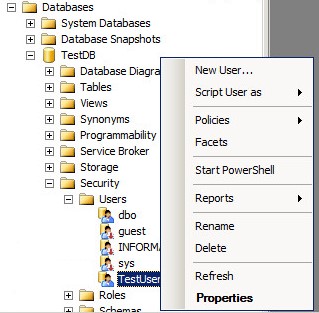
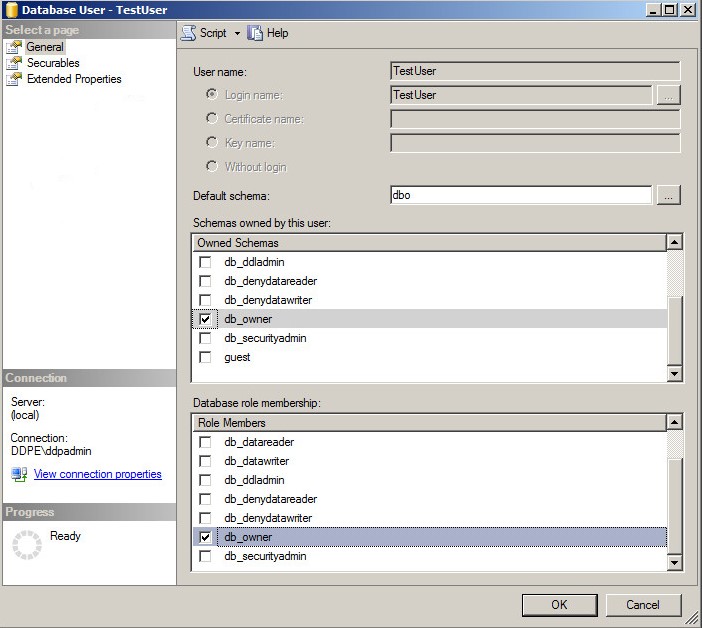
- From the Database User window:
- Click General.
- Select
db_ownerunder Owned Schemas. - Select
db_ownerunder Role Members. - Click OK.
Dell Security Management Server allows for a SQL database to be created before installation of the server software.
Note: Dell Security Management Server v8.0 to v8.5.1 requires the database creation before installation.
- Click the Windows Start menu and then click Run.
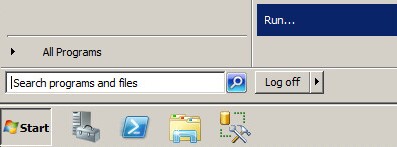
- In the Run UI, type
ssms.exeand then press OK.
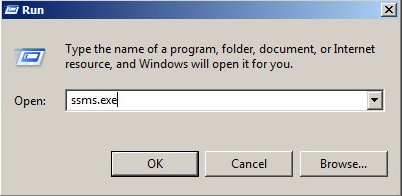
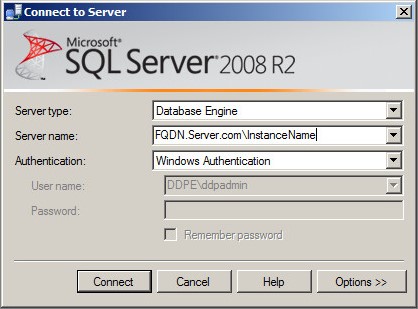
- From the Connect to Server menu:
- Select Database Engine as the server type.
- Populate the Server name.
- Select the Authentication method.
- If using SQL Server Authentication, populate sysadmin credentials.
- Click Connect.
 Note:
Note:- Server Name = Fully qualified domain name (FQDN) of the database
- If a SQL Instance is used,
\InstanceNamemust follow Server Name.InstanceName= The name of the database instance in your environment
- If using Windows Authentication, smss.exe must be run as an account with sysadmin credentials.
- Right-click Databases and then click New Database.
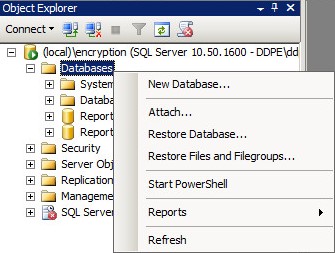
- From the New Database menu:
- Populate a Database name.
- Populate Owner with either a Windows login or SQL Server login account.
- Click OK.
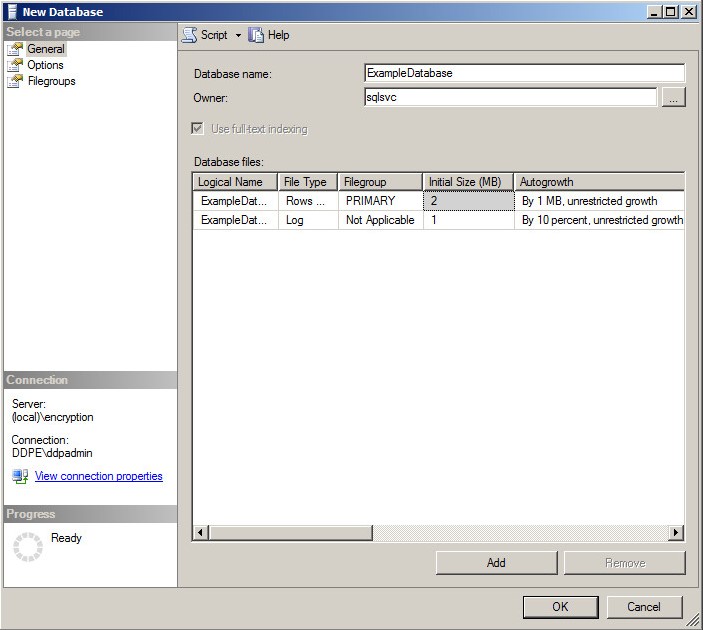 Note: The account assigned as Owner is populated as the service account during the Dell Security Management Server install when using Windows Authentication to the SQL Server.
Mixed authentication options must be enabled in SQL Server to use both methods of authentication from the Dell Security Management Server.
Note: The sysadmin server role is required to change Server authentication settings.
- Click the Windows Start menu and then click Run.
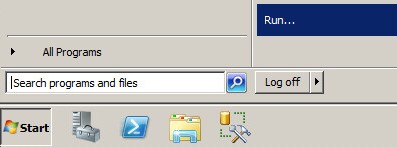
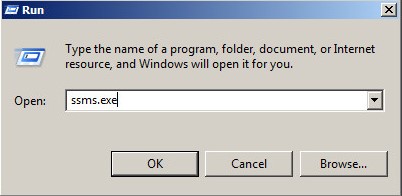
- In the Run UI, type
ssms.exeand then press OK.
- From the Connect to Server menu:
- Select Database Engine as the server type.
- Populate Server name.
- Select Windows Authentication.
- Click Connect.
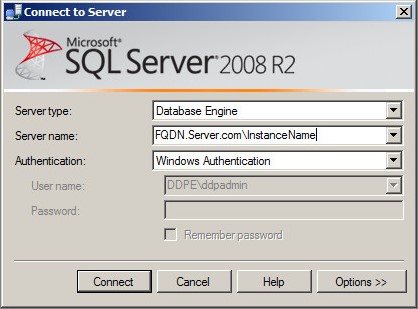 Note:
Note:- Server Name = Fully qualified domain name (FQDN) of the database
- If a SQL Instance is used,
\InstanceNamemust follow Server Name.InstanceName= The name of the database instance in your environment
- If using Windows Authentication, smss.exe must be run as an account with sysadmin credentials.
- Right-click the SQL Instance and then select Properties.
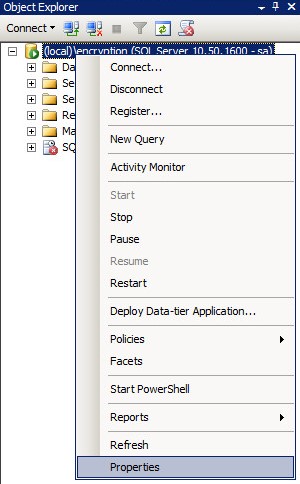
- From the Server Properties window:
- Click Security.
- Select SQL Server and Windows Authentication mode.
- Click OK.
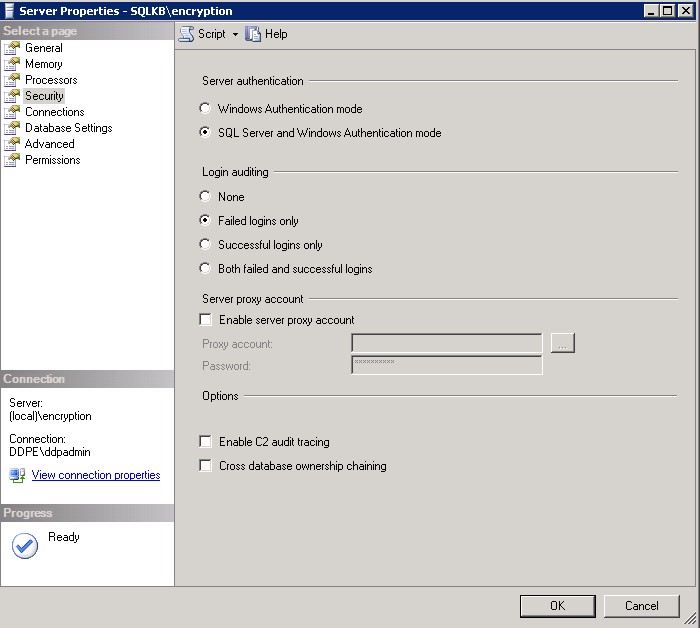
- Click OK.

- Restart the server with SQL Server installed.
Note: The server may be restarted once there is downtime; however, the changes do not take effect until the server is restarted.
Full-text search capabilities are required when installing Dell Security Management Server v9.9.2 and later.
- Double-click the SQL install media.

- Double-click setup.exe.
 Note: Administrative rights are required to run setup.exe.
 - Click Installation.
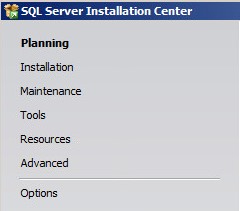
- Click New SQL Server stand-alone installation or add features to an existing installation.

- Click OK.
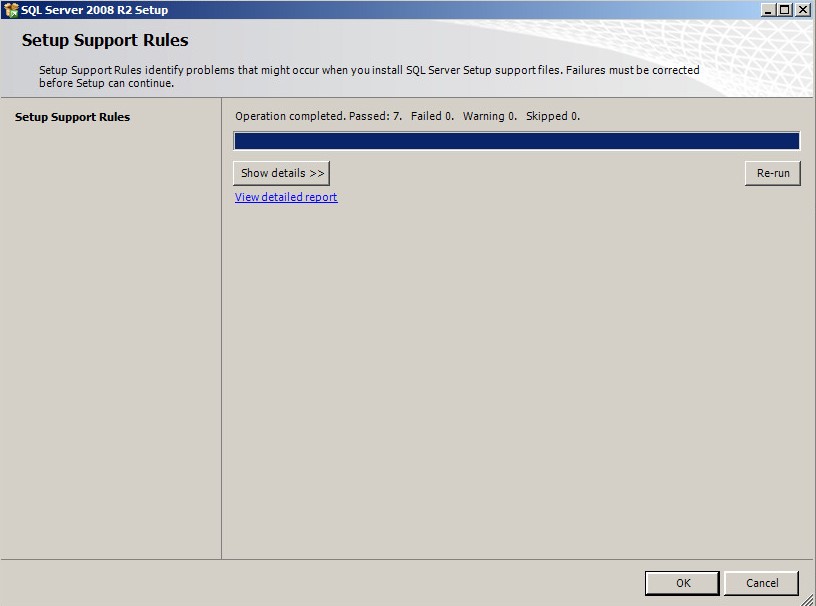
- Click Install.
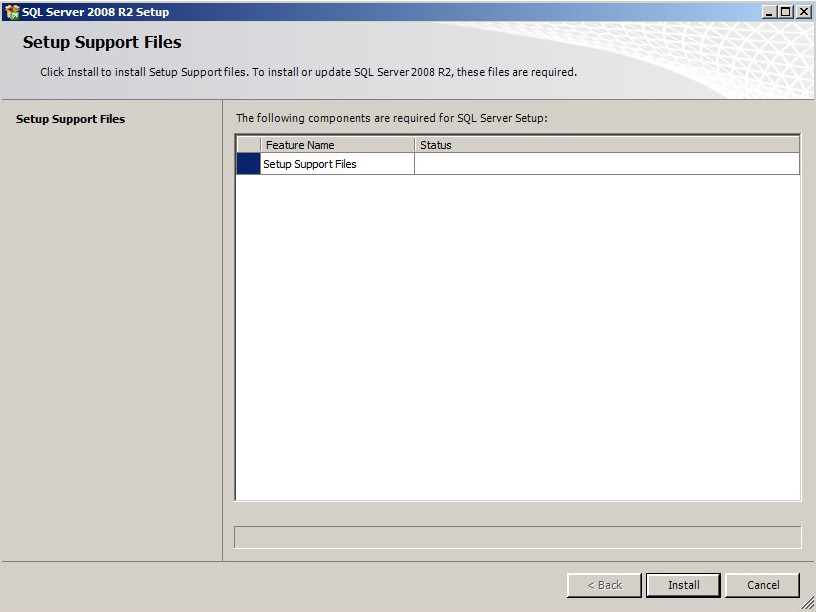
- Click Next.
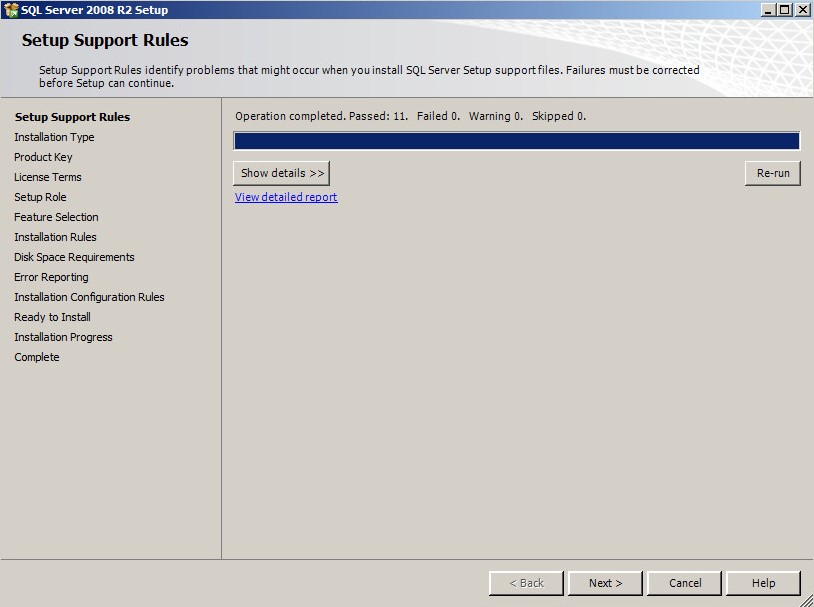
- From the Installation Type menu:
- Select Add Features to an existing instance of SQL Server.
- Select the database Instance Name from the dropdown box.
- Click Next.
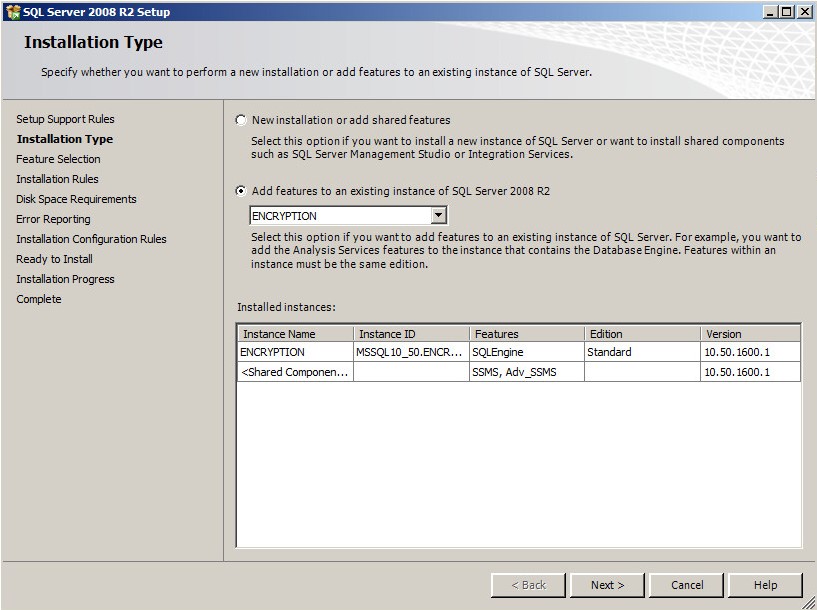 Note: The product edition of SQL Server will differ from the example image if a different edition of SQL Server is in use.
 - Select Full-Text Search and then click Next.
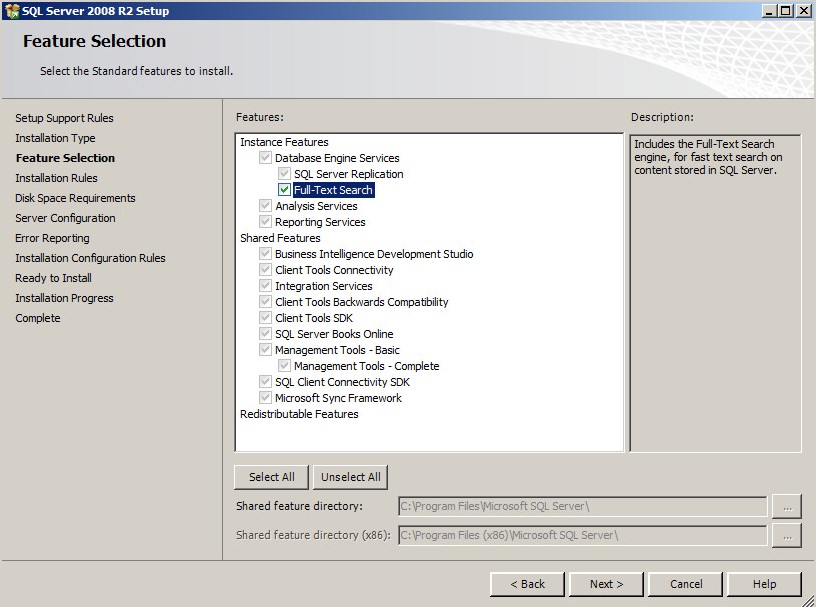
- Click Next.
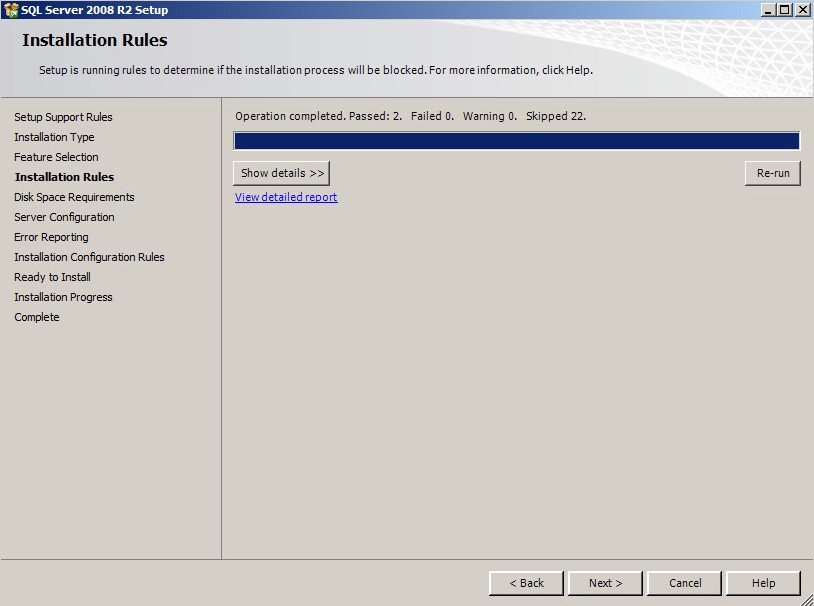
- Click Next.
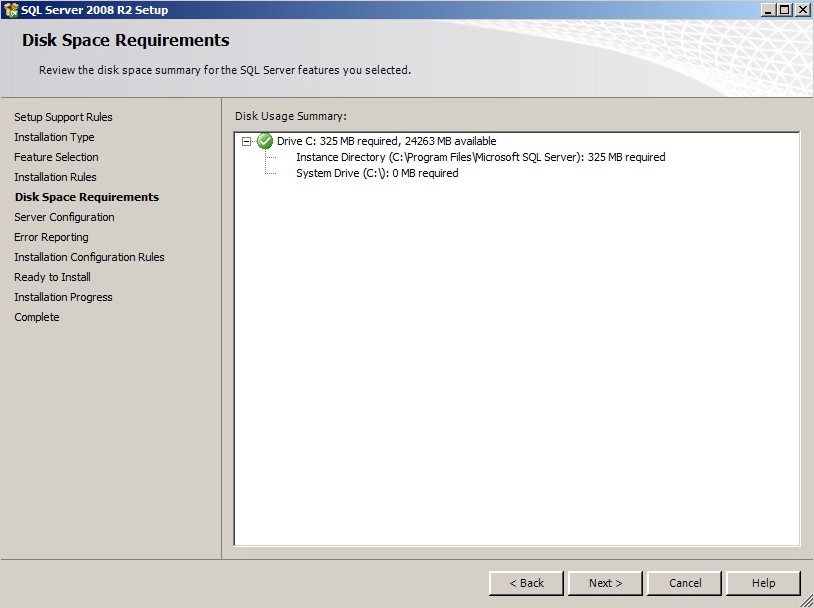
- Click Next.
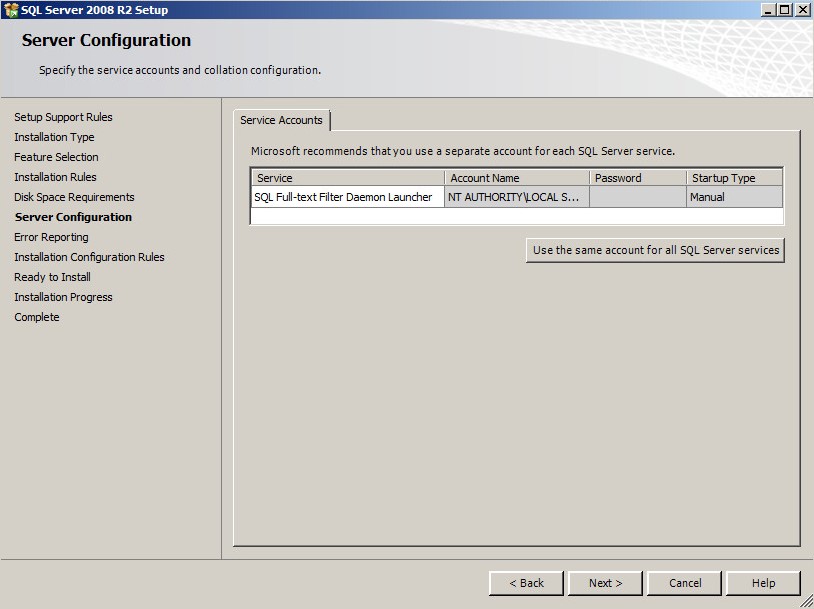
- Optionally, select Send Windows and SQL Server Error Reports to Microsoft or your corporate report server and then click Next.

- Click Next.
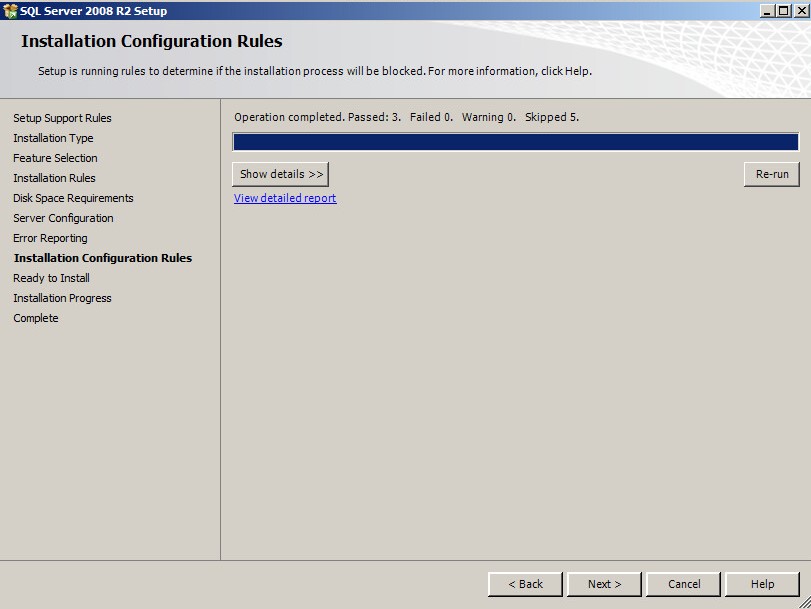
- Click Install.
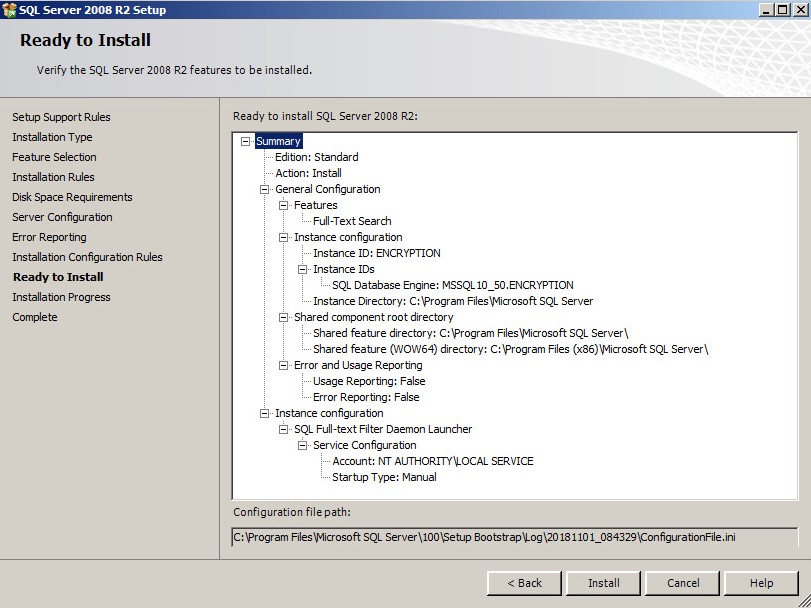
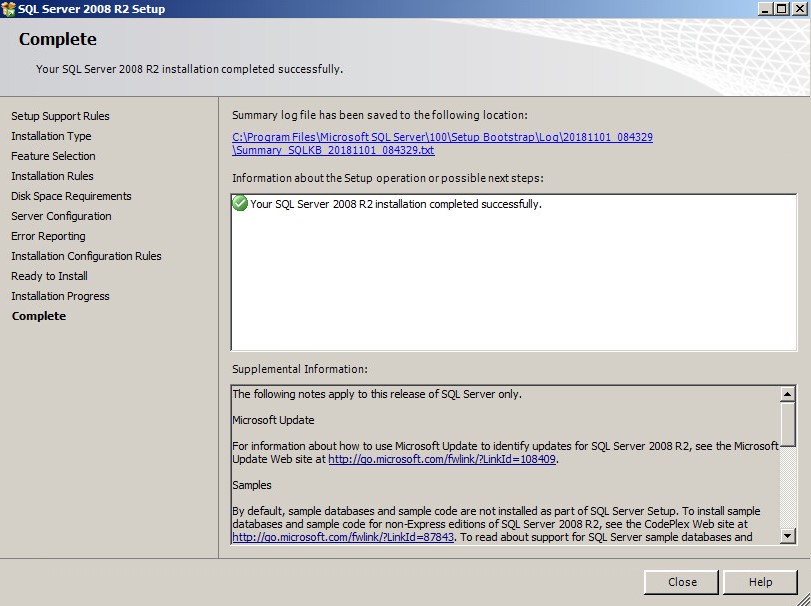
- Upon installation, click Close to exit the UI.
Additional Information
Videos
Affected Products
Dell EncryptionArticle Properties
Article Number: 000124909
Article Type: How To
Last Modified: 10 Aug 2026
Version: 11
Find answers to your questions from other Dell users
Support Services
Check if your device is covered by Support Services.