如何安裝 Mac 版 Dell Endpoint Security Suite Enterprise
Summary: 瞭解如何使用使用者介面 (UI) 或終端機安裝 Mac 版 Dell Endpoint Security Suite Enterprise。
This article applies to
This article does not apply to
This article is not tied to any specific product.
Not all product versions are identified in this article.
Instructions
注意:
- 截至 2022 年 5 月,Dell Endpoint Security Suite Enterprise 已達到維護結束的期限。Dell 已不再更新此產品及其文章。如需更多資訊,請參閱 Dell Data Security 的產品生命週期 (支援結束及壽命結束) 政策。如果您對其他文章有任何問題,請聯絡您的銷售團隊或聯絡 endpointsecurity@dell.com。
- 請參考端點安全性,以取得有關目前產品的其他資訊。
本文提供安裝 Mac 版 Dell Endpoint Security Suite Enterprise 的步驟。
受影響的產品:
- Mac 版 Dell Endpoint Security Suite Enterprise
受影響的作業系統:
- Mac
Mac 版 Dell Endpoint Security Suite Enterprise 可透過使用者介面 (UI) 或終端機安裝。如需詳細資訊,請按一下適當的方法。
注意:如需取得安裝程式的相關資訊,請參閱如何下載 Dell Endpoint Security Suite Enterprise。
UI
透過 UI 安裝會根據安裝的版本而有所不同。按一下 v1401 及更新版本 或 v1391 以瞭解特定的安裝步驟。
v1401 及更新版本
- 按兩下 Endpoint Security Suite Enterprise-[VERSION]-Release.dmg 以掛接安裝程式。
 注意:[VERSION] 代表安裝程式版本變數。
 - 按兩下 Endpoint Security Suite Enterprise。

- 在 UI 中,按一下繼續以驗證端點符合所有需求。
 注意:如需產品系統需求的更多資訊,請參閱 Dell Endpoint Security Suite Enterprise 系統需求。
 - 按一下繼續。

- 按一下繼續。

- 同意軟體授權合約的條款。

- 從 Dell Security Management Server 組態 功能表:
- 填入伺服器主機。
- 填入伺服器連接埠。
- 按一下繼續。
 注意:
注意:- 範例
Server.Company.Local與您環境中的伺服器完整網域名稱 (FQDN) 不同。 - 預設連接埠可能與環境中的連接埠不同。
- 按一下安裝。

- 若要確認安裝,請填入本機系統管理員的使用者名稱和密碼。填入後,按一下安裝軟體。

- 成功安裝後,按一下關閉。
 注意:若安裝失敗,請參閱如何收集 Dell Endpoint Security Suite Enterprise 的記錄。
v1391
- 按兩下 Endpoint Security Suite Enterprise-[VERSION]-Release.dmg 以掛接安裝程式。
 注意:[VERSION] 代表安裝程式版本變數。
 - 按兩下 Endpoint Security Suite Enterprise。

- 在 UI 中,按一下繼續以驗證端點符合所有需求。
 注意:如需產品系統需求的更多資訊,請參閱 Dell Endpoint Security Suite Enterprise 系統需求。
 - 按一下繼續。
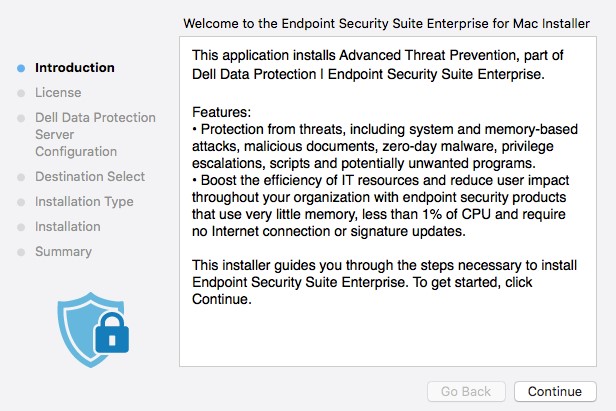
- 按一下繼續。

- 同意軟體授權合約的條款。

- 從 Dell Data Protection Server 組態 功能表:
- 填入伺服器主機。
- 填入伺服器連接埠。
- 按一下繼續。
 注意:
注意:- 範例
Server.Company.Local與您環境中的伺服器完整網域名稱 (FQDN) 不同。 - 預設連接埠可能與環境中的連接埠不同。
- 按一下安裝。

- 若要確認安裝,請填入本機系統管理員的使用者名稱和密碼。填入後,按一下安裝軟體。

- 成功安裝後,按一下關閉。
 注意:若安裝失敗,請參閱如何收集 Dell Endpoint Security Suite Enterprise 的記錄。
終端機
管理員必須 設定 屬性清單 (plist) 選項,然後再使用終端機 部署 Mac 版 Dell Endpoint Security Suite Enterprise。如需詳細資訊,請按一下適當的程序。
設定
- 從 Apple 功能表中,按一下「前往」,然後選取工具程式。

- 在 「工具程式 」功能表中,按兩下 終端機。

- 在終端機中,輸入
hdiutil attach -owners on "/Users/test/Desktop/Endpoint Security Suite Enterprise-[VERSION]-Release.dmg" -shadow然後按下 Enter 鍵。 注意:
注意:[VERSION]表示安裝程式版本變數。- 您環境中的路徑可能與上述範例有所不同。
- 類型
sudo nano "/Volumes/Endpoint Security Suite Enterprise for Mac/Utilities/com.dell.esse.plist"然後按下 Enter 鍵。 注意:Sudo 命令需要本機系統管理員登入資料才能成功執行此作業。
 - 下
DeviceServers金鑰,更換:- 具有 Dell Security Management Server 完整網域名稱 (FQDN) 的字串欄位
- 包含用於伺服器通訊之連接埠的整數欄位
 注意:
注意:- 範例 FQDN
server.company.local會依您的環境而有所不同。 - 連接埠 8888 預設用於註冊。此連接埠可能與您的環境有所不同。
- 按下 CTRL+X 以結束。提示要儲存時,按下 Y 以繼續。

- 按下 Enter 鍵以儲存,不變更檔案名稱。

- 在終端機中,輸入
sudo cp "/Volumes/Endpoint Security Suite Enterprise for Mac/Utilities/com.dell.esse.plist" /Library/Preferences然後按下 Enter 鍵。 注意:
注意:com.dell.esse.plist必須儲存至Library/Preferences在終端機部署 Mac 版 Dell Endpoint Security Suite Enterprise 之前。- 已設定
plist可用於產品的環境部署中。
部署
- 按兩下 Endpoint Security Suite Enterprise-[VERSION]-Release.dmg 以掛接安裝程式。
 注意:[VERSION] 代表安裝程式版本變數。
 - 從 Apple 功能表中,按一下「前往」,然後選取工具程式。

- 在「工具程式」功能表中,按兩下終端機。

- 在終端機中,輸入
sudo installer -pkg "/Volumes/Endpoint Security Suite Enterprise for Mac/Endpoint Security Suite.pkg" -target /然後按下 Enter 鍵。 注意:
注意:- Sudo 命令需要本機系統管理員登入資料才能成功執行此作業。
- 若安裝失敗,請參閱如何收集 Dell Endpoint Security Suite Enterprise 的記錄。
如要聯絡支援部門,請參閱 Dell Data Security 國際支援電話號碼。
請前往 TechDirect,以線上產生技術支援要求。
如需更多深入見解與資源,請加入 Dell 安全性社群論壇。
Additional Information
Videos
Affected Products
Dell Endpoint Security Suite EnterpriseArticle Properties
Article Number: 000125462
Article Type: How To
Last Modified: 12 Mar 2025
Version: 13
Find answers to your questions from other Dell users
Support Services
Check if your device is covered by Support Services.