如何解密由戴尔数据安全管理的外部介质
Summary: 用于管理外部介质设备的 Dell Data Security 和 Dell Data Protection 软件可按照以下说明进行解密。
This article applies to
This article does not apply to
This article is not tied to any specific product.
Not all product versions are identified in this article.
Symptoms
在卸载 Dell Data Security(以前称为 Dell Data Protection)之前,务必解密由该软件管理的受保护外部介质设备。
受影响的产品:
- Dell Encryption Enterprise
- Dell Encryption Enterprise for Mac
- Dell Encryption Personal
- Dell Encryption External Media
- Dell Data Protection | Enterprise Edition
- Dell Data Protection | Enterprise Edition(Mac 版)
- Dell Data Protection | Personal Edition
- Dell Data Protection | External Media Edition
受影响的版本:
- 8.0 版及更高版本
受影响的操作系统:
- Windows
- Mac
Cause
不适用
Resolution
集中管理
选择相应的 Dell Data Security(以前称为 Dell Data Protection)服务器版本,以了解解密受保护的外部介质设备的步骤。有关详细信息,请参阅如何确定 Dell Encryption Enterprise 或 Dell Encryption Personal 版本。
要解密设备,请执行以下操作:
- 从网页浏览器通过 https://servername.company.com:8443/webui 转到 Dell Data Security 管理控制台。
提醒:
- 示例 servername.company.com 可能与您的环境中的服务器 DNS 有所不同。
- 端口 8443 可能与您环境中的管理控制台端口不同。
- 登录到 Dell Data Security 管理控制台。
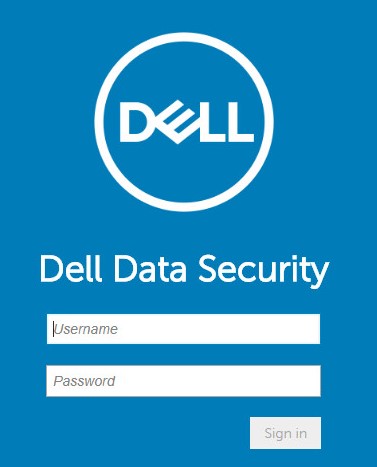
- 如果从以下端点解密受保护的外部介质设备:
- Windows 端点,转至步骤 4。
- Mac 端点,转至步骤 8。
- 从左侧菜单窗格中,展开 Populations 选项卡,然后单击 Users。
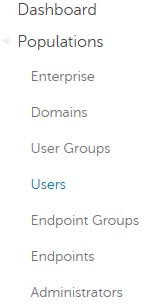
- 单击必须解密设备的用户的用户名。
- 单击 Windows Media Encryption。
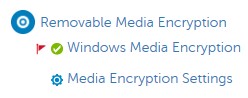
- 将“Windows Media Encryption”切换为 Off,然后单击 Save。转至步骤 13。
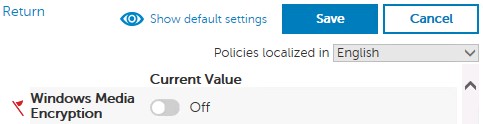
提醒:如果受保护的外部介质设备已列入允许列表,则还必须将其从 EMS 设备白名单策略中删除。
- 从左侧菜单窗格中,展开 Populations 选项卡,然后单击 Endpoints。
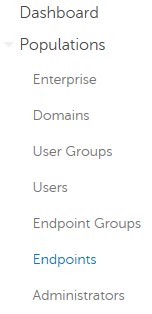
- 单击要解密的端点。
- 单击 Security Policies。

- 单击 Mac Media Encryption。
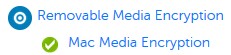
- 将“Mac Media Encryption”切换为 Off,然后单击 Save。
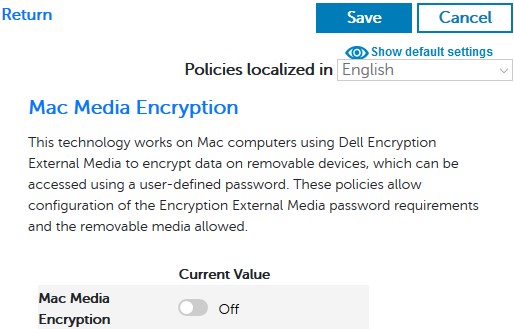
提醒:如果受保护的外部介质设备已列入允许列表,则还必须将其从 EMS 设备白名单策略中删除。
- 提交策略更改。
提醒:有关提交策略的更多信息,请参阅 如何提交 Dell Data Security Server 的策略 。
- 从端点检查策略更新。
提醒:有关检查策略更新的详细信息,请参阅如何检查 Dell Data Security / Dell Data Protection 的策略更新。
- 收到策略更新后,插入受保护的外部介质设备并允许解密清除完成。
提醒:WSScan 可用于确认解密已完成。有关更多信息,请参阅 How to Use WSScan for Dell Data Security(如何使用 Dell Data Security 的 WSScan)。
要解密设备,请执行以下操作:
- 在 Windows 资源管理器中,转至 C:\Program Files\Dell\Enterprise Edition\Console\,然后双击 Credant.Console.exe。

- 提交凭据以登录到管理控制台。
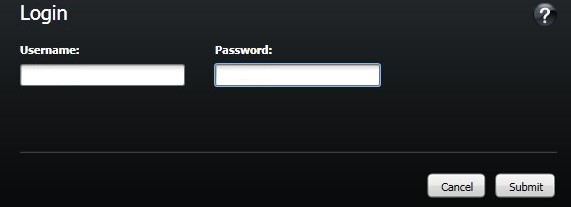
- 如果从以下端点解密受保护的外部介质设备:
- Windows 端点,转至步骤 4。
- Mac 端点,转至步骤 8。
- 在左侧菜单窗格中,单击 Users。
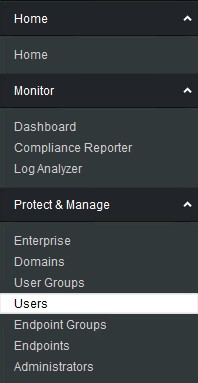
- 找到必须解密设备的用户,然后单击 Policies 图标。

- 单击 Removable Storage。
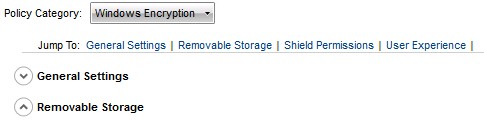
- 将 EMS Encrypt External Media 切换为 false,然后单击 Save。转至步骤 12。
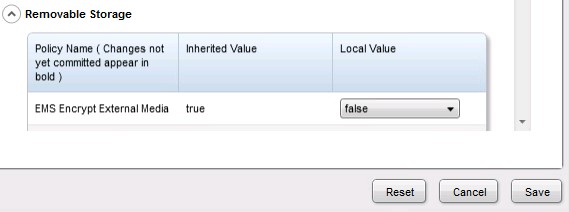
提醒:如果受保护的外部介质设备已列入允许列表,则还必须将其从 EMS 设备白名单策略中删除。
- 在左侧菜单窗格中,单击 Endpoints。
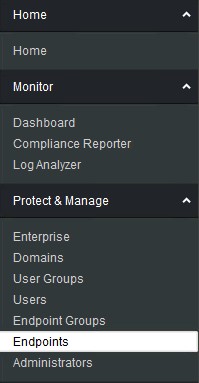
- 找到要解密的端点,然后单击 Details 图标。
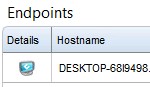
- 单击 Security Policies。

- 从安全策略:
- 将策略类别设置为 Mac Encryption。
- 单击以展开 Removable Storage。
- 使用“Local Value”列将 EMS Encrypt External Media 策略设置为 false。
- 单击 Save。
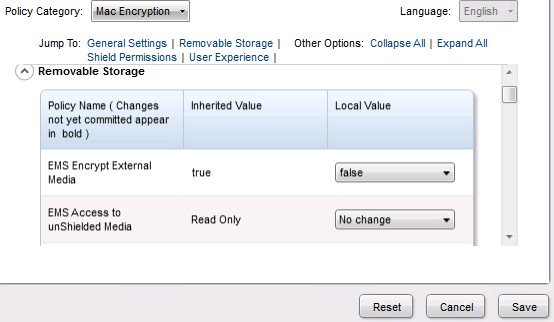
提醒:如果受保护的外部介质设备已列入允许列表,则还必须将其从 EMS 设备白名单策略中删除。
- 提交策略更改。
提醒:有关提交策略的更多信息,请参阅 如何提交 Dell Data Security Server 的策略 。
- 从端点检查策略更新。
提醒:有关检查策略更新的详细信息,请参阅如何检查 Dell Data Security / Dell Data Protection 的策略更新。
- 收到策略更新后,插入受保护的外部介质设备并允许解密清除完成。
提醒:WSScan 可用于确认解密已完成。有关更多信息,请参阅 How to Use WSScan for Dell Data Security(如何使用 Dell Data Security 的 WSScan)。
本地管理
选择相应的 Dell Encryption Personal(以前称为 Dell Data Protection Personal Edition)版本,了解解密受保护的外部介质设备的步骤。有关详细信息,请参阅如何确定 Dell Encryption Enterprise 或 Dell Encryption Personal 版本。
要解密设备,请执行以下操作:
- 登录 Windows 计算机。
- 在 Windows 系统托盘中,右键单击 Dell Encryption 图标,然后选择 Open Dell Encryption。
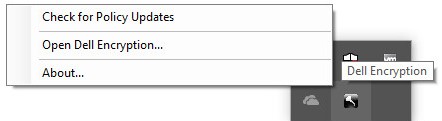
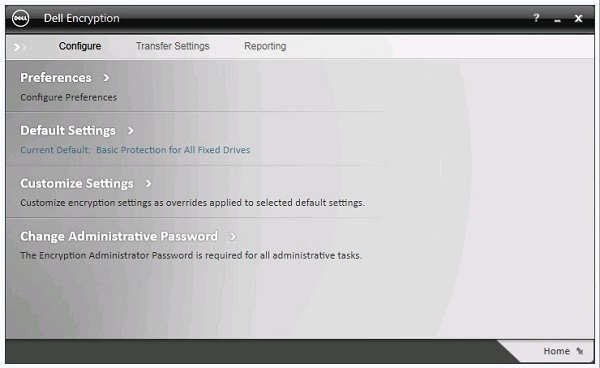
- 单击右下角的 Advanced。
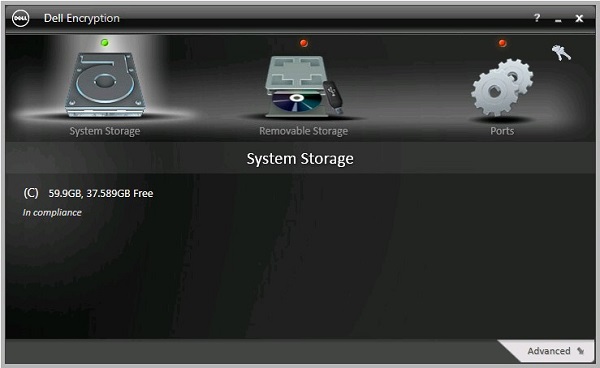
- 单击 Customize Settings。
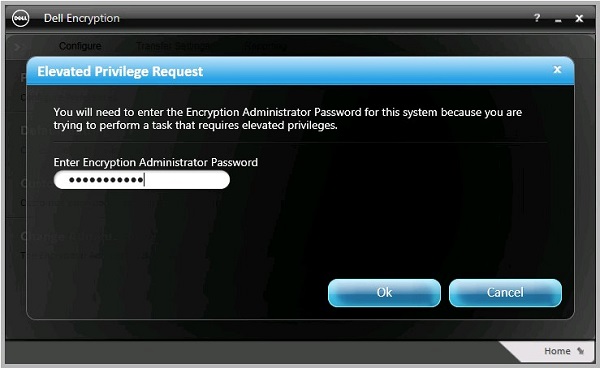
- 填充加密管理员密码,然后单击 OK。
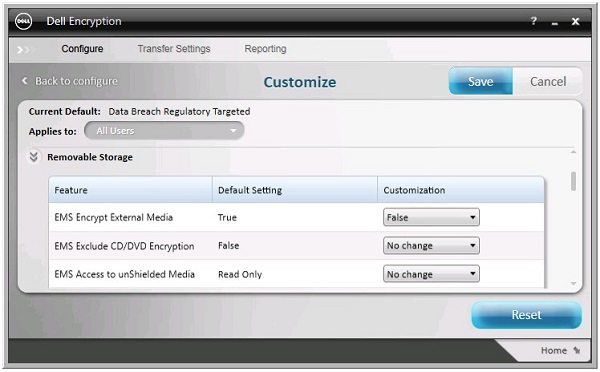
- 从“Customize”用户界面 (UI):
- 单击以展开 Removable Storage。
- 使用“Customization”列将 EMS Encrypt External Media 策略设置为 False。
- 单击 Save。
- 单击 Back to configure。
提醒:如果受保护的外部介质设备已列入允许列表,则还必须将其从 EMS 设备白名单策略中删除。
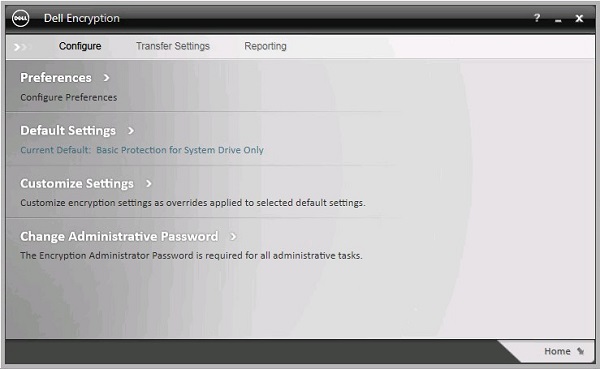
- 在右下角,单击 Home。
- 执行加密密钥的备份。

- 插入受保护的外部介质设备并允许解密清除完成。
提醒:WSScan 可用于确认解密已完成。有关更多信息,请参阅 How to Use WSScan for Dell Data Security(如何使用 Dell Data Security 的 WSScan)。
要解密设备,请执行以下操作:
- 登录 Windows 计算机。
- 在 Windows 系统托盘中,右键单击 Dell Data Protection | Encryption 图标,然后选择 Open Dell Data Protection | Encryption。
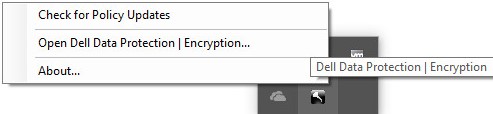
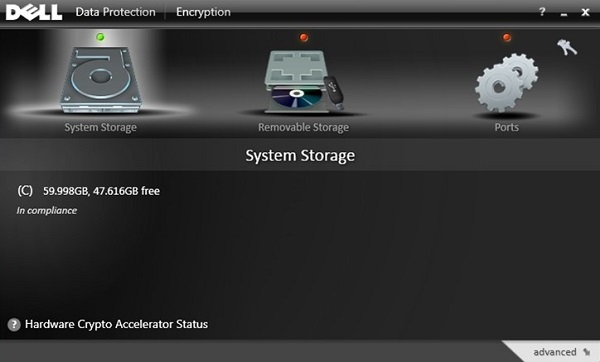
- 单击右下角的 Advanced。
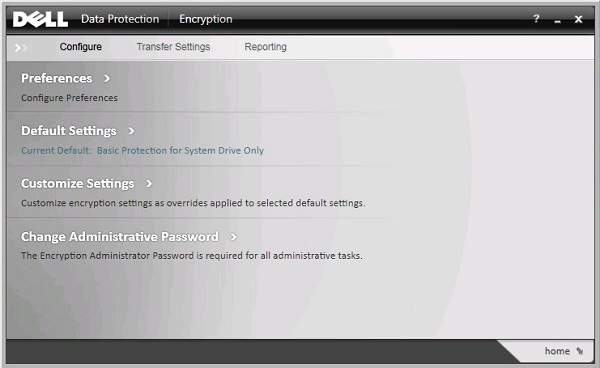
- 单击 Customize Settings。
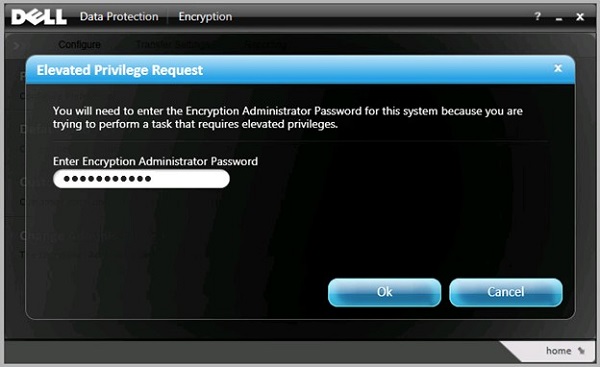
- 填充加密管理员密码,然后单击 OK。
- 从“Customize”用户界面 (UI):
- 单击以展开 Removable Storage。
- 使用“Customization”列将 EMS Encrypt External Media 策略设置为 False。
- 单击 Save。
- 单击 Back to configure。
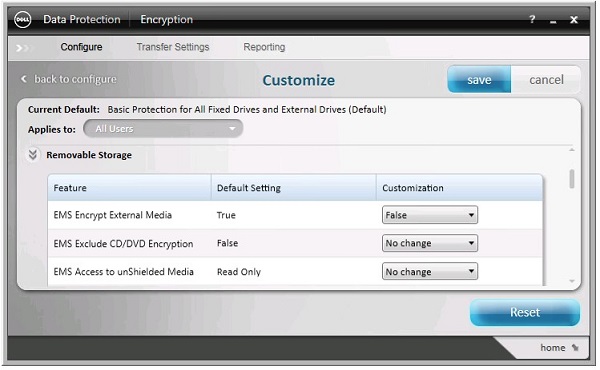
提醒:如果受保护的外部介质设备已列入允许列表,则还必须将其从 EMS 设备白名单策略中删除。
- 在右下角,单击 Home。
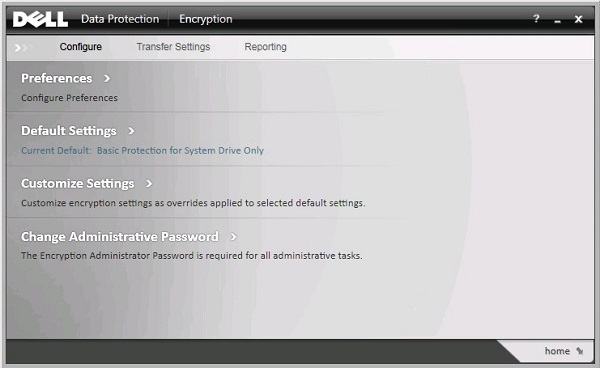
- 执行加密密钥的备份。

- 插入受保护的外部介质设备并允许解密清除完成。
提醒:WSScan 可用于确认解密已完成。有关更多信息,请参阅 How to Use WSScan for Dell Data Security(如何使用 Dell Data Security 的 WSScan)。
要联系支持部门,请参阅 Dell Data Security 国际支持电话号码。
转至 TechDirect,在线生成技术支持请求。
要获得更多见解和资源,请加入戴尔安全社区论坛。
Additional Information
Videos
Affected Products
Dell EncryptionArticle Properties
Article Number: 000126841
Article Type: Solution
Last Modified: 28 Aug 2023
Version: 18
Find answers to your questions from other Dell users
Support Services
Check if your device is covered by Support Services.