如何將平板電腦模式螢幕小鍵盤啟用為預設值
Summary: 瞭解如何在未連接實體鍵盤時,即使已關閉平板電腦模式,也能將平板電腦模式的螢幕小鍵盤設定為您的預設鍵盤。
This article applies to
This article does not apply to
This article is not tied to any specific product.
Not all product versions are identified in this article.
Instructions
受影響的產品:
- Latitudes
- Precision Mobile Workstation
- Dell Plus 筆記型電腦
- Dell Pro 筆記型電腦
- Dell Pro Max 筆記型電腦
- Dell Pro Plus 筆記型電腦
- Dell Pro Premium 筆記型電腦
- Dell Pro Rugged 筆記型電腦
Windows 11 平板電腦模式
持續時間:00:02:49 (小時:分鐘:秒)
當可用時,您可以使用此影像播放器上的 CC 圖示來選擇隱藏式輔助字幕 (字幕) 語言設定。
根據預設,Windows 中會停用螢幕小鍵盤,必須透過「協助工具」的設定啟用。
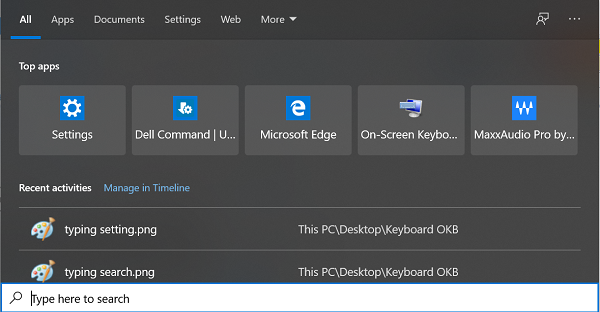
有一個平板電腦模式鍵盤,預設為僅會在切換至平板電腦模式時啟用。使用者可在電腦未連接鍵盤的情況下,將平板電腦模式鍵盤啟用為預設的螢幕小鍵盤。
若要將平板電腦模式的鍵盤啟用為預設的螢幕小鍵盤,請按照以下步驟操作:
- 在 Windows 搜尋中搜尋 輸入 。

- 開啟輸入設定後,向下捲動至觸控鍵盤。
- 啟用當不在平板電腦模式中且沒有連接任何鍵盤時顯示觸控鍵盤。
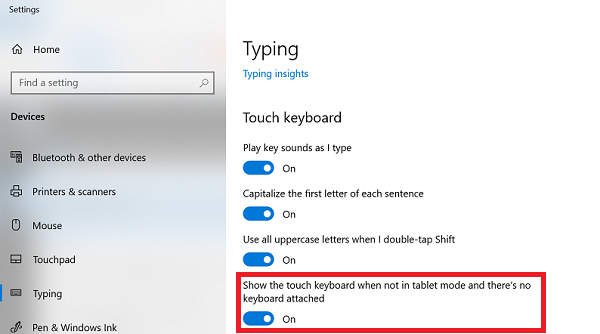
Additional Information
其他資源

Affected Products
Dell Plus, Dell Pro, Dell Pro Max, Dell Pro Plus, Dell Pro Premium, Latitude, Dell Pro Rugged, Mobile WorkstationsArticle Properties
Article Number: 000128227
Article Type: How To
Last Modified: 08 Sept 2025
Version: 16
Find answers to your questions from other Dell users
Support Services
Check if your device is covered by Support Services.