Panel Brightness Does Not Adjust Using Fn+F6 or Fn+F7 on the Latest Generation of Latitude Laptops
Summary: This article provides information about why the LCD display panel brightness does not change when using the Fn+F6 or Fn+F7 hotkey combination. This is seen on Latitude systems launched after March 2019. ...
This article applies to
This article does not apply to
This article is not tied to any specific product.
Not all product versions are identified in this article.
Symptoms
LCD panel brightness does not change
The LCD Display panel brightness does not change when you use the Fn+F6 or Fn+F7 hotkey combination. This is seen on Latitude systems that launched after March 2019.
This is due to a change in the Default setting of the function keys of newly released Latitude 5000 and 7000 series laptop systems.
The advanced function of these keys is now set to where using the Fn key is not required to change the LCD brightness.

(Fig.1 Fn Keys)
Affected Systems:
- The Latitude 5000 series:
- Latitude 5500
- Latitude 5400
- Latitude 5300
- Latitude 5501
- Latitude 5401
- The Latitude 7000 series:
- Latitude 7400
- Latitude 7400 2-in-1
- Latitude 7300
- Latitude 7300 2-in-1
 Note: Future Latitude laptop systems should also reflect this change to the function keys as they ship from Dell.
Cause
No cause information
Resolution
Fn Lock options in the BIOS
There is no hardware problem with any of these systems, they are working as designed. Only the default value of the Function keys has changed.
To change the LCD brightness:
-
If the Fn Lock is set to disable/inactivate, press F6 or F7 individually to change the brightness (This is the BIOS default setting.)
-
If the Fn Lock is set to enable/activate, use the Fn+ F6 or Fn +F7 key combination to change the brightness
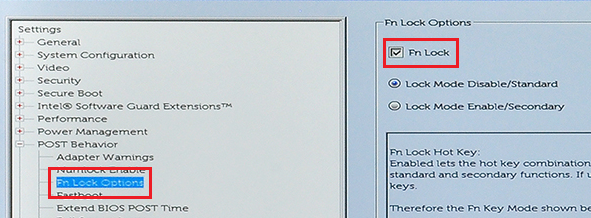
(Fig.2.1 Fn Lock in the BIOS)
How to enable/activate the Fn Lock:
-
The Fn+ ESC key combination can be used to enable/activate the Fn lock.
-
In the BIOS, navigate to POST Behavior > then the Fn Lock Options page and check the box next to the Fn Lock
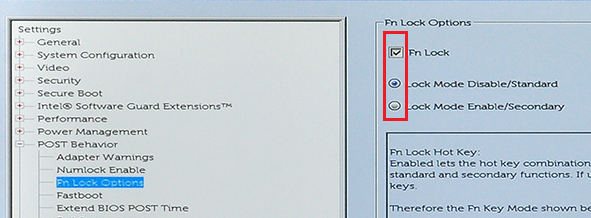
(Fig.2.2 Fn Lock options in the BIOS)
Affected Products
Latitude 5300 2-in-1, Latitude 5300, Latitude 7300, Latitude 5400, Latitude 5401, Latitude 7400 2-in-1, Latitude 7400, Latitude 5500, Latitude 5501Article Properties
Article Number: 000134306
Article Type: Solution
Last Modified: 22 Apr 2025
Version: 6
Find answers to your questions from other Dell users
Support Services
Check if your device is covered by Support Services.