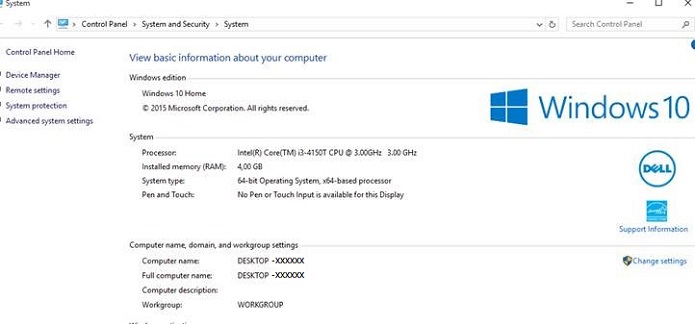
Windows 10搭載のDell製システムでコンピューター名がDesktop-XXXXXXと表示される
Summary: この記事では、Dell製PCで「Desktop-XXXXXX」と表示されている場合に、そのコンピューター名を変更する手順について説明します。
This article applies to
This article does not apply to
This article is not tied to any specific product.
Not all product versions are identified in this article.
Symptoms
コンピューター名がDesktop-XXXXXXと表示される
Windows 10コンピューターのデスクトップとラップトップの両方で「Desktop-XXXXXX」というコンピューター名が付いていることに気づくかもしれません。(XXXXXX = 英数字7文字の任意の組み合わせ)
Cause
原因に関する情報はありません。
Resolution
コンピューター名の変更方法
Windows 10 PCのPC名を変更できるオプションはいくつかあります。
[スタート]メニューから
- [スタート]メニューの[設定]をクリックすると、[設定]ウィンドウが開きます。
- 左上の [システム ]アイコンをクリックします。
- 左側のメニューの下部にある[ バージョン情報 ]をクリックします。
- 次に、[ PCの名前の変更 ]ボタンをクリックします
- [ PCの名前を変更する]ウィンドウで、ボックスに新しい名前を入力し、[ 次へ ]をクリックして、[ 今すぐ再起動 ]ボタンをクリックします。
[デスクトップ モード]メニュー
- 検索ボックスに「sysdm.cpl」と入力し、Enterキーを押すと、[システムのプロパティ]ウィンドウが開きます。
- [変更]をクリックします。
- [Computer Name/Domain Changes]ウィンドウで、[Computer Name]ボックスに新しいコンピューター名を入力し、[OK]をクリックしてから、[Yes]をクリックしてシステムを再起動します。
Affected Products
Alienware, Dell All-in-One, Dell Pro All-in-One, Dell Pro Max Micro, Dell Pro Max Slim, Dell Pro Max Tower, Dell Pro Micro, Dell Pro Slim, Dell Pro Tower, Dell Slim, Dell Tower, Inspiron, OptiPlex, Vostro, XPS, G Series, G Series, Alienware
, Dell Plus, Dell Pro, Dell Pro Max, Dell Pro Plus, Dell Pro Premium, Inspiron, Latitude, Dell Pro Rugged, Vostro, XPS, Fixed Workstations, Mobile Workstations, Dell Pro Max Micro XE FCM2250, Dell Pro Max Slim XE FCS1250, Dell Pro Max Tower T2 XE FCT2250, Dell Pro Max 16 XE MC16250, Dell Pro Micro Plus XE QBM1250, Dell Pro Slim Plus XE5 QBS1250, Dell Pro Tower Plus XE5 QBT1250
...
Article Properties
Article Number: 000137111
Article Type: Solution
Last Modified: 10 Jul 2025
Version: 7
Find answers to your questions from other Dell users
Support Services
Check if your device is covered by Support Services.