Complete Guide to DisplayPort on Dell Devices
Summary: This article has the answers to the most frequently asked questions about DisplayPort. This covers it as a Protocol and as a Port and Connector on Dell laptops, tablets, and desktops.
This article applies to
This article does not apply to
This article is not tied to any specific product.
Not all product versions are identified in this article.
Instructions
What is DisplayPort?
DisplayPort is the professional-grade display connection designed specifically for computers. Think of it as the high-performance alternative to HDMI - built from the ground up to handle multiple monitors, ultra-high resolutions, and the demanding needs of business and creative professionals.
Unlike HDMI which focuses on home entertainment, DisplayPort excels at computer tasks like multi-monitor setups, high refresh rate gaming, and professional graphics work. It's the go-to choice when you need maximum performance and flexibility from your display connections.
For the best DisplayPort experience, always use certified cables, keep your drivers updated, and ensure your monitors support the features you want to use.
How DisplayPort Works
DisplayPort uses advanced packet-based transmission, similar to how internet data travels. This approach offers several advantages:
- Higher bandwidth efficiency: More usable speed from the available connection
- Multiple video streams: Send different content to multiple displays simultaneously
- Embedded clock signal: Reduces cable complexity and improves reliability
- Bi-directional communication: Displays can communicate back to your computer
- Daisy-chaining capability: Connect multiple monitors from a single port
DisplayPort Connector Types
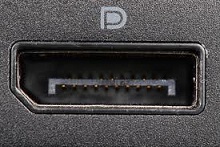
Standard DisplayPort
- Size: Full-size connector for desktops and larger laptops
- Pins: 20 pins in a distinctive L-shaped connector
- Found on: Dell workstations, business desktops, gaming computers
- Best for: Primary monitor connections, high-performance setups

Mini DisplayPort
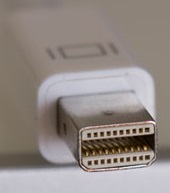
- Size: Compact version for space-constrained devices
- Pins: Same 20 pins in smaller form factor
- Found on: Some older Dell laptops, tablets
- Best for: Portable devices where space matters
USB-C with DisplayPort Alt Mode
- Size: Standard USB-C connector
- Capability: DisplayPort signals through USB-C port
- Found on: Modern Dell laptops and some desktops
- Best for: Single-cable solutions carrying display, data, and power
DisplayPort Versions and Capabilities
| Version | Year | Bandwidth | Max Resolution | Multi-Stream | Key Features |
|---|---|---|---|---|---|
| DisplayPort 2.0 | 2019 | 80 Gbps | 16K at 60Hz, 8K at 120Hz | Yes | UHBR (Ultra High Bit Rate), USB-C integration |
| DisplayPort 1.4 | 2016 | 32.4 Gbps | 8K at 60Hz (compressed) | Yes | Forward error correction, improved HDR |
| DisplayPort 1.3 | 2014 | 32.4 Gbps | 5K at 60Hz, 8K at 30Hz | Yes | Display Stream Compression, HDR support |
| DisplayPort 1.2 | 2009 | 17.28 Gbps | 4K at 60Hz | Yes | Multi-Stream Transport, daisy chaining |
| DisplayPort 1.1 | 2007 | 8.64 Gbps | 2560x1600 at 60Hz | No | Improved cable lengths, HDCP support |
| DisplayPort 1.0 | 2006 | 8.64 Gbps | 2560x1600 at 60Hz | No | First DisplayPort standard |
What Makes DisplayPort Special
Multiple Monitor Support
DisplayPort's biggest advantage is its ability to drive multiple displays from a single connection:
- Two 2560×1600 monitors: Perfect for professional workstations
- Four 1920×1200 monitors: Ideal for trading floors or surveillance
- Daisy-chain compatible displays: Connect multiple monitors in sequence
High Refresh Rates
DisplayPort excels at high refresh rate gaming and professional applications:
- 1440p at 165Hz: Smooth competitive gaming
- 4K at 120Hz: Future-ready for next-gen gaming
- Variable refresh rate: Eliminates screen tearing and stuttering
Professional Color Accuracy
DisplayPort supports professional color standards:
- 10-bit color depth: Billions of colors for accurate reproduction
- HDR support: High dynamic range for professional video work
- Color space flexibility: Support for various professional color standards
DisplayPort vs Other Connections
DisplayPort vs HDMI
DisplayPort Advantages:
- Multiple monitors from one port via daisy chaining
- Higher bandwidth for professional use
- Better for computer-specific features
HDMI Advantages:
- More widely supported on TVs
- Better for home entertainment
- Simpler cable ecosystem
- More common on consumer devices
DisplayPort vs USB-C
- DisplayPort: Dedicated display connection with maximum performance
- USB-C: Versatile port that can carry DisplayPort signals plus data and power
DisplayPort vs Thunderbolt
- DisplayPort: Pure display connection, lower cost
- Thunderbolt: DisplayPort plus high-speed data and power delivery
Common Use Cases
Business and Productivity
- Multi-monitor workstations: Finance, development, design work
- Conference rooms: Reliable presentation connections
- Digital signage: Professional display installations
Creative Professionals
- Video editing: High-resolution timeline and preview monitors
- Graphic design: Color-accurate displays for print and web work
- 3D rendering: Multiple monitors for modeling, texturing, and rendering
- Photography: Professional monitor calibration and color accuracy
Gaming and Entertainment
- High refresh rate gaming: 144Hz+ displays for competitive advantage
- Multi-monitor gaming: Surround gaming setups
- Streaming setups: Multiple monitors for content creation
Setting Up Multiple Monitors
Daisy-Chain Setup
- Connect primary monitor: DisplayPort from computer to first monitor
- Connect additional monitors: DisplayPort out from first monitor to second monitor
- Configure in Windows: Arrange displays in Display Settings
- Verify bandwidth: Ensure total resolution doesn't exceed port capacity
Hub-Based Setup
- Use DisplayPort hub: Connect hub to computer's DisplayPort
- Connect monitors: Each monitor gets dedicated connection to hub
- Power considerations: Ensure hub has adequate power supply
- Driver installation: Install any required hub drivers
Troubleshooting DisplayPort Issues
No Display Output
- Check cable seating: Ensure DisplayPort connector clicks firmly into place
- Test different cable: Try known working DisplayPort cable
- Verify monitor input: Select correct input source on display
- Update graphics drivers: Download latest drivers from Dell Support
Multiple Monitor Problems
- Check total bandwidth: Ensure combined resolution doesn't exceed port limits
- Verify daisy-chain support: Not all monitors support this feature
- Update monitor firmware: Some displays need firmware updates for multi-stream
- Try different connection order: Change which monitor connects first
Audio Issues
- Set DisplayPort as audio device: Right-click speaker icon → Playback devices
- Check monitor speakers: Verify display has audio capability
- Update audio drivers: Install latest audio drivers from Dell Support
- Test with different monitor: Confirm audio works with another display
Performance Problems
- Reduce color depth: Try 8-bit instead of 10-bit color if experiencing issues
- Lower refresh rates: Start with 60Hz and increase gradually
- Disable display compression: Turn off DSC if image quality suffers
- Check cable quality: Use certified DisplayPort cables for best results
Cable Selection Guide
Standard DisplayPort Cables
- Length: Up to 15 feet (4.5m) for full bandwidth
- Versions: Look for DisplayPort 1.4 certified cables
- Quality markers: VESA certification logos
Active vs Passive Cables
- Passive cables: Cheaper, work for shorter distances and lower resolutions
- Active cables: More expensive, required for longer distances or higher resolutions
- When to use active: 4K+ resolutions, cables over 6 feet, daisy-chaining
USB-C to DisplayPort
- Adapters: Simple dongles for basic connections
- Cables: Direct USB-C to DisplayPort cables available
- Compatibility: Verify your USB-C port supports DisplayPort Alt Mode
Audio with DisplayPort
DisplayPort can carry up to 8 channels of uncompressed audio, making it perfect for:
- Monitor speakers: Built-in speakers on professional displays
- Soundbars: Many monitors pass audio through to connected speakers
- Professional audio: Uncompressed audio for studio work
- Home theater: Connect to audio-capable displays and receivers
Laptop Docking Considerations
When using DisplayPort with Dell docking stations:
Expected behavior: Audio automatically switches to DisplayPort display when docked Potential issue: No sound if display lacks speakers Solution: Manually switch audio back to laptop speakers in Windows sound settings
This automatic switching ensures the best audio experience but may require manual adjustment for displays without speakers.
Frequently Asked Questions
1. What's the difference between DisplayPort and HDMI?
Answer: DisplayPort is designed for computers and excels at multiple monitors, high refresh rates, and professional features. HDMI focuses on home entertainment and works better with TVs and consumer devices.
2. Can I connect multiple monitors to one DisplayPort?
Answer: Yes, DisplayPort supports daisy-chaining compatible monitors or using DisplayPort hubs. You can connect up to six displays depending on resolution and your graphics card capabilities.
3. Do I need special cables for 4K displays?
Answer: For 4K at 60Hz, any DisplayPort 1.2+ cable works. For higher refresh rates or multiple 4K displays, you'll want DisplayPort 1.4 certified cables for best results. Dell Technologies recommends using the cables provided with your monitor.
4. Why doesn't my DisplayPort connection work with my TV?
Answer: Some older TVs don't support DisplayPort input. You may need a DisplayPort to HDMI adapter, or check if your TV has DisplayPort input (uncommon on consumer TVs).
5. Can DisplayPort carry power like USB-C?
Answer: Standard DisplayPort doesn't carry power for laptops. However, USB-C ports with DisplayPort Alt Mode can carry both display signals and power delivery simultaneously.
6. What's the maximum cable length for DisplayPort?
Answer: Passive DisplayPort cables work reliably up to 15 feet (4.5m). For longer distances, you'll need active cables or DisplayPort extenders to maintain signal quality.
7. Is DisplayPort better for gaming than HDMI?
Answer: For PC gaming, DisplayPort often offers advantages like higher refresh rates, variable refresh rate support, and better bandwidth for high-resolution gaming. HDMI 2.1 has caught up in many areas though.
Affected Products
Alienware, Dell All-in-One, Dell Pro All-in-One, Dell Pro Max Micro, Dell Pro Max Slim, Dell Pro Max Tower, Dell Pro Micro, Dell Pro Slim, Dell Pro Tower, Dell Slim, Dell Tower, Inspiron, Legacy Desktop Models, OptiPlex, Vostro, XPS, G Series
, G Series, Alienware, Dell Plus, Dell Pro, Dell Pro Max, Dell Pro Plus, Dell Pro Premium, Inspiron, Latitude, Dell Pro Rugged, Vostro, XPS, Legacy Laptop Models, Fixed Workstations, Mobile Workstations, Dell Pro Max Micro XE FCM2250, Dell Pro Max Slim XE FCS1250, Dell Pro Max Tower T2 XE FCT2250, Dell Pro Max 16 XE MC16250, Dell Pro Micro Plus XE QBM1250, Dell Pro Slim Plus XE5 QBS1250, Dell Pro Tower Plus XE5 QBT1250
...
Article Properties
Article Number: 000138764
Article Type: How To
Last Modified: 30 Apr 2026
Version: 10
Find answers to your questions from other Dell users
Support Services
Check if your device is covered by Support Services.