Adobe Acrobat에서 언어를 변경하는 방법: 단계별 가이드
Summary: Adobe Acrobat 2017 이상에서 언어 설정을 수정하는 단계에 대해 알아봅니다. 원활한 언어 전환을 위해 가이드를 따르세요. 지금 전문가의 팁을 확인하세요.
This article applies to
This article does not apply to
This article is not tied to any specific product.
Not all product versions are identified in this article.
Instructions
영향을 받는 제품:
- Adobe Acrobat 2017 이상
영향을 받는 운영 체제:
- Windows 10
- Windows 11
경고: 계속하기 전에:
- Adobe Acrobat을 닫아야 합니다.
- 두 개 이상의 언어 팩을 설치해야 합니다.
- 기본적으로 하나의 언어 팩만 설치됩니다.
- 다른 Adobe 언어 팩은 앱 및 기능에서 Adobe Acrobat을 수정하여 설치할 수 있습니다.
언어를 변경하려면 다음을 수행합니다.
- Windows 시작 메뉴에서 Adobe Acrobat을 검색합니다.
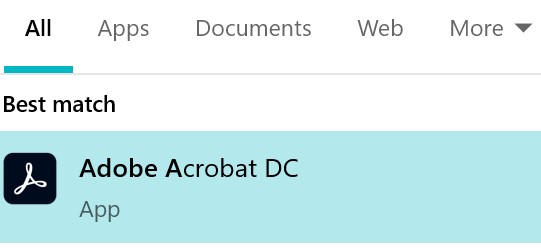
그림 1: (영어로만 제공) Adobe Acrobat 검색
참고: 사용 중인 Adobe Acrobat 버전은 위의 스크린샷과 다를 수 있습니다.
- CTRL + Adobe Acrobat 클릭
- 드롭다운 메뉴에서 적절한 언어를 선택한 다음 OK를 클릭합니다.

그림 2: (영어로만 제공) 적절한 언어를 선택합니다.
Additional Information
Videos
Affected Products
Chromebox, Alienware, Inspiron, Legacy Desktop Models, OptiPlex, Vostro, XPS, G Series, Chromebook, G Series, Alienware, Inspiron, Latitude, Vostro, XPS, Legacy Laptop Models, Latitude Tablets, Surface, XPS TabletsArticle Properties
Article Number: 000180675
Article Type: How To
Last Modified: 24 Jul 2025
Version: 12
Find answers to your questions from other Dell users
Support Services
Check if your device is covered by Support Services.