How to Get Support for TechDirect Update - Manage Catalog (DCCRM)
Summary: This article covers how to obtain support for the TechDirect Update - Manage Catalog (used to be known as DCCRM).
This article applies to
This article does not apply to
This article is not tied to any specific product.
Not all product versions are identified in this article.
Symptoms
Affected Products:
- TechDirect Update - Manage Catalog (DCCRM)
Affected Platforms:
- Latitude
- OptiPlex
- Precision
- XPS
Cause
Not Applicable
Resolution
TechDirect Update - Manage Catalog (used to be known as DCCRM) is a cloud-based application that allows IT administrators to create and manage custom catalogs for Latitude, OptiPlex, Precision, and XPS platforms. Catalogs can be configured to contain drivers, firmware, BIOS, and select Dell applications updates.
Warning:
- TechDirect Update - Manage Catalog (DCCRM) technical support is only available to commercial customers with Latitude, OptiPlex, Precision, or XPS platforms.
- TechDirect Update - Manage Catalog (DCCRM) supports:
- Chrome browser
Self-Help Options
Most technical information can be found by referencing the:
To obtain support:
- Go to https://www.dell.com/support/home
- To the right of the page, select Contact Us and then click either:
- Contact Technical Support if you have a Dell service tag available.
- Contact Order Support: If you do not have a Dell service tag, and need assistance gaining access to the software.
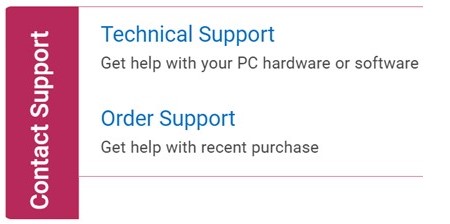
Figure 1: (English Only) Click Contact Us
- Click Enter service tag.
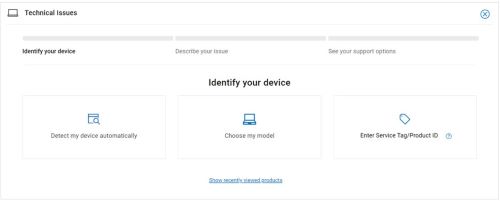
Figure 2: (English Only) Identify your device
- Type your Service Tag and then click Submit.
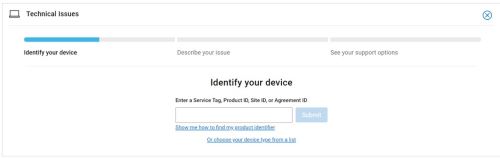
Figure 3: (English Only) Enter your Service Tag and click Submit
- Confirm your model and Service Tag and click Next.
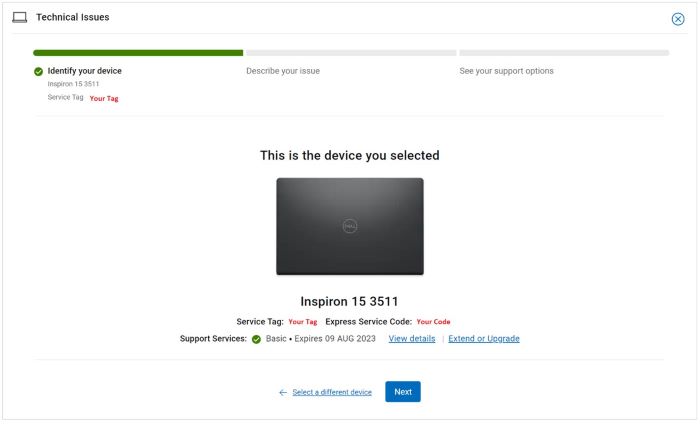
Figure 4: (English Only) Confirm your model and service tag
- From the drop-down menu, select Software and 3rd party applications and then click Next.
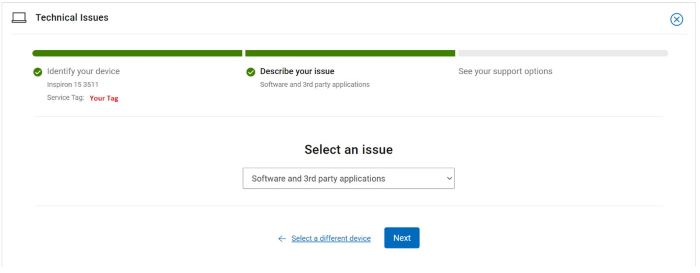
Figure 5: (English Only) Select Software and 3rd party applications
- Select an available contact option.

Figure 6: (English Only) Select contact option
- Type your Order Number and then click Find My Order.

Figure 7: (English Only) Click Find My Order
- To the right of the page, click Contact Customer Support.

Figure 8: (English Only) Click Contact Customer Support
- From the drop-down, select Missing Items.
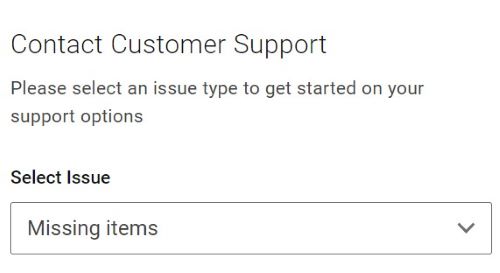
Figure 9: (English Only) Select Missing Items
- Select an available contact option.
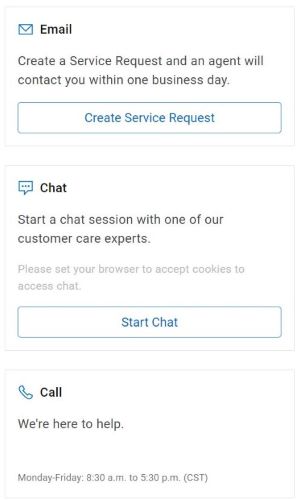
Figure 10: (English Only) Select contact option
Note:
- Contact options may differ by your region.
- Reference this article (000180754) when contacting technical support.
Affected Products
OptiPlex, XPS, Latitude, XPS, Fixed Workstations, Mobile Workstations, Manage Custom Update CatalogArticle Properties
Article Number: 000180754
Article Type: Solution
Last Modified: 22 Apr 2025
Version: 21
Find answers to your questions from other Dell users
Support Services
Check if your device is covered by Support Services.