How To Enable or Disable Windows Virtualization on Dell Systems
Summary: Learn how to enable or disable virtualization in Windows 10, including how to turn off virtualization, enable Virtual Machine Platform, and troubleshoot BIOS settings for virtualization. ...
This article applies to
This article does not apply to
This article is not tied to any specific product.
Not all product versions are identified in this article.
Instructions
Enable or Disable Windows Virtualization:
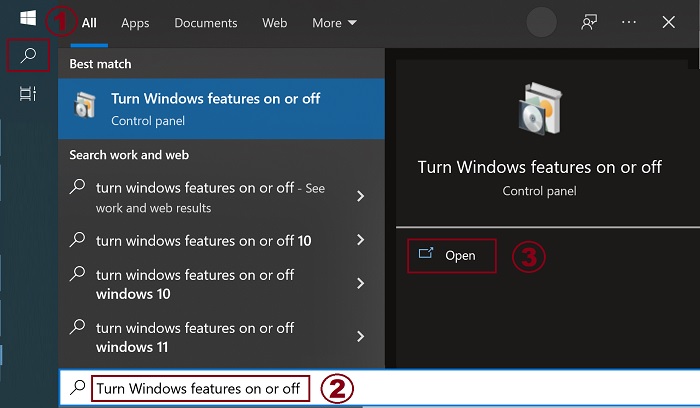
- Launch the Windows Features tool:
- Click the Search icon.
- Type Turn Windows features on or off in the search field.
- Click Open.
- Check (or clear) the Virtual Machine Platform and Windows Hypervisor Platform options.
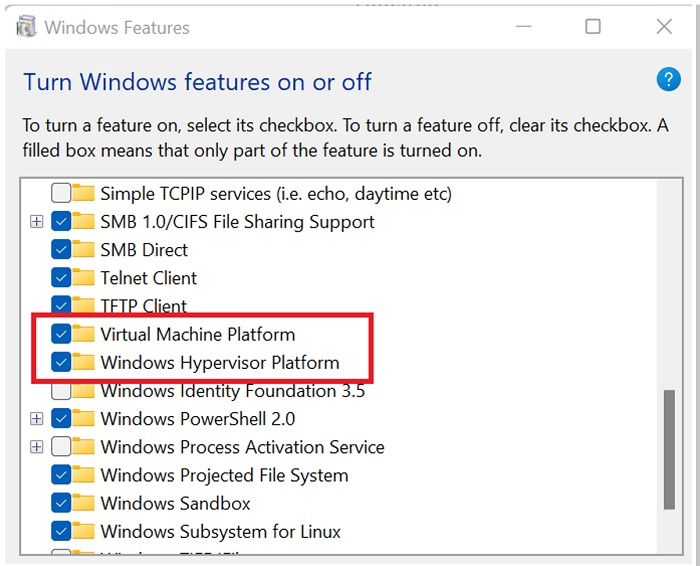
- Click OK.
- Windows adds the required VMP dependencies and asks to reboot.
Additional Information
Affected Products
Desktops & All-in-Ones, Dell All-in-One, Dell Pro Max Micro, Dell Pro Max Slim, Dell Pro Max Tower, Dell Pro Micro, Dell Pro Slim, Dell Pro Tower, Dell Slim, Dell Tower, Laptops, Dell Plus, Dell Pro, Dell Pro Max, Dell Pro Plus, Dell Pro Premium
, Dell Pro Rugged, Workstations
...
Article Properties
Article Number: 000195980
Article Type: How To
Last Modified: 14 Jul 2025
Version: 10
Find answers to your questions from other Dell users
Support Services
Check if your device is covered by Support Services.