Data Domain ESRS 게이트웨이에 Data Domain을 추가/등록하는 방법
Summary: 요약: 이 문서에서는 ESRS 게이트웨이에 Data Domain 시스템을 등록/추가하는 단계에 대해 자세히 설명합니다.
This article applies to
This article does not apply to
This article is not tied to any specific product.
Not all product versions are identified in this article.
Instructions
CLI:
ESRS 게이트웨이에 등록된 디바이스입니다.
GUI:
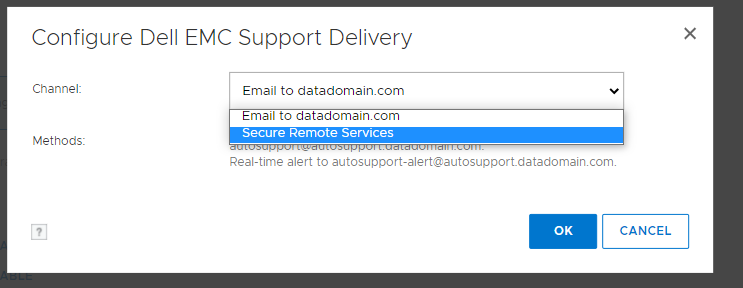

이 프로세스 중에 오류가 발생하면 오류를 캡처하고 지원 부서에 서비스 요청을 여십시오.
- SSH/putty를 Data Domain 시스템에 sysadmin으로 연결합니다.
- 현재 구성을 확인합니다.
- # support notification method show
- # support connectemc config show
- ESRS에 DD를 등록합니다.
- # support connectemc device register <DDR IP> esrs-gateway <the ESRS GW hostname>
- 서비스 링크 사용자 이름과 비밀번호를 묻는 메시지가 표시됩니다. 고객의 지원 자격 증명을 사용할 수 있습니다. (Dell 지원 사이트를 볼 때 동일한 자격 증명)
- 예시 출력:
- # support connectemc device register <DDR IP> esrs-gateway <the ESRS GW hostname>
# support connectemc device register 10.10.10.10 esrs-gateway myesrsgw01
Enter Service Link username: admin
Enter Service Link password: <nothing displayed as you type>
Enter Service Link username: admin
Enter Service Link password: <nothing displayed as you type>
ESRS 게이트웨이에 등록된 디바이스입니다.
- 등록이 성공하면 구성을 다시 확인하고 알림 방법을 connectemc로 설정합니다.
- # support connectemc config show
- 예시 출력:
- # support connectemc config show
# support connectemc config show
ConnectEMC Configuration:
ESRS gateway IP/hostname: myesrsgw01
Registered device IP(s): 10.10.10.10
ConnectEMC Configuration:
ESRS gateway IP/hostname: myesrsgw01
Registered device IP(s): 10.10.10.10
-
- # support notification method set connectemc
- # support notification method show
- 연결을 테스트합니다.
- # support connectemc test
- 예시 출력:
- # support connectemc test
# support connectemc test
Sending test message through ConnectEMC...
Test message successfully sent through ConnectEMC.
Sending test message through ConnectEMC...
Test message successfully sent through ConnectEMC.
GUI:
- Maintenance > Support > Configure Channel을 선택합니다.
- "Secure Remote Services"를 선택합니다.
- ESRS 호스트 이름을 입력하고 DD IP를 선택합니다.
- 서비스 링크 자격 증명(Dell 지원 사이트를 볼 때 동일한 자격 증명)을 입력합니다.
- 등록이 완료되었습니다.
이 프로세스 중에 오류가 발생하면 오류를 캡처하고 지원 부서에 서비스 요청을 여십시오.
Affected Products
Data DomainArticle Properties
Article Number: 000197719
Article Type: How To
Last Modified: 01 Dec 2025
Version: 7
Find answers to your questions from other Dell users
Support Services
Check if your device is covered by Support Services.