NVP vProxy: How to perform parallel (concurrent) recovery of multiple VMDKs
Summary: Functionality added to NetWorker starting in 19.8 which allows parallel (concurrent) VMDK recoveries during VM restore operations.
This article applies to
This article does not apply to
This article is not tied to any specific product.
Not all product versions are identified in this article.
Instructions
NetWorker v19.8 adds functionality to allow multiple VMDKs to be recovered in parallel, to improve recovery time.
The recovery feature is only available for recoveries that are initiated from the NetWorker Web User Interface and CLI. Concurrent VM disk restores are not possible from the NetWorker Management Console (NMC) recover wizard.
NOTE: Parallel (concurrent) VMDK backups are supported in NetWorker 19.9 and later: NetWorker: How to Configure Concurrent or Parallel VM Backup Sessions
Summary
- Users can perform concurrent disks recoveries during the same VM recovery
- From the NetWorker Web User Interface (NWUI) on a recovery window, the user has a checkbox provision to select the 'Parallelism' attribute. The user is allowed to perform concurrent VMDKs recover if sufficient sessions are available on the vProxy
- Clearing of the Parallelism checkbox means the original behavior of recovery, that is, sequential recovery of VMDKs.
Solution
The VM recovery can be optimized by restoring each or a bunch of VMDKs concurrently instead of going serially one after another for a given VM. Though the parallelism reserves more resources (from the pool), this helps to expedite the operation based on relative priority among the save sets.
NOTE: Users can perform parallel restores for the following recovery types only.
- VM Image recovery
- Revert VM recovery
- VMDK recovery
The below recovery types do not support concurrent VMDK restore.
- Instant recovery
- Emergency recovery
- File Level recovery (FLR)
Considerations.
- The user can perform parallel restores according to the number of hotadd or Network Block Device (NBD) sessions that are available on the selected vProxy for the recovery.
- The configured hotadd and NBD sessions can be found in the vProxy settings. From NWUI go to Protection->VMware Proxies. This page shows the configured max hotadd and NBD sessions for each vProxy. The number of available sessions depends on the vProxy's activity (active backup/restore sessions).
- The Max Parallelism attribute is hard coded to be set at 12, because it is the recommended (default) value of hotadd sessions for vProxy.
- Parallelism count: This count justifies how many disks are recovered simultaneously during VM recovery. If the wanted number of sessions is not available, then the parallelism count decreases exponentially by the power of two, hotadd or NBD sessions availability requirements are met. This is performed in a recursive fashion until the count reaches zero. At zero, the parallelism count is taken as "one" and VM disks are recovered one at a time sequentially.
Configuration and Use
While performing a VM restore from NWUI, the Recovery "Configuration" window includes the Parallelism option. During a recovery of a VM which has multiple disks, select this option to recover the disks concurrently. If this option is not selected, the default action is to recover the disks one at a time (sequentially)
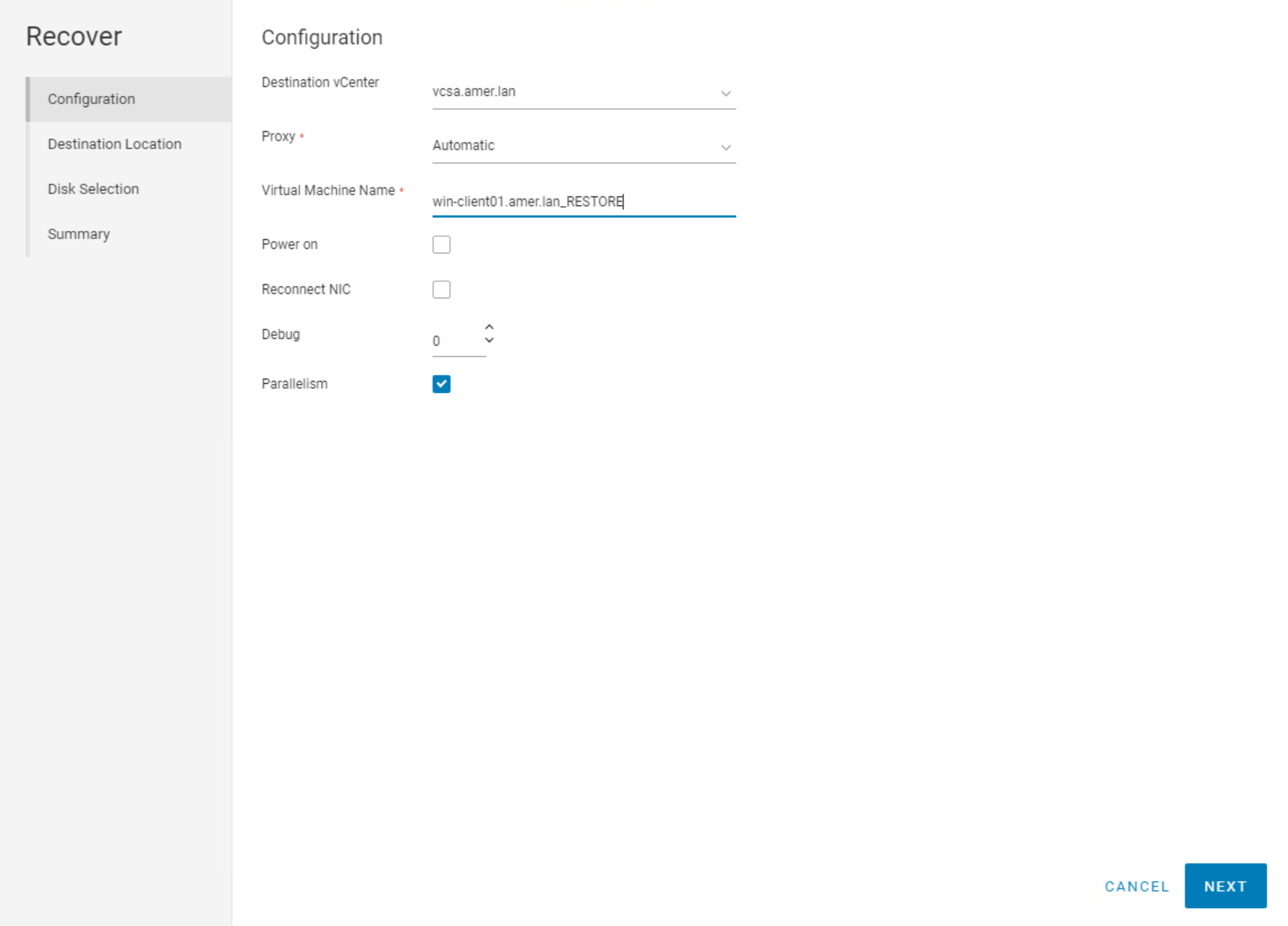
CLI parameters
nsrvproxy_recover has an additional -k attribute is added in the CLI which triggers the parallelism.
Usage:
nsrvproxy_recover -c vCenter [-s server] {-S ssid[/cloneid] | -N ssname [-t sstime]} [-m recovery-mode] [-f Folder-Moref] [-o option]... [-A Datacenter-Moref] [-C ComputeResource-Moref] [-L ClusterComputeResource-Moref] [-E Datastore-Moref] [-M VM-Moref] [-V VM-name] [-r ResourcePool-Moref] [-H Host-Moref] [-T datastore] [-e export-path] [-d disk] [-p vProxy] [-b pool] [-v] [-k]
Example command:
nsrvproxy_recover -m I -c 'vcsa.amer.lan' -V 'win-client.amer.lan_RESTORE' -A 'datacenter-9' -E 'datastore-17' -S '16151062/1660318229' -l -H 'host-16' -d 'Hard disk 1/2000/datastore 17' -d 'Hard disk3/2001/datastore 17' -d 'Hard disk 2/2002/datastore 17' -d 'Hard disk 4/2003/datastore-17' -d 'Hard disk 5/2004/datastore 17' -d 'Hard disk 6/2005/datastore 17' -C 'domain-s14' -D9 -k
The values needed for the recover command can be obtained using the following commands on the NetWorker server:
1. Get the VM save set ID (SSID) needed for the restore:
mminfo -avot -q vmname=VM_NAME
2. Using the SSID, get the full save set details:
mminfo -aS -q ssid=SSID
Affected Products
NetWorker, NetWorker SeriesArticle Properties
Article Number: 000206963
Article Type: How To
Last Modified: 09 Dec 2024
Version: 5
Find answers to your questions from other Dell users
Support Services
Check if your device is covered by Support Services.