PowerVault ME5: FDE drives may show unsecure and unusable after reboot
Summary: PowerVault ME5 administrators may experience secure encrypted drives (SED) report an "FDE disk failure" after a reboot/power cycle or drive firmware update. This error causes the drive to be unusable and the array to be faulted. Storage controller restarts are needed to recover. ...
This article applies to
This article does not apply to
This article is not tied to any specific product.
Not all product versions are identified in this article.
Symptoms
After a power cycle or a drive firmware update, on rare occurrences, a PowerVault ME5 series array may report faulted because secure encrypted drives (SED) are reported as failed. The PowerVault ME5 event history log may report the following error condition:
518
Error
An operation failed for a Full Disk Encryption disk. (disk: channel: 0, ID: 15, SN: XYXYXYY,
enclosure: 0, slot: 15) (FDE request: unknown, FDE disk operation: lock firmware download sector,
FDE disk failure: key authentication failed, bad status)
A health alert is displayed in the PowerVault Manager dashboard.
Description:
Disk has reported an FDE related protocol failure. This could be an internal error or protocol incompatibility.

Recommended Action:
Replace the disk with one of the same type (SSD, enterprise SAS, or midline SAS) and the same or greater capacity.
For continued optimum I/O performance, the replacement disk should have performance that is the same as or better
than the one it is replacing.
NOTE: When replacing failed drives on a PowerVault system that has full disk encryption (FDE) enabled. Ensure that the replacement disk drive is a secure encrypted drive (SED), otherwise the same alert is displayed and storage controller restarts cannot resolve this condition. The drive label will indicate this is a SED drive, in addition to comply with FIPS 140-2 specification drives will have seals on the sides and underside to provide evidence of tampering if removed.

Figure 1 - Look for SED description on the drive label before replacing a drive in a system with Full Disk Encryption (FDE) enabled.
Cause
This is due to controller firmware where timing issues between the two controllers prevent the FDE enabled drives being locked properly.
Resolution
Because this is a timing issue between the two controllers, the current work around is to restart the storage controller (SC) that owns the affected disk group/pool using PowerVault Manager or the ME CLI. This allows only one controller to act on the drives at a time and lock the drives properly. Once this controller is restarted and back online the other controller must then be restarted to update its view of the drives. This has been shown to recover the array and make it optimal.
This issue has been resolved by a firmware change, all Dell PowerVault ME5 customers who have enabled full disk encryption (FDE) are recommended to upgrade the controller firmware to ME5.1.2.0.3 or higher.
NOTE: Controller firmware update instructions are covered in the Dell PowerVault ME5 Storage System Release Notes or the Dell PowerVault ME5 Series Administrator's Guide.
NOTE: Administrators intending to update disk firmware on SED models e.g. 16TB drive model: WUH721816AL5205 should upgrade the controller firmware to ME5.1.2.0.3 or higher prior to applying the disk drive firmware upgrade. To apply disk firmware updates, see ME5: Information Alert - controller or disk updates are available.
Where to download updates for PowerVault ME series
- Administrators of Dell PowerVault ME5 series arrays can download updates at dell.com/support
- Use the PowerVault ME service tag or enter the model type when searching for the product.
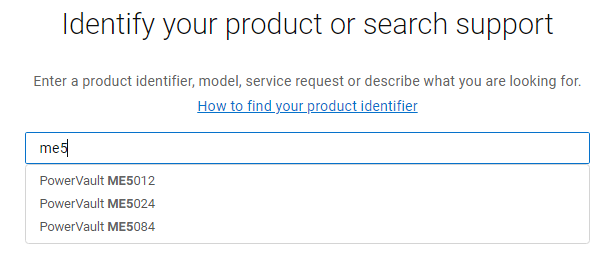
Figure 2 - Use the PowerVault service tag or enter the model type.
- The updates can be found under the Drivers & Downloads tab.
Look for applicable updates such as Dell PowerVault ME5 Series Storage Controller Firmware or Dell PowerVault ME Series Storage HDD/SSD Firmware
- Look under the Documentation tab to find the Dell PowerVault ME5 Series Administrator's Guide or Dell PowerVault ME5 Storage System Release Notes.
How to restart an ME5 storage controller using PowerVault Manager
- Go to the Hardware panel (Maintenance > Hardware.)
- Select the Front View.
- From the Actions drop-down menu, select Restart/Shutdown System.
- Check the following radio and check boxes:
- Restart SC
- Check only one of the controllers that owns the pool with the affected drive(s).
- Click Apply to complete the selection.
- A dialog appears asking to confirm the controller restart. Select OK to confirm the action.
Once this controller has restarted and come online, repeat the process for the remaining peer controller.
Affected Products
ME Series, PowerVault ME5012, PowerVault ME5024, PowerVault ME5084Article Properties
Article Number: 000217608
Article Type: Solution
Last Modified: 09 Feb 2024
Version: 5
Find answers to your questions from other Dell users
Support Services
Check if your device is covered by Support Services.