Connectrix Brocade B-Series: Configuration backup download fails with an error "Unsupported configuration format for platform"
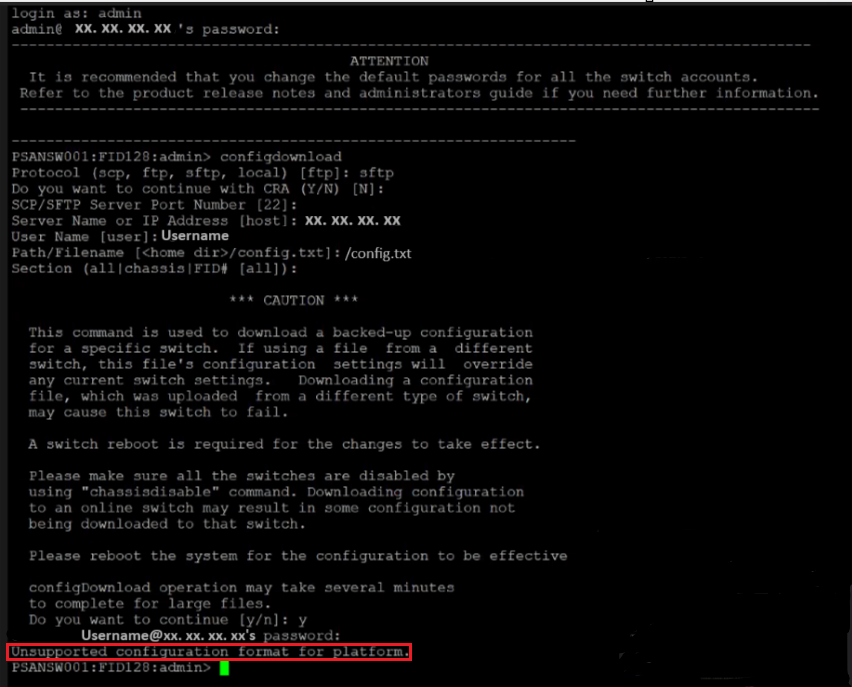
Summary: When migrating switches from Gen5 to Gen6 or Gen6 to Gen7 platforms, configuration backup download fails with an error "Unsupported configuration format for platform".
This article applies to
This article does not apply to
This article is not tied to any specific product.
Not all product versions are identified in this article.
Symptoms
Below is the error message received while downloading the configuration file from a different Generation Platform:
Cause
Unsupported Configuration Files
Gen 7 platforms, including Gen 7 platforms that were upgraded from Gen 6 platforms, do not support the configuration files from Gen 6 or older platforms.
Similarly when Gen5 switches are upgraded to Gen6 platform, the configuration files do not support.
Supported Configuration Files
Configuration files are only supported between the same switch type.
For Brocade G620 and G630 platforms, the configuration file uploaded from a switch can be downloaded onto another switch of the same switch type (162 and 183 (Brocade G620),173 and 184 (Brocade G630)).
Configuration File Format
The configuration file is divided into three areas: The header, the chassis section, and one or more logical-switch sections.
Resolution
Downloading the configuration file between different generation platforms is restricted. Hence except for zoning configuration, the switch has to be manually configured as per requirement.
Follow the below steps to copy zoning information from the old switch to the new switch:
1. Create an ISL between Old and New switch by connecting a cable between free ports on both ends of the switches.
2. Once the ISL is formed successfully, run
3. Run the command
4. Run the command
5. Compare zoning information between new and old switches to ensure they are the same.
6. Disconnect or Disable the ISL between the old and new switches.
Follow the below steps to copy zoning information from the old switch to the new switch:
1. Create an ISL between Old and New switch by connecting a cable between free ports on both ends of the switches.
2. Once the ISL is formed successfully, run
cfgshowcommand on new switch to verify if the zoning data is reflecting correctly as same as Old switch.
3. Run the command
cfgsaveon new switch to save the zoning configuration.
4. Run the command
cfgenable "CFG_NAME"to enable the zoning on the new switch.
5. Compare zoning information between new and old switches to ensure they are the same.
6. Disconnect or Disable the ISL between the old and new switches.
Additional Information
Reference Link:
https://docs.broadcom.com/doc/FOS-82x-AG

Affected Products
Connectrix B-SeriesArticle Properties
Article Number: 000221893
Article Type: Solution
Last Modified: 14 Jul 2025
Version: 2
Find answers to your questions from other Dell users
Support Services
Check if your device is covered by Support Services.