PowerFlex 4.X How to Reset PFMP Admin Password
Summary: This article explains the steps to reset the PowerFlex Manager Platform (PFMP) admin password, or any account in the PFMP.
This article applies to
This article does not apply to
This article is not tied to any specific product.
Not all product versions are identified in this article.
Instructions
Procedure:
Step 1:
Access the Keycloak admin console to unlock the admin user account manually. To access the Keycloak admin console, use the following Keycloak URL: https://<ingress_IP>/auth/
The Ingress IP is the PFMP IP that is used to open the user interface (UI). The ingress IP is obtained by running the following command where the External IP listed is the ingress IP:
kubectl get svc -A | egrep -i "name|rke2-ingress-nginx-controller"
Once you have the Keycloak URL, you can log in to the admin console using the username "keycloak". The corresponding password can be retrieved by executing the following command from one of the PFMP nodes:
kubectl get secret -n powerflex keycloak-admin-credentials -o jsonpath="{.data.password}" | base64 --decode; echo
Step 2:
Go to https://<ingress_IP>/auth/
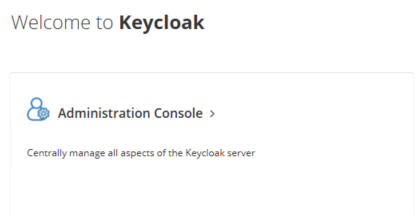
Select Administration Console and login
username: keycloak
password: corresponding password in Step1
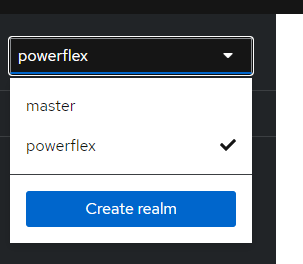
Ensure that you select PowerFlex from the upper left corner.
Step 3:
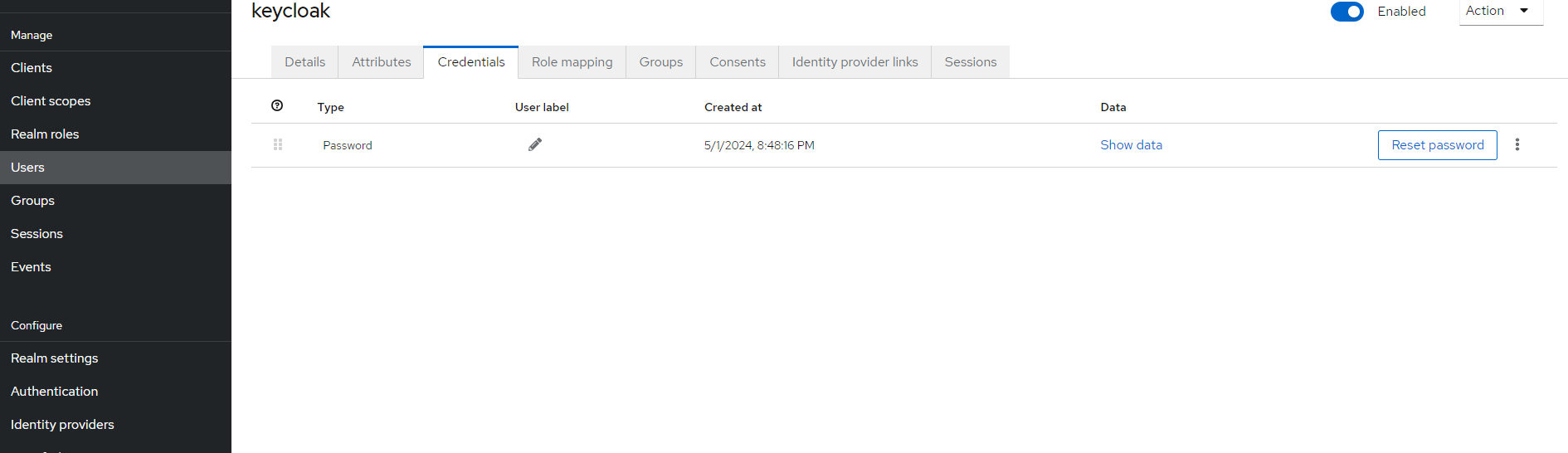
Go to the Users section on the left pane. Select the User Account (it is admin in this instance).
Step 4:
Go to the Credentials tab at the top list and reset the password as required.
Steps 5:
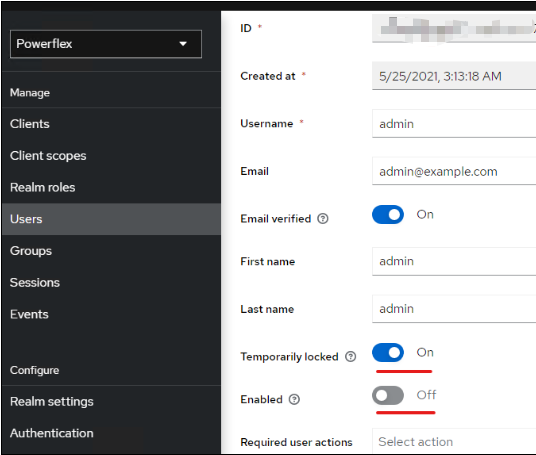
Ensure that the User Account is enabled and not locked.
Note: If the customer is using LDAP, you may have to put an asterisk " * " in the search field to list all LDAP users.

Additional Information
For Unlock Admin Account :
A simple workaround is to wait for the 60-second lockout timer to expire. During this time, access to the PFMP cluster using the web UI will be temporarily restricted. After 60 seconds have passed, the admin user could attempt logging in again with the correct credentials.
Or just follow the same steps in the KB and make sure Enabled switch is On and Temporarily Locked is Off
Affected Products
PowerFlex appliance R650, PowerFlex appliance R640Products
PowerFlex rack, VxFlex Ready Nodes, PowerFlex custom node, PowerFlex appliance connectivity, PowerFlex appliance R6525, PowerFlex appliance R660, PowerFlex appliance R6625, Powerflex appliance R750, PowerFlex appliance R760, PowerFlex appliance R7625
, PowerFlex appliance R740XD, PowerFlex appliance R7525, PowerFlex appliance R840
...
Article Properties
Article Number: 000247978
Article Type: How To
Last Modified: 31 Oct 2025
Version: 6
Find answers to your questions from other Dell users
Support Services
Check if your device is covered by Support Services.