Live Optics | Optical Prime | Virtual Tab for Online Viewer
Summary: This article outlines the Live Optics' Virtual Tab.
This article applies to
This article does not apply to
This article is not tied to any specific product.
Not all product versions are identified in this article.
Instructions
Overview

The Virtual tab in the Optical Prime online viewer displays a summary of the virtual and physical environments for the hypervisors (only) in your project and a table with all the Guest VMs' information.
Be advised that the information in the Virtual tab is displayed for the entire project regardless of any selection in the Performance tab. For example, if you excluded specific Clusters or Hypervisors in the Performance tab, the information about these Clusters or Hypervisors still appears in the Virtual tab.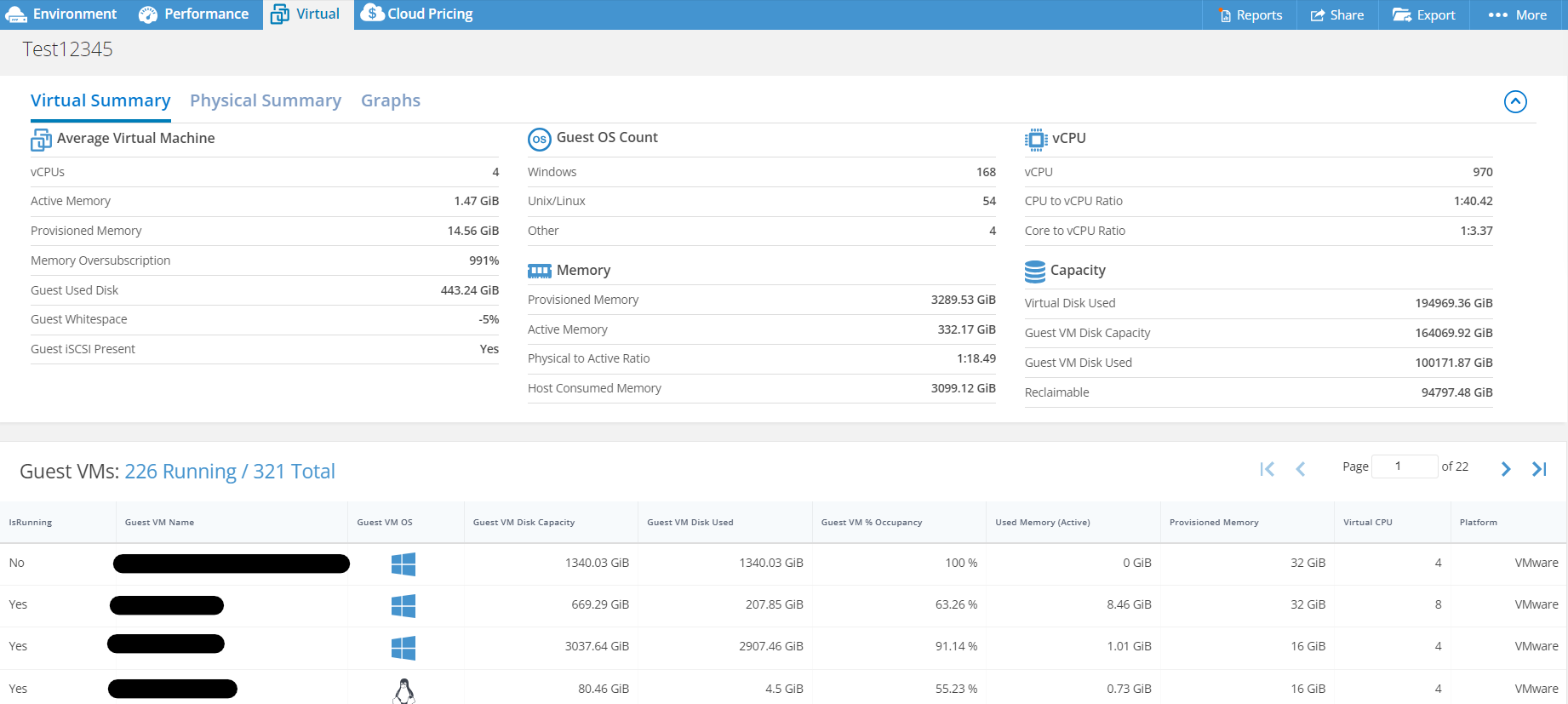
This article reviews the three primary sections of the Virtual tab:
- Virtual Summary
- Guest VMs
- Physical Summary
Virtual Summary
The Virtual Summary shows the averages and totals for the Virtual environment based on the VMs running in the environment.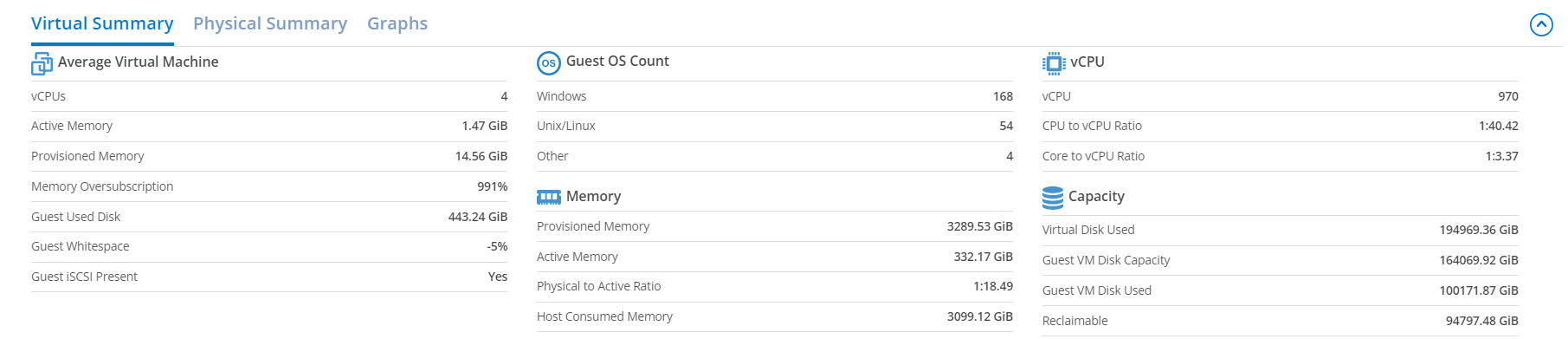
It includes the following sections:
- Averages per VM:
- vCPUs: Average number of vCPU per VM. This is calculated based on the total vCPUs for the running VMs/total running VMs.
- Active Memory: Average Active memory (GiB) per VM. Calculated by total Active memory for all running VMs/total running VMs.
- Provisioned Memory: Average Provisioned memory (GiB) per VM. Calculated by total Provisioned memory for all running VMs/total running VMs.
- Memory Oversubscription: The ratio of the provisioned memory to the active memory. Calculated Provisioned Memory/Active memory.
- Guest Used Disk: Average Guest VM disk used (GiB). Calculated by total Guest VMs Disk Used for all running VMs/total running VMs.
- Guest Whitespace: Average % Whitespace per VM. This is the % of unused space per VM that can be reclaimed. This is calculated based on the % Occupancy per VM. We average the % Occupancy per VM. Since Guest Whitespace is the opposite of % Occupancy, we calculate it is as 1-Average % occupancy.
For example, we have the following environment: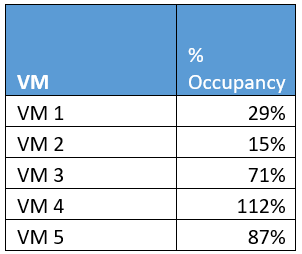
- We calculate the average % Occupancy (63%), and then we calculate the Average % Whitespace as (1- Average % Occupancy) = 37%.
- Guest iSCSI present: If one of the VMs occupies more space than was allocated to it, Guest iSCSI is set to "Yes”; otherwise, it is set to "No." In the above example (for % Whitespace), since the % Occupancy for VM4 is over 100% (112%), Guest iSCSI Present is set to "Yes." For more information about % Occupancy, see Live Optics | Optical Prime | VMware VM Occupancy
- Guest OS Count
- Windows: How many running VMs run Windows
- Linux/UNIX: How many running VMs run Linux or UNIX
- Other: How many running VMs run an OS that is not Windows or Linux
- Memory
- Provisioned Memory: Total provisioned memory for all running VMs
- Active Memory: Total active memory for all running VMs
- Active to Physical ratio: The ratio of total Active memory to the hosts physical memory (Active: Physical)
- Host Consumed Memory: How much memory is consumed on the hypervisors
- vCPU
- vCPU per CPU ratio: The ratio of vCPU per Sockets (socket: vCPU). This is calculated based on the average vCPUs per Socket on each host and then averaging the vCPU per Socket.
For example, we have the following environment: - We calculate the average vCPU per Socket as the total vCPU per socket for each server (26.25 vCPUs) / by total hosts (5) = 5.25 vCPU per Socket
- vCPU per Core ratio: The ratio of vCPU per Core (Core: vCPU). This is calculated based on the average vCPUs per Core on each host and then averaging the vCPU per Core.
For example, we have the following environment: - We calculate the average vCPU per Core as the total vCPU per Core for each server (6.56 vCPUs) / by total hosts (5) = 1.31 vCPU per Socket
- vCPU per CPU ratio: The ratio of vCPU per Sockets (socket: vCPU). This is calculated based on the average vCPUs per Socket on each host and then averaging the vCPU per Socket.
- Capacity
- Virtual Disk Used: The total of Virtual Disk Used for all running VMs.
- Guest VM Disk Capacity: The total of Guest VM Disk Capacity for all running VMs.
- Guest VM Disk Used: The total of Guest VM Disk Used for all running VMs.
- Reclaimable: All the reclaimable capacity based on Virtual Disk Used - Guest VM Disk Used.
Guest VMs Table
The Guest VMs table displays the information of all the VMs in the environment, like the information in the "Performance View" in the Optical Prime online viewer.
The title shows the total VMs and total running VMs. In this example, we have 32 Running VMs out of 33 VMs (32/33).
The Guest VM table displays the following information:
- IsRunning: An indication if the VM is running or not
- Guest VM Name: The name of the VM
- Guest VM OS: An icon for the OS (Windows, Linux or Other)
- Guest VM Disk Capacity
- Guest VM Disk Used
- Guest VM % Occupancy: The % of occupied space on the VM based on the space allocation allowed for the VM. For more information about % occupancy, see Live Optics | Optical Prime | VMware VM Occupancy
- Used Memory (Active)
- Provisioned Memory
- Virtual CPU
- Platform: VMware, Hyper-V or Other
Physical Summary
The Physical Summary shows the totals for the physical hosts (Hypervisors) in the environment.
- Host Platforms
- Hosts: Number of total hosts
- CPUs: Number of total CPUs
- Cores: Number of total cores
- Memory: Total amount of memory (RAM)
- Capacity: Total amount of storage capacity
- Total VMs: Total number of VMs for the entire project
- Running VMs: Total number of running VMs
- VM to Host Ratio: Ratio of total number of VMs to total number of hosts
Additional Information
If you have any questions, reach out to Live Optics Support at liveoptics.support@dell.com.
Affected Products
Rack Servers, Tower Servers, XE Servers, XR ServersArticle Properties
Article Number: 000299118
Article Type: How To
Last Modified: 09 Apr 2025
Version: 2
Find answers to your questions from other Dell users
Support Services
Check if your device is covered by Support Services.