Instalowanie agenta Dell Device Management na komputerze hosta
Summary: Ten artykuł zawiera informacje na temat instalowania agenta Dell Device Management Agent (DDMA) na komputerze hosta.
This article applies to
This article does not apply to
This article is not tied to any specific product.
Not all product versions are identified in this article.
Instructions
Dotyczy produktów:
- Konsola zarządzania urządzeniami Dell
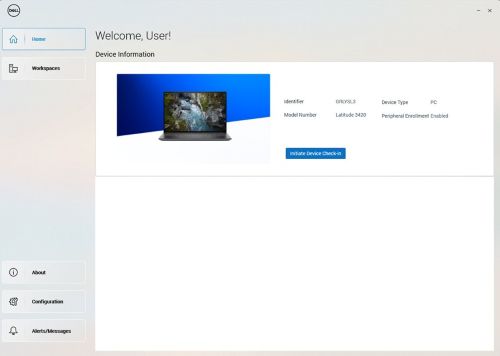
Uwaga: Po pomyślnej instalacji DDMA, podczas uruchamiania ikona agenta w zasobniku systemowym powinna mieć pełny dostęp do informacji o komputerze hosta.
Przykład pomyślnie zainstalowanego interfejsu agenta Dell Device Manager.
Etapy instalacji DDMA:
- Z poziomu komputera hosta zaloguj się do konsoli Dell Device Manager Console (DDMC).
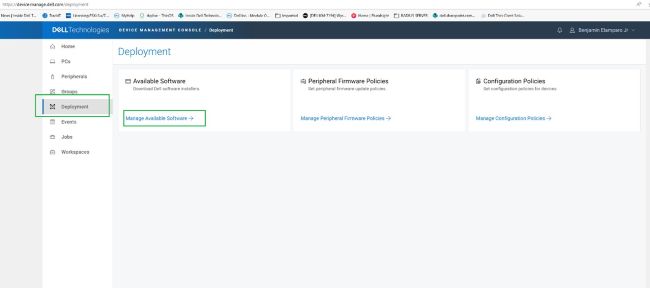
https://device.manage.dell.com/ - W narzędziu DDMC przejdź do karty Deployment i wybierz opcję Manage Available Software.
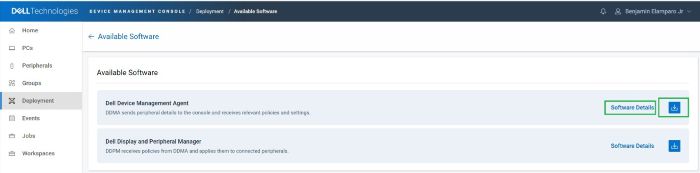
- Pobierz pakiet DDMA.
- Kliknij pozycję Szczegóły oprogramowania , a następnie skopiuj token grupy.
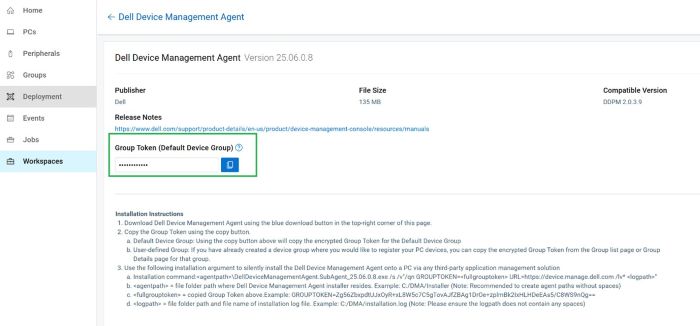
- Wdróż DDMA przy użyciu tokenu grupy z argumentami instalacji dla adresu URL serwera.
- Instalacja:
- Umieść pobranego agenta DDMA na hoście o godz.
C:\temp. - Otwórz wiersz polecenia, korzystając z uprawnień administratora.
- W wierszu poleceń zmień katalog na
C:\temp. - Uruchom następującą składnię polecenia, w tym GROUPTOKEN:
DellDeviceManagementAgent.SubAgent_25.06.0.8.exe /s /v"/qn GROUPTOKEN=xxxxxxxx URL=https://device.manage.dell.com:443 /lv* c:\dma_installer.log"
Uwaga: Aby upewnić się, że moduł TPM systemu BIOS jest włączony.
- Umieść pobranego agenta DDMA na hoście o godz.
- Instalacja:
- Uruchom ponownie komputer hosta i sprawdź agenta DMA w zasobniku systemowym. Powinien wyglądać zgodnie z oczekiwaniami.
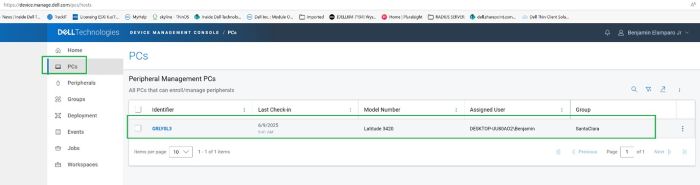
Komputer hosta jest teraz zarejestrowany w konsoli Dell Device Management Console.
Affected Products
Dell Device Management ConsoleArticle Properties
Article Number: 000348644
Article Type: How To
Last Modified: 23 Jul 2025
Version: 2
Find answers to your questions from other Dell users
Support Services
Check if your device is covered by Support Services.