ECS: How to Perform Basic CAS API Operations on ECS using JCASScript.jar
Summary: This article explains how to perform basic CAS API operations on ECS using JCASScript.jar.
This article applies to
This article does not apply to
This article is not tied to any specific product.
Not all product versions are identified in this article.
Instructions
Note: See the attached PDF for all the operations you can run with
JCASScript.
Background:
- ECS CAS allows CAS SDK-based client applications to store, retrieve, and delete fixed content objects from ECS storage.
- The underlying ECS storage must be provisioned before you can configure your ECS setup. Provisioning is completed when a new ECS rack is installed.
- This includes setting up a storage pool, VDC, and replication group. In ECS CAS, you can use the standard documentation if you must create or edit these objects to support CAS.
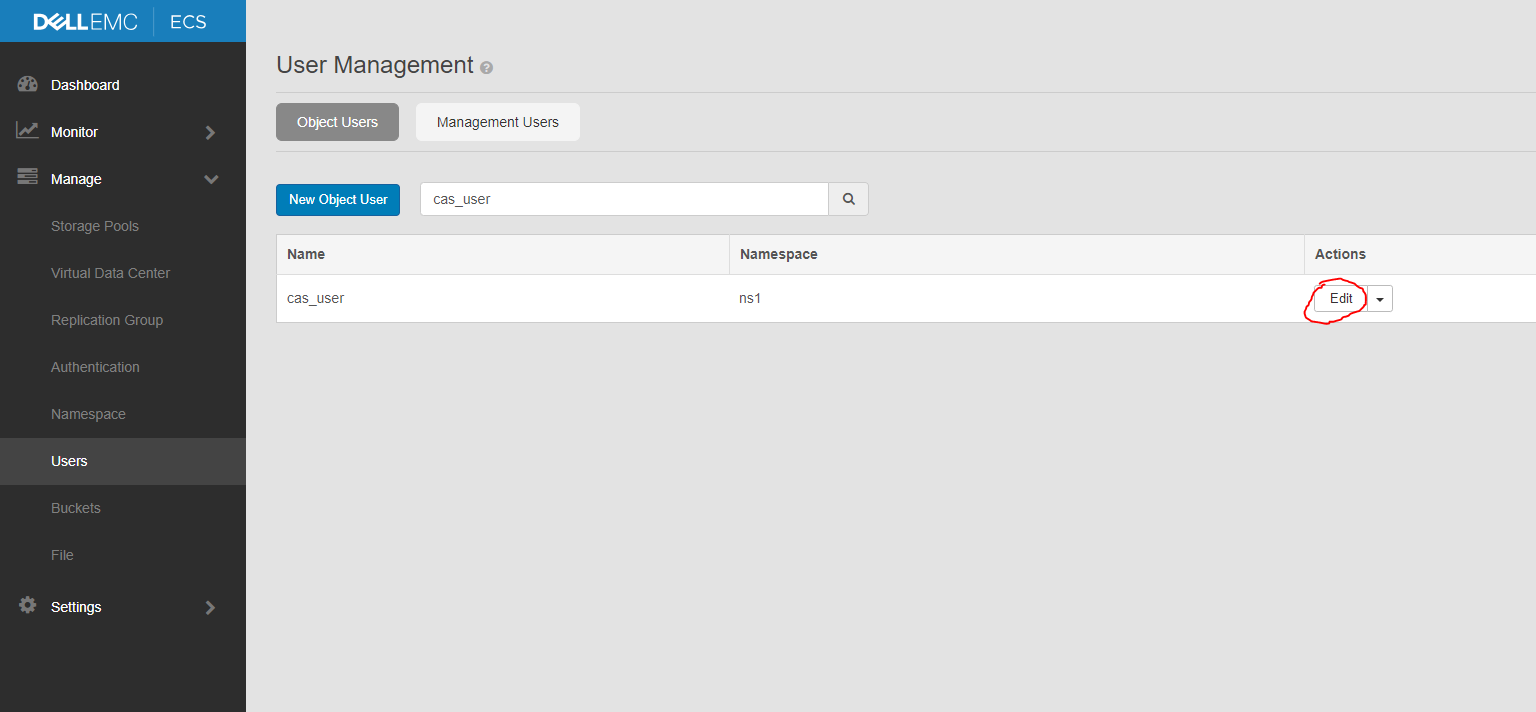
- Find the owner of your CAS bucket, in this example it is
cas_user:

- Go to the Users tab on the side and Edit that user:
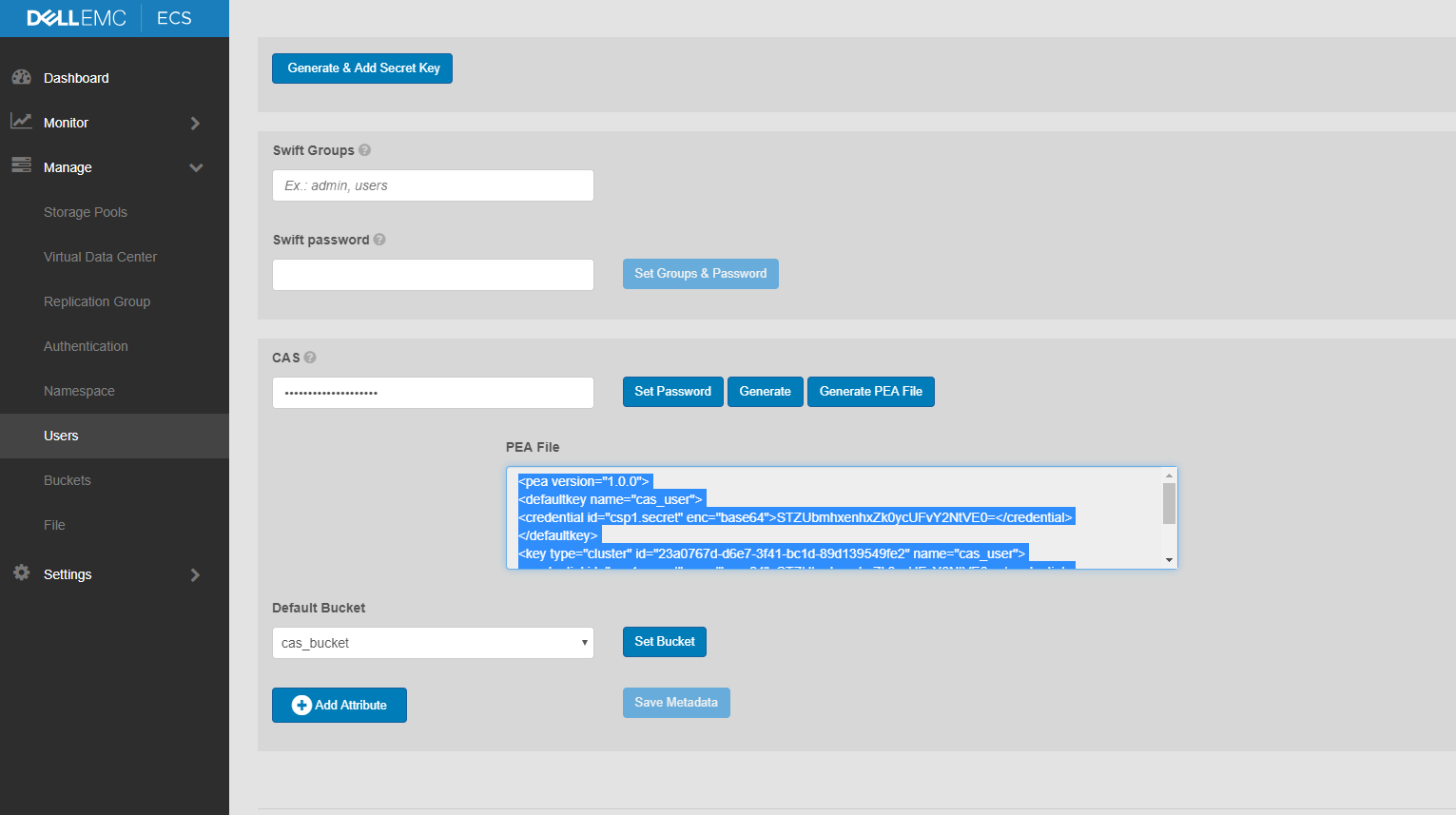
- Generate a PEA file and click in the box that it generates, then CTRL+A, CTRL+C to copy the whole thing.
Using JCAS from an ECS node:
- Log in to any node as admin user, enter into the
Object-main container:
# sudo dockobj
- Change to the
castoolsdirectory:
# cd /opt/storageos/tools/castools
- Create your PEA file:
example-ecs-1:/opt/storageos/tools/castools # vi cas_user.pea
example-ecs-1:/opt/storageos/tools/castools # cat ./cas_user.pea
<pea version="1.0.0">
<defaultkey name="cas_user">
<credential id="csp1.secret" enc="base64">V2VsY29tZTEh</credential>
</defaultkey>
<key type="cluster" id="23a0767d-d6e7-3f41-bc1d-89d139549fe2" name="cas_user">
<credential id="csp1.secret" enc="base64">V2VsY29tZTEh</credential>
</key>
</pea>
example-ecs-1:/opt/storageos/tools/castools #
- Export
castoolsto the$LD_LIBRARY_PATH:
# export LD_LIBRARY_PATH=$LD_LIBRARY_PATH:/opt/storageos/tools/castools/
- Get IP addresses:
# sudo ss -nap | grep :3218 | grep LISTEN | grep -oP "(?:[0-9]{1,3}\.){3}[0-9]{1,3}"
- Start
JCASScript.jarinteractive CLI:
# java -jar JCASScript.jar
- Connect to the Pool:
# poolOpen <ipaddress>?<path to pea file>
Example output:
CASScript>po 127.0.0.1?cas_user.pea

Attempting to connect to: 127.0.0.1?cas_user.pea

Connected to: 127.0.0.1?cas_user.pea

CASPool Properties:
         Connection String:                 127.0.0.1?cas_user.pea
         Cluster Time:                      2018.12.26 06:42:01 GMT
         Buffer Size:                       16384
         Prefetch Buffer Size:              32768
         Connection Timeout:                120000
         Multi-Cluster Failover Enabled:    True
         Collision Avoidance Enabled:       False
- Write a file (test file should be located in
/opt/storageos/tools/castools/)
CASScript>filetoclip testfile

Creating new clip with blob containing the file:        testfile
New Clip ID: 29LSHRVIN10G1e0D7LFD3TACA15G41C71KTL0H0CDOTLK84CTBTK1
- Verify that the clip is readable:
CASScript>co 29LSHRVIN10G1e0D7LFD3TACA15G41C71KTL0H0CDOTLK84CTBTK1

Clip Properties:
        Name:                testfile
        Creation Date:       2018.02.23 03:36:18 GMT
        Size:                6
        Number of Tags:      1
        Number of Blobs:     1
        Retention Class:
        Retention Seconds:   0
        Modified:            False
        EBR Enabled :        False
        Retention Hold:      False
A Valid CAS clip ID is either 27 or 53 characters with a lowercase e in the 13th character position.
If the Clip ID is not valid or if the Clip ID does not exist, it can produce a clip not found output (FP_CLIP_NOT_FOUND_ERR) or a parameter not valid error (FP_PARAM_ERR):
CASScript>co 6655272457874768783

SDK Error Occurred:

         Error Number: -10006
         System Error: 0
         Error:        FP_PARAM_ERR
         Error Class:  Client Error
         Trace:        FPObjectGuid::SetID(6655272457874768783)<FPClip_Open(-,6655272457874768783,1)
- Verify blobs for the clip:
CASScript>cbs 29LSHRVIN10G1e0D7LFD3TACA15G41C71KTL0H0CDOTLK84CTBTK1
- Redirecting multiple JCAS commands from file to
JCASScript- Create a file with the list of commands that you want to run in order. See example below:
example-ecs-1:/opt/storageos/tools/castools # head clips_to_read
po 127.0.0.1?cas_user.pea
co ESU38IQDS2QUHeA0SU0BMTMEO8AG41BTJACA7A0E8SKCGK6OG0G2B
co 03GCAN7MUUM61e03HC08DPGT9TJG41ABB1RMH50H0NJ3BQ8DE2KR7
co 02C4I1F0F27PQeAL4103IM3Q3CVG41AV9DGDRB0T49UBABCBD9SA6
co D276VGDGL864Ief1T9HJRUADVNRG41BEL3DU060S5LMGDCBG7OA60
co FUJREF9BKLUTE46OC4ATL511RVRG41C2LDG31L07BMJ4RR3B83INS
co 24K6TC8C6J1T0e45B41RKERADSRG41CEGICJAJ02275MEG3FKHIJM
co 08FFBQ1B007LUeB5ORFIB0T680MG41AJOSD1V10P4FS76P5QMO9CQ
co 04ND0FMFH5M8Te5B2ULT40KVLKGG41A9SSMSBO0L8BAFM4CRVE2B9
co AA5LVAEG03SEJe14L08V00L28AAG41CG5TK2HV0S1HG5J7T450E42
example-ecs-1:/opt/storageos/tools/castools #
- Export
castoolsto theLD_LIBRARY_PATH:
# export LD_LIBRARY_PATH=$LD_LIBRARY_PATH:/opt/storageos/tools/castools/
- Redirect file to
JCASScript:
# java -jar JCASScript.jar < clips_to_read >
Affected Products
ECS Appliance Hardware Gen1 U-SeriesProducts
ECS Appliance Hardware Gen1 U-Series, ECS Appliance Software with Encryption, ECS Appliance Software without EncryptionAttachments
Article Properties
Article Number: 000020515
Article Type: How To
Last Modified: 27 Aug 2025
Version: 4
Find answers to your questions from other Dell users
Support Services
Check if your device is covered by Support Services.