SourceOne for File System - Isilon SMB 공유에 대해 "복원 목록에 추가"를 사용하여 파일을 복원하지 못했습니다.
Summary: SourceOne-for-File-System-Restoring-files-using-add-to-restore-list-failed-for-Isilon-SMB-share
This article applies to
This article does not apply to
This article is not tied to any specific product.
Not all product versions are identified in this article.
Symptoms
"restore list에 추가"를 사용한 파일 복원은 Isilon SMB 공유에 있는 파일에 대해서는 실패하지만 Windows 공유 폴더에 있는 파일에 대해서는 작동하지 않습니다.
ExJBRestore에 다음 오류가 표시됩니다.CExFileSystem::iWriteFileProperties|
VERBOSE|
iWriteFileProperties calling ::CreateDirectory with perm for \\?\UNC\SMBPath\sourceone_test\|
CExFileSystem::iWriteFileProperties|
VERBOSE|
Checking that user 'SourceOneServiceAccount' has write permissions to the directory '\\\?\UNC\SMBPath\sourceone_test\'|
CExFileSystem::iWriteFileProperties|
ERROR|
Error encountered checking permissions (0x80072147)|
CoExFileProvider::StoreDoc|
ERROR|
Failed to restore file to original location (MessageID). (0x86044701) The specified property 20 does not exist (0x86044002)|
CExRestoreThread::ProcessRun|
WARNING|
Failed restore item: Unable to verify that the user has required file system permissions to restore the file. Try restoring to an alternate location. (0x86044710)|
CExRestoreThread::ProcessRun|
ERROR|
CExRestoreThread failed msgid: MessageID result hr=86044710|
Cause
OneFS에 연결하고 SMB 공유를 확인했습니다. SourceOne 공유에 SourceOne 서비스 계정의 사용자가 없습니다. 서비스 계정이 있어야 합니다.
이는 SourceOne 서비스 계정에 대한 Isilon 측의 사용 권한이 없기 때문에 발생합니다. Isilon에는 인증을 위한 참조 지점이 필요하며 LDAP, NIS 또는 로컬 사용자일 수 있습니다. UID에 소스가 있어야 인식할 수 있습니다.
이는 SourceOne 서비스 계정에 대한 Isilon 측의 사용 권한이 없기 때문에 발생합니다. Isilon에는 인증을 위한 참조 지점이 필요하며 LDAP, NIS 또는 로컬 사용자일 수 있습니다. UID에 소스가 있어야 인식할 수 있습니다.
Resolution
OneFS에 연결합니다. SourceOne 서비스 계정에 대한 사용자가 없는 경우 다음 절차를 사용하여 계정을 생성해야 합니다.
SourceOne 사용자를 생성하는 단계:
1- OneF에서 "액세스"로 이동한 다음 "멤버십 및 역할"
을 클릭합니다.2- 현재 액세스 영역 선택: 시스템
3- "사용자" 탭을 클릭한 다음 공급자를 선택합니다. "로컬: 시스템"
4- 오른쪽에서 사용자 만들기 를 클릭합니다.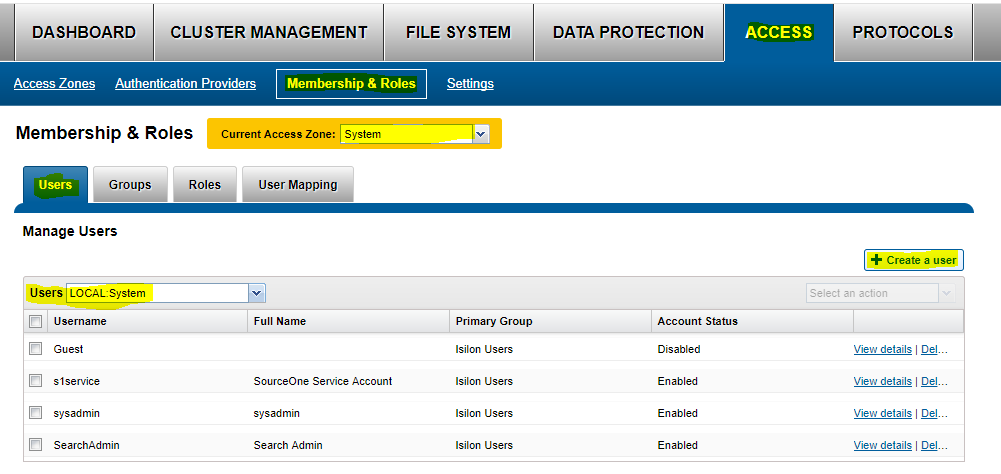
5- 다음을 입력합니다.
사용자 이름: "service Account name"
비밀번호: "service account password"
성명: SourceOne 서비스 계정
기본 그룹: ---> 그룹 선택을 클릭한 다음 공급업체 "LOCAL:system"을 선택하고 검색을 시작합니다. 여기에서 "Isilon 사용자
"를 선택합니다. 사용자 생성을 클릭합니다.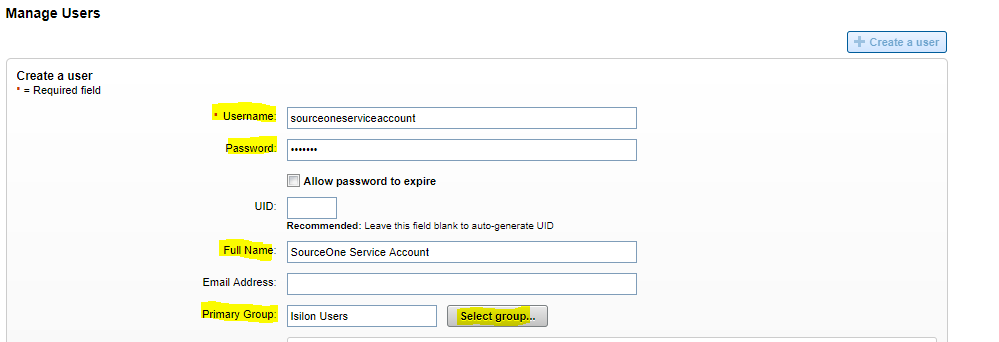
6- 사용자
활성화 이제 해당 사용자를 SMB 공유에 추가해야 합니다.1
- Protocol(프로토콜)로 이동한 다음 SMB Share(SMB 공유)로 이동합니다.
2 - 현재 액세스 존 선택: 시스템
3 - SourceOne SMB 공유에서 편집
4 - 사용자 및 그룹 편집을 선택한 다음"사용자 또는 그룹 추가"를 선택합니다. Local: 시스템 공급자를 선택하면 이전에 만든 SourceOne 서비스 계정을 찾을 수 있습니다. 전체 권한을 부여하고 사용자를 추가합니다. 서비스 계정을 먼저 입력하고 저장합니다.
5 - OneFS 측의 권한이 유효합니다.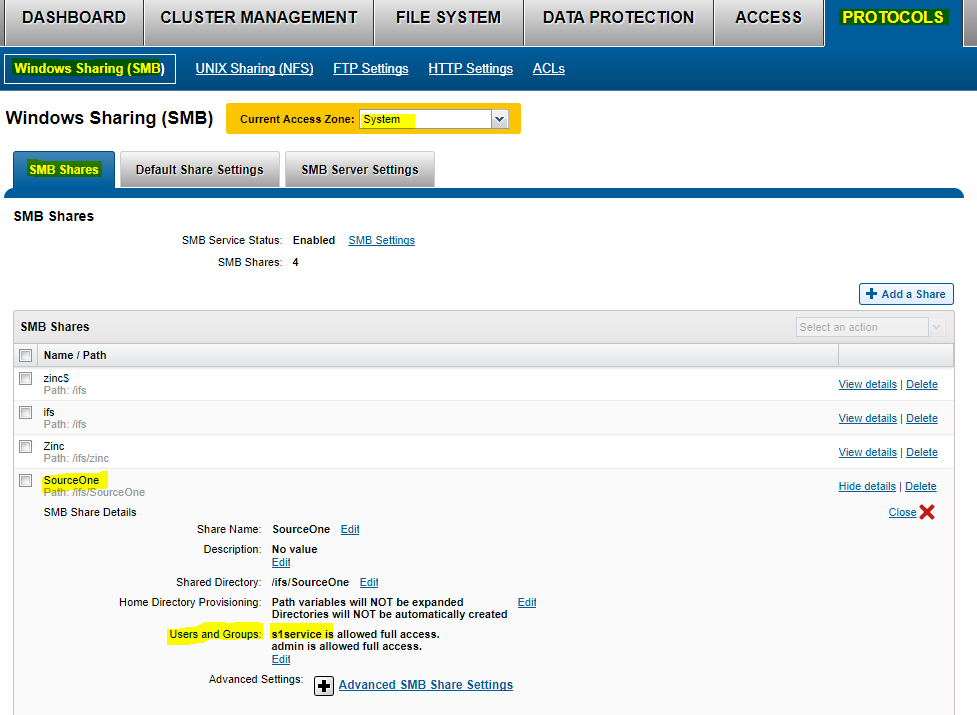
Affected Products
SourceOne for File SystemsProducts
SourceOne for File SystemsArticle Properties
Article Number: 000064614
Article Type: Solution
Last Modified: 27 Jun 2025
Version: 3
Find answers to your questions from other Dell users
Support Services
Check if your device is covered by Support Services.