SourceOne for File System — 对于 Isilon SMB 共享,使用“添加到还原列表”还原文件失败
Summary: SourceOne-for-File-System-Restoring-files-using-add-to-restore-list-failed-for-Isilon-SMB-share
This article applies to
This article does not apply to
This article is not tied to any specific product.
Not all product versions are identified in this article.
Symptoms
对于位于 Isilon SMB 共享上的文件,使用“添加到还原列表”还原文件会失败,而它适用于位于 Windows 共享文件夹中的文件。
在 ExJBRestore 上,显示以下错误:CExFileSystem::iWriteFileProperties|
VERBOSE|
iWriteFileProperties calling ::CreateDirectory with perm for \\?\UNC\SMBPath\sourceone_test\|
CExFileSystem::iWriteFileProperties|
VERBOSE|
Checking that user 'SourceOneServiceAccount' has write permissions to the directory '\\\?\UNC\SMBPath\sourceone_test\'|
CExFileSystem::iWriteFileProperties|
ERROR|
Error encountered checking permissions (0x80072147)|
CoExFileProvider::StoreDoc|
ERROR|
Failed to restore file to original location (MessageID). (0x86044701) The specified property 20 does not exist (0x86044002)|
CExRestoreThread::ProcessRun|
WARNING|
Failed restore item: Unable to verify that the user has required file system permissions to restore the file. Try restoring to an alternate location. (0x86044710)|
CExRestoreThread::ProcessRun|
ERROR|
CExRestoreThread failed msgid: MessageID result hr=86044710|
Cause
连接到 OneFS 并检查 SMB 共享。SourceOne 共享中不存在 SourceOne 服务帐户的用户。服务帐户需要在那里。
这是由于 Isilon 端缺少对 SourceOne 服务帐户的权限造成的。Isilon 需要一个用于身份验证的参考点,它可以是 LDAP、NIS 或本地用户。它需要在 UID 上有一个源才能识别。
这是由于 Isilon 端缺少对 SourceOne 服务帐户的权限造成的。Isilon 需要一个用于身份验证的参考点,它可以是 LDAP、NIS 或本地用户。它需要在 UID 上有一个源才能识别。
Resolution
连接到 OneFS。如果 SourceOne 服务帐户没有用户,您必须使用以下过程创建它:
创建 SourceOne 用户的步骤:
1- 从 OneFS 转到“访问权限”,然后单击 “成员资格和角色”
2- 选择当前访问分区:系统
3 — 单击“user”选项卡,然后选择您的提供商:“本地:System“
4- 单击右侧的 ”Create a User ”。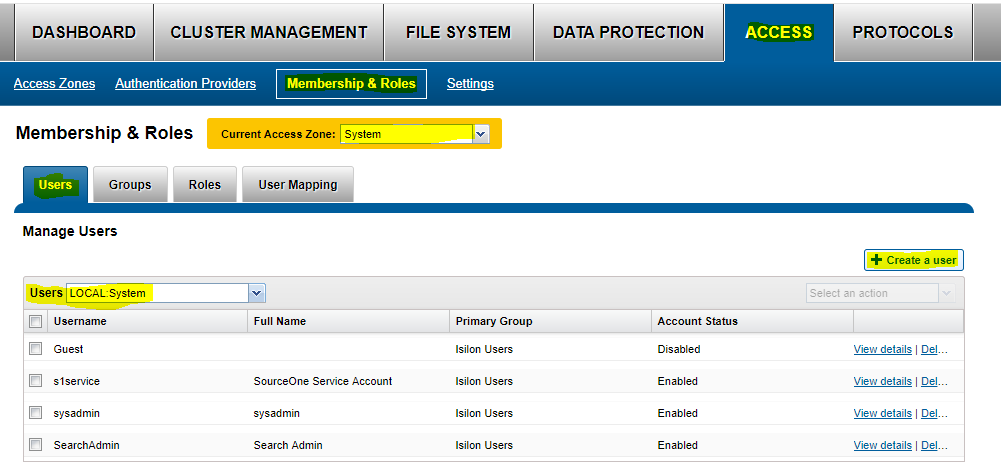
5- 填写以下内容:
用户名:“service Account name”
密码:“service account password”
Full Name:SourceOne 服务帐户
主组:--->单击 选择组, 然后选择提供程序 “LOCAL:system” 并开始搜索。在这里,选择 “Isilon 用户”
单击 创建用户。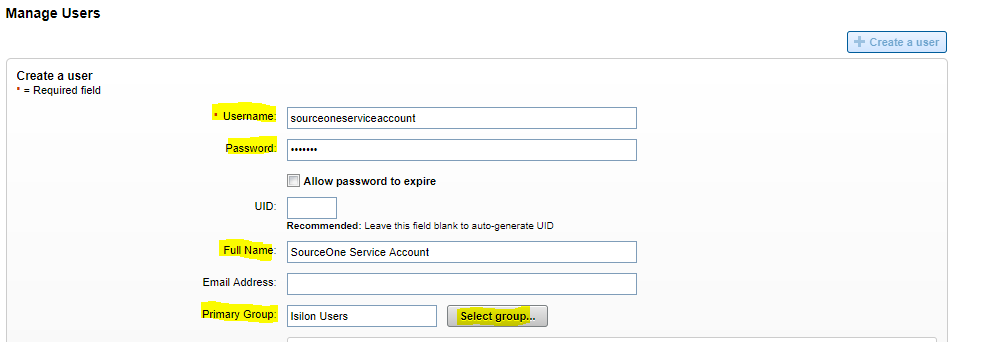
6 - 启用用户
现在,您需要将该用户添加到 SMB 共享:
1 - 转到 “协议”,然后转到 “SMB 共享”。
2- 选择当前访问分区:系统
3- 在 SourceOne SMB 共享上,选择 “编辑
4-编辑用户和组”,然后选择“添加用户或组”。选择 Local:系统提供商,您将找到之前创建的 SourceOne 服务帐户。授予完全权限并添加用户。首先输入服务帐户并保存。
5 - 现在,OneFS 端的权限正常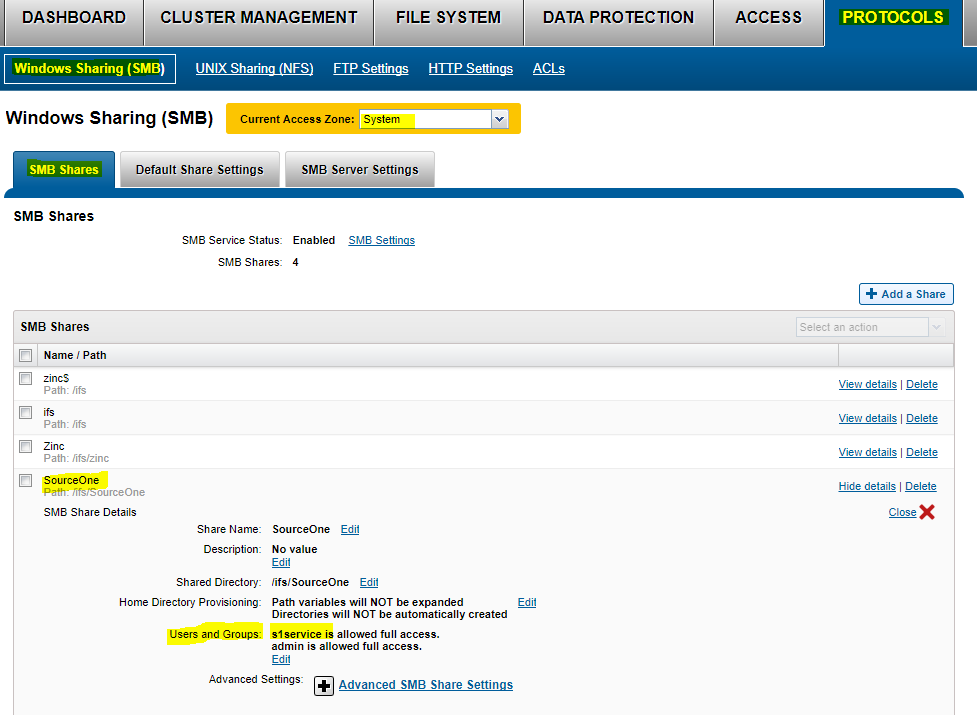
Affected Products
SourceOne for File SystemsProducts
SourceOne for File SystemsArticle Properties
Article Number: 000064614
Article Type: Solution
Last Modified: 27 Jun 2025
Version: 3
Find answers to your questions from other Dell users
Support Services
Check if your device is covered by Support Services.