Dell Data Guardian의 버전을 확인하는 방법
Summary: 다음 단계별 지침에 따라 Dell Data Guardian 버전을 식별하는 방법을 알아보십시오.
This article applies to
This article does not apply to
This article is not tied to any specific product.
Not all product versions are identified in this article.
Instructions
참고:
- 2019년 12월 현재 Dell Data Guardian은 지원 종료에 도달했습니다. 이 제품 및 관련 문서는 더 이상 Dell에서 업데이트하지 않습니다. 자세한 내용은 Dell Data Security의 제품 수명주기(지원 종료 및 EOL(End Of Life)) 정책을 참조하십시오. 다른 문서에 대한 질문이 있는 경우 영업 팀에 문의하거나 endpointsecurity@dell.com으로 문의하십시오.
- 최신 제품에 대한 자세한 내용은 엔드포인트 보안을 참조하십시오.
Dell Data Guardian 버전을 알면 다음을 수행할 수 있습니다.
- 알려진 문제 식별
- UI 차이점 확인
- 워크플로 변경 이해
영향을 받는 제품:
- Dell Data Guardian
영향을 받는 버전:
- 1.2 이상
영향을 받는 운영 체제:
- Windows
- Mac
참고: 버전을 확인하기 전에 Dell Data Guardian을 설치해야 합니다.
Dell Data Guardian의 버전을 확인하려면 Windows 또는 Mac을 클릭합니다.
Windows
- Windows 시스템 트레이에서 Dell Data Guardian 아이콘을 마우스 오른쪽 클릭한 후 정보(About)를 선택합니다.
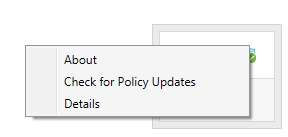
- Dell Data Guardian의 전체 버전을 기록합니다.
 참고: 클라이언트 버전이 위의 스크린샷과 다를 수 있습니다.
Mac
- Dell Data Guardian 애플리케이션을 엽니다.
- 권한이 있는 사용자의 이메일 및 비밀번호를 입력한 후 로그인(Login)을 클릭합니다.
 참고:
참고:- 승인된 UPN을 이메일 대신 사용할 수 있습니다.
- 메뉴 표시줄에서 Dell Data Guardian을 선택한 후 Dell Data Guardian 정보(About Dell Data Guardian)를 클릭합니다.
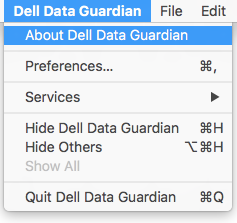
- Dell Data Guardian의 전체 버전을 기록합니다.
 참고: 클라이언트 버전이 위의 스크린샷과 다를 수 있습니다.
Additional Information
Videos
Affected Products
Dell Data GuardianArticle Properties
Article Number: 000124602
Article Type: How To
Last Modified: 13 Feb 2025
Version: 12
Find answers to your questions from other Dell users
Support Services
Check if your device is covered by Support Services.