HDMI to DisplayPort (DP) Adapter Conversion Information
Summary: Resolve no video issues with HDMI to DisplayPort adapters. Learn about active and passive options, ensuring compatibility with Dell computers.
This article applies to
This article does not apply to
This article is not tied to any specific product.
Not all product versions are identified in this article.
Instructions
HDMI to DisplayPort Conversion
There has been some confusion when using HDMI to DisplayPort (DP) or the opposite way adapters on Dell computers. There are two types of conversion adapters that can be used, the first is an active adapter, and the second is a passive adapter type. Most adapters only carry a one-way signal.
What is the difference between a passive and active DisplayPort converter?
When you convert video from a source that uses DisplayPort or Mini DisplayPort to DVI or HDMI (ex: A computer to a monitor). Consider the difference between passive and active adapters.
If the source supports dual-mode DisplayPort (also known as DP++), then you can use a passive adapter because the source can perform the conversion. If the source does not support DP++, then you must use an active converter, which includes additional chips to perform the conversion.
Thunderbolt ports support DP++ natively. To run multiple monitors from the same computer, see the Active Adapters section below.
- Active Adapter:
Active adapters use additional chips to make the conversion inside the adapter, regardless of whether the source supports DP++. This means that active adapters are more expensive than passive adapters.
If you want to use multiple monitors with the same computer. You should use an active adapter because some video cards cannot run the maximum number of monitors while using DP++. This is especially true if the computer has more than one DisplayPort or Mini DisplayPort connection. Check with your video card manufacturer to confirm which type of adapter you need for the setup that you would like to run.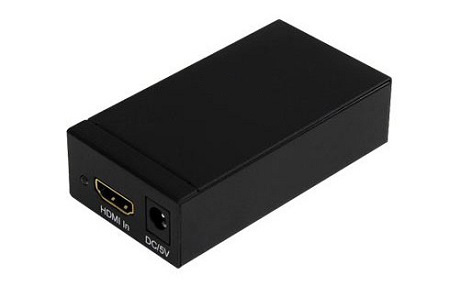
Active Adapter HDMI Port
Active Adapter DisplayPort
- Passive Adapter:
Passive adapters are less expensive since they do not need to include additional chips. To check whether you can use a passive adapter, is to see if the DisplayPort, or Mini DisplayPort source has the DP++ symbol above it. The symbol is a D with a P inside, with two + signs to the left, one on top of the other.
Passive DisplayPort to HDMI Adapter
Dual Mode DisplayPort, DP++ Symbol
More Information
More information about HDMI and DisplayPort can be found in the links below:

Affected Products
Alienware, Dell All-in-One, Dell Pro All-in-One, Dell Pro Max Micro, Dell Pro Max Slim, Dell Pro Max Tower, Dell Pro Micro, Dell Pro Slim, Dell Pro Tower, Dell Slim, Dell Tower, Inspiron, Legacy Desktop Models, OptiPlex, Vostro, XPS, G Series
, G Series, Alienware, Dell Laptops, Dell Plus, Dell Pro, Dell Pro Max, Dell Pro Plus, Dell Pro Premium, Inspiron, Latitude, Dell Pro Rugged, Vostro, XPS, Legacy Laptop Models, Fixed Workstations, Mobile Workstations, Dell Pro Max Micro XE FCM2250, Dell Pro Max Slim XE FCS1250, Dell Pro Max Tower T2 XE FCT2250, Dell Pro Max 16 XE MC16250, Dell Pro Micro Plus XE QBM1250, Dell Pro Slim Plus XE5 QBS1250, Dell Pro Tower Plus XE5 QBT1250
...
Article Properties
Article Number: 000125170
Article Type: How To
Last Modified: 22 Jul 2025
Version: 10
Find answers to your questions from other Dell users
Support Services
Check if your device is covered by Support Services.